


Congratulations! You’ve just taken the plunge into the thrilling world of portable gaming computers, unboxing a powerful new device! That feeling of holding a handheld gaming computer in your hands, ready to play hundreds of games, is electrifying! But for newcomers, the big question often arises: “Now what?” This easy handheld gaming setup guide is designed to be your stress-free roadmap, helping you navigate your initial handheld gaming setup from the moment you open the box to launching your very first game.
Whether you’ve chosen a Windows-based portable gaming PC or a versatile gaming Android handheld, the first few steps are crucial for a smooth experience. We’ll demystify system updates, guide you through understanding your new device’s interface, and, most importantly, show you exactly where and how to get all the amazing games these devices are built to play. Get ready to transform your new mobile gaming PC from a cool gadget into your ultimate gaming companion and more with this easy handheld gaming setup walkthrough!
First Boot & Essential Updates: Your Initial Handheld Gaming Setup
The moment you power on your new handheld gaming computer is exciting! You’ll typically be guided through a series of initial setup prompts, much like a new laptop or smartphone.
Initial Configuration
Follow the on-screen instructions to select your language, region, and connect to your home Wi-Fi network. For Windows devices, you’ll set up your user account. For Android devices, you’ll log in with your Google account.
System Updates are Crucial
This is arguably the most important first step for any portable gaming handheld.
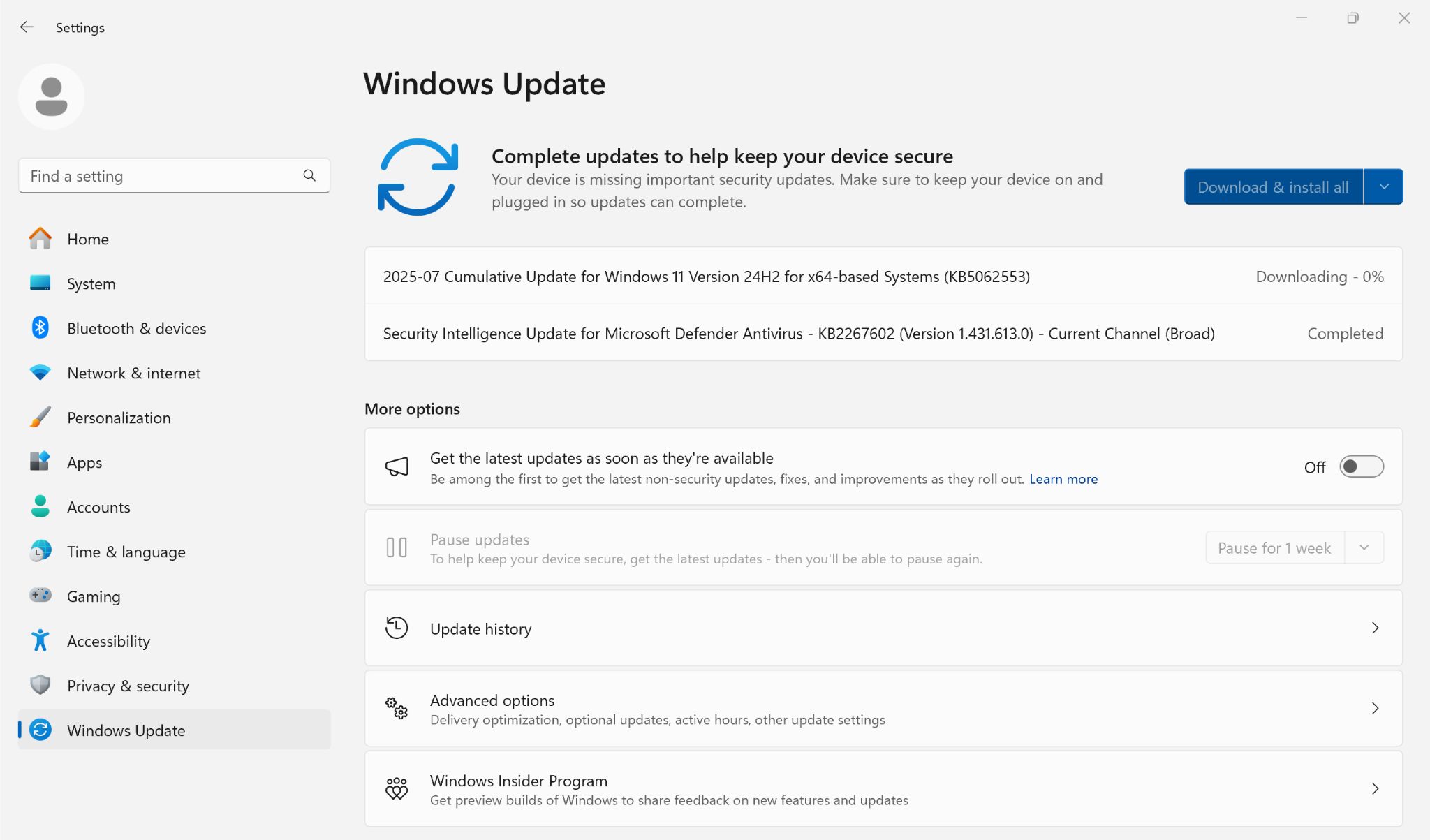
For Windows Handhelds (GPD, ONEXPLAYER, AYANEO)
- Once connected to Wi-Fi, immediately check for Windows Updates. Go to Start > Settings > Windows Update and install all available updates. Use their provided software (like AYASpace for AYANEO devices) to download and install the latest drivers and firmware. These updates are vital for performance, stability, and control functionality. Check our Knowledge Base – Windows Gaming Handhelds section for guides & updates such as BIOS and firmwares specific to your device.
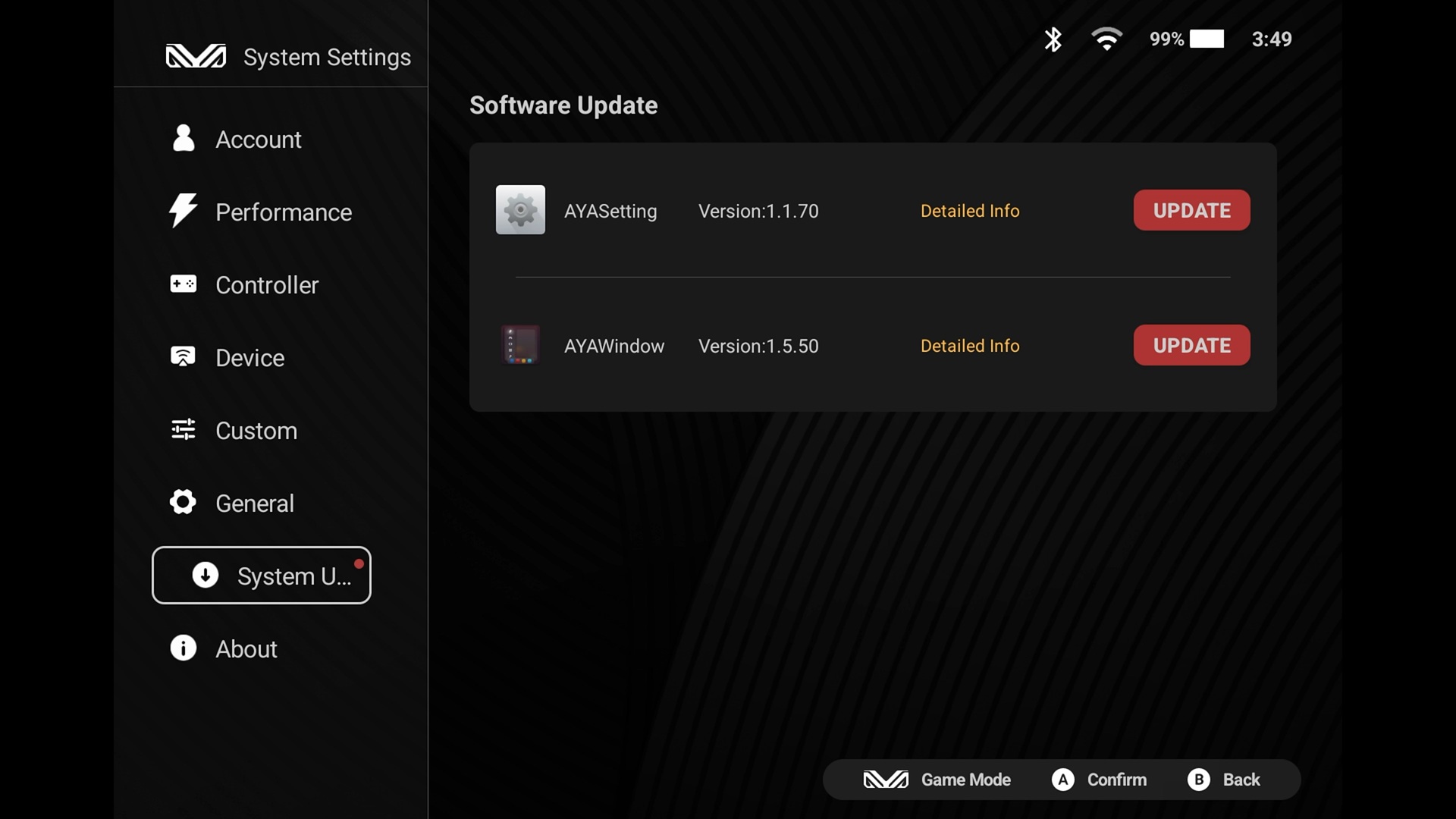
For Android Handhelds (AYANEO, Retroid, AYN)
- Go to Settings > System > System update (or similar) to download the latest firmware and updates from your manufacturer. Some devices such as AYANEO have their own software (AYASPACE) to check and update. These updates often improve performance, add features, and fix bugs specifically for your Android gaming device.
Initial Charge
While most devices come with some charge, it’s a good idea to plug your new handheld gaming computer in during the setup process, especially while downloading and installing updates.
Completing these initial steps ensures your handheld gaming setup is running on the latest software, ready for optimal performance.
Understanding Your New Handheld’s Interface: Getting Comfortable
Your handheld gaming setup feels familiar in your hands, but how do you navigate its digital world?
For Windows Handhelds
Your device runs a full version of Windows, just like a desktop PC. You’ll see the familiar desktop, Start Menu, and taskbar. The integrated controls (joysticks, D-pad, buttons) often act like a mouse and keyboard – the left joystick typically moves the cursor, and face buttons act as left/right clicks. The built-in physical keyboard on devices like the GPD WIN Mini 2025 or GPD WIN MAX 2 2025 makes typing easy. You can also connect a standard mouse and keyboard via USB for a desktop experience.
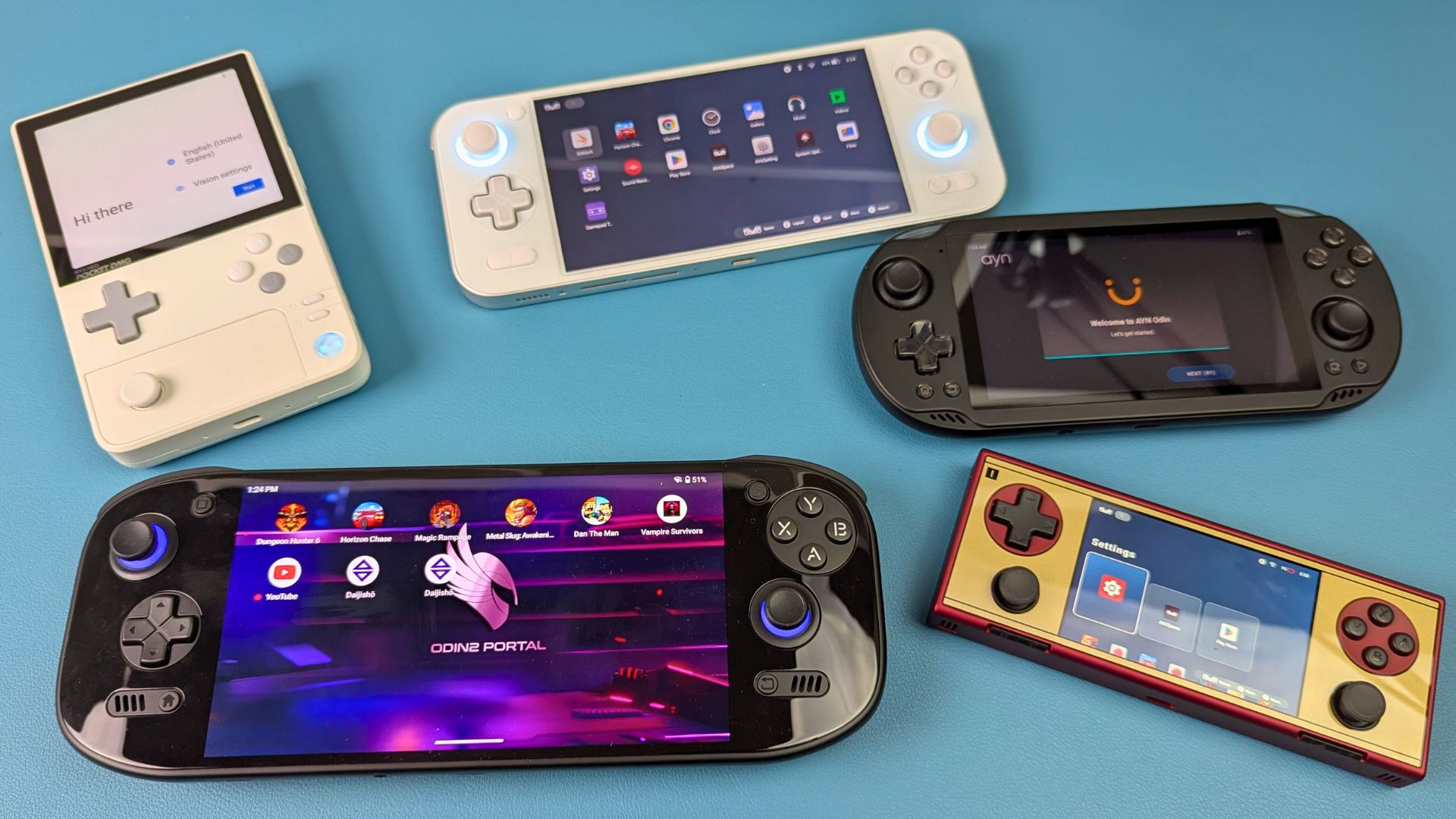
For Android Handhelds
These devices run a customized version of Android, similar to a tablet or smartphone, but optimised for gaming. You’ll find a home screen with app icons, an app drawer, and a notification shade. Navigation is primarily via the integrated controls, which seamlessly interact with Android’s interface and games. You can also use the touchscreen, of course.
Getting comfortable with these basics is crucial for a smooth handheld gaming setup.
Optimising Your Handheld: Boosting Performance & Battery
To truly get the most out of your new portable gaming PC or gaming Android handheld, understanding a few optimisation basics is key. This is a crucial step in refining your handheld gaming setup.
Windows Handhelds (TDP Adjustment)
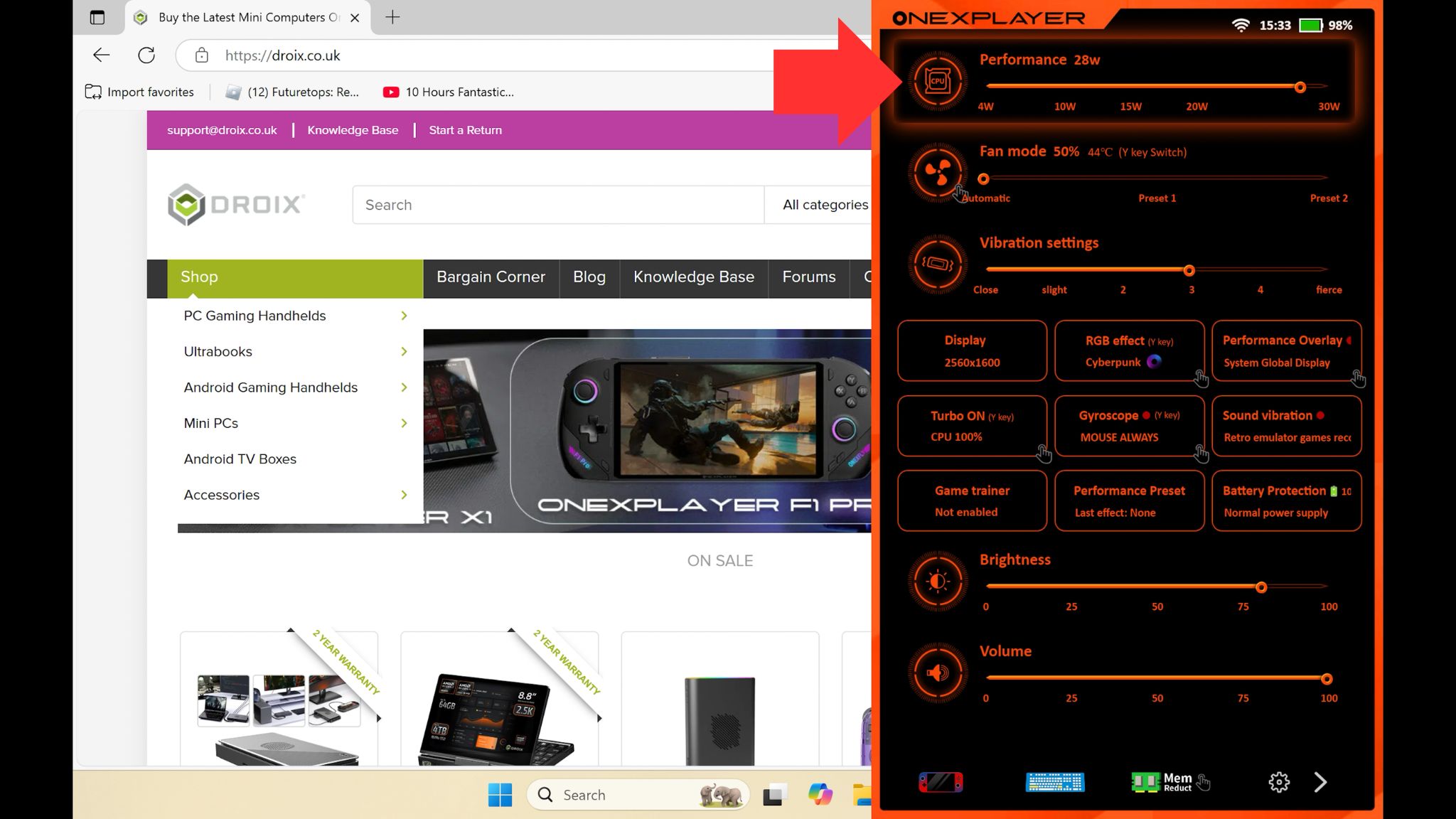
For Windows-based devices like the GPD WIN 4 2025, ONEXPLAYER ONEXFLY F1 Pro, and GPD WIN MAX 2 2025, you can often adjust the TDP (Thermal Design Power) – essentially the power limit of your processor. Lowering the TDP (e.g., from 28W to 15W) can reduce heat and fan noise, and significantly extend battery life for less demanding games, while still offering excellent performance. For more intensive titles, you can increase the TDP to unlock maximum power. Many manufacturers provide easy-to-use software (like GPD Motion Assistant or AYASpace for AYANEO 3) to adjust this dynamically.
Android Handhelds (Performance Profiles)
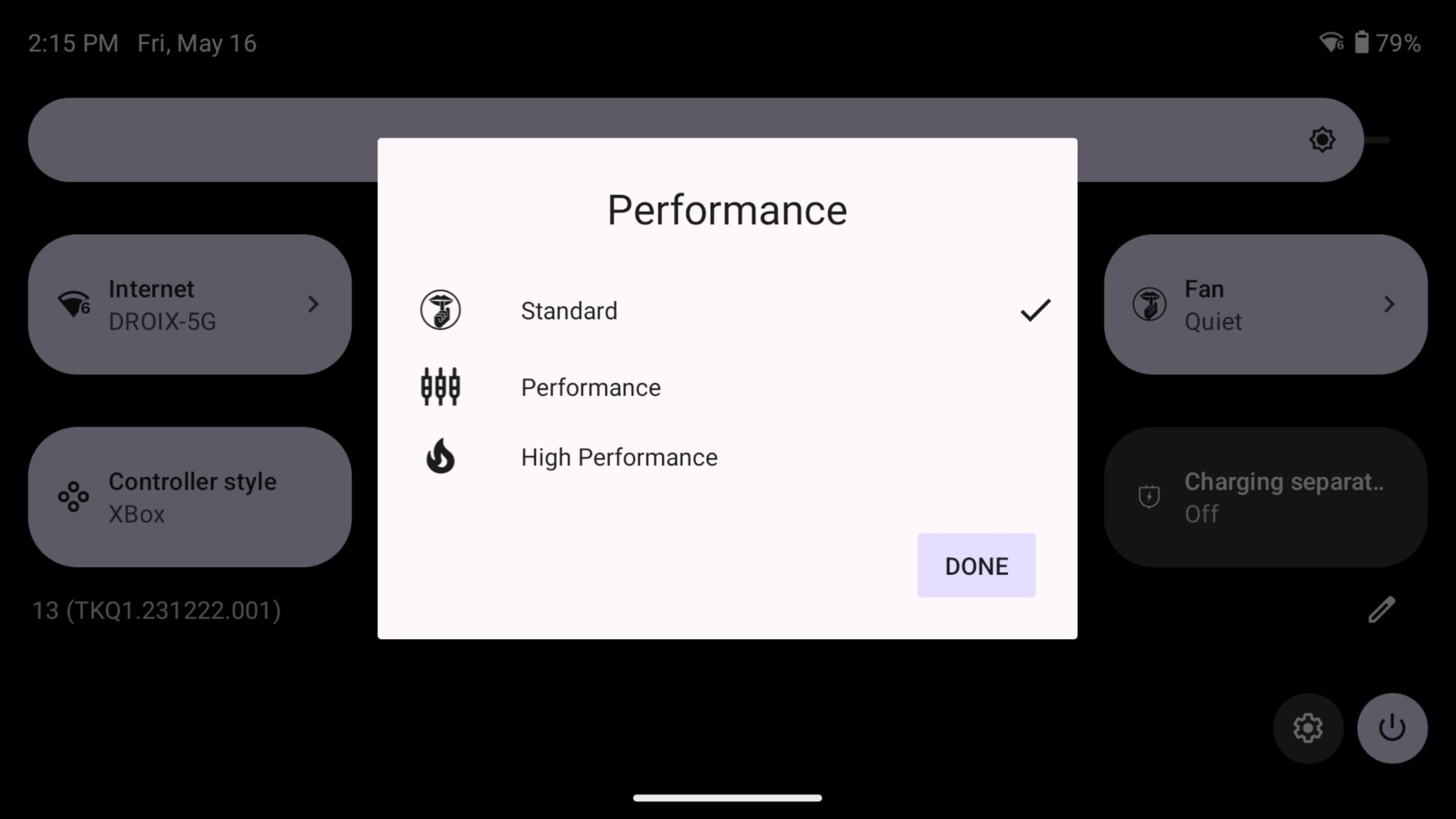
Android gaming devices like the AYN Odin2 models or AYANEO Pocket ACE often feature built-in performance profiles (e.g., “Battery Saver,” “Balanced,” “High Performance”). Switching between these profiles is a simple way to balance power consumption and game fluidity. Selecting a lower profile will save battery, while a higher one will push more power to the CPU/GPU for demanding games or high-end emulation.
For an in-depth guide on how to change TDP and performance profiles on your specific device, including detailed steps for Windows and Android, be sure to read our comprehensive article: Changing the TDP or performance profile on your Windows & Android handheld. This knowledge is invaluable for fine-tuning your handheld gaming setup. You can test your setup by benchmarking with popular software such as 3DMARK, we have a guide how to setup and run benchmarks on your handheld.
Getting Your First Games: Unlocking Your Digital Libraries
Now for the fun part: filling your new portable gaming computer with games! These devices offer incredible access to vast game libraries.
For Windows Handheld Gaming PCs (GPD, ONEXPLAYER, AYANEO)
Your Windows handheld gaming PC can access almost any PC game store and launcher.
Steam
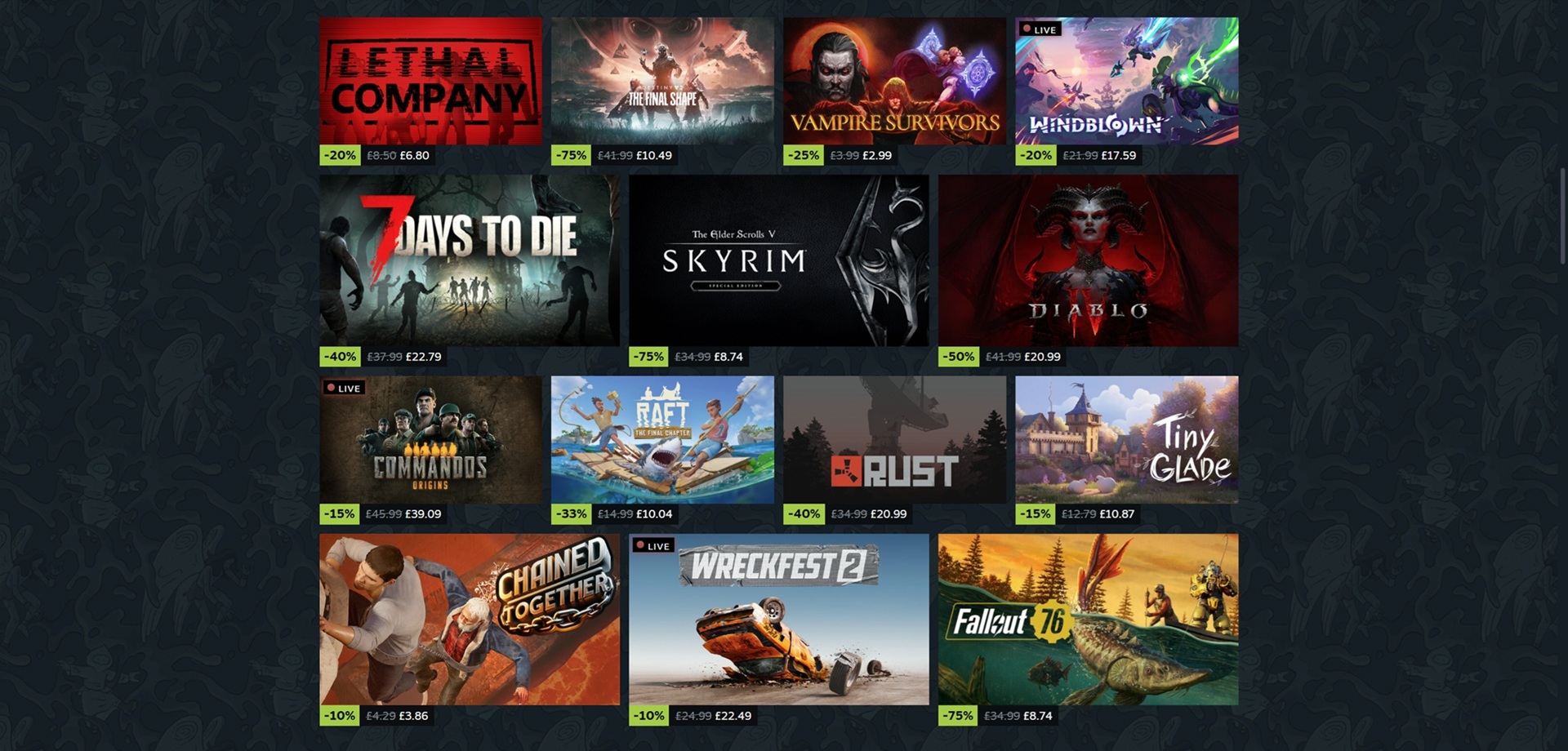
This is likely your primary source. Download and install the Steam client from the official website. Once installed, log in to your account. Steam’s “Big Picture Mode” is specifically designed for controller navigation on devices like the GPD WIN 4 2025 and AYANEO 3, making it perfect for your handheld gaming setup.
Other PC Game Stores
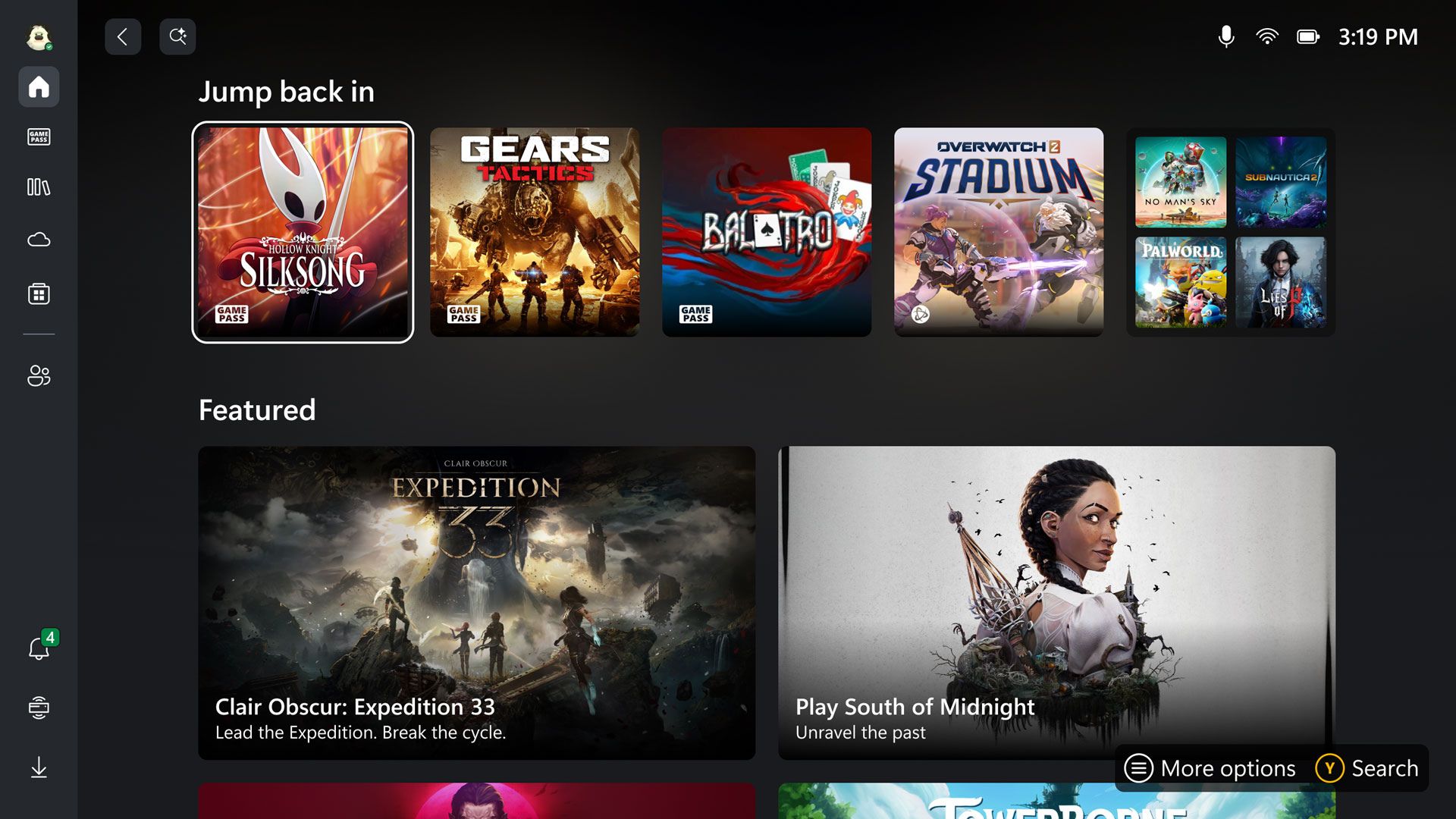
Don’t stop at Steam! You can download and install clients for Epic Games Store (look out for their free weekly games!), GOG (for DRM-free titles), and the Xbox App for Xbox Game Pass for PC, offering a massive library for a subscription.
Managing Downloads and Storage
PC games can be large. Ensure your handheld gaming computer has enough space (e.g., the spacious SSDs of an ONEXPLAYER X1 Pro). Consider adding a high-capacity Micro SD card, all models support it, for extra game storage.
For Android Gaming Handhelds (AYANEO, Retroid, AYN)
Your Android gaming device opens up a huge world of mobile-first titles and beyond.
Google Play Store:
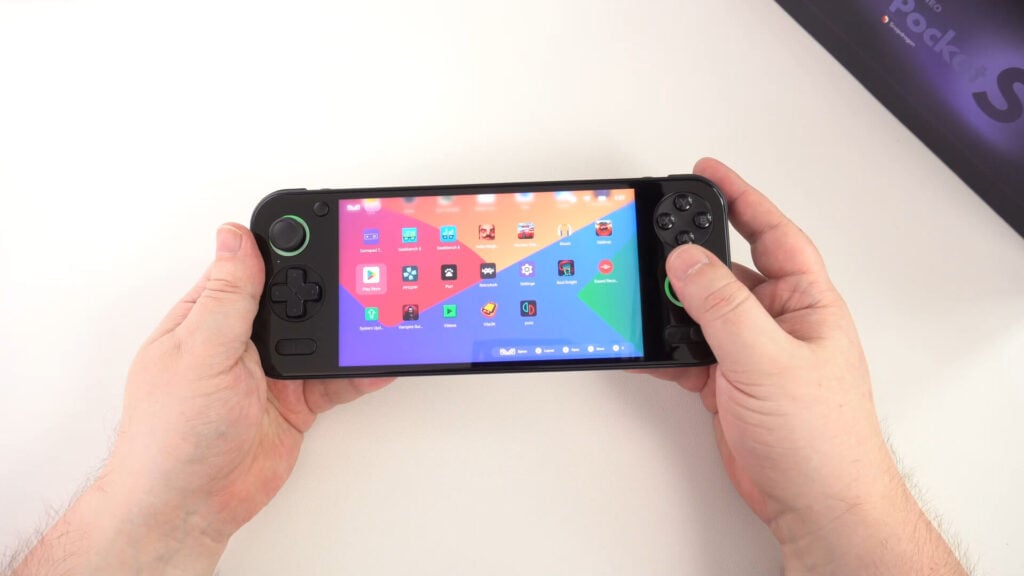
The most straightforward way to get games. Log in with your Google account, open the Play Store app, and browse the games. Look for games that advertise controller support for the best experience on your AYN Odin2 model or AYANEO Pocket ACE. Though do remember all devices now have built-in screen mapping so you can also play games that do not natively have controller support, check out our screen-mapping guide here.
Alternative App Stores / Sideloading
Some users explore alternative app stores or “sideload” APK files (installing apps from outside the Play Store). While this offers more choice, always exercise caution and only download from trusted sources to avoid malware.
Managing Storage
Android games and their data can also take up significant space. Use your device’s internal storage efficiently and consider adding a high-capacity Micro SD card (all devices support them) to expand your game library on your AYANEO Pocket S or AYANEO Pocket DMG for example.
Cloud Gaming: Play Without Installing (Optional Next Step)
Beyond local installs, many portable gaming computers are fantastic for cloud gaming. Services like Xbox Cloud Gaming, GeForce NOW, and PlayStation Plus Premium let you stream games over the internet without needing to download them or have powerful local hardware. If your internet connection is fast and stable, this can drastically expand your playable library! You can find an in-depth guide on setting this up in our article: Why Wait? Cloud Gaming Power is HERE on Your Handheld PC, Right Now!. This is also supported on Android devices, though you may have to sideload some apps due to official restrictions.
A Gentle Introduction to Emulation: Revisit Classics (Optional Next Step)
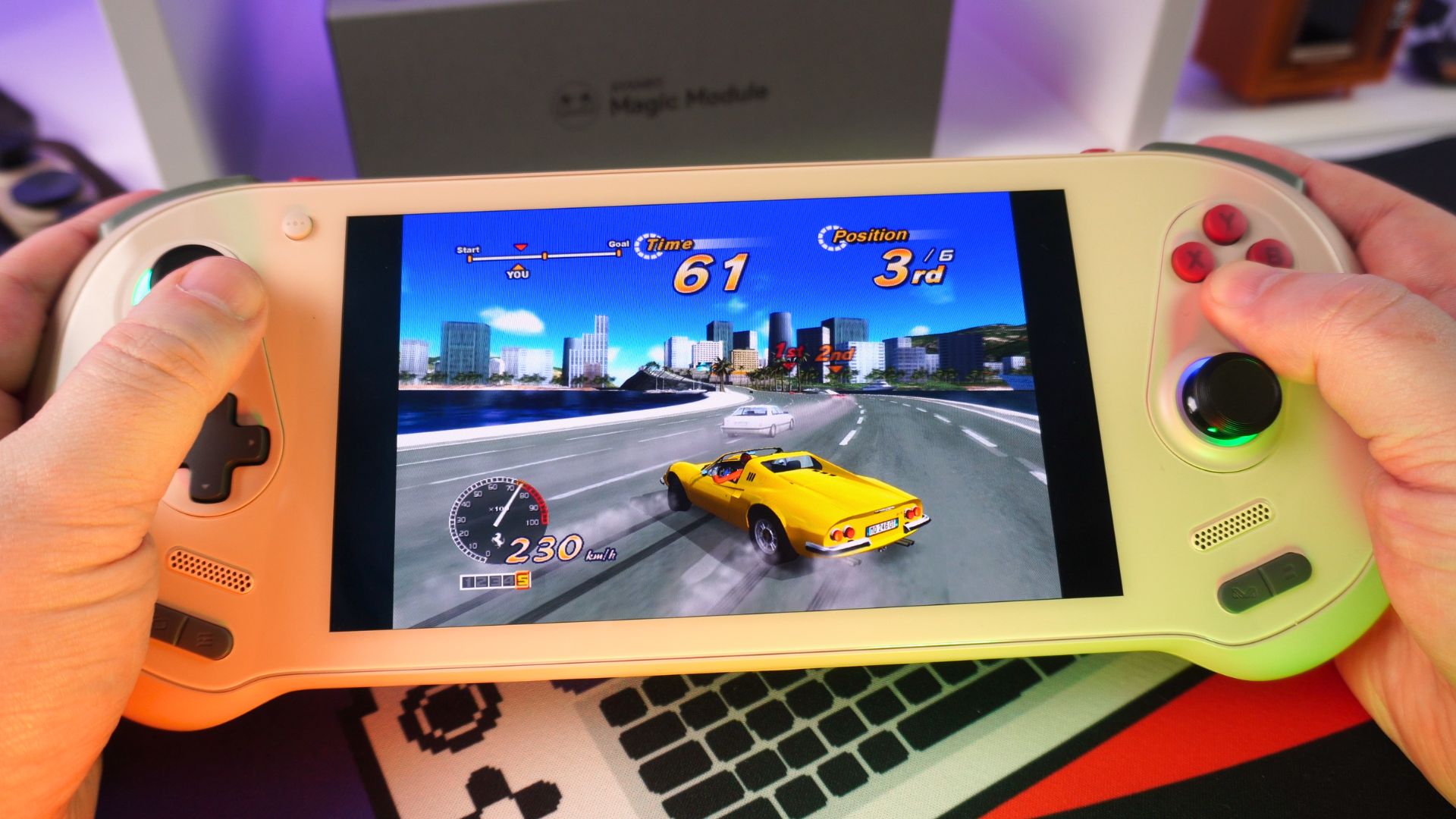
One of the most popular uses for any handheld gaming computer is emulation – playing games from older consoles (like NES, SNES, PS1, N64) or even arcade machines.
What it is
Emulation software mimics the hardware of older systems, allowing you to run their game files (ROMs) on your modern device.
Getting Started
For a beginner’s handheld gaming setup, start with well-established multi-system emulators like RetroArch (available for both Windows and Android). These simplify the process. See our RetroArch install guide here.
Finding ROMs
Always ensure you legally own the games you emulate.
Front-Ends
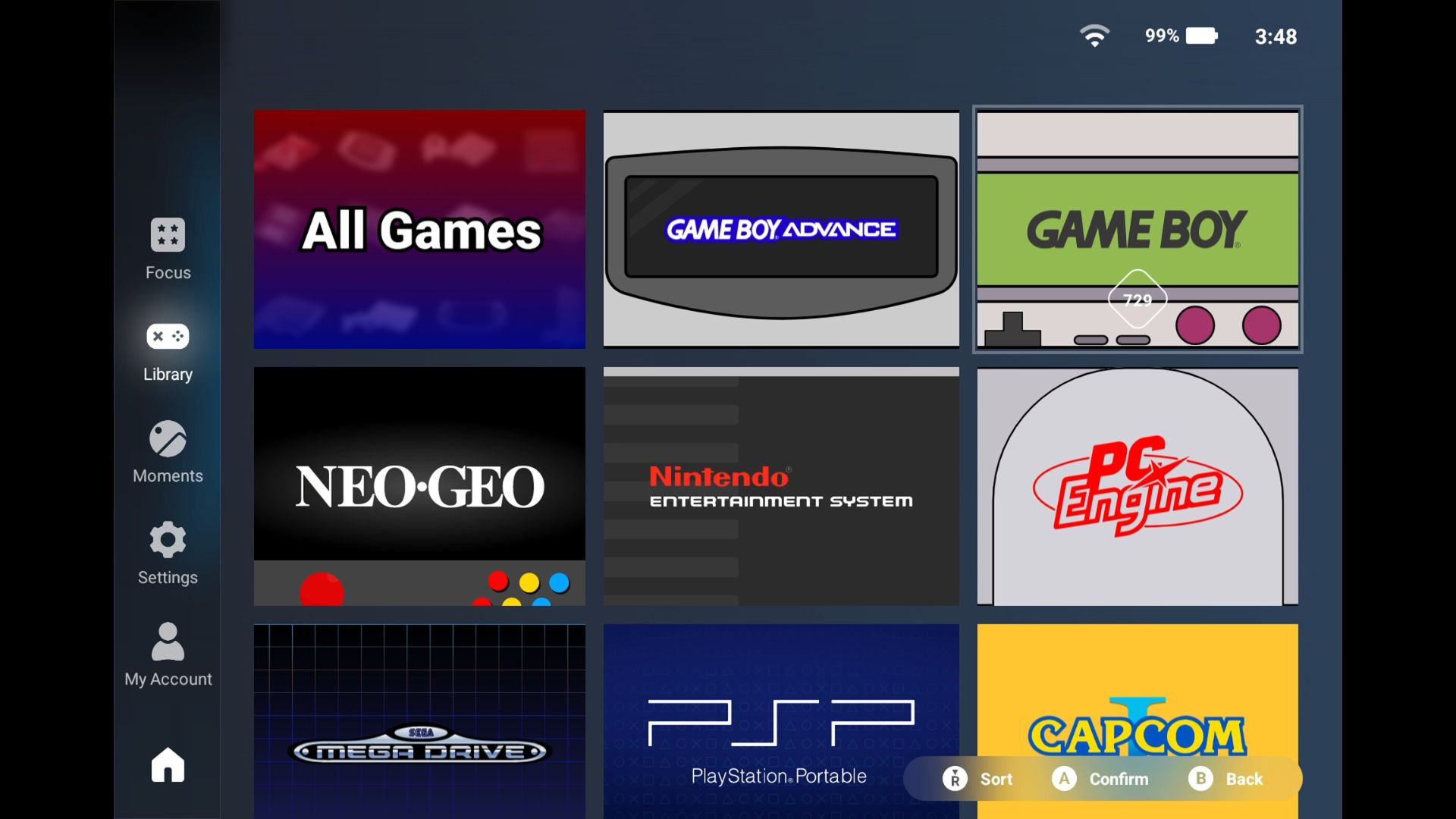
As your retro collection grows, you might want a “front-end” – a beautiful graphical interface that organises all your emulators and ROMs into one easy-to-browse library. Learn more about these amazing tools in our guide: Beyond Basic Emulation: The Ultimate Guide to Retro Handheld Front-Ends Customisation.
Essential First Accessories: Completing Your Handheld Gaming Setup
To protect your investment and enhance your initial experience, a few accessories are highly recommended for your handheld gaming setup:
Always use protection
An absolute must-have to guard against scratches on your device’s display is a screen protector. A sturdy case will also shield your mobile gaming PC from bumps and drops during transport. You can find a range of accessories for handhelds here.
Portable Monitor
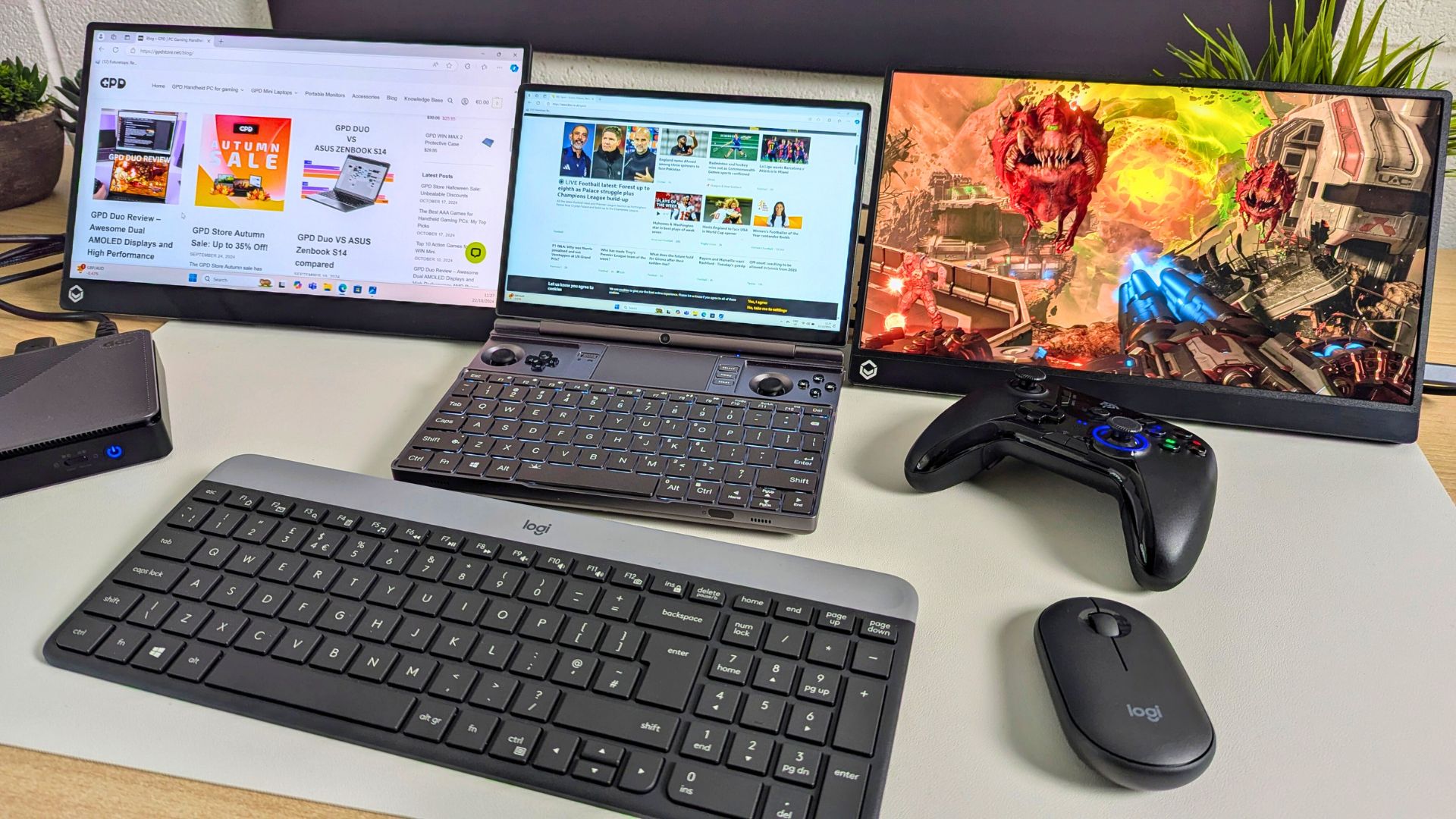
A portable monitor such as the DROIX 15.6″ 4K portable monitor can be a very handy solution for those on the go that may want a larger display or even a second screen to work with. The portable monitor has a USB-C input so you can simply connect and power it with one cable from your handheld. We do recommend a charger but the single cable makes it very versatile!
A graphics boost with an eGPU
If you want to get maximum performance from your Windows handheld then there are a wealth of external GPUs (eGPU) available to choose from. The GPD G1, AYANEO AG01 and ONEXPLAYER ONEXGPU all feature the AMD Radeon RX 7600M XT GPU, and the ONEXPLAYER ONEXGPU 2 features the Radeon RX 7800M for the best performance.
High-Speed Micro SD Card
If your device supports it, this provides crucial extra storage for games, especially large PC titles or extensive ROM libraries.
Portable Power Bank
For longer gaming sessions away from a power outlet, a good power bank with USB Power Delivery (PD) is invaluable.
Conclusion: Your Gaming Journey Begins!
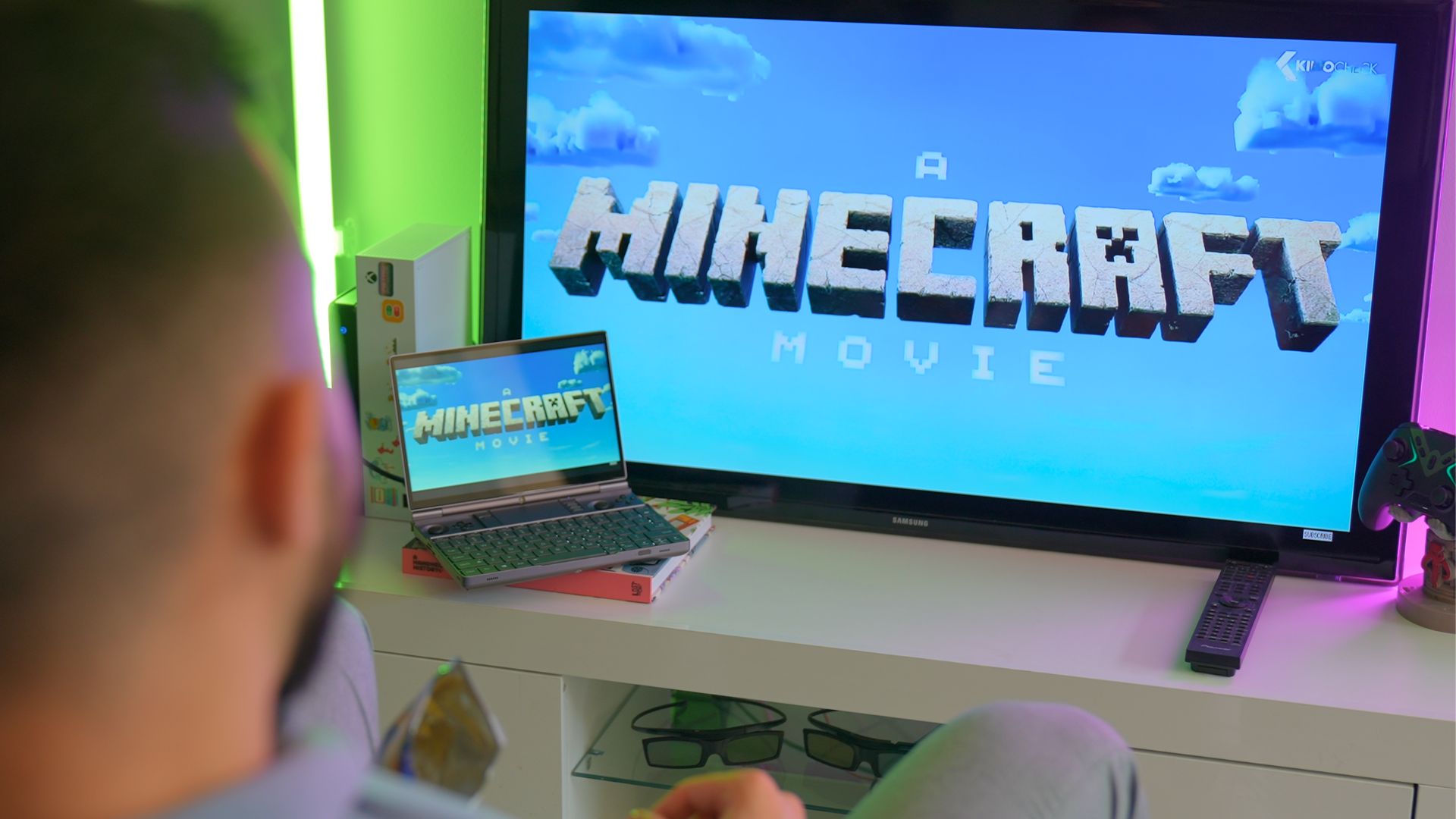
Getting started with your first handheld gaming computer is an exciting adventure, and with this guide, your initial handheld gaming setup should be a breeze. From updating your system to exploring vast game libraries and even dabbling in emulation, you’re now equipped to make the most of your portable gaming computer. Don’t be afraid to experiment and discover all the amazing experiences your new device has to offer! Need some more inspiration? Check out our handheld PC for everyday use article here for some great additional uses.
What was your experience like setting up your first handheld gaming computer? Share your tips for newcomers in the comments below!