



Ebben a cikkben
With some of our older models, you are given the option to have XBMC act as your Android device’s launcher. This article is not relevant to MCE or openELEC device owners.
If you set this option, it means the device will immediately boot straight into XBMC (much like adding it as an AutoStart entry with Startup Manager (Free)) but you will not be able to exit XBMC into one of the other launchers.
If you change your mind and want to be able to access either the default Android stock launcher, or (if included), one of our DroidBOX® customer launchers, follow the steps below.
Obviously we’ll assume you’re starting these steps from within XBMC. Return to the homescreen, and scroll to the Programs entry and select it. Now click the Android Apps entry, and locate „Settings”. From here, select the Apps menu (if you can’t find one, select the OTHER tab and click on the Advanced/More settings button first).
In this list of installed apps, you’ll find an entry with XBMC in its title, please click on it. Now scroll down to where it says Launch By Default and click the Clear Defaults button.
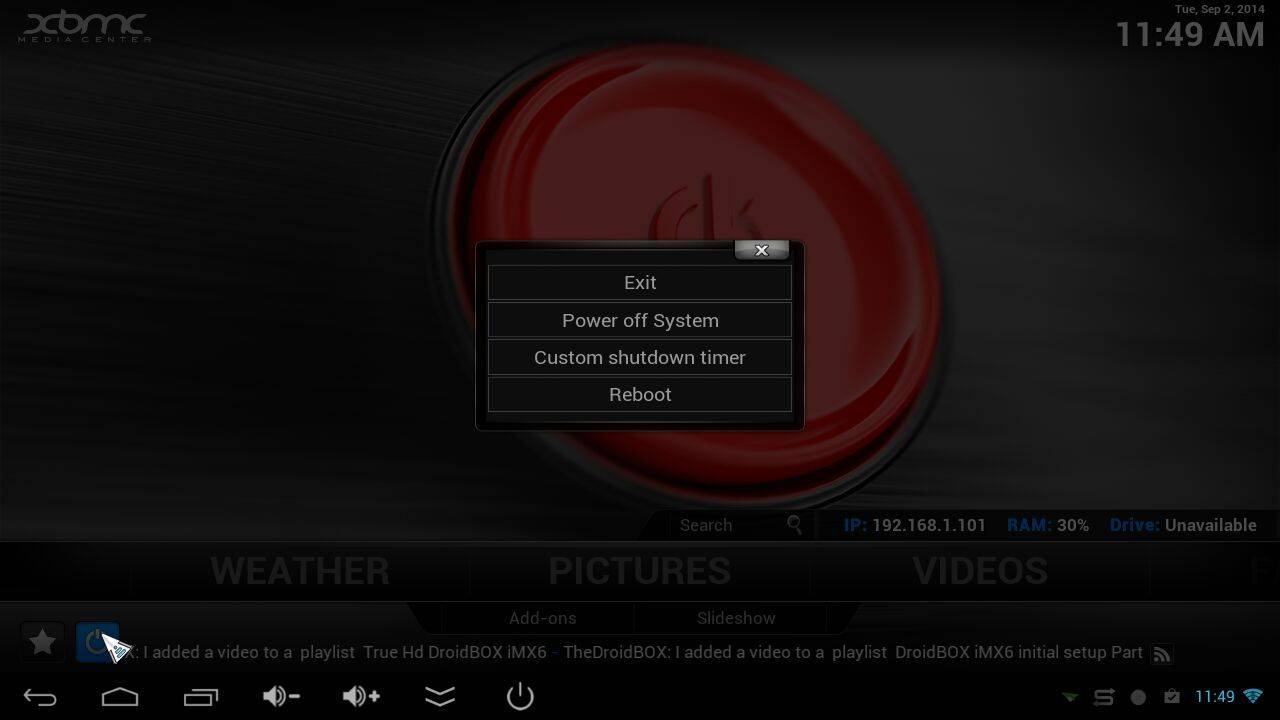
Press the Go Back (Return) key on your keyboard until you are in XBMC, and exit it via the power/standby button. Reboot your machine and you should now find you’re asked which launcher to use. If you want to experiment before deciding, click on a launcher and select Just Once. When you’re certain which launcher you want to automatically appear when you press the home button or exit a program, select the Always button instead.

Kérdések és megjegyzések
0
Minden kérdés választ kap. Kérdezzen a vásárlás előtt — DROIX és a csapat egy munkanapon belül válaszol, a válaszok pedig nyilvánosak maradnak, hogy segítsenek a következő olvasónak.