




The GPi case has two input modes: Hat mode and Axis mode. Emulators generally have better compatibility with Axis mode and some Micro SD Card images may use this mode by default. The GPi case by default uses Hat mode.
If you find you are unable to navigate on the Retropie Menus for example you will need to switch input modes.
Axis Mode
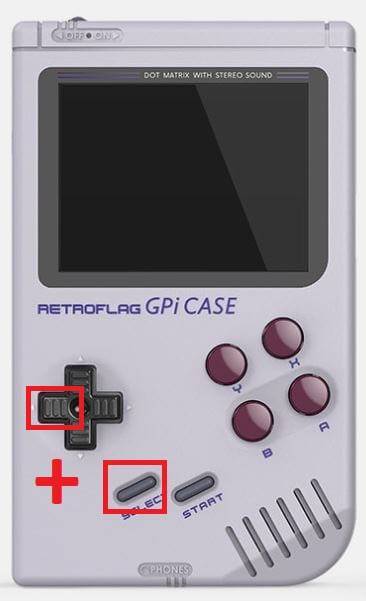
To switch to Axis mode, simply hold the LEFT D-PAD and SELECT for around five seconds until the Power LED flashes purple.
NOTE – On some models this has now been updated to LEFT D-PAD and START. Please try this if SELECT does not work.
Hat Mode
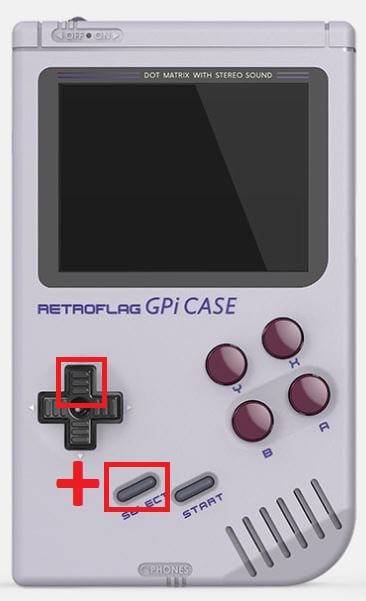
To switch back to Hat mode, hold the UP D-PAD and SELECT for around five seconds until the Power LED flashes purple.
NOTE – On some models this has now been updated to UP D-PAD and START. Please try this if SELECT does not work.
Questions & answers