




The landscape of portable gaming is in a state of continuous advancement, and with the release of the GPD WIN 5, enthusiasts can now harness the power of a cutting-edge storage solution: the BIWIN Mini SSD. This innovative, more compact solid-state drive is engineered to provide exceptional performance within a small footprint, positioning it as an ideal upgrade for mobile hardware. This document will serve as a comprehensive walkthrough of the Mini SSD’s features and guide you on maximizing its potential with your GPD WIN 5, empowering you to make a well-informed decision.
This manual will focus specifically on the technical specifications of the Mini SSD and the performance you can anticipate when it is installed in your GPD WIN 5. Upon finishing this guide, you will possess a thorough understanding of the installation and configuration process for a Mini SSD on the WIN 5 GPD handheld gaming computer.
The Mini SSD
The Mini SSD operates on a PCIe Gen4 x2 interface and supports the NVMe 1.4 protocol, offering remarkable potential sequential read and write speeds reaching up to 3700MB/s and 3400MB/s, respectively. It is offered in 512GB, 1TB, and 2TB storage options. This drive, which functions without a DRAM cache, employs 3D TLC flash memory to ensure a good mix of speed and durability. Engineered for reliability, the Mini SSD boasts a Mean Time Between Failures (MTBF) exceeding 1.5 million hours and a Terabytes Written (TBW) endurance rating as high as 1500 TBW.
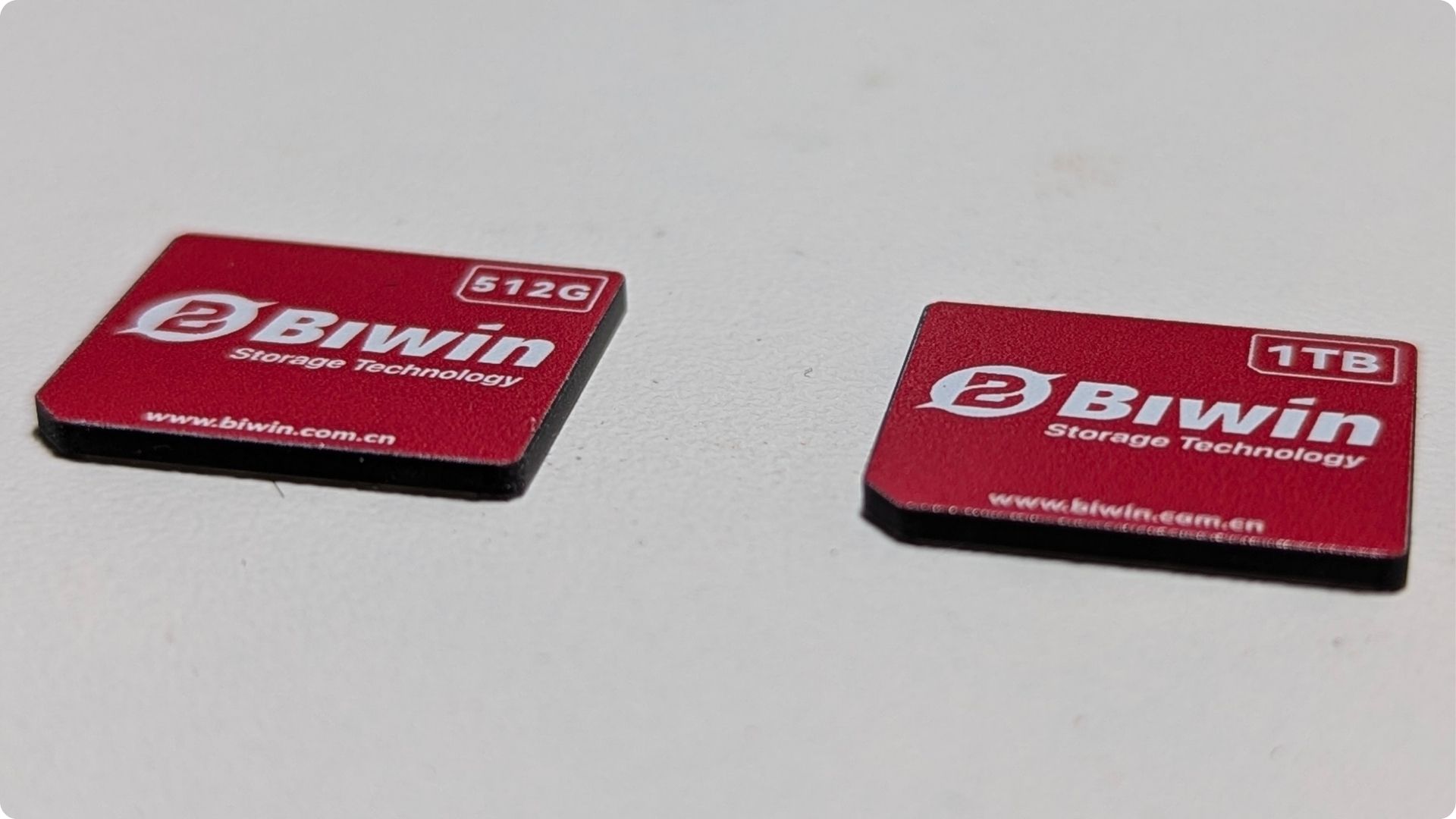
It is crucial, however, to understand the interplay between the GPD WIN 5’s internal hardware and this high-performance drive. The GPD WIN 5 is equipped with a PCIe 4.0 x1 slot for storage, its performance will be constrained by the single PCIe lane to a theoretical peak of approximately 2000MB/s. In practical terms, users can expect speeds around 1700MB/s for both reading and writing data. Although this is a bottleneck, it represents a vast improvement compared to slower storage types like Micro SD cards and delivers more than sufficient bandwidth for a fluid gaming experience on the GPD WIN 5.



Installing the Mini SSD
Included with your GPD WIN 5 is a SIM tool, located within the envelope that holds the user manual, which is used to access the Mini SSD tray.

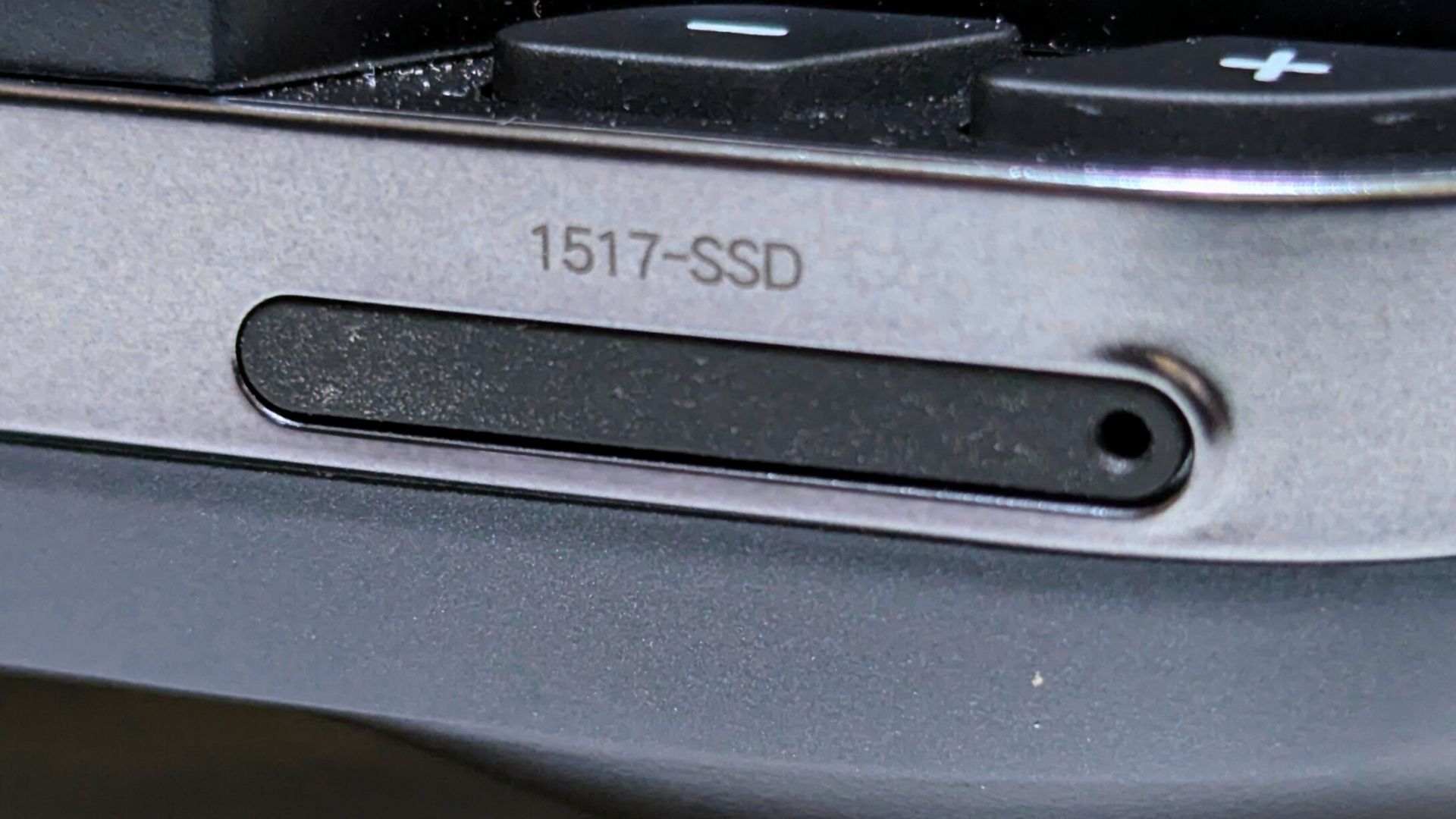
To begin, ensure the GPD WIN 5 is completely powered down. The slot for the Mini SSD is situated on the lower right-hand side of the device. Find the small aperture on the slot’s right edge, insert the SIM tool, and apply gentle pressure. This action will cause the Mini SSD holder to pop out slightly. You can then pull the holder all the way out of the GPD WIN 5.
The Mini SSD for GPD WIN 5 is designed to fit into the holder in only one specific orientation. Align the small cutout on the top-left corner of the Mini SSD with the corresponding notch on the holder. The drive will then seat correctly inside, as illustrated in the accompanying image.
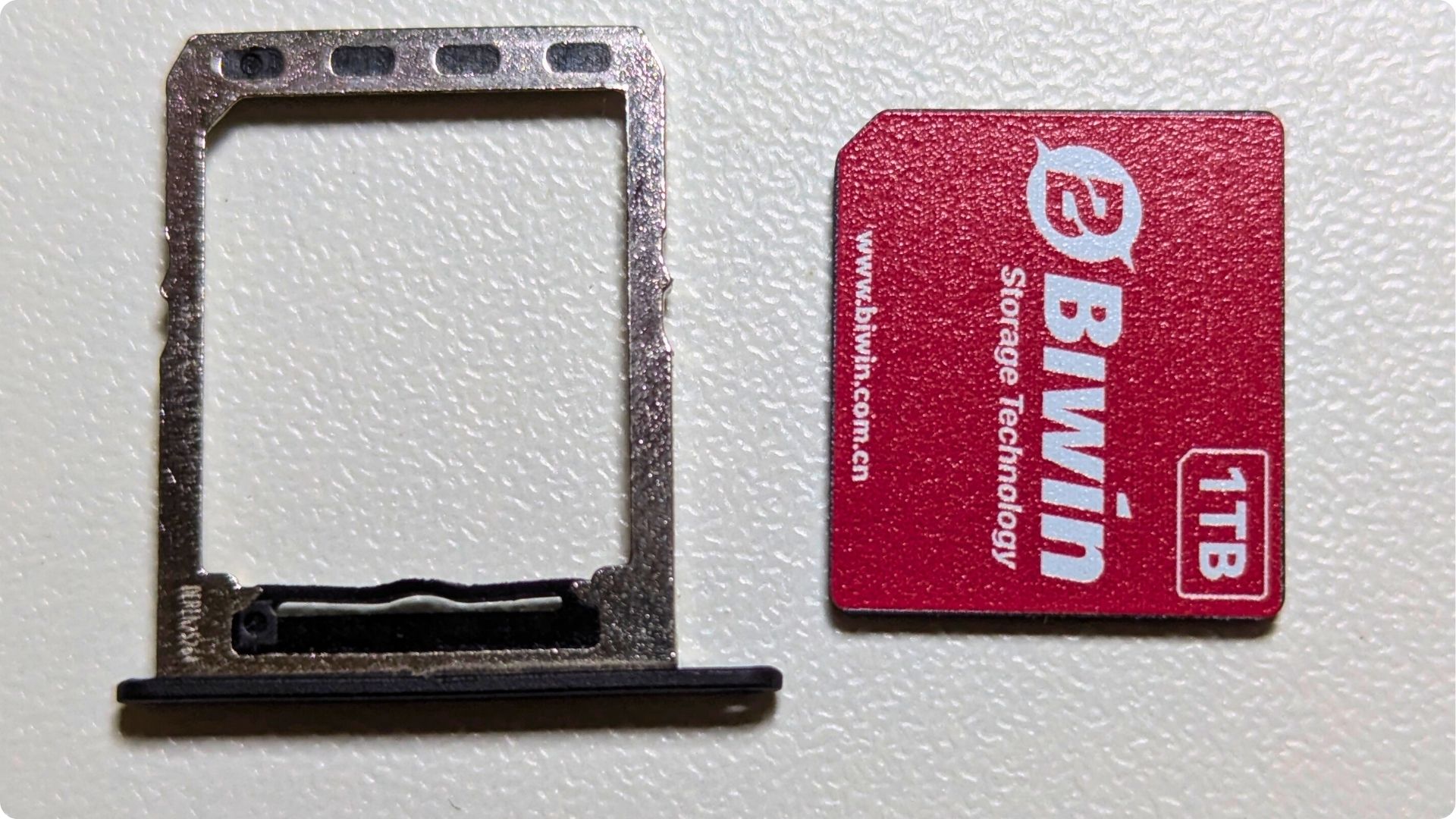
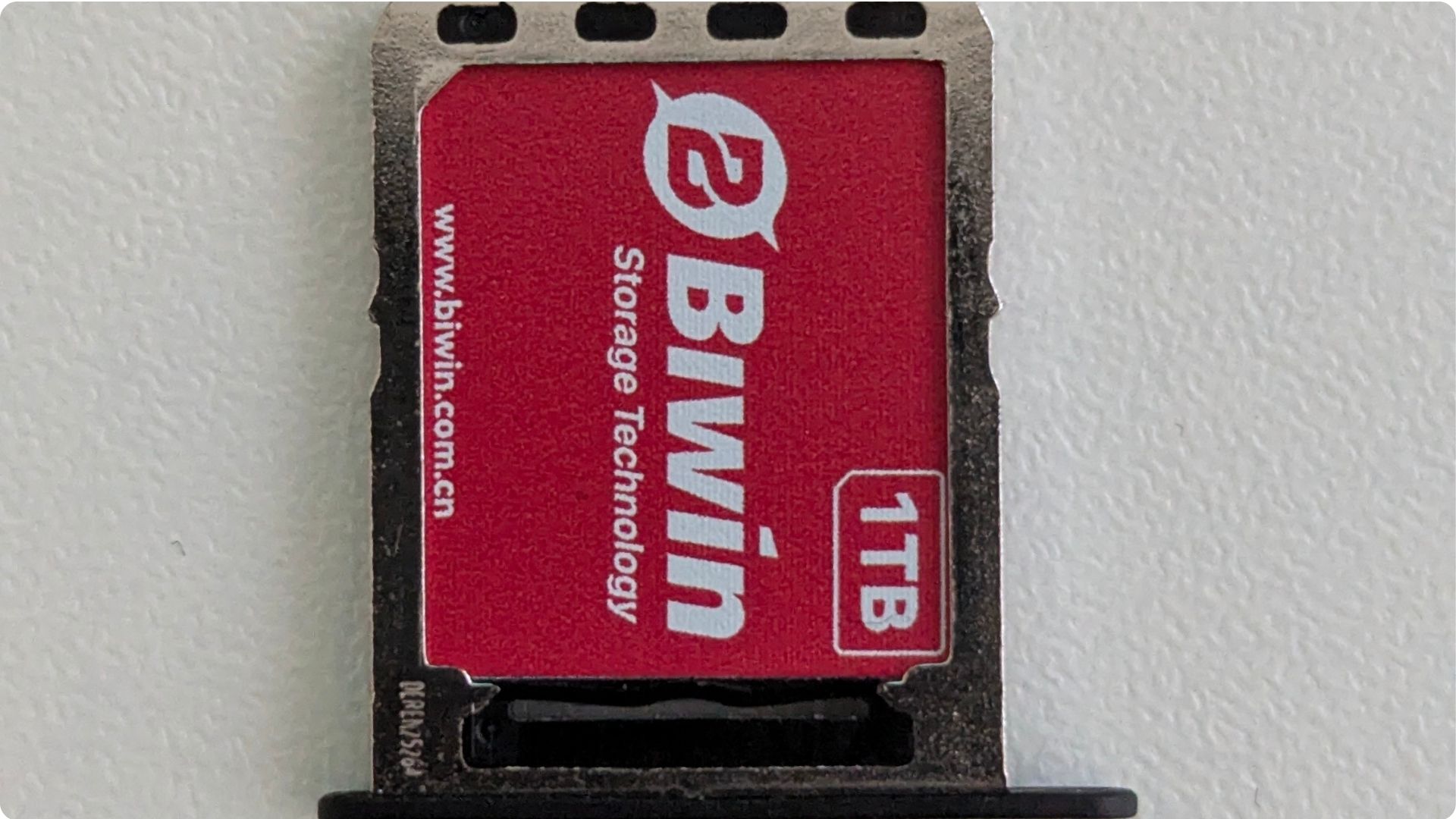
Slide the Mini SSD holder back into its slot on the GPD WIN 5. The tray is keyed to prevent incorrect insertion, so you should not need to use any force.
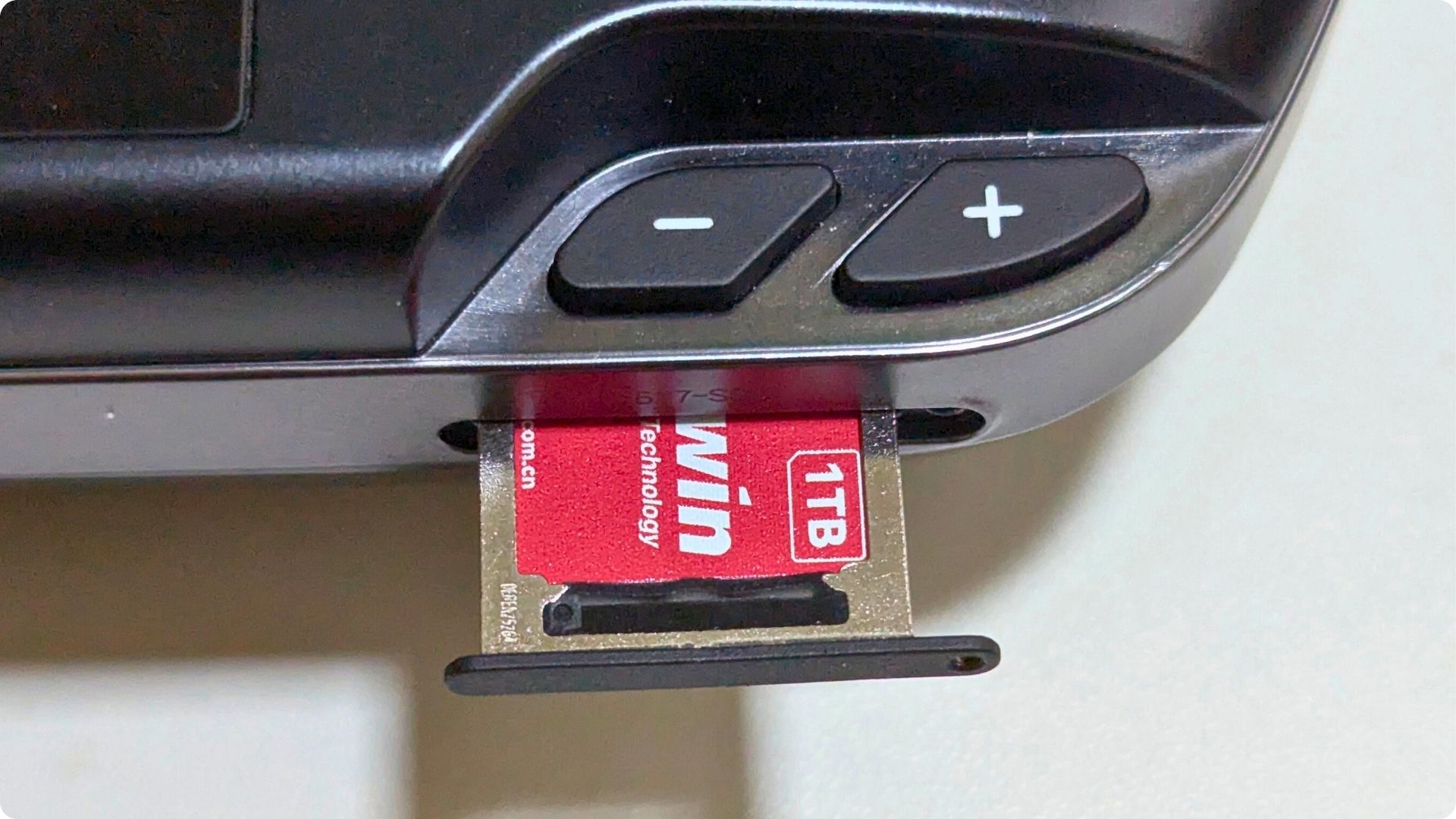
Confirm that the Mini SSD holder is pushed in completely and sits flush with the casing of the GPD WIN 5.
You may now power on your GPD WIN 5 and allow it to boot.
Formatting the Mini SSD
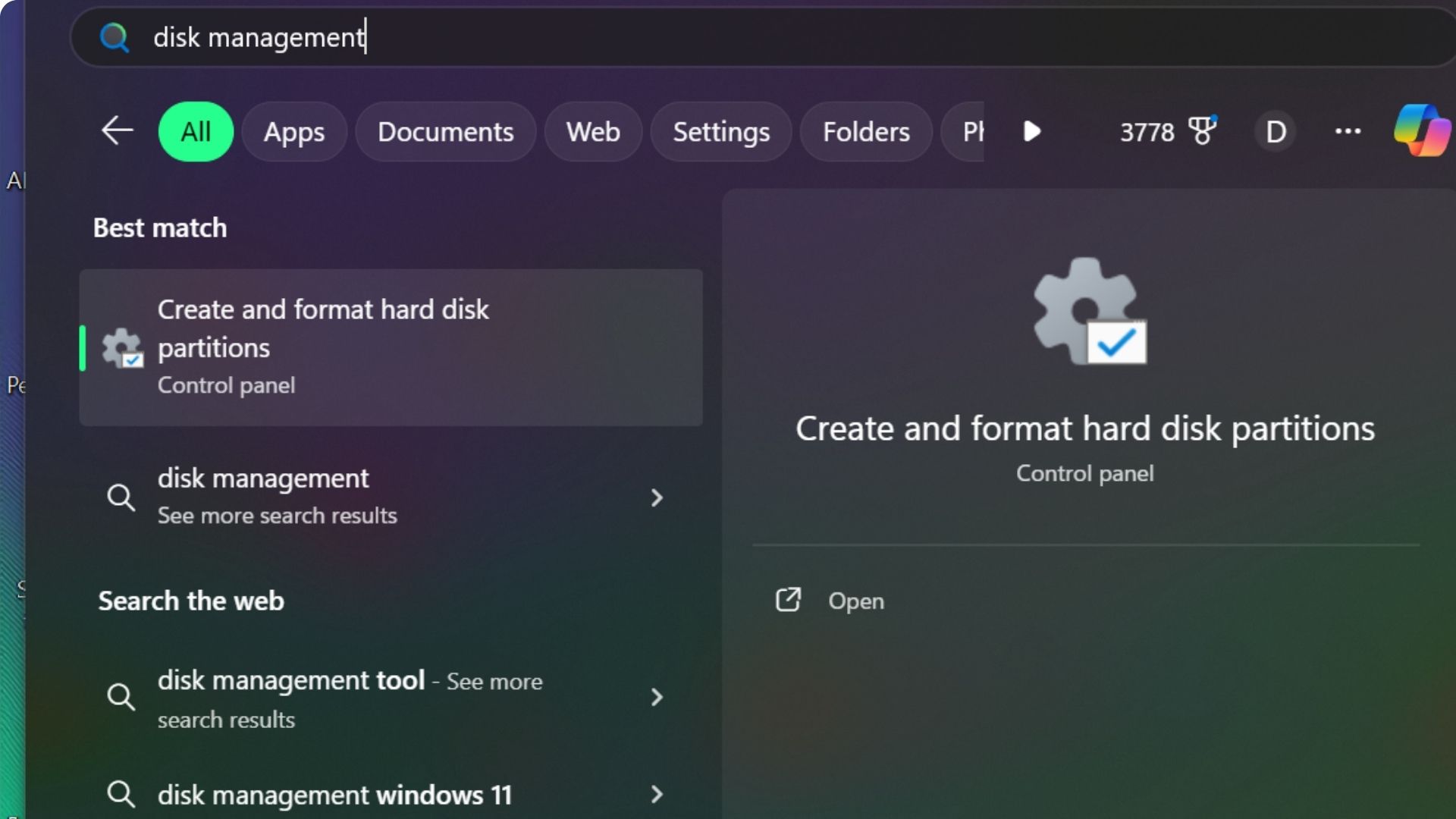
Using the Windows search function, enter “Disk Management” and select the “Create and format hard disk partitions” option from the results.
You will need to identify the Mini SSD from the list of storage volumes. Typically, the new drive will appear as “Unallocated,” and its capacity will be a key indicator. Note that the reported size will differ from the advertised capacity (for instance, a 1TB drive will show as 953.85GB, as seen in the example).
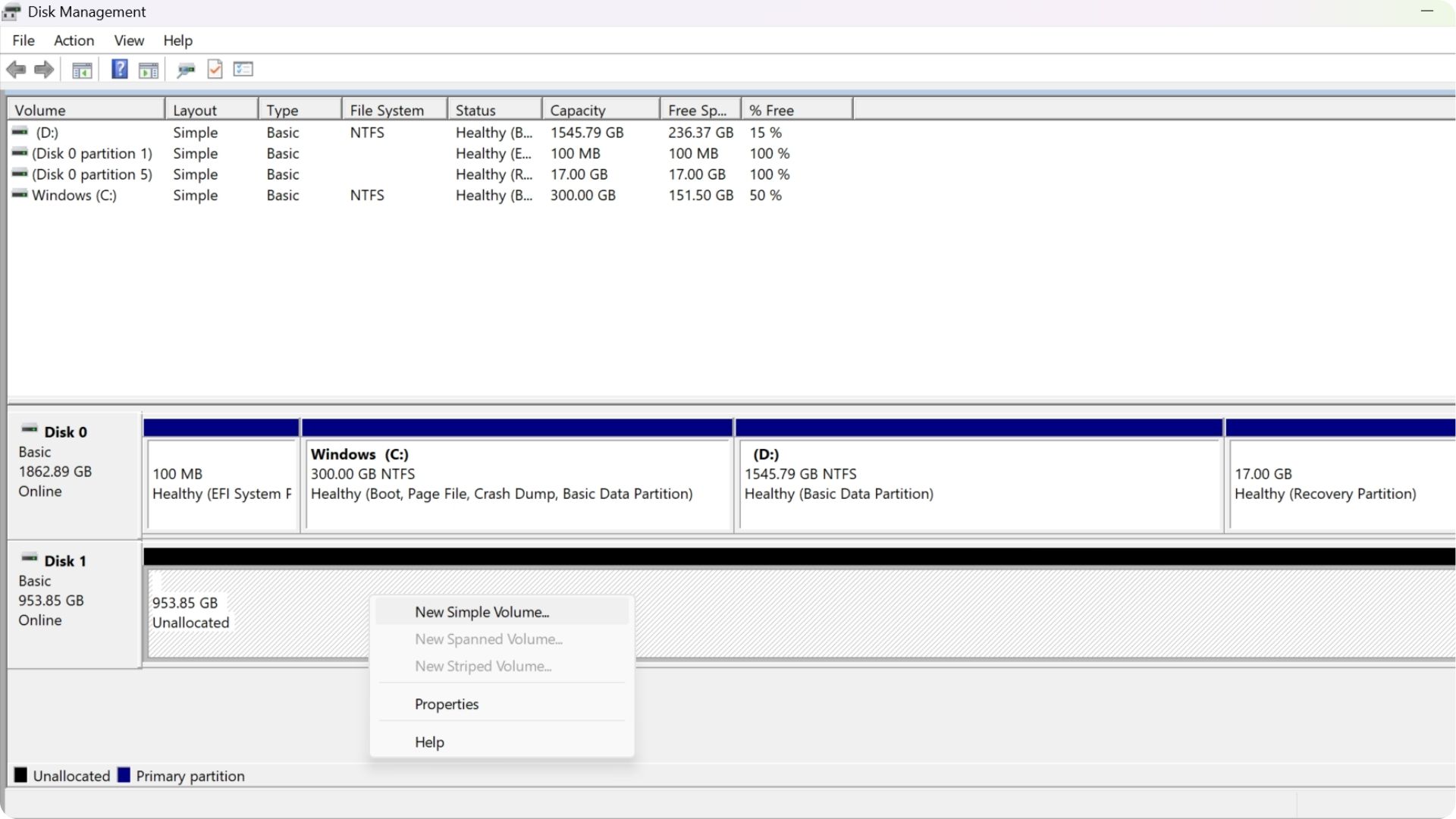
After confirming you have selected the correct disk, right-click anywhere on its entry and choose “New Simple Volume.”
When choosing the File system, you have the option of NTFS or EXFAT. For portable drives, we suggest EXFAT due to its broad compatibility across different operating systems. You can also assign a custom name to the disk by editing the Volume Label.
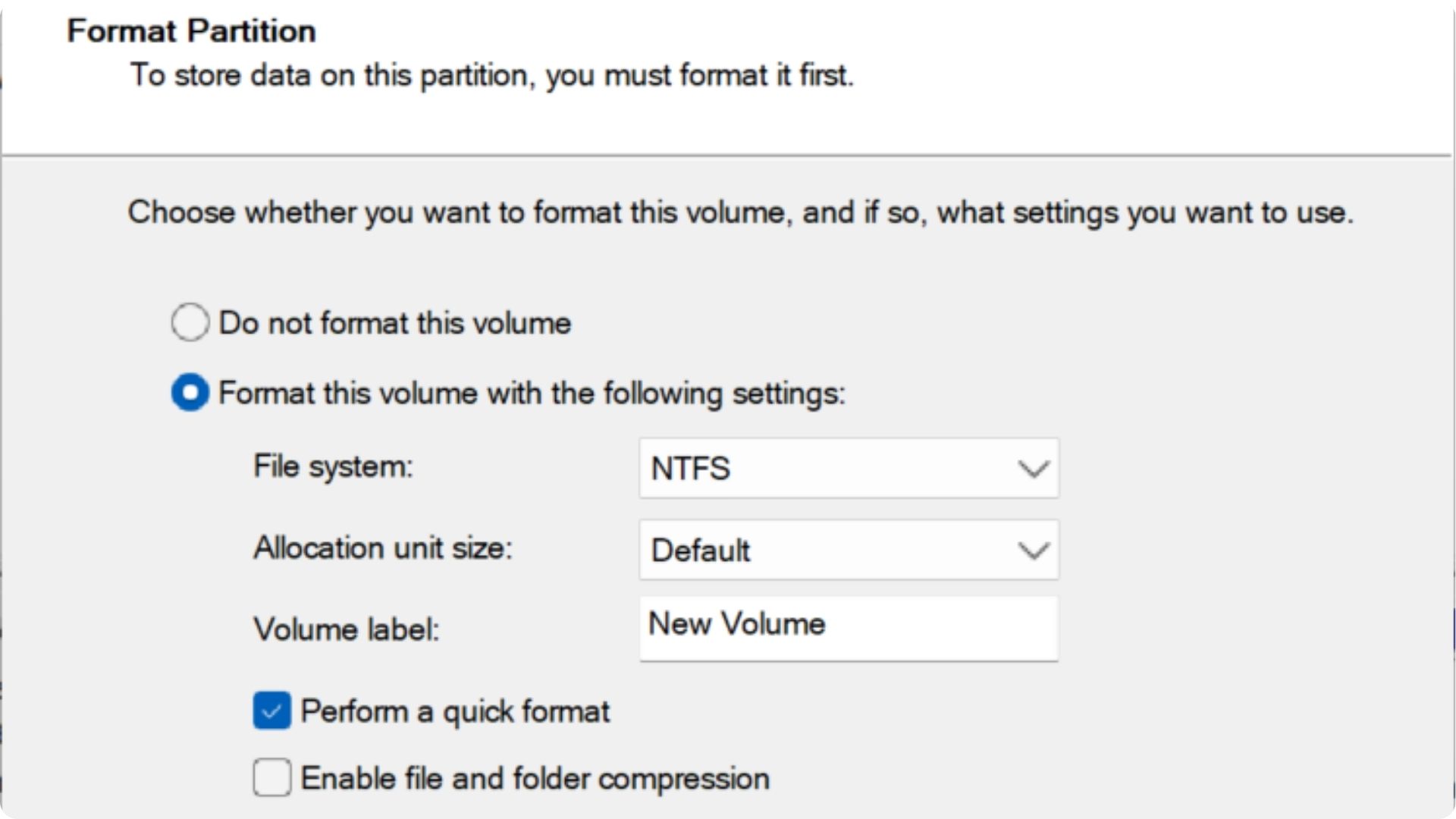
Proceed through the on-screen prompts, most of which can be left at their default settings. For the Volume size, it is generally best to use the maximum available space. You are free to assign any unused Drive Letter from the drop-down list.
After the formatting process finishes, the Disk Management tool will update to display the newly prepared and accessible drive.
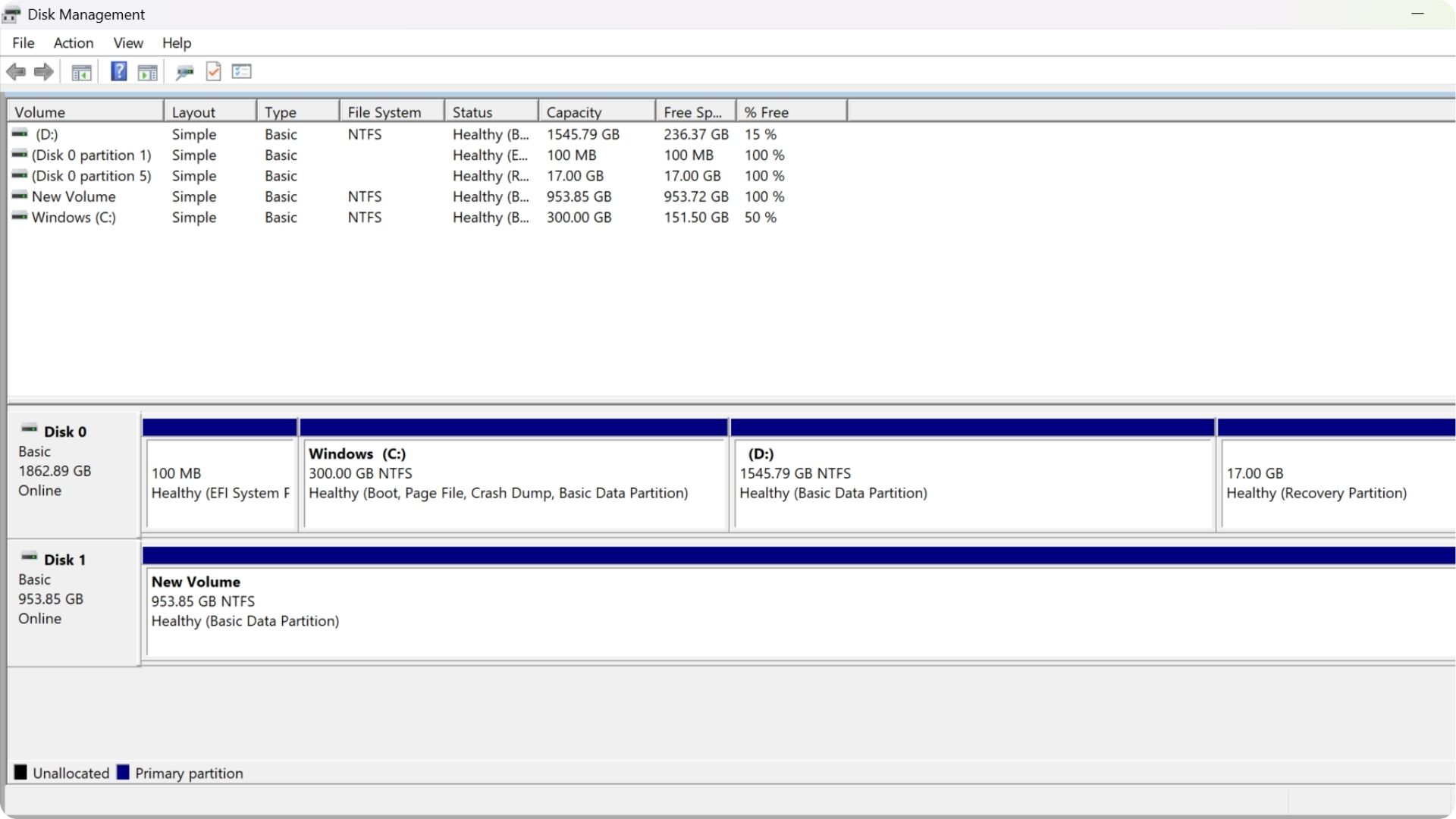
Your BIWIN Mini SSD for the GPD WIN 5 is now configured and ready for use.


GPD WIN 5
Windows Handhelds
12 options · £1,555.95 to £3,699.95



 on 15 stores
From the blog
Visit the blog The Best Handheld Gaming PCs: Your Ultimate 2026 Buying Guide
19 May 2026
The Best Handheld Gaming PCs: Your Ultimate 2026 Buying Guide
19 May 2026
 GPD WIN 5: Ryzen AI Max 385 vs 395 (Strix Halo) Performance Guide
10 December 2025
GPD WIN 5: Ryzen AI Max 385 vs 395 (Strix Halo) Performance Guide
10 December 2025
 GPD WIN 5 385 vs 395: The Ultimate Benchmark & Performance Guide
10 December 2025
GPD WIN 5 385 vs 395: The Ultimate Benchmark & Performance Guide
10 December 2025
 GPD WIN 5 Teardown – A Deep Dive Inside the Latest Handheld Gaming PC
4 November 2025
GPD WIN 5 Teardown – A Deep Dive Inside the Latest Handheld Gaming PC
4 November 2025
Questions & answers