




Files used in this guide
Changelog
- GPD WIN 5 Smart Dock User Manual (current) | 2025-09-04 | PDF — port descriptions for the WIN 5 Smart Dock
Older versions stay downloadable for rollbacks — every version keeps its own verified file.
Changelog
- GPD WIN 5 User Manual (current) | 2025-09-04 | PDF — WIN 5 function keys and ports description
Older versions stay downloadable for rollbacks — every version keeps its own verified file.
Changelog
- GPD DUO (AI 9 HX 370) Windows 11 24H2 Home Firmware (current for 370) | 2025-03-18 |
30B2D557AEB549ACDC6C36D4E1DE95F209614BBE| 370 variant only. Must upgrade BIOS before upgrading system firmware — install BIOS V2.12 first (see BIOS section). BIOS firmware v2.12 also resolves the flicker issue on the 370 version. SHA1 tool: HashTools · - GPD DUO (8840U) Windows 11 24H2 Home Firmware (current for 8840U) | 2024-12-20 |
A009376A9F17E881F81FE484E16BF54D3E8E8759| 8840U variant only. Includes integrated Windows 11 drivers. Reinstallation removes all data on drive C — back up first. SHA1 tool: HashTools · - GPD MicroPC 2 Windows 11 24H2 Home Firmware (current) | 2025-10-30 |
F310F45676F905E93B86C9AE1E6E059E817AE4C2| Integrated hardware drivers. After downloading and decompressing, refer to the video tutorial on the source page for installation guidance. · - GPD MicroPC 2 Windows 11 24H2 Pro Firmware | 2025-08-26 |
B3BB0C050AA6D7545BAF05EFF810D1238AD22531| Pro edition. Integrated hardware drivers. After downloading and decompressing, refer to the video tutorial for installation guidance. Optional: install Intel® Driver & Support Assistant to keep drivers current. SHA1 tool: HashTools ·
Older versions stay downloadable for rollbacks — every version keeps its own verified file.
This guide explains how charging works on the GPD WIN 5, including the external battery dock, direct DC/USB power, and the BIOS battery charge limit setting. Use this if your WIN 5 appears to show a charging icon in Windows but the battery percentage does not increase.
Important: the dock does not power the WIN 5
When the WIN 5 is connected to the dock, the dock connection is for data. The WIN 5 itself should be powered directly using the external battery, the DC power input, or USB power connected directly to the WIN 5.
The USB Type-C port on the battery dock is for charging the external battery while it is attached to the dock. It does not power or charge the WIN 5 through the dock connection.
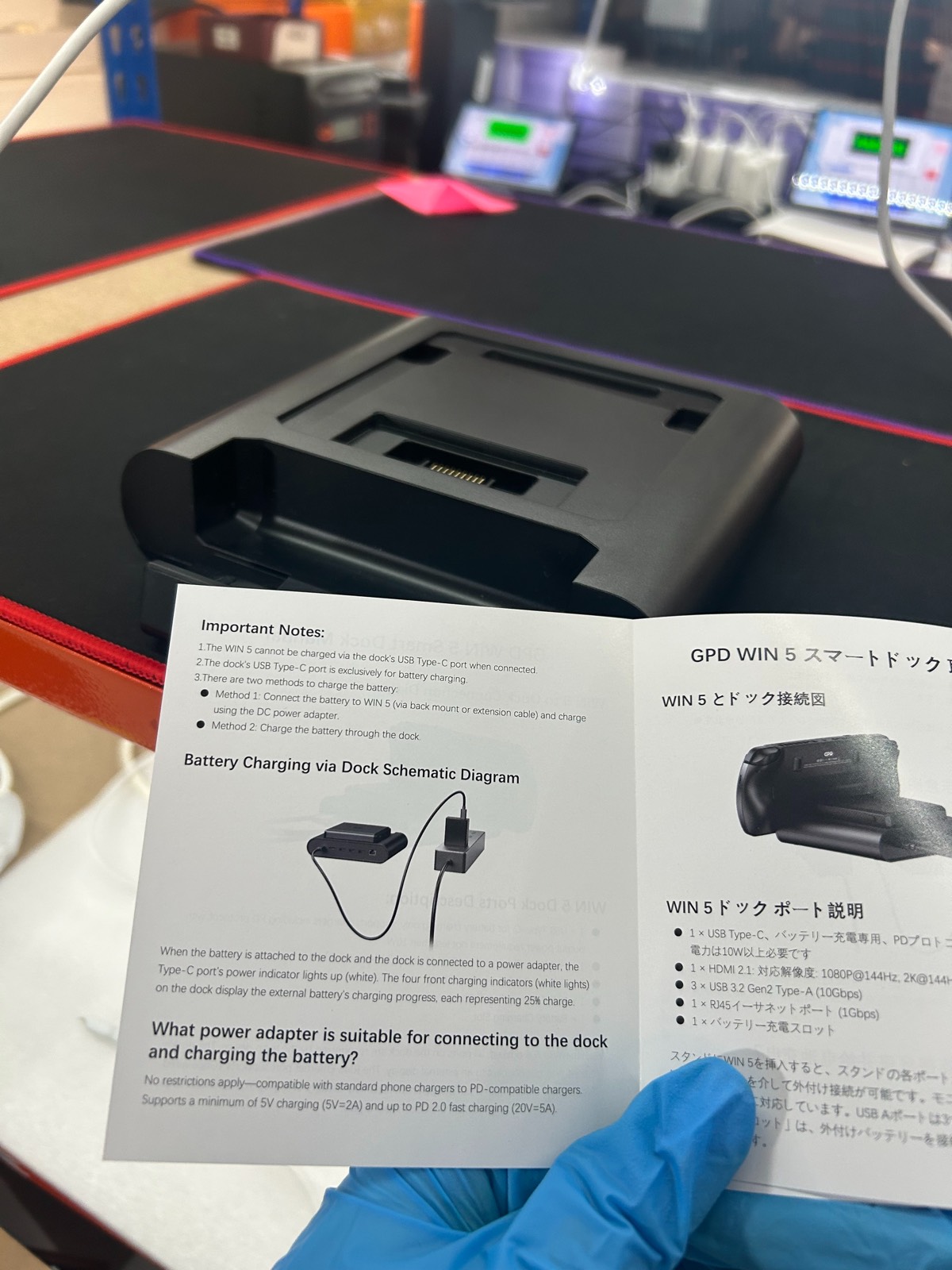
How the battery can be charged
- Charge through the WIN 5: connect the external battery to the WIN 5, then connect the DC power adapter to the WIN 5.
- Charge through the dock: attach the external battery to the dock, then connect a power adapter to the dock’s USB Type-C charging port.
When charging the battery through the dock, the dock’s indicator lights show the external battery charging progress. Each light represents approximately 25% charge.
Test the WIN 5 without the battery connected
If you are troubleshooting charging, first confirm that the WIN 5 can power on directly from its power inputs without the external battery connected.
- Disconnect the external battery from the WIN 5.
- Connect the DC power adapter directly to the WIN 5 and check whether the device powers on. This is the most important test.
- If possible, also test USB (100W or higher) power connected directly to the WIN 5 top USB port (bottom one does not support charging)
- If the WIN 5 powers on from direct DC and/or USB power, reconnect the battery and check the charging status in Windows.
If you need to contact support, please include a short video showing the WIN 5 powering on, Windows fully booted, the battery icon/status, and whether Windows reports that the battery is charging.
Check the BIOS battery charge limit
The WIN 5 BIOS includes a Battery Full Charge Settings option. This can be set to values such as 60%, 70%, 80%, 90%, or 100%.
If the battery is already above the selected charge limit, Windows may show that the charger is connected but the battery percentage may not increase. This is expected behaviour. For example, if the limit is set to 80% and the battery is already above 80%, the battery may not start charging again until it drops below that limit.
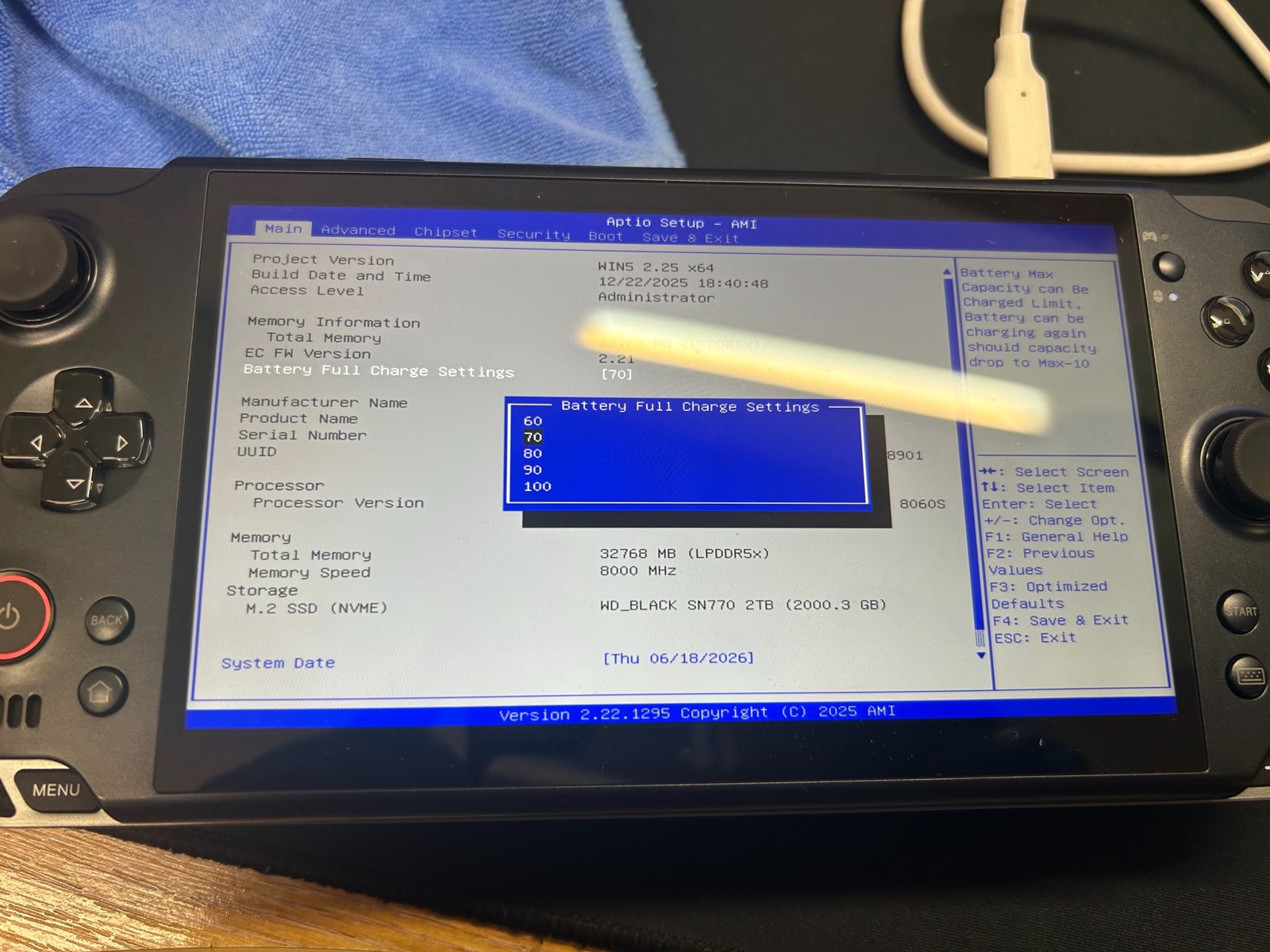
To test charging, either temporarily set the limit to 100%, or allow the battery to drain below the selected limit and then reconnect the charger.
When to contact support
If the WIN 5 powers on directly from DC power, the battery is correctly connected, the BIOS charge limit has been checked, and the battery still does not charge as expected, please contact our support team with the results of the tests above.





From the blog
Visit the blog The Best Handheld Gaming PCs: Your Ultimate 2026 Buying Guide
19 May 2026
The Best Handheld Gaming PCs: Your Ultimate 2026 Buying Guide
19 May 2026
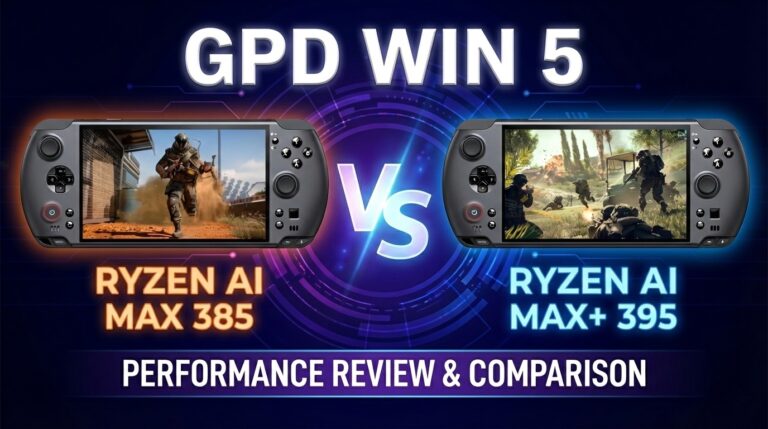 GPD WIN 5: Ryzen AI Max 385 vs 395 (Strix Halo) Performance Guide
10 December 2025
GPD WIN 5: Ryzen AI Max 385 vs 395 (Strix Halo) Performance Guide
10 December 2025
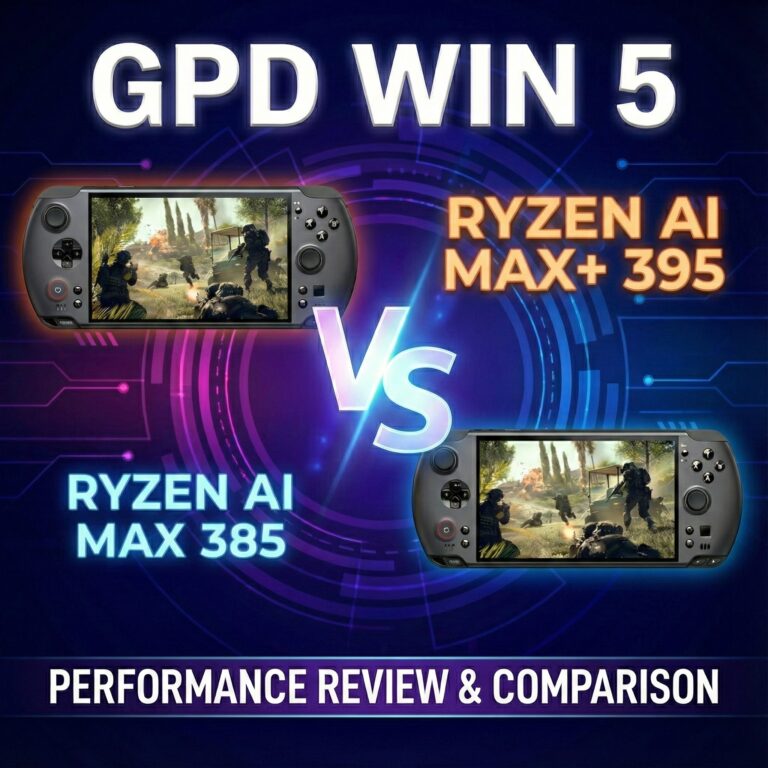 GPD WIN 5 385 vs 395: The Ultimate Benchmark & Performance Guide
10 December 2025
GPD WIN 5 385 vs 395: The Ultimate Benchmark & Performance Guide
10 December 2025
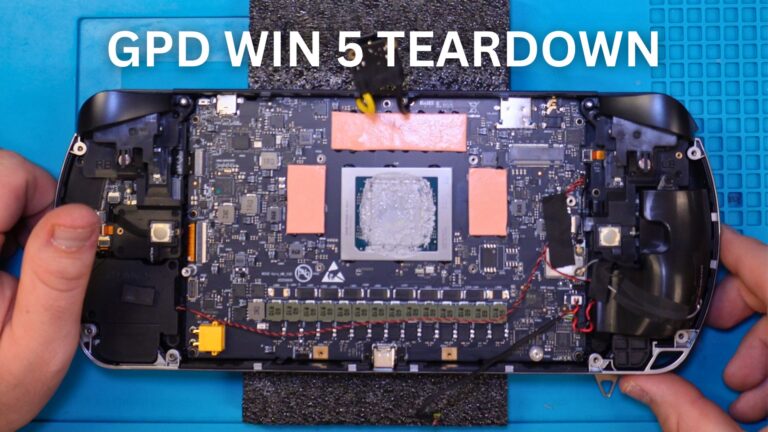 GPD WIN 5 Teardown – A Deep Dive Inside the Latest Handheld Gaming PC
4 November 2025
GPD WIN 5 Teardown – A Deep Dive Inside the Latest Handheld Gaming PC
4 November 2025
Questions & answers