




Files used in this guide
Changelog
- Source guide: Beelink SER8 BIOS update – Fixes Windows 11 and AMD graphics drivers issues
Older versions stay downloadable for rollbacks — every version keeps its own verified file.
This guide will show how to update the BIOS on your Beelink SER8. This firmware update fixes an issue with recent Windows 11 and AMD graphics driver updates that may cause system freezes, stuttering or random reboots.
You will need a 64GB or larger USB flash drive for the BIOS files. The drive must be formatted to FAT32 and named “WINPE”.
This BIOS update is for the Beelink SER8 8745HS/8845HS models only. Do NOT attempt to install it on other models. Please note that while BIOS updating is generally fine, there are risks. Please ensure you follow all steps correctly, identify that you are installing the correct BIOS for your device. Do not switch off the device unless instructed to. We do not accept responsibility if something goes wrong.
Download the Beelink SER8 BIOS update here. Extract the contents of the download. You will have the following files
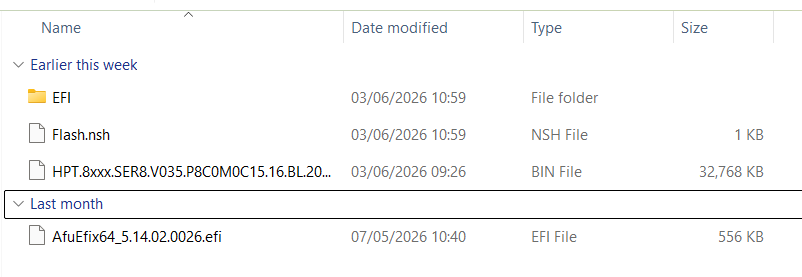
Copy these files to the root of you USB drive. Once copied, remove the USB drive and insert it into a USB port on your Beelink SER 8.
Switch on your Beelink SER8 and tap the F7 keyboard key until the Boot Manager menu appears. Highlight the USB Device with the Up and Down arrow keys and Enter to select.
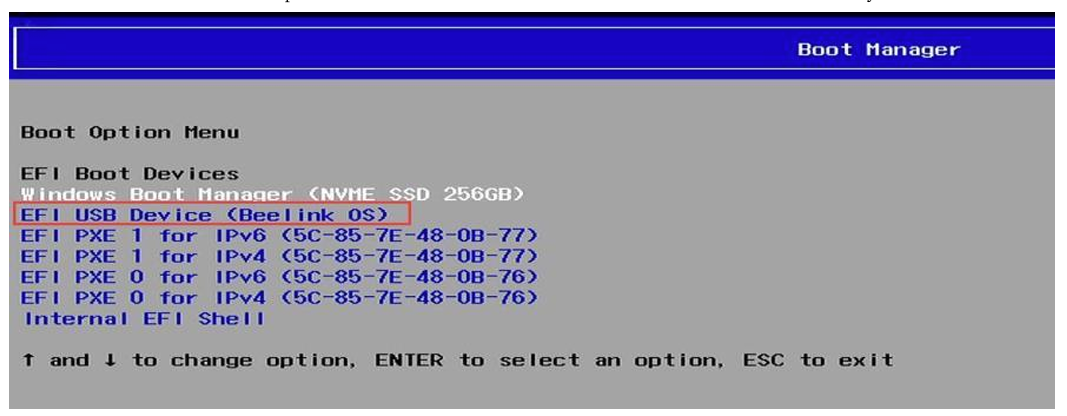
In most cases the BIOS should now flash automatically. If so, do NOT switch off or remove the USB drive during the process. This will take a few minutes. wait until the process finishes and you can skip the rest of this guide.
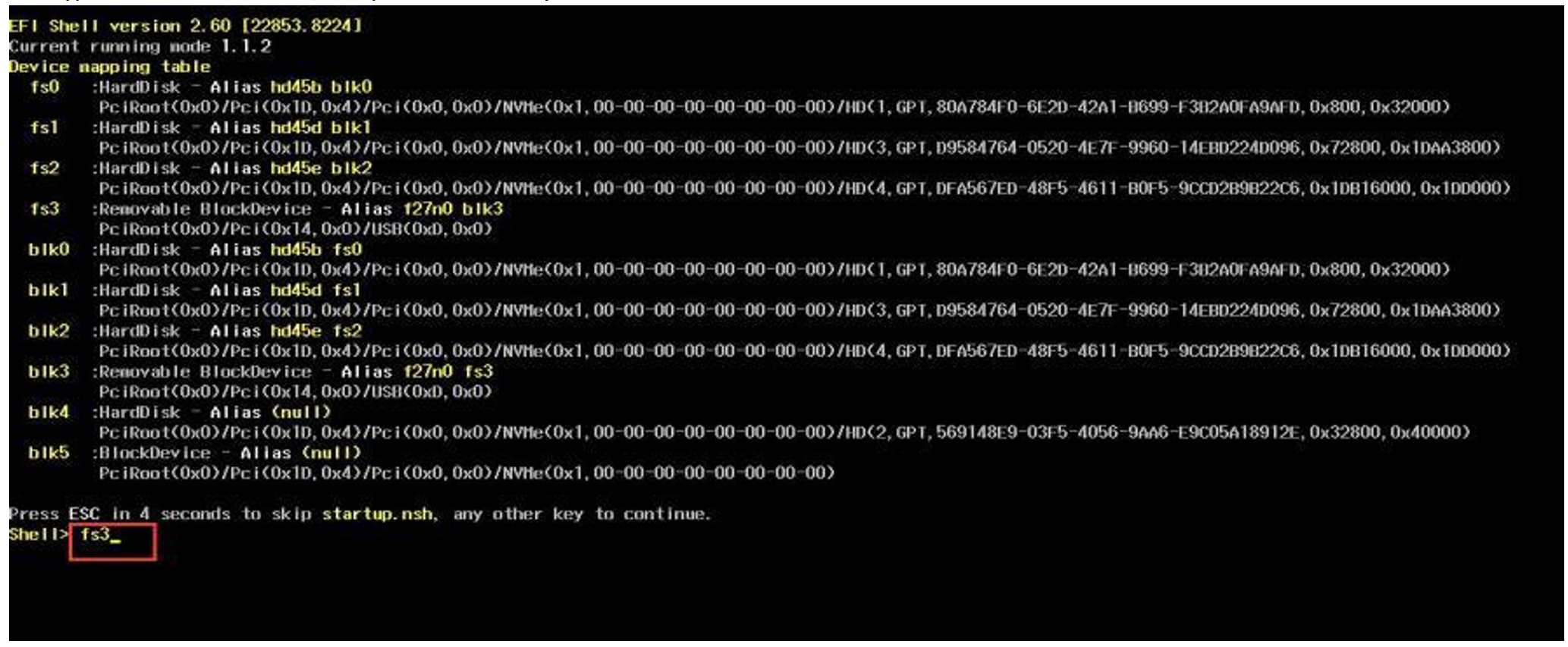
However, if you are prompted with Shell> prompt, type in the drive letter of the USB device. It will show in the list as Removable BlockDevice, in the example image below it is fs3 so you would type in fs3: (remember the colon) and press enter.
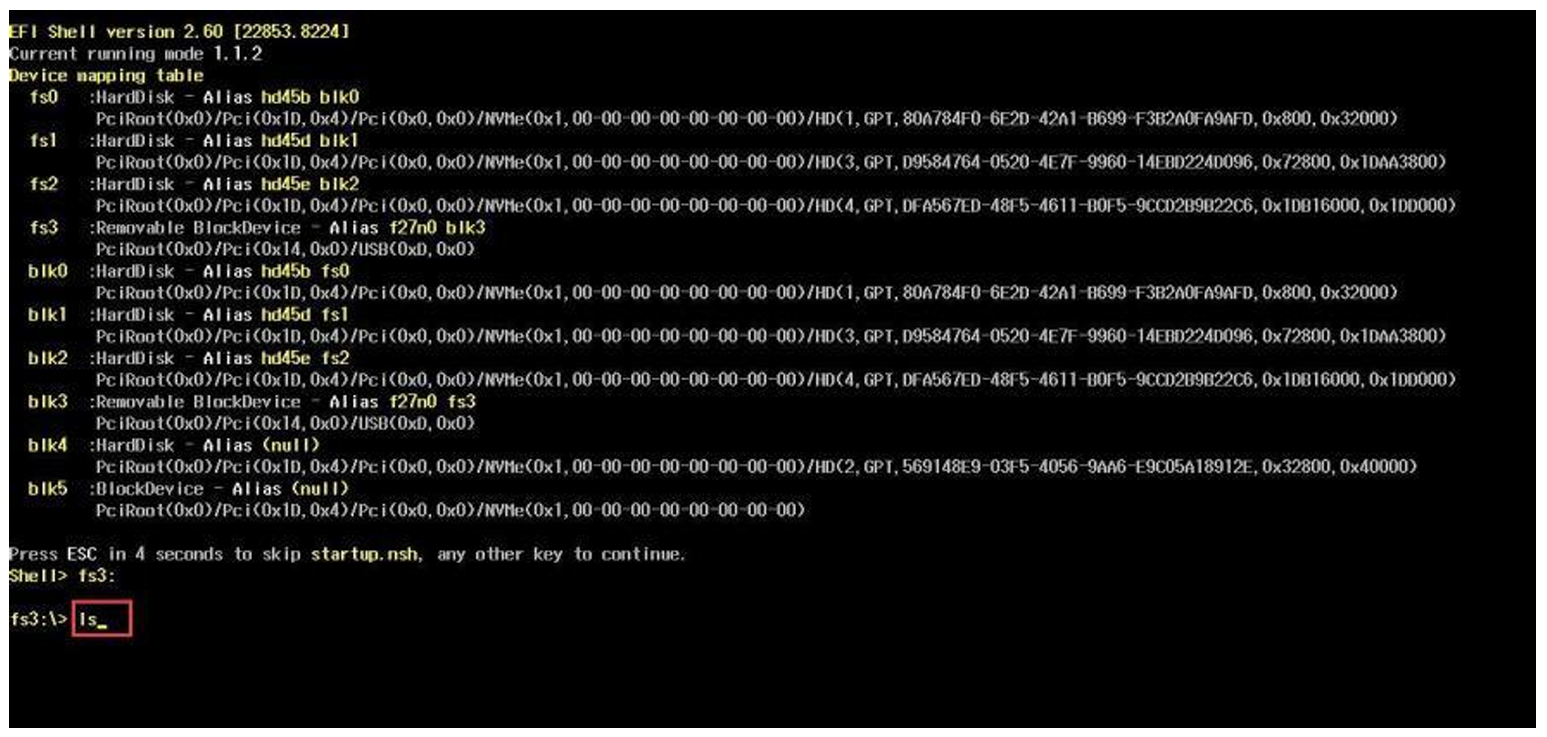
Next type ls and press enter to show the folder contents, it should show the files on the USB drive.
Next type Flash , press tab, then press enter. The flashing tool will now start the updating process. Do NOT switch off or remove the USB drive during the process. This will take a few minutes.
Popular right now
What people are buying this month
Prices as listed on each store


GPD WIN 5 (AI Max HX 385 – 32GB_RAM/1TB_NVME) (Raven Black)



 on 15 stores

MANGMI Pocket Max (Snapdragon 865 – 8GB_RAM/128GB_STORAGE) (Retro GB)
 on 14 stores

Once the process has completed and the prompt appears, type exit and press enter.
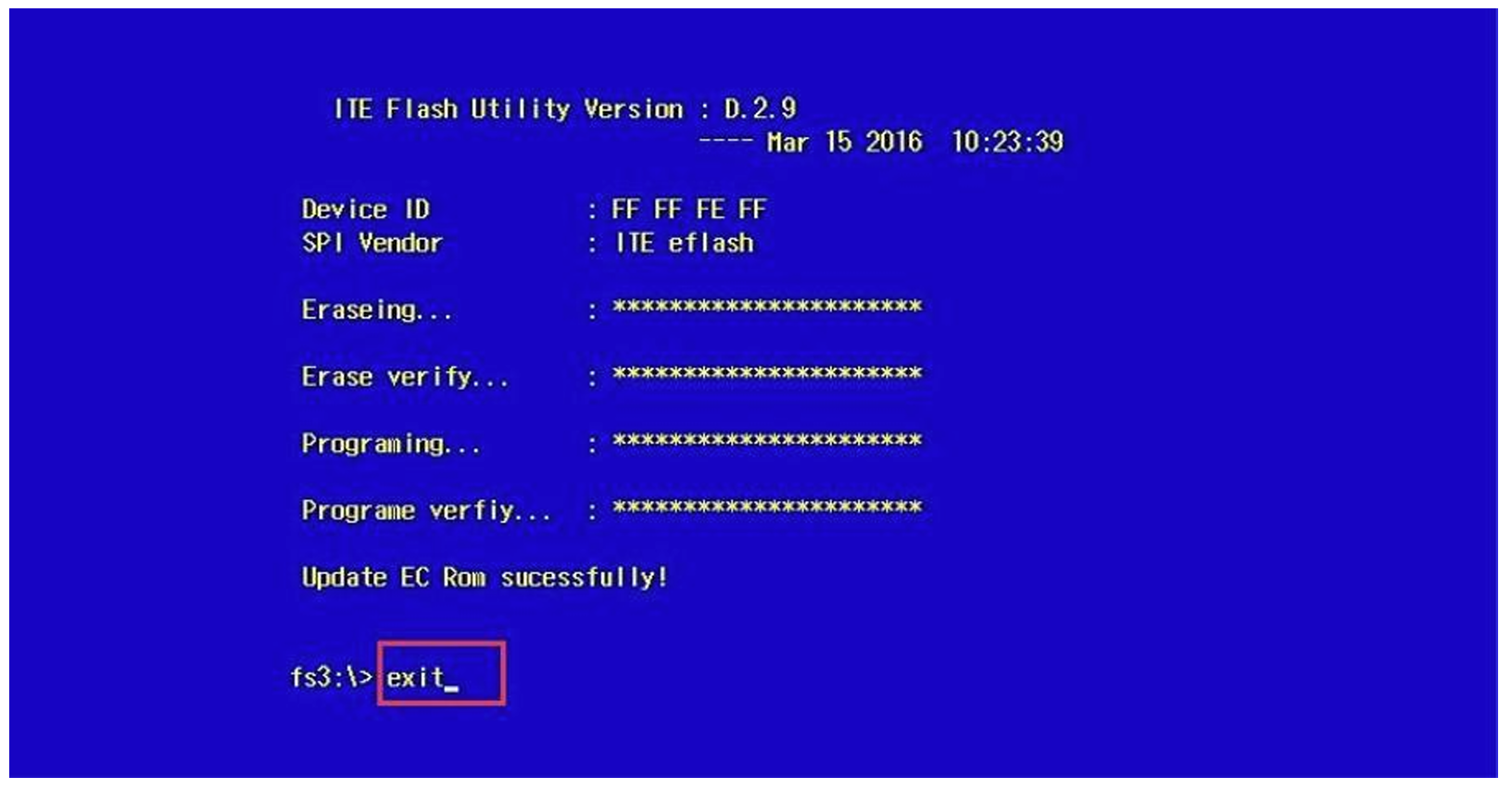
You can now continue using your Beelink SER8 mini PC as normal and update to the latest Windows 11 and AMD graphics drivers.
Latest from the blog
Visit the blog GEEKOM A5 2027 Review – A Compact Mini PC Home Lab
21 October 2026
GEEKOM A5 2027 Review – A Compact Mini PC Home Lab
21 October 2026
 EPOMAKER HE65 V2 TMR Review – 8K Wireless Speed and Hybrid Switches for Compact Gaming
19 October 2026
EPOMAKER HE65 V2 TMR Review – 8K Wireless Speed and Hybrid Switches for Compact Gaming
19 October 2026
 ONEXPLAYER 3 Review – 8.8-Inch AMOLED Gaming, Modular Controls and Surprising Battery Life
14 October 2026
ONEXPLAYER 3 Review – 8.8-Inch AMOLED Gaming, Modular Controls and Surprising Battery Life
14 October 2026
 KONKR Pocket BLOCK Announced: A Tiny Vertical Android Handheld with a 4:3 Screen
1 October 2026
KONKR Pocket BLOCK Announced: A Tiny Vertical Android Handheld with a 4:3 Screen
1 October 2026
Questions & answers