




This is an old post now, but still holds true. The only thing to remember is that the app might not be called XBMC, so look for:
Kodi (or Kodi 4 DroiX)
DBMC
XBMC (or XBMC 4 DroiX)
SPMC (or SPMC 4 DroiX)
when scanning down the list of apps.
To reset your app’s settings to their original defaults, please do the following.
Note that this will wipe out ALL customizations you have made since first using Kodi/DBMC/etc, and any downloaded metadata (album covers, film posters, artist info etc) caused by importing your media collection will have to be redownloaded.
Start from the Android homescreen, and bring up the list of all installed applications (normally a circle with six dots, or a “My Apps” icon).
Select Settings, and click on Apps (if you can’t see an entry for Apps, please click on the OTHER tab and select the More Settings button). Wait for the list to show.
You may need to scroll, but you should see an entry for Kodi (or the names above) – click on it. If it is not greyed out, click the button labelled Force Stop and confirm you’re certain. Now click on the Clear Data button please and once again confirm. Wait until the statistics for space taken have updated, and return to Android’s homescreen.
Lollipop Devices:

Kitkat Amlogic Devices:

Older Devices:

Latest from the blog
Visit the blog GPD WIN Mini Ultra – A Bigger 8-inch 120Hz Screen, Intel Arc G3 Extreme and Dual USB4 v2.0
27 October 2026
GPD WIN Mini Ultra – A Bigger 8-inch 120Hz Screen, Intel Arc G3 Extreme and Dual USB4 v2.0
27 October 2026
 RockTek PJ500 Ultra Review – A 1080p Home Cinema Projector for Streaming and Gaming
27 October 2026
RockTek PJ500 Ultra Review – A 1080p Home Cinema Projector for Streaming and Gaming
27 October 2026
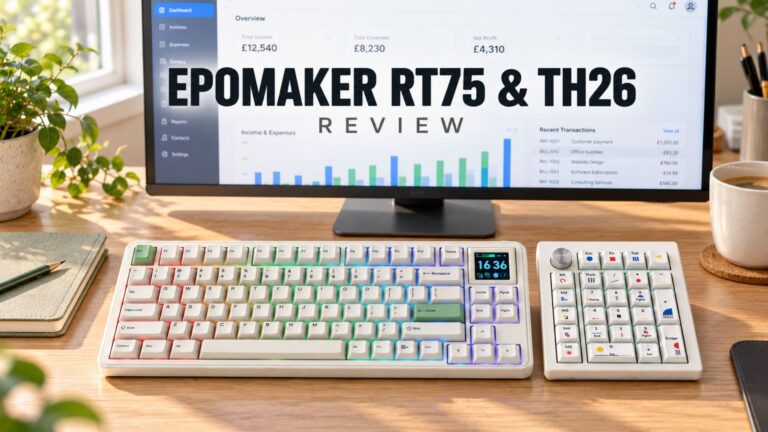 EPOMAKER RT75 and TH26 Review – Retro 75% Keyboard with Detachable Screen and 5-Key Macro Numpad
26 October 2026
EPOMAKER RT75 and TH26 Review – Retro 75% Keyboard with Detachable Screen and 5-Key Macro Numpad
26 October 2026
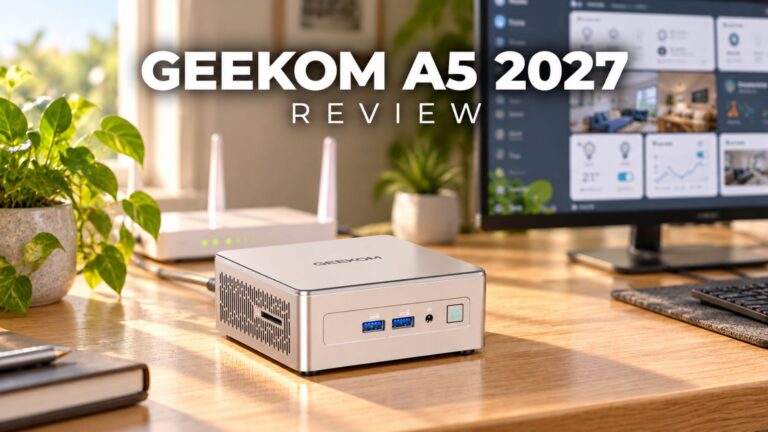 GEEKOM A5 2027 Review – A Compact Mini PC Home Lab
21 October 2026
GEEKOM A5 2027 Review – A Compact Mini PC Home Lab
21 October 2026
Questions & answers