




This article covers a few tips for using LibreELEC
How To Reboot Back To Android
There are two ways to do this.
1 – Boot Menu
When you first switch on your device, you can press the Menu button on your device’s IR remote and it will switch to the other OS, so from LibreELEC to Android or vice-versa.
2 – Power Icon
Click on the Power Icon symbol and choose Reboot To Android. If this option is missing then you likely have a custom skin installed. You can change back to the default one following the video guide above or by going to Settings -> Interface Settings -> Skin and choose the default theme called Estuary.
How to clear data on LibreELEC
You can watch the above video from 1:00 in for how to do this. Or go to Settings -> LibreELEC -> Reset System Settings To Defaults. Once initiated, the device will reboot and clear the data.
How to connect to WiFi
You can watch the above video from 1:30 for how to do this. Or go to Settings -> LibreELEC -> Connections and then locate your WiFi access point then enter the password. It will connect to the access point and the status will show as online.
Latest from the blog
Visit the blog GPD WIN Mini Ultra – A Bigger 8-inch 120Hz Screen, Intel Arc G3 Extreme and Dual USB4 v2.0
27 October 2026
 RockTek PJ500 Ultra Review – A 1080p Home Cinema Projector for Streaming and Gaming
27 October 2026
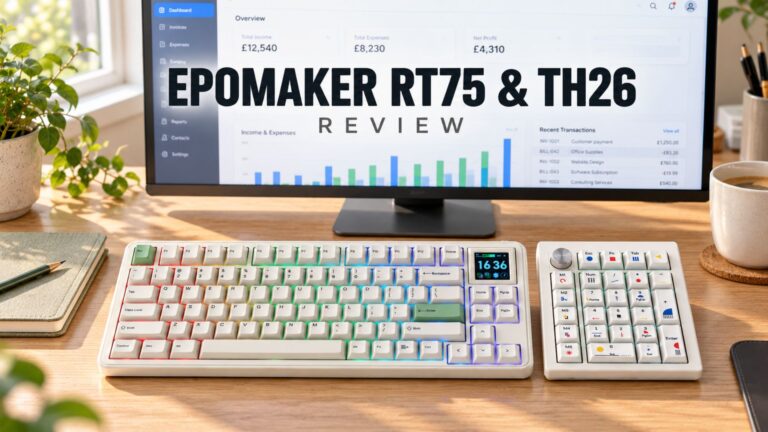 EPOMAKER RT75 and TH26 Review – Retro 75% Keyboard with Detachable Screen and 5-Key Macro Numpad
26 October 2026
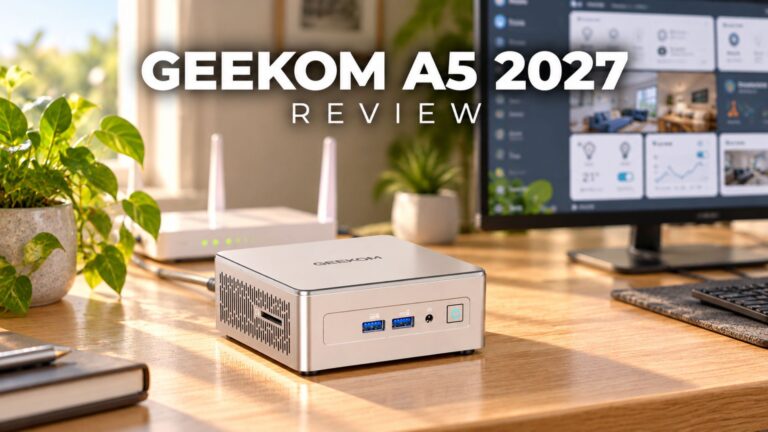 GEEKOM A5 2027 Review – A Compact Mini PC Home Lab
21 October 2026
Questions & answers