




Files used in this guide
Changelog
- Source guide: How to recalibrate ONEXPLAYER joysticks
Older versions stay downloadable for rollbacks — every version keeps its own verified file.
Changelog
- Source guide: How to recalibrate ONEXPLAYER joysticks
Older versions stay downloadable for rollbacks — every version keeps its own verified file.
Versions (2)
- Source guide: How to recalibrate ONEXPLAYER joysticks
- Source guide: How to recalibrate ONEXPLAYER joysticks
Older versions stay downloadable for rollbacks — every version keeps its own verified file.
Occasionally the joysticks on devices such as controllers or handheld PC’s can lose their calibration and have incorrect or inaccurate input. This guide will walk you through step by step on how to update your ONEXPLAYER controller firmware and recalibrate it afterwards.
Downloading the correct firmware for your ONEXPLAYER
You will first need to download the correct firmware for your ONEXPLAYER handheld. If you are not sure which model you have you can check on the back of your handheld or box for the model name on the silver sticker as shown below. In the image below we have the ONEXPLAYER Mini 5800U model identified by the screen size of 7 inches and the 5800U processor on the sticker.

Please ensure you are downloading the correct firmware. It may cause further issues if the incorrect firmware is installed.
If you are still unsure and you have purchased it from us at DroiX. Please get in contact with us at [email protected] with your order number and we can check your order for you.
Once you have identified your model you can download the firmware from below.
ONEXPLAYER 7 inch Displays
ONEXPLAYER Mini – Intel 1260P and AMD 5800U Models – Download here
ONEXPLAYER Mini – Intel 1195G7 Model – Download here
ONEXPLAYER 8.4 inch Displays
For the 8.4″ display models you also need to check the Serial Number (SN) for which version of firmware you need:
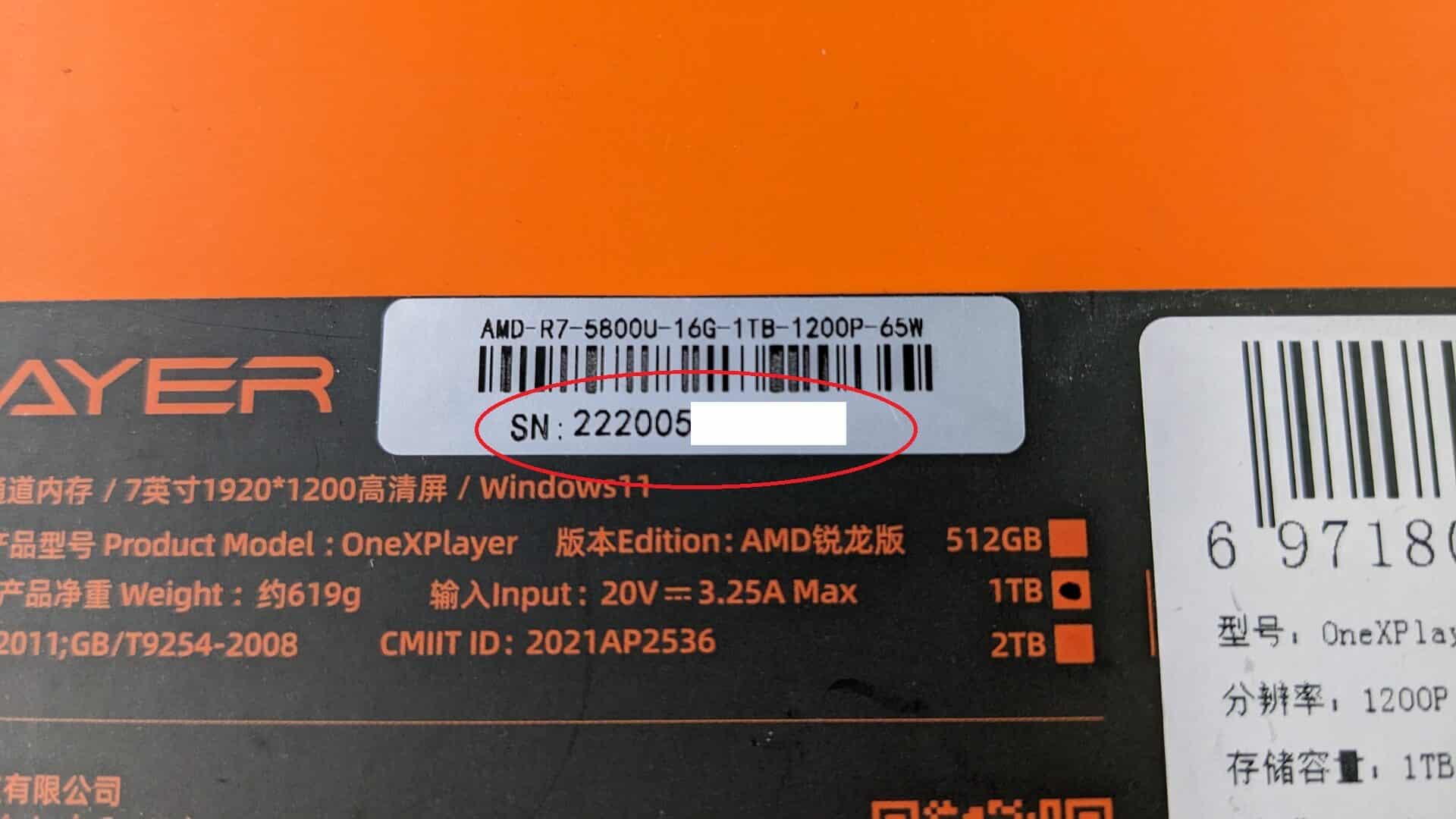
ONEXPLAYER – Intel 1195G7, AMD 4800U/5700U/5800U Models:
Serial Number starting with SN: 21: Download here
Serial Number starting with SN: 22: Download here
Please ensure you are downloading the correct firmware. It may cause further issues if the incorrect firmware is installed.
Again, if your model is not listed here or you are not sure please contact us at [email protected] with your order number and we can assist.
Updating the ONEXPLAYER controller firmware
As this is a firmware update you will need to temporarily disable any anti-virus software you are running as it may wrongly identify the firmware updater software as a virus.
Extract the file(s) from the firmware file you downloaded.
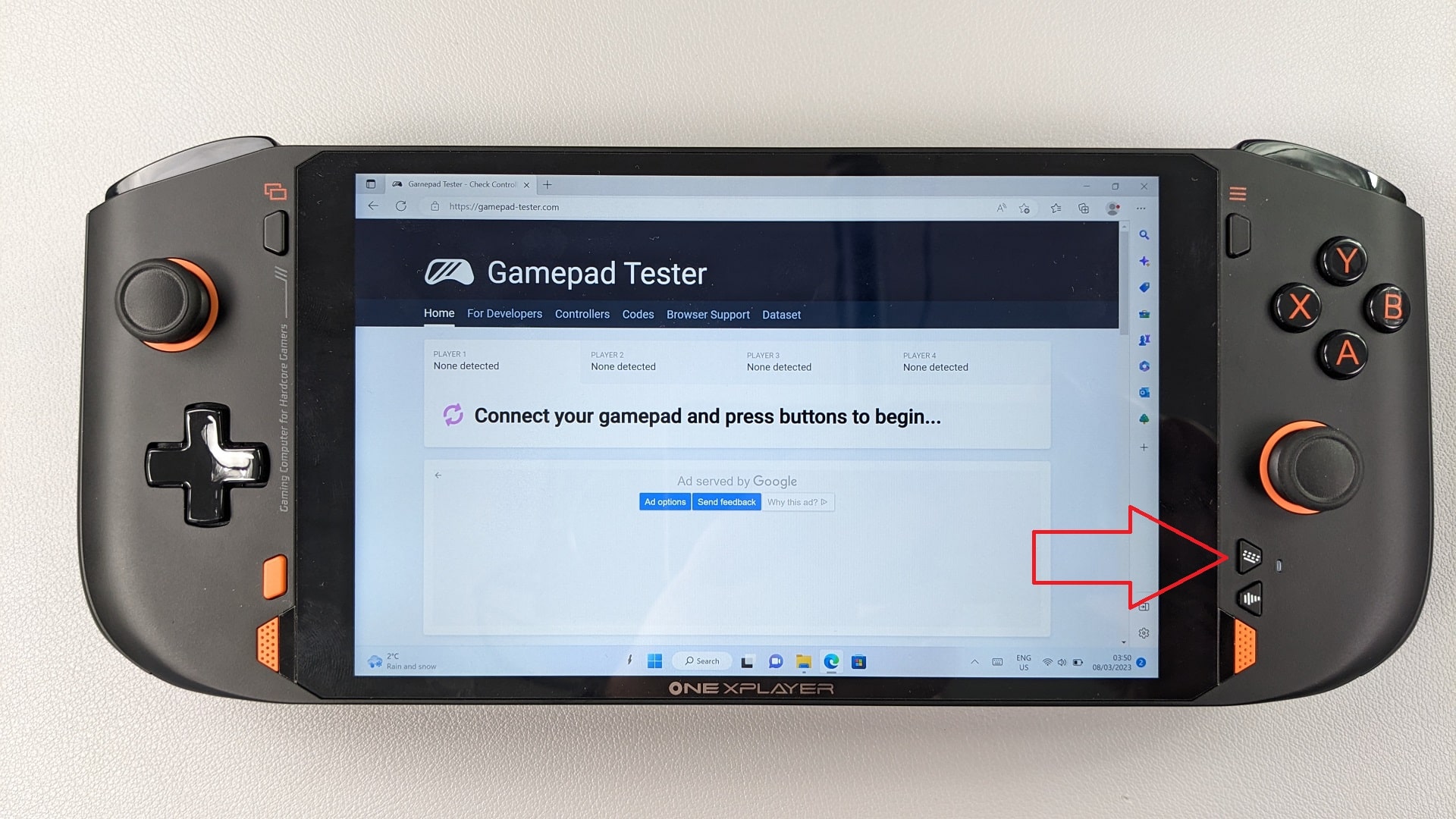
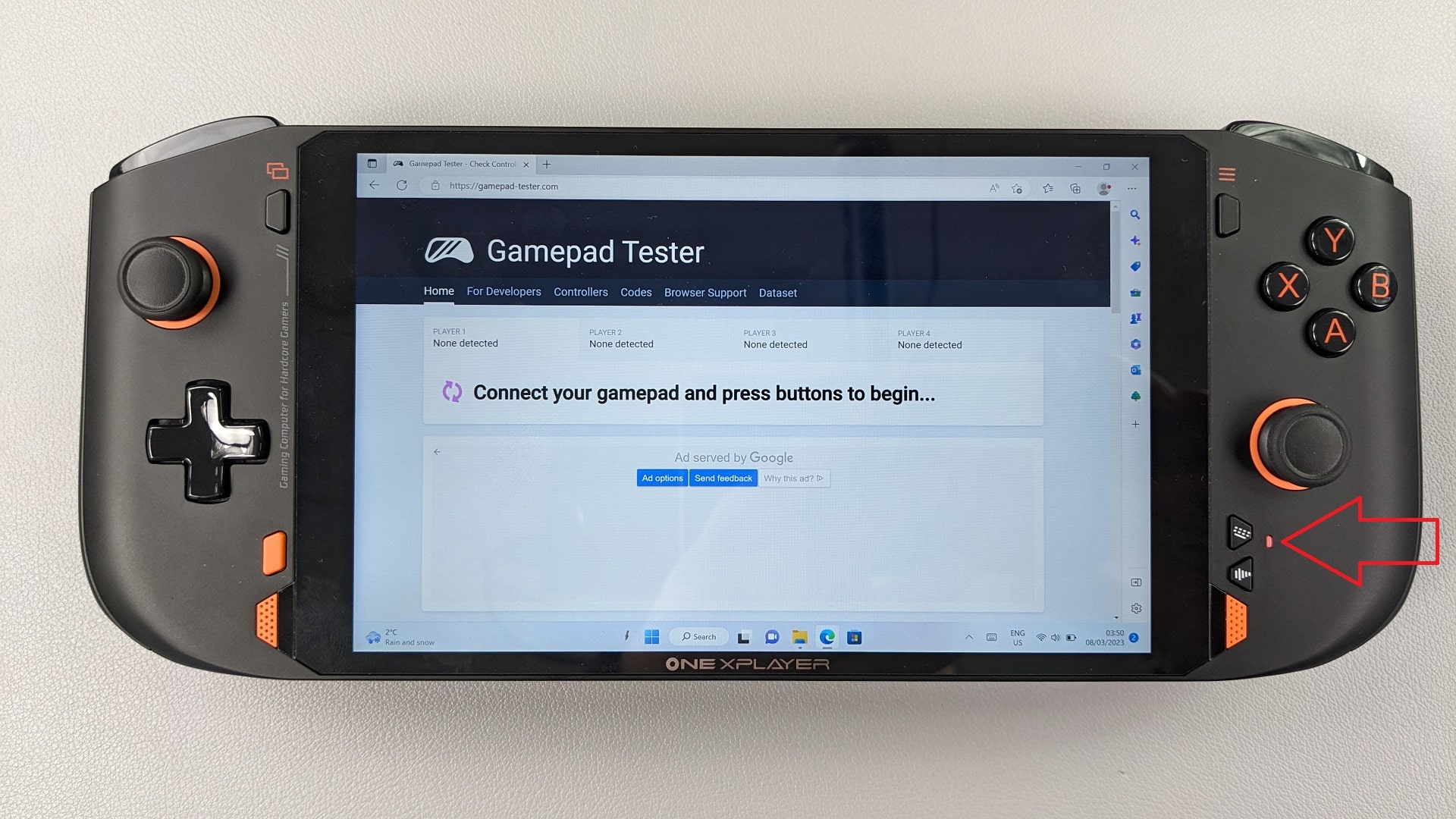
Press and hold the Keyboard button (indicated below) for 1.5 seconds until the LED beside it turns orange.
The LED beside the keyboard button will switch on with an orange light.
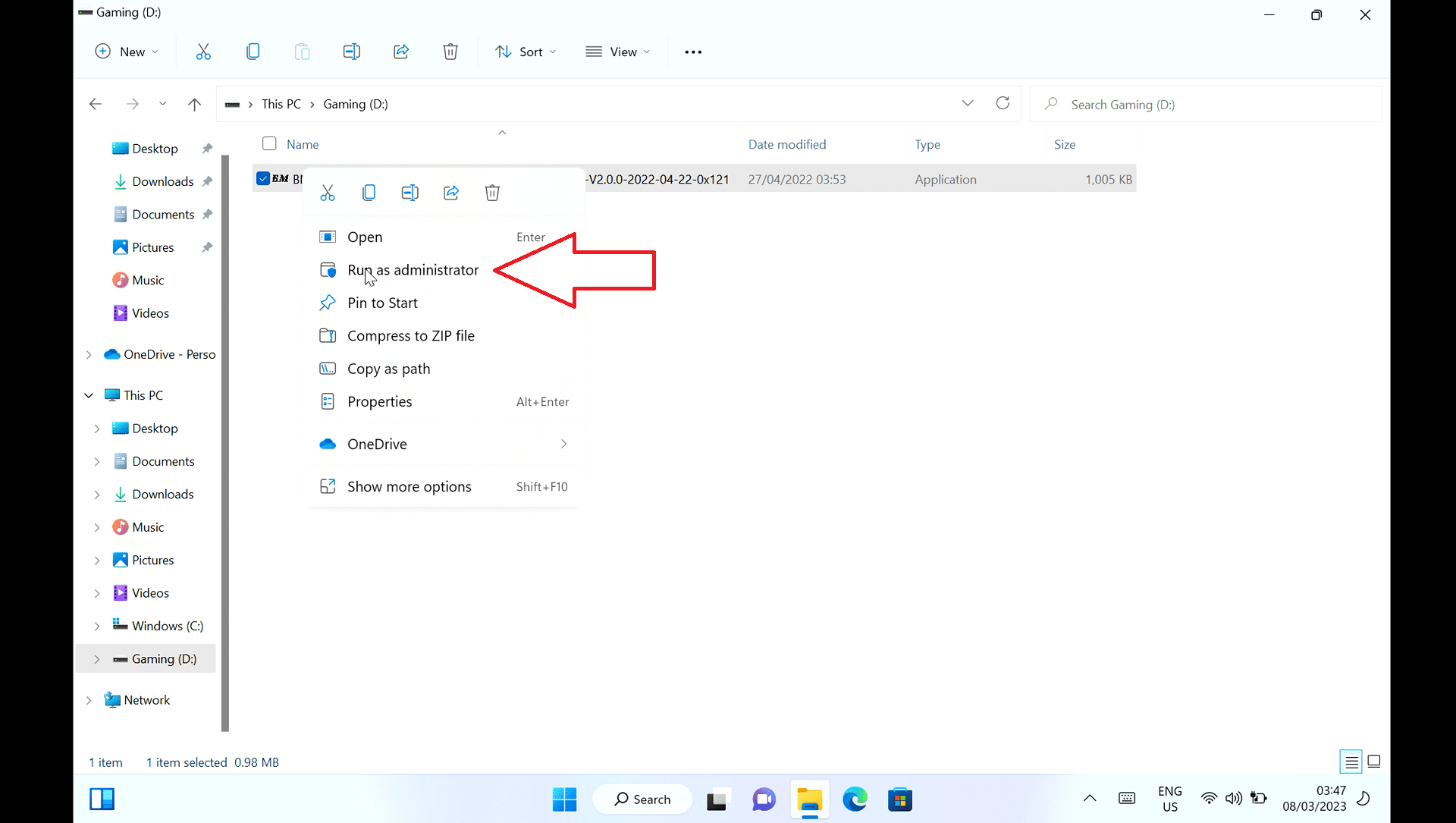
Right click on the BMxxx.exe (filename will vary depending on model and version) file you extracted and choose Run as administrator.
The firmware flashing software will now load. Click on the START button.

It will now flash the latest update which takes a short whole, the blue bar shows the progress. Do not close the software or shutdown your ONEXPLAYER during this process.
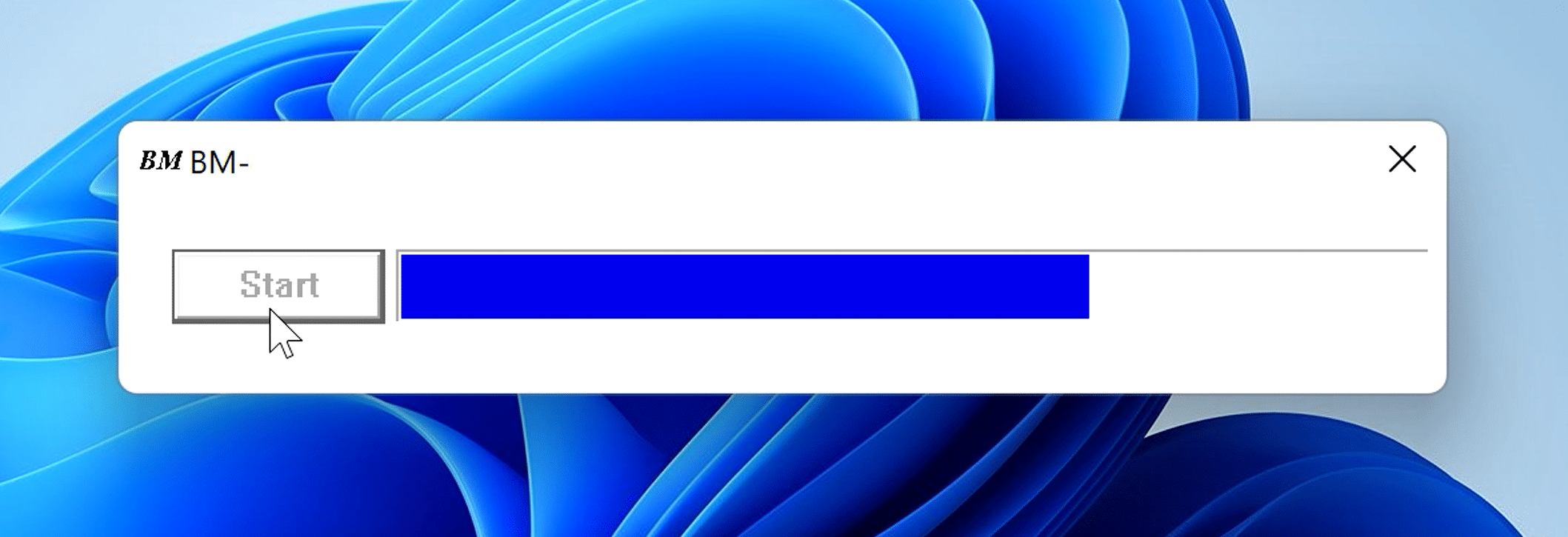
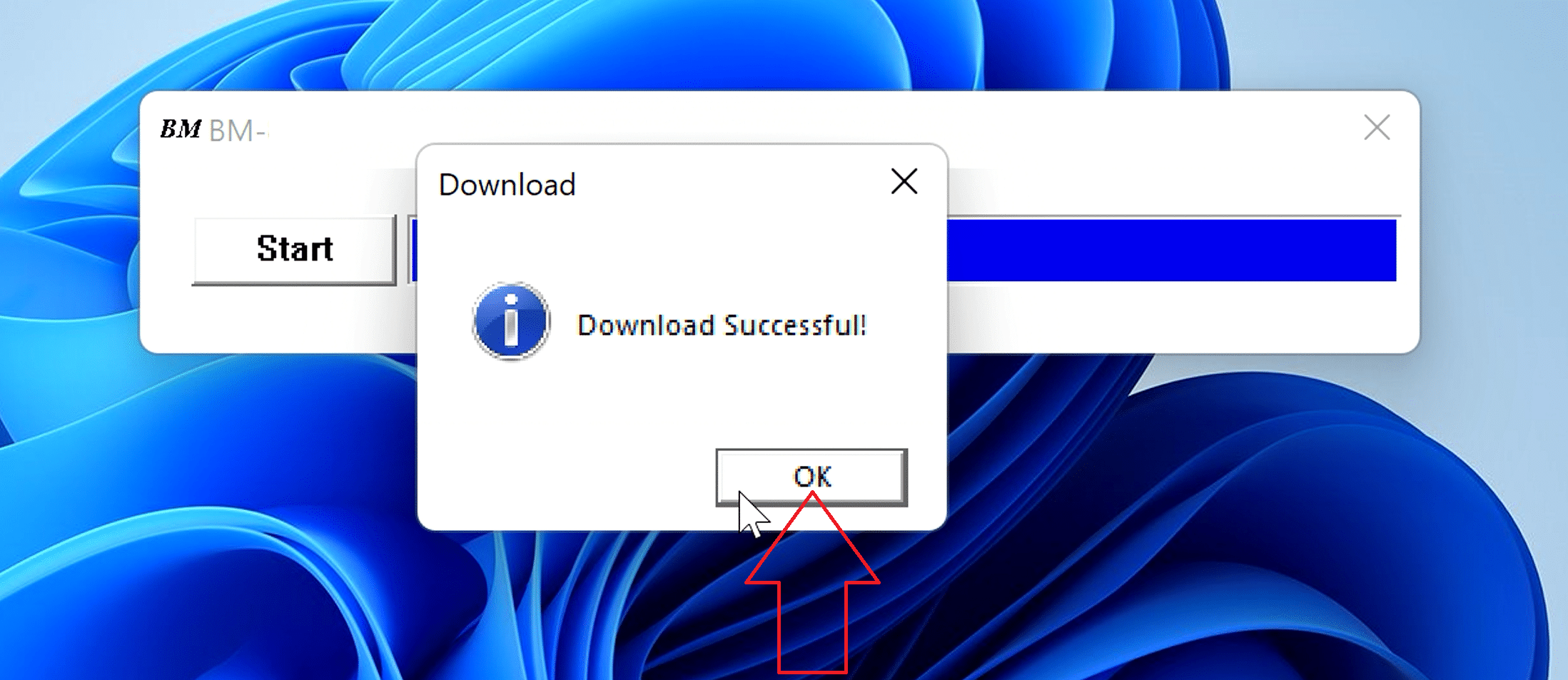
After a short wait it will show the download is successful. And after 5 seconds the LED light will switch off.
Click on OK and close the firmware update software.
Press and hold the BACK button for 5 seconds to calibrate the joystick. The LED beside the keyboard button will rapidly flash a few times to confirm it is calibrated.

Your controller is now calibrated! Don’t forget to re-enable your Anti-virus software if you disabled it.
Testing the calibrated controls
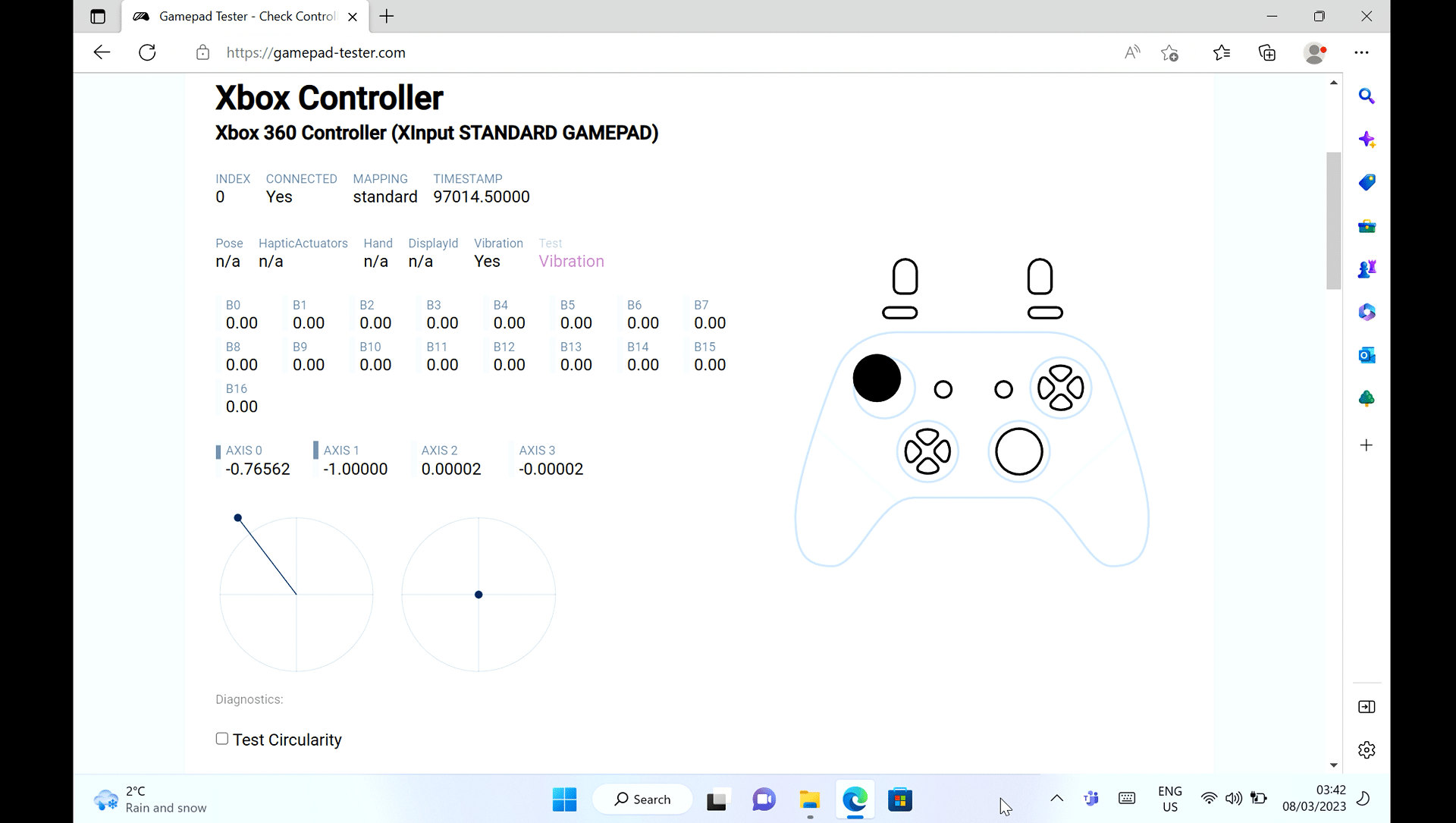
Open your browser and go to https://gamepad-tester.com/ . It will prompt you to connect your gamepad and press a button. As it is already connected, simply press any button and it will be recognised.
You can now move both of the analogue sticks in any direction to to see if it is accurate to your input.
Questions & answers