




Archivos utilizados en esta guía
Registro de cambios
- Guía de origen: Cómo reinstalar Windows en dispositivos GPD WIN
Las versiones anteriores siguen siendo descargables para reversiones: cada versión mantiene su propio archivo verificado.
Registro de cambios
- Controlador Bluetooth para el firmware Windows 10/11 | — | Instalar si el controlador Bluetooth presenta un problema tras actualizar al firmware Windows 11.
Las versiones anteriores siguen siendo descargables para reversiones: cada versión mantiene su propio archivo verificado.
Registro de cambios
- Firmware Home de WIN Mini (8840U / 7840U / 7640U) Windows 11 24H2 (actual) | 2025-01-18 |
12DD1623F9515C6F8ACA77CF42AFF6C6CF9A0542
Las versiones anteriores siguen siendo descargables para reversiones: cada versión mantiene su propio archivo verificado.
Registro de cambios
- GPD Pocket 3 (1195G7 / 1125G4 / 7505) Windows 11 22H2 Firmware (actual) | 2025-02-26 | Imagen de flasheo completa de Windows 11 22H2 con controladores integrados. La reinstalación elimina todos los datos de la unidad C. Realice una copia de seguridad antes de actuar.
Las versiones anteriores siguen siendo descargables para reversiones: cada versión mantiene su propio archivo verificado.
Registro de cambios
- WIN 4 (8840U / 7840U / 7640U / 6800U) Windows 11 24H2 Home Firmware (actual) | 2024-12-20 |
730BD7B9D989797488C1509E590085FD9941E80C - GPD WIN 4 2025 (8840U / 370) Windows 11 24H2 Home Firmware (actual) | 2024-12-20 |
730BD7B9D989797488C1509E590085FD9941E80C| Cubre tanto las variantes 8840U como AI 9 HX 370. Incluye controladores Windows 11 integrados. La reinstalación elimina todos los datos de la unidad C — realice una copia de seguridad primero. Herramienta SHA1: HashTools · - WIN 4 (6800U) Windows 11 24H2 Home Firmware (actual) | 2024-12-20 |
730BD7B9D989797488C1509E590085FD9941E80C - WIN Max 2 (8840U / 7840U / 7640U / 6800U) Windows 11 24H2 Home Firmware (actual) | 2024-12-20 |
730BD7B9D989797488C1509E590085FD9941E80C
Las versiones anteriores siguen siendo descargables para reversiones: cada versión mantiene su propio archivo verificado.
Registro de cambios
- GPD MicroPC 2 Windows 11 24H2 Home Firmware (actual) | 2025-10-30 |
F310F45676F905E93B86C9AE1E6E059E817AE4C2| Controladores de hardware integrados. Tras descargar y descomprimir, consulte el videotutorial en la página de origen para obtener orientación sobre la instalación. ·
Las versiones anteriores siguen siendo descargables para reversiones: cada versión mantiene su propio archivo verificado.
Registro de cambios
- GPD MicroPC 2 Windows 11 24H2 Pro Firmware | 2025-08-26 |
B3BB0C050AA6D7545BAF05EFF810D1238AD22531| Edición Pro. Controladores de hardware integrados. Tras la descarga y descompresión, consulte el videotutorial para obtener orientación sobre la instalación. Opcional: instale Intel® Driver & Support Assistant para mantener los controladores actualizados. Herramienta SHA1: HashTools · - Página del proveedor: https://www.intel.com/content/www/us/en/support/intel-driver-support-assistant.html
Las versiones anteriores siguen siendo descargables para reversiones: cada versión mantiene su propio archivo verificado.
Registro de cambios
- GPD DUO (AI 9 HX 370) Windows 11 24H2 Home Firmware (actual para 370) | 2025-03-18 |
30B2D557AEB549ACDC6C36D4E1DE95F209614BBE| Solo variante 370. Debe actualizar BIOS antes de actualizar el firmware del sistema — instale primero BIOS V2.12 (consulte la sección BIOS). El firmware BIOS v2.12 también resuelve el problema de parpadeo en la versión 370. Herramienta SHA1: HashTools · - GPD Pocket 4 (8840U / 365 / 370) Windows 11 24H2 Home Firmware (actual) | 2025-03-18 |
30B2D557AEB549ACDC6C36D4E1DE95F209614BBE| Incluye el controlador de gráficos integrados más reciente; resuelve el problema de que la pantalla interna no funcione al conectarse a GPD G1. Cubre las tres variantes de APU. La reinstalación elimina todos los datos de la unidad C — realice una copia de seguridad primero. Herramienta SHA1: HashTools · - GPD WIN Mini 2025 (8840U / 365 / 370) Windows 11 24H2 Home Firmware (actual) | 2025-03-18 |
30B2D557AEB549ACDC6C36D4E1DE95F209614BBE| Incluye el controlador de gráficos integrados más reciente; resuelve el problema de que la pantalla interna no funcione al conectarse a GPD G1. Se aplica a las tres variantes de APU. La reinstalación elimina todos los datos de la unidad C — realice una copia de seguridad primero. Herramienta SHA1: HashTools ·
Las versiones anteriores siguen siendo descargables para reversiones: cada versión mantiene su propio archivo verificado.
Registro de cambios
- Firmware de GPD WIN 3 (1195G7) Windows 11 22H2 (actual) | 2023-11-02 | Imagen de flasheo completa de Windows 11 22H2 con controladores integrados. La reinstalación elimina todos los datos de la unidad C. Realice una copia de seguridad antes de proceder.
- GPD WIN Max 2021 (1195G7) Firmware de Windows 11 21H2 (actual) | 2023-11-02 | Imagen de flasheo completa de Windows 11 21H2 con controladores integrados. La reinstalación elimina todos los datos de la unidad C. Realice una copia de seguridad antes de proceder.
Las versiones anteriores siguen siendo descargables para reversiones: cada versión mantiene su propio archivo verificado.
Registro de cambios
- GPD P2 Max 2022 (N6000) Windows 11 21H2 Firmware (actual) | — | Imagen de flasheo completa de Windows 11 21H2 con controladores integrados. El dispositivo tiene restauración con una tecla incorporada; solo es necesario tras reemplazar el SSD.
- GPD Pocket 3 (N6000) Windows 11 21H2 Firmware | — | Imagen de flasheo completa de Windows 11 21H2 con controladores integrados. El dispositivo tiene restauración con una tecla incorporada; solo es necesaria tras reemplazar el SSD.
Las versiones anteriores siguen siendo descargables para reversiones: cada versión mantiene su propio archivo verificado.
Reinstalling your Windows operating system can be done for several reasons. Whether something has gone wrong or you just want to give your PC or GPD device a little refresh, this guide will show you how to get a clean install going.
This guide can be used for all GPD devices from DroiX. For this demonstration, we will be using the GPD Win 4. You will require:
- Memoria USB de 16 GB o superior
- PC independiente, si no puede acceder a su Dispositivo GPD
- Cargador
Configuración de la memoria USB
The first step is the trickiest, so follow along and double-check what you do. This can be done on your GPD Device, however, if you’re not able to you will need to use another computer. This can be done on macOS or Linux, but we will be using Windows 11.
Formatea tu memoria USB
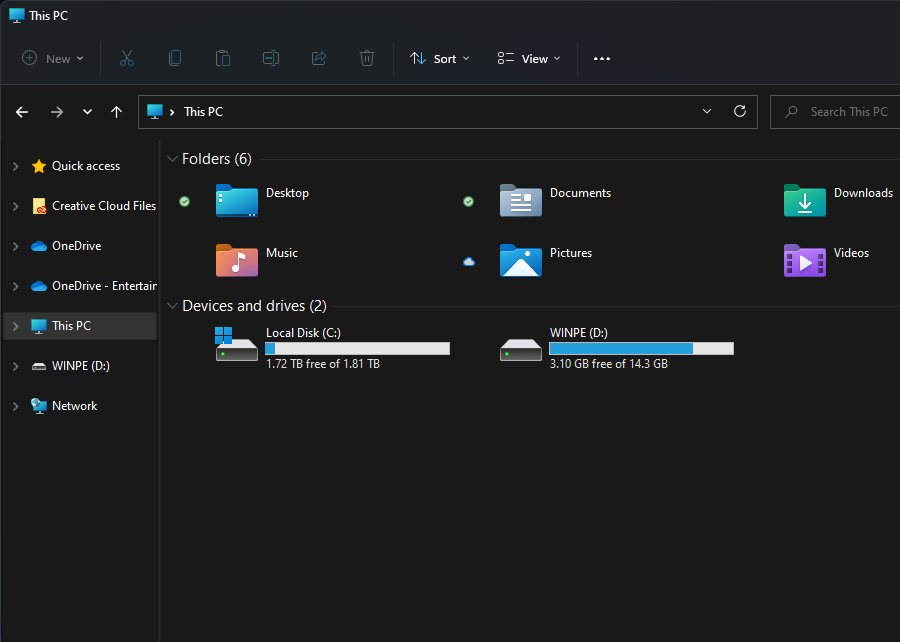
The first thing we need to do is format the USB stick, this will erase the entire drive so make sure to back up anything you wish to keep. You can find the USB stick under ‘This PC’ as shown above.
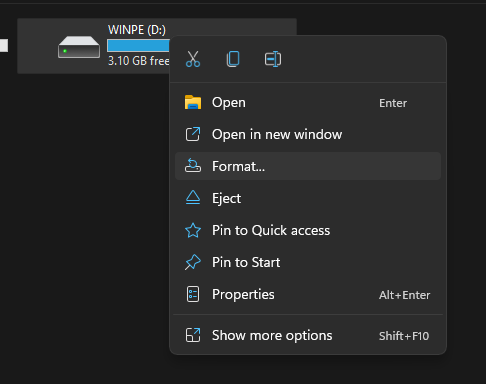
When you’re ready, right-click on the USB Stick and click ‘Format’. This will open up a new window.
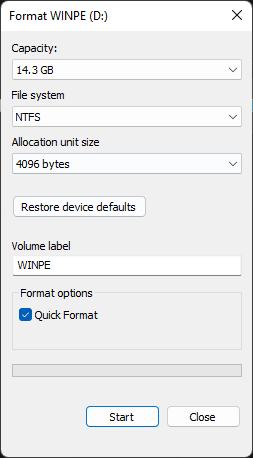
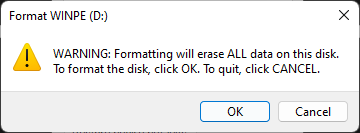
From here you can format your USB Stick. The capacity and allocation unit size can be left as it is. Ensure that the File System is set to ‘NTFS’ and the Volume Label is ‘WINPE’. A quick format will do here. When you click ‘Start’ a warning will pop up, click ‘OK’.
Once it has completed the format, a window will pop up telling you so.
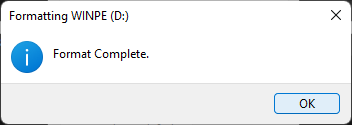
Prepare los archivos de instalación
Now that your USB flash drive is ready, we can download and set up the files needed for the Windows installation. You can download the installation files for your device from GPD by following the link below.
| DEVICE | DOWNLOAD |
| GPD WIN Mini 2023 & 2024 (7640U, 7840U, 8840U) | DOWNLOAD HERE |
| GPD WIN Mini 2025 (8840U / HX 365 / HX 370) | DOWNLOAD HERE |
| GPD WIN 4 2022 (6800U) | DOWNLOAD HERE |
| GPD WIN 4 2023 & 2024 (7640U, 7840U, 8840U) | DOWNLOAD HERE |
| GPD WIN 4 2025 (8840U / HX 370) | DOWNLOAD HERE |
| GPD WIN MAX 2 2022 (6800U) | DOWNLOAD HERE |
| GPD WIN MAX 2 2023 & 2024 (7640U, 7840U, 8840U) | DOWNLOAD HERE |
| GPD WIN MAX 2 2025 (8840U / HX 370) | DOWNLOAD HERE |
| GPD POCKET 3 (1195G7) | DOWNLOAD HERE |
| GPD POCKET 3 (N6000) | DOWNLOAD HERE |
| GPD POCKET 4 (8840U / HX 365 / HX 370) | DOWNLOAD HERE |
| GPD MICROPC 2 (N250/N300) | DOWNLOAD HERE |
When you’ve found the installation for your device click on ‘Download’. You will be taken to the download page on Google Drive.
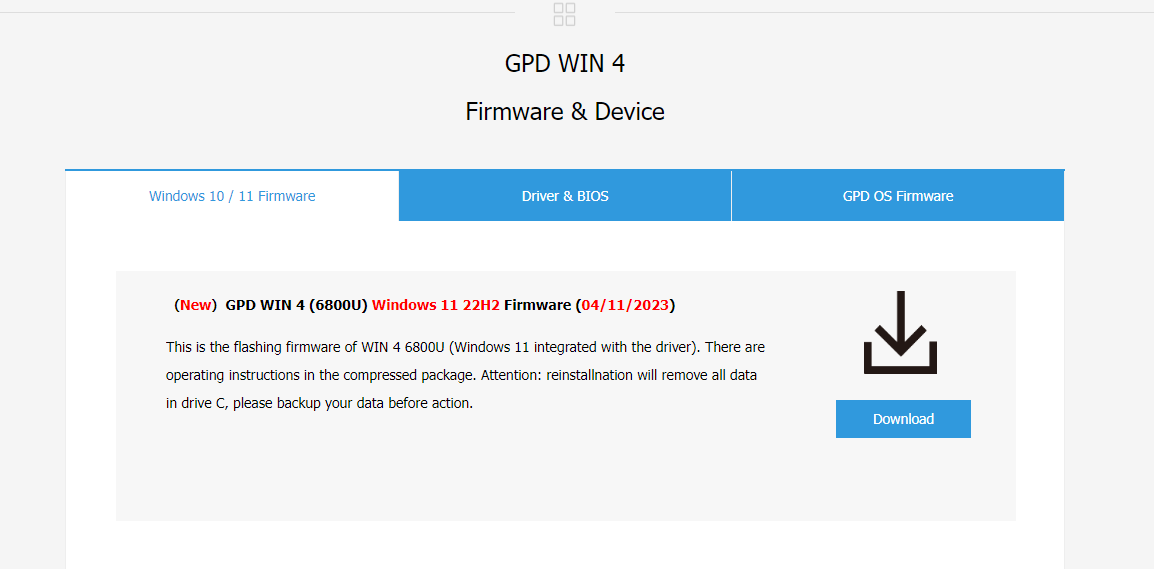
Vuelve a hacer clic en «Descargar» y accederás a una página de confirmación.

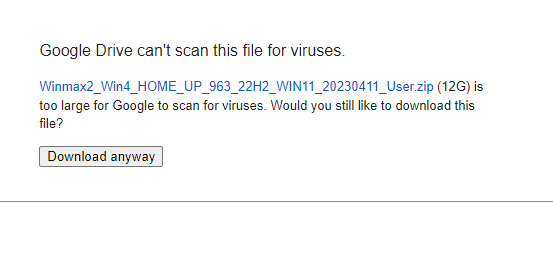
Click on ‘Download anyway’ to download the file. It will download a ZIP to your computer.
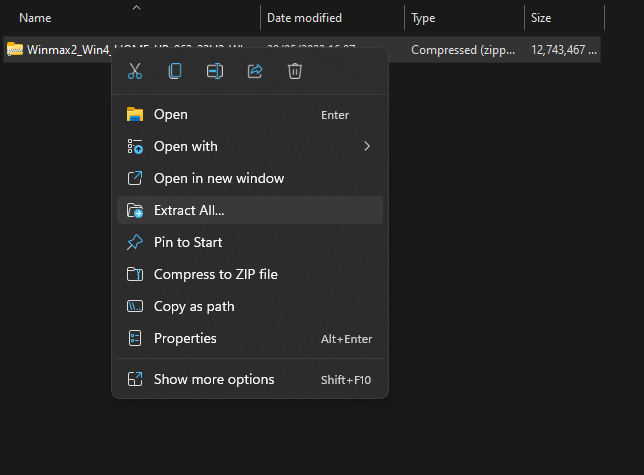
Locate the ZIP file, then right-click and select ‘Extract All…’. This will open a new window.
Cuando se abra la ventana de extracción , haz clic en «Extraer». Aparecerá una barra de progreso que indica el tiempo que tardará.
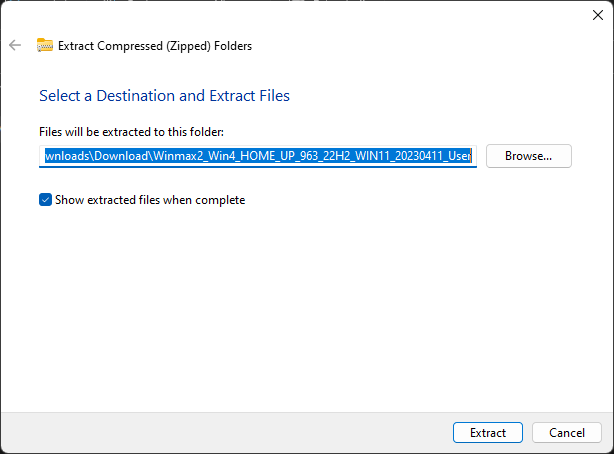
Once the files have been extracted, open up the new folder and the contained folder until you find the installation files, as seen in the photo below. Select all of the files and copy them over the newly formatted USB stick. This can be done by opening the USB stick in a new window. Press Ctrl+A to select all of the files and drag them over to the USB stick. Another progress window will show you how long the copying will take.
If the file is and ISO file, please follow the guide here to write the file to a USB drive, and continue below once completed.
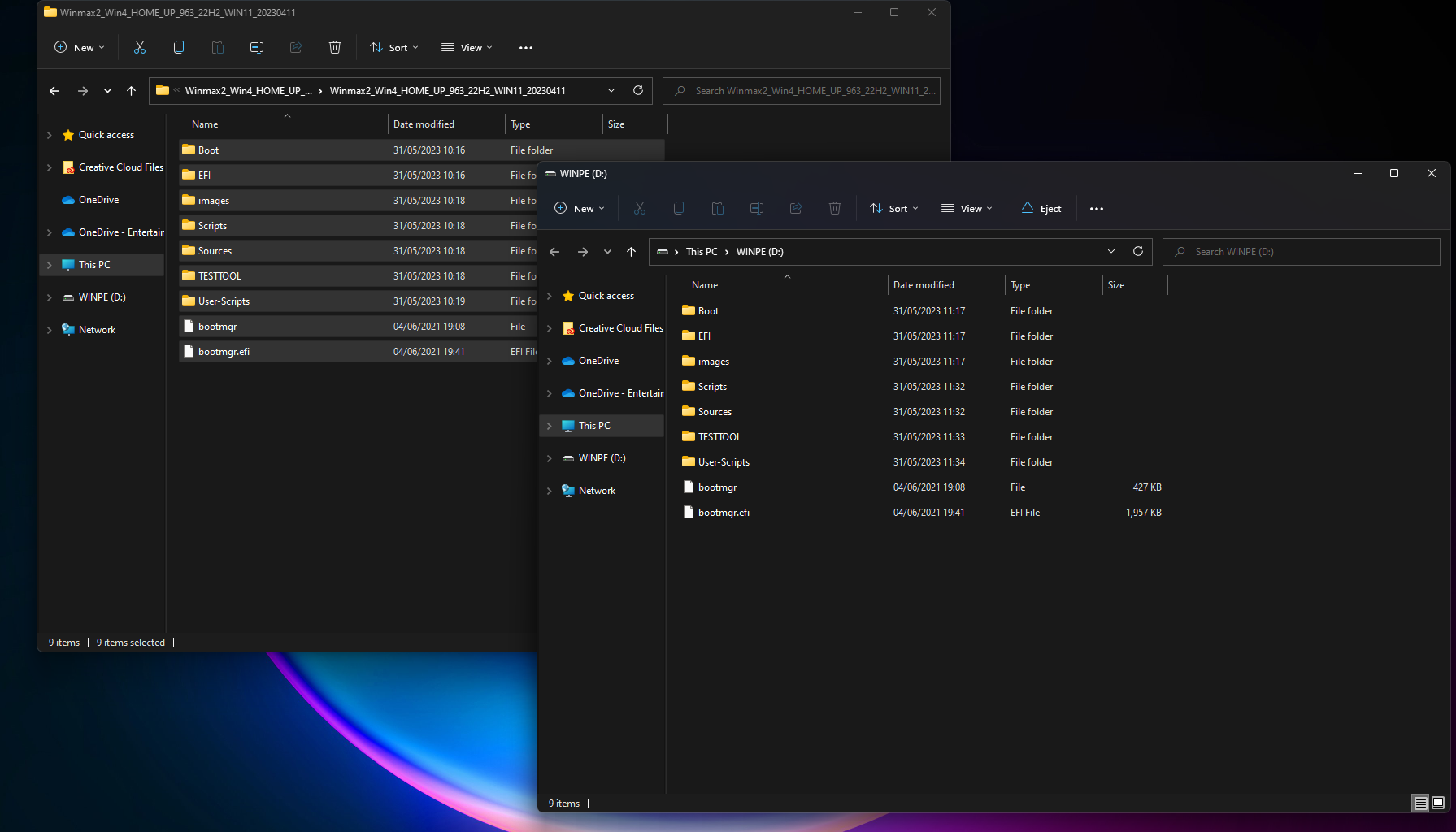
Once all of the files have been copied over, if you’re using a separate computer, you’re free to eject the USB Stick by right-clicking on it and clicking ‘Eject’.

Instalación de Windows en su dispositivo GPD Win
You are now ready to install Windows onto your GPD device.
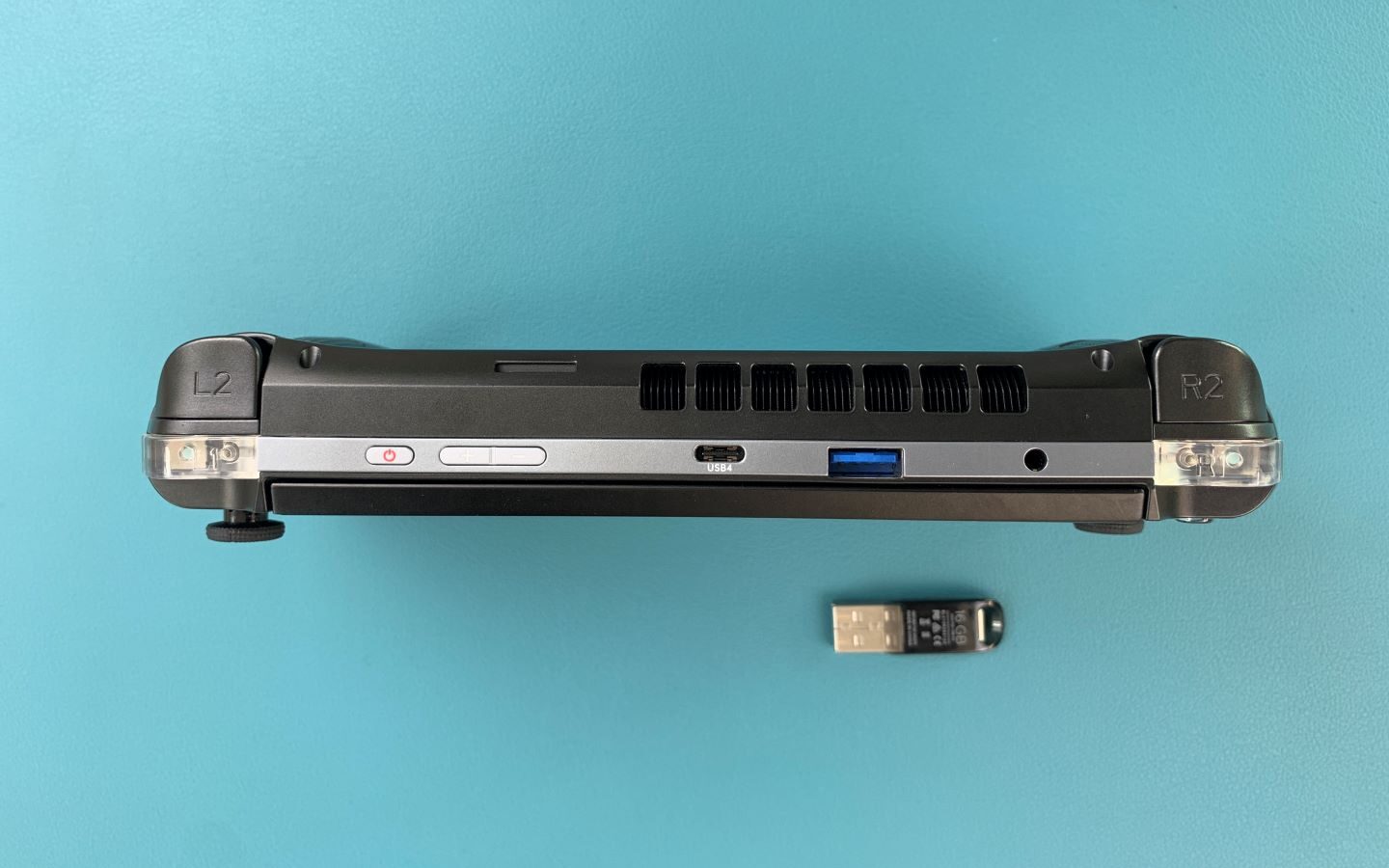
Ensure your USB Stick is plugged into the USB Port at the top of the device. You can then press the power button on the top of the device. You will need the keyboard for the next section, and slide the screen up.
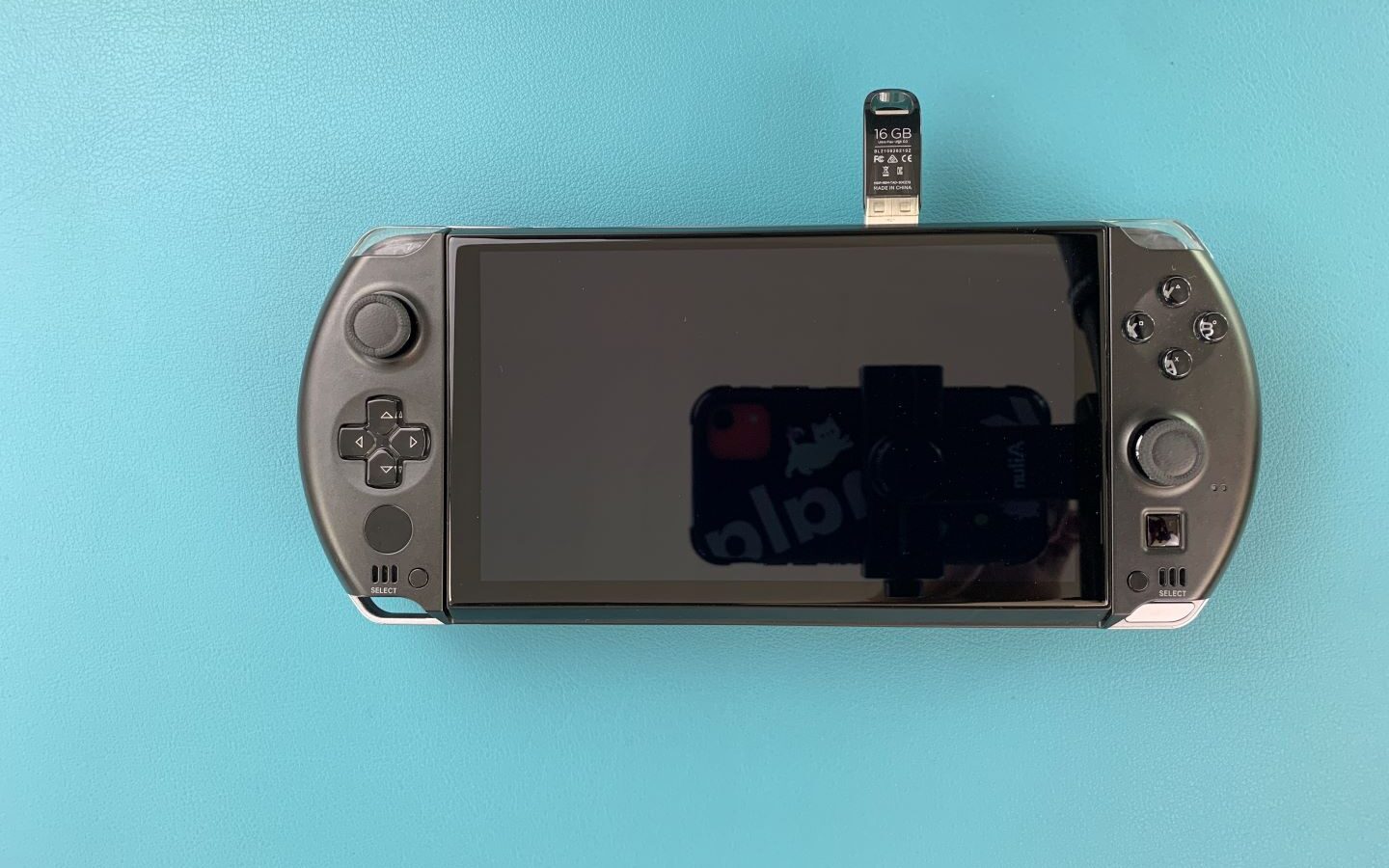
Hold down Fn and the 7(F7) key until you get to the boot menu, as seen above. Click on the Down Arrow key to highlight the USB Stick and click Enter to select and boot from it.

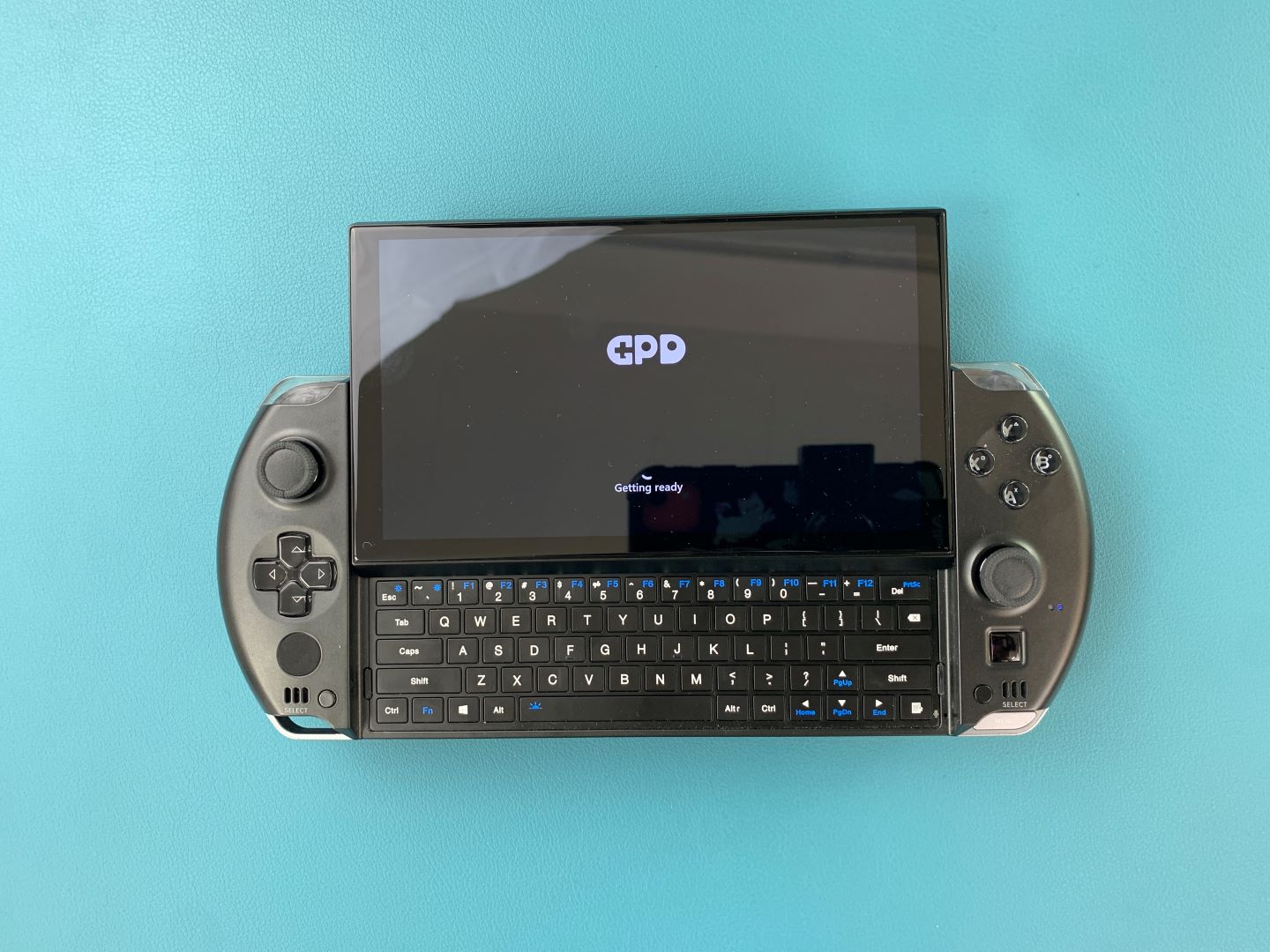
You will be greeted with a GPD loading screen as the device gets ready.
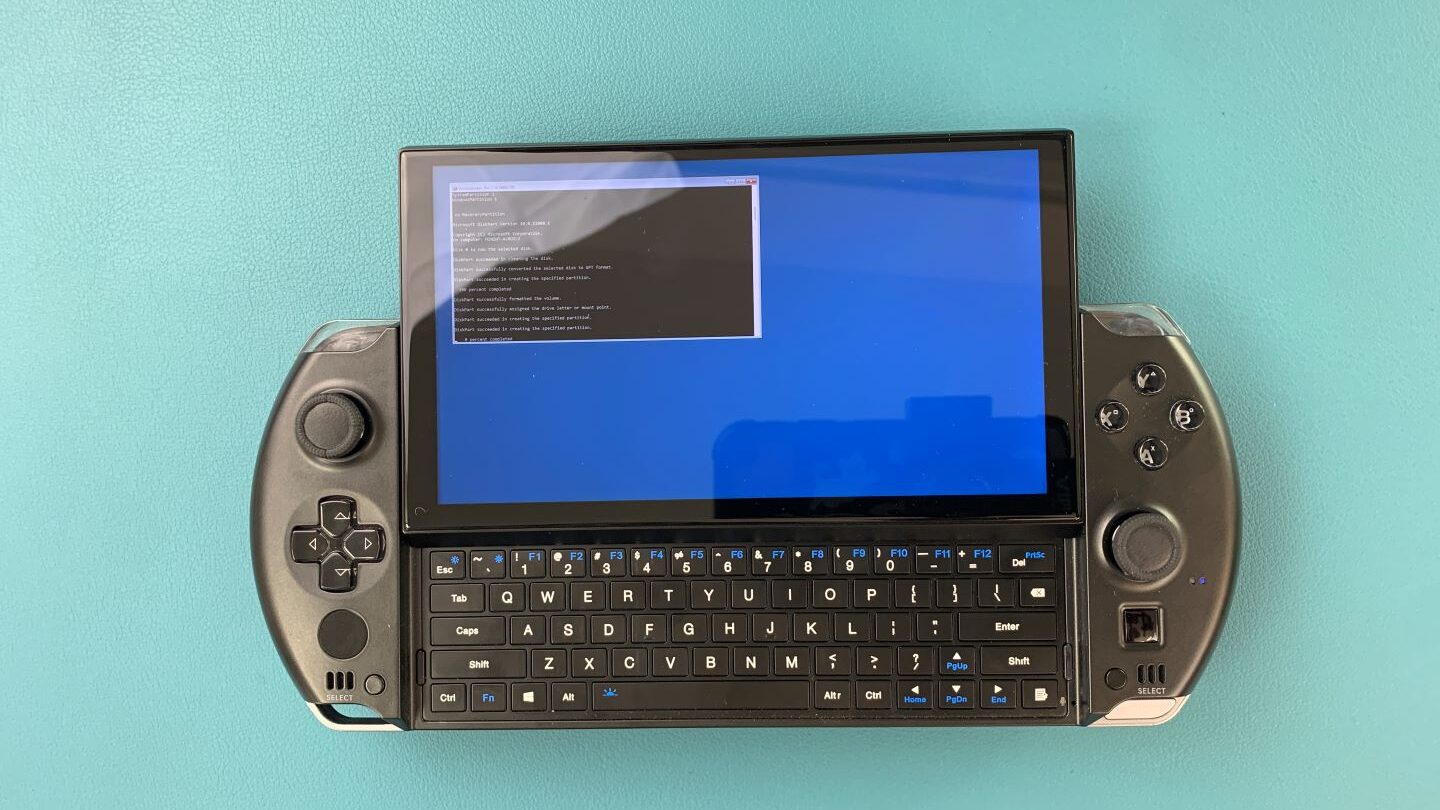
The device will boot from the USB Drive and automatically load and run a script to install a fresh copy on Windows. Let it run when this is happening.
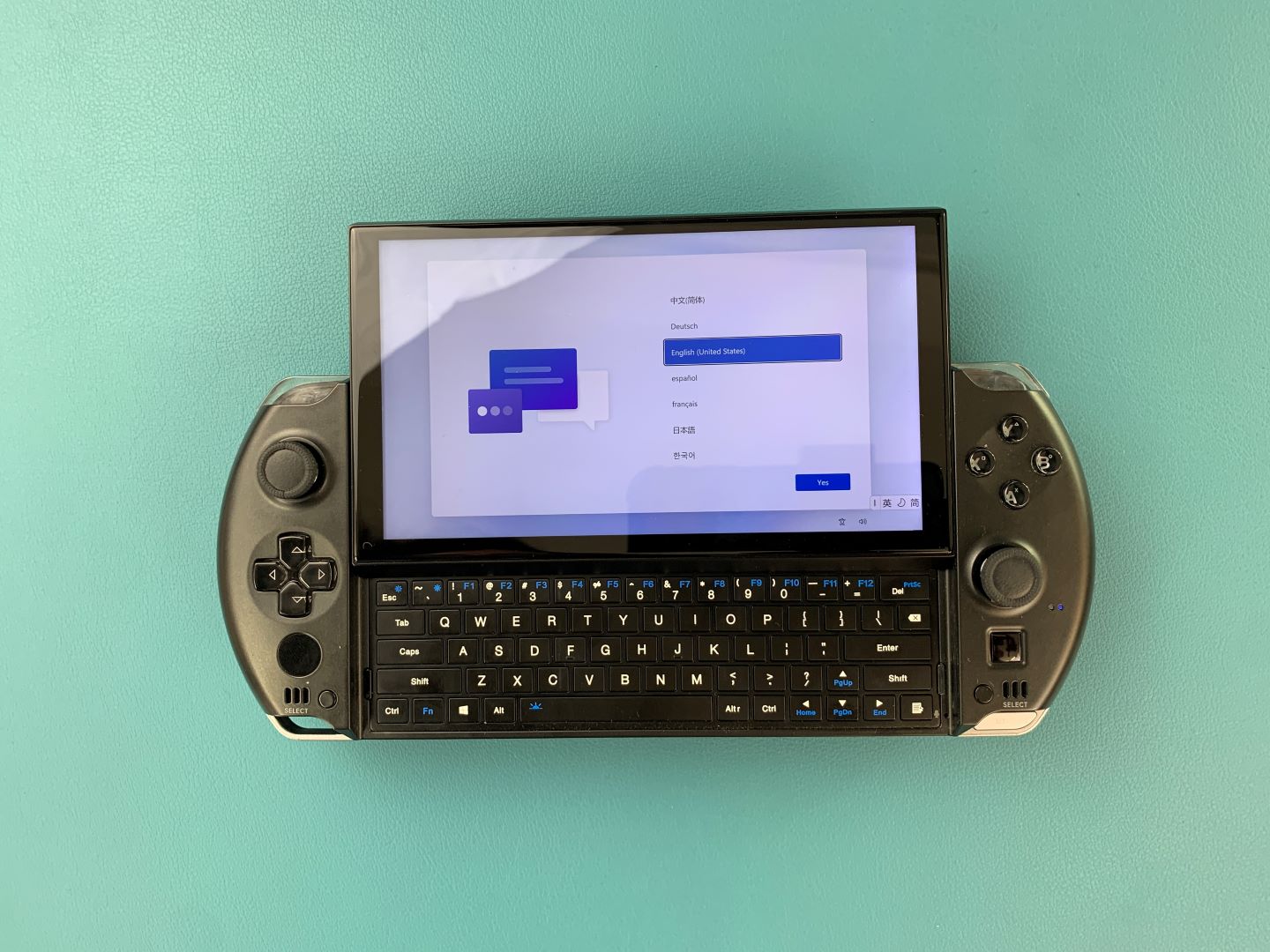
Once it is completed you will taken to the Windows setup process. Go through it with your preferred settings as you would any PC.
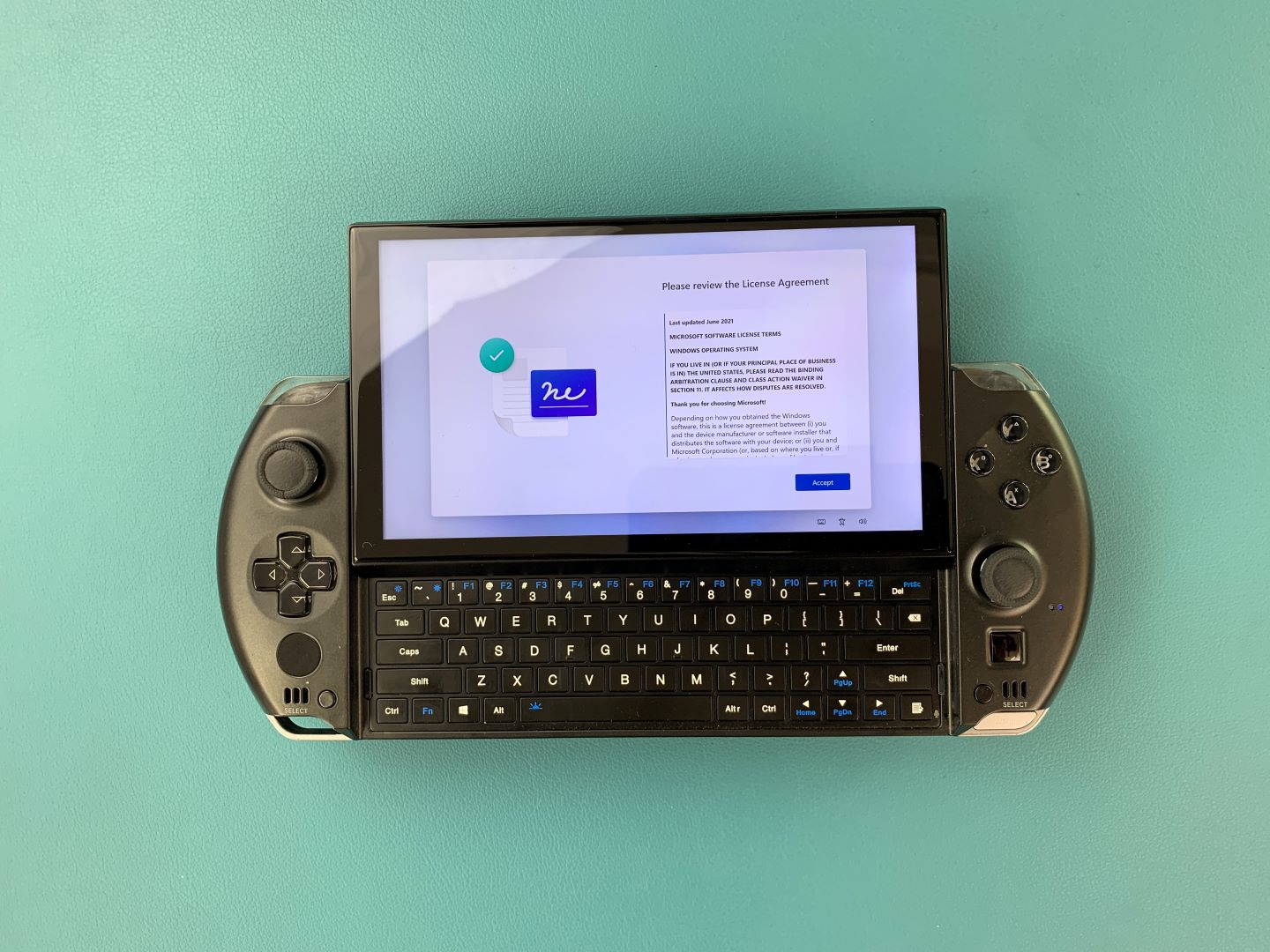
The setup process will need to be finalised, wait for a few minutes as it does.
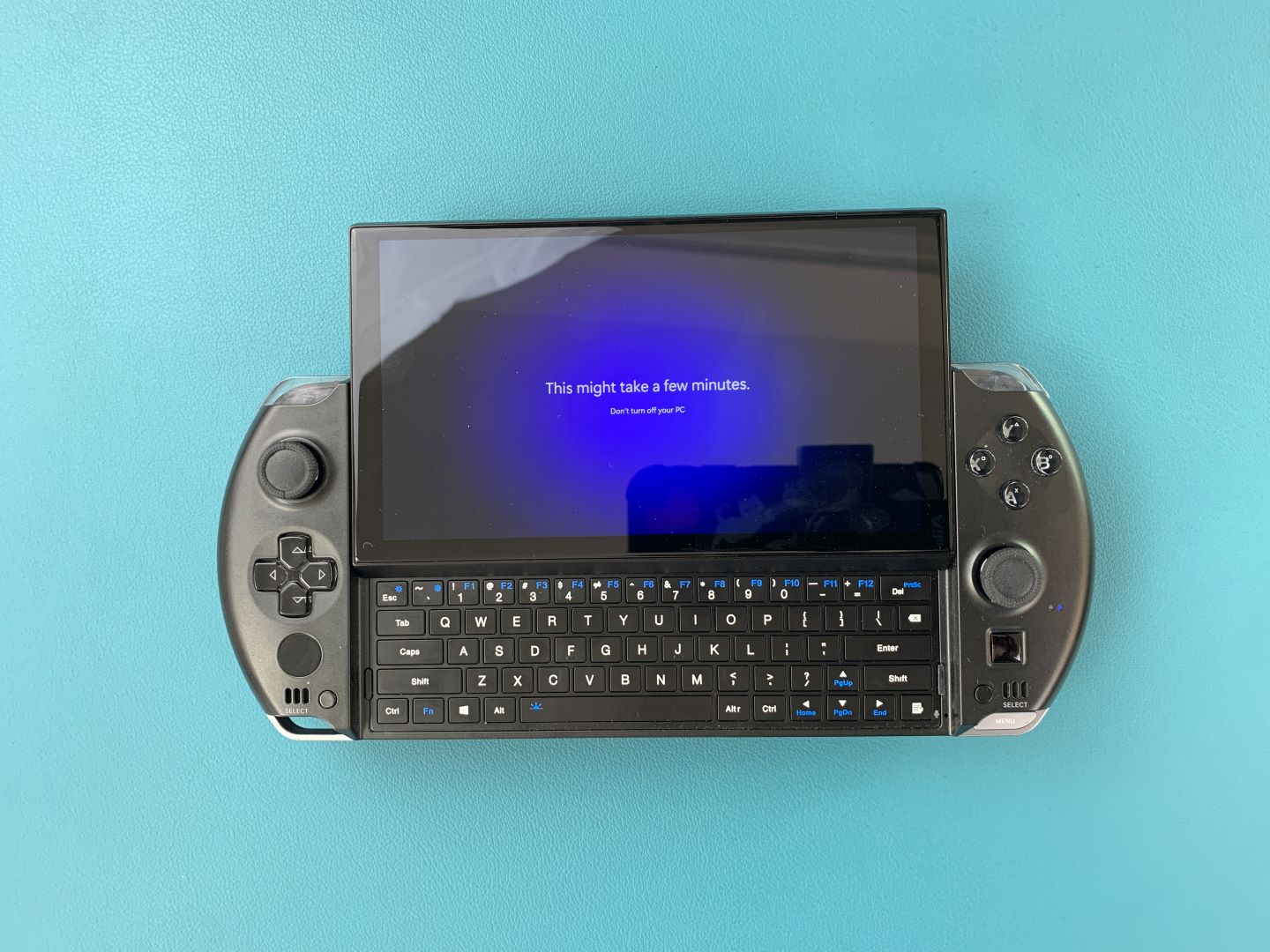
You will be taken to the Windows home screen. Congratulations, you have successfully reinstalled Windows on your GPD Device. You are free to remove the USB Stick and get to gaming!
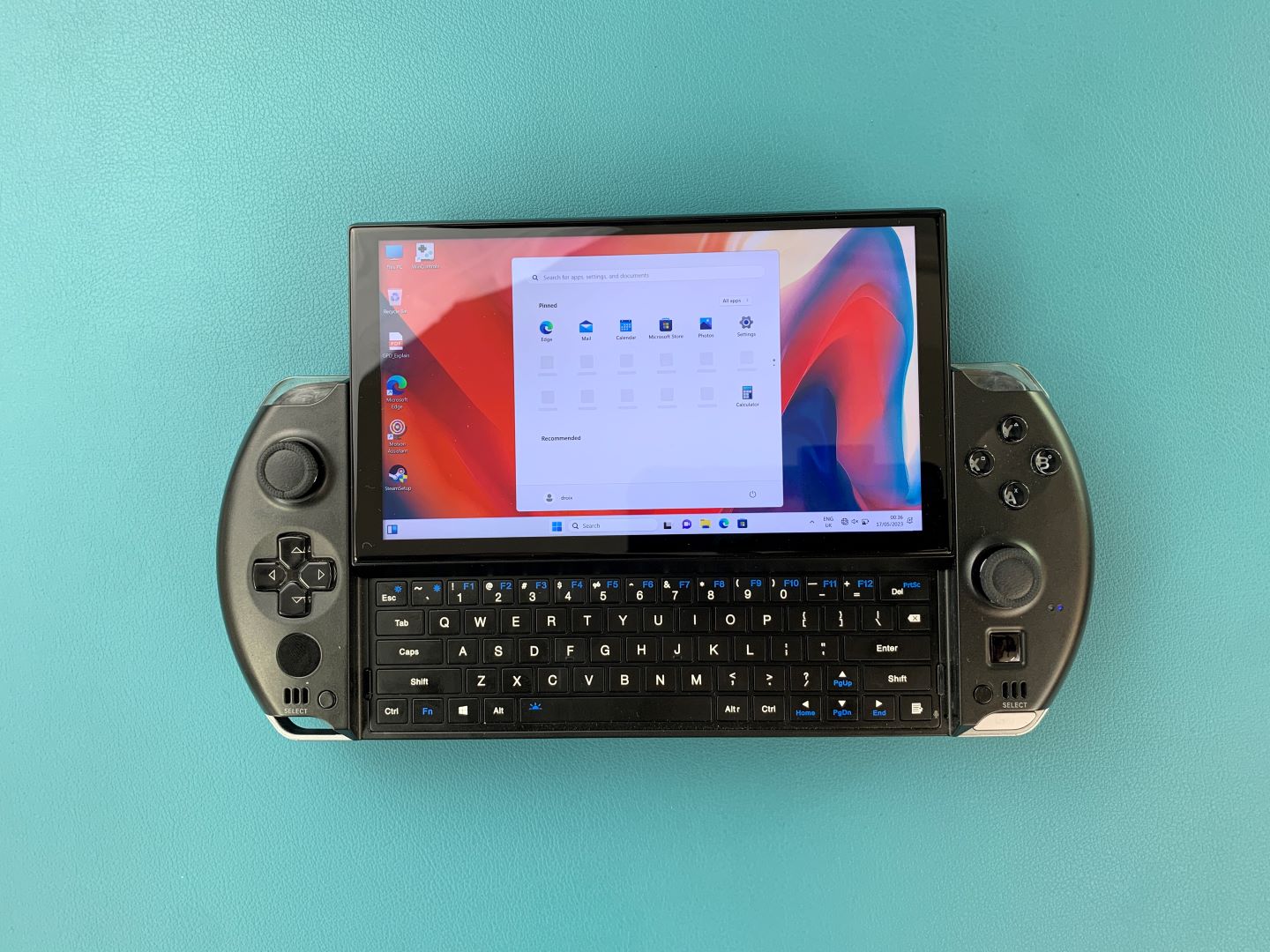
To learn more about your device check out the product page here.
To learn more about our other offerings and products take a look at other Knowledge Base articles here.
From the blog
Visit the blog Ya está aquí el GPD MicroPC 2 N350: La actualización 2026 trae un rendimiento Intel más reciente
4 de junio de 2026
Ya está aquí el GPD MicroPC 2 N350: La actualización 2026 trae un rendimiento Intel más reciente
4 de junio de 2026
 El GPD MicroPC 2 N350 ya está disponible: La actualización 2026 añade más potencia Intel
4 de junio de 2026
El GPD MicroPC 2 N350 ya está disponible: La actualización 2026 añade más potencia Intel
4 de junio de 2026
 ¿Puede el GPD MicroPC 2 para uso diario sustituir realmente al portátil y la tableta? Una prueba de una semana
10 de noviembre de 2025
¿Puede el GPD MicroPC 2 para uso diario sustituir realmente al portátil y la tableta? Una prueba de una semana
10 de noviembre de 2025
 Sustituí mi portátil y mi tableta por un GPD MicroPC 2 para uso diario durante una semana: Esto es lo que ocurrió
10 de noviembre de 2025
Sustituí mi portátil y mi tableta por un GPD MicroPC 2 para uso diario durante una semana: Esto es lo que ocurrió
10 de noviembre de 2025
Preguntas y respuestas 4
The link for Win Max 2 is just the same w/ the 2023 version/
You are correct, our apologies for that. It’s now fixed.
Hello,
I have tried to download the Windows firmware «GPD MicroPC 2 — Windows 11 24H2 Home Firmware», it is failing at 10.471 GB (the target size is supposed to be 14.1GB. I encountered the same issue when trying to download from gpd.hk at a diffrent size, around 10.7GB. Please, how can I get this firmware without failure?
Many thanks,
Yvan
Does your browser give any reason for stopping the download? Try a different browser or use a download manager and see if that makes any difference. If you are still having an issue and you purchased the GPD MicroPC 2 from us at DROIX, please email [email protected] with your order number and some details, customer service will be able to advise. Thanks.