




Files used in this guide
Versions (6)
- After closing the UI, the background service will no longer execute any operations. This fixes an issue causing abnormal fan behavior on system startup.
- Added power tuning parameters for the GPD MAX3.
- Fixed hidden bugs.
- Updated kernel driver for improved stability; no need to add to whitelist, no antivirus warnings.
- Fixed issue with automatic multi-language settings during installation.
- Added Chinese, Japanese, and Korean prompts to the performance monitoring horizontal and vertical buttons.
- Modified TDP PL2 calculation method to PL1+1 for more accurate power consumption locking.
- Source guide: GPD Tool Download, Setup Guide & Troubleshooting for GPD Devices
- Source guide: GPD Tool Download, Setup Guide & Troubleshooting for GPD Devices
- Source guide: GPD Tool Download, Setup Guide & Troubleshooting for GPD Devices
Older versions stay downloadable for rollbacks — every version keeps its own verified file.
What is GPD Tool? GPD Tool is a Windows utility for compatible GPD handheld gaming PCs that replaces MotionAssist and gives you quick access to performance controls, fan settings, shortcuts, and the in-game overlay.
GPD Tool is a Windows utility for compatible GPD devices that replaces the older MotionAssist software. It provides a cleaner interface and faster access to useful system controls, including TDP adjustment, fan profiles, FPS lock, performance monitoring, shortcuts, brightness, and volume settings.
If you want to configure your GPD handheld more easily in Windows or access performance tools while gaming, GPD Tool gives you a single overlay for the most commonly used controls.
- Full controller navigation support
- Can be invoked in any fullscreen game, with customizable keyboard and controller shortcuts
- TDP adjustment support
- In-game performance monitoring and frame rate limiting
- Customizable fan silent mode
- Volume and brightness adjustment
- Game “Freezer” feature to suspend processes and save power
- On-screen keyboard support
- Supports 7 languages: Chinese, English, Japanese, Korean, Russian, French, and Spanish
Supported Devices
GPD Tool is designed for compatible GPD Windows devices. Support can vary depending on your model, installed firmware, and the version of GPD Tool you are using.
At the time of writing, GPD Tool is intended for newer supported GPD systems. Before installing, make sure you are using the correct software version for your device and check any firmware requirements listed in the release notes.
Compatible or commonly supported models may include:
- GPD WIN 4 series
- GPD WIN Mini 2025
- GPD WIN MAX 2 2025
- GPD WIN 5
If you are unsure whether your model is supported, install the latest Windows updates, update your AMD drivers, and confirm any device-specific firmware requirements before installing GPD Tool.
GPD Tool Downloads
You can download the latest release as well as previous releases below.
Files used in this guide
Versions (6)
- After closing the UI, the background service will no longer execute any operations. This fixes an issue causing abnormal fan behavior on system startup.
- Added power tuning parameters for the GPD MAX3.
- Fixed hidden bugs.
- Updated kernel driver for improved stability; no need to add to whitelist, no antivirus warnings.
- Fixed issue with automatic multi-language settings during installation.
- Added Chinese, Japanese, and Korean prompts to the performance monitoring horizontal and vertical buttons.
- Modified TDP PL2 calculation method to PL1+1 for more accurate power consumption locking.
- Source guide: GPD Tool Download, Setup Guide & Troubleshooting for GPD Devices
- Source guide: GPD Tool Download, Setup Guide & Troubleshooting for GPD Devices
- Source guide: GPD Tool Download, Setup Guide & Troubleshooting for GPD Devices
Older versions stay downloadable for rollbacks — every version keeps its own verified file.
How to Install GPD Tool
- Download the correct version of GPD Tool above for your device using the links above.
- Extract the downloaded archive if required.
- Run the installer and follow the on-screen steps.
- Allow the installation to complete, then restart your device if prompted.
- After rebooting, look for the GPD Tool icon in the Windows system tray.
- Open the overlay by clicking the tray icon or pressing CTRL + SHIFT + F3.
- If the Performance feature is unavailable, install or confirm RivaTuner and DirectX, then reboot again.
How to Update GPD Tool
- Download the latest available version of GPD Tool.
- Close GPD Tool fully from the system tray before updating.
- Run the new installer and allow it to overwrite the older version if prompted.
- Restart your device after the update is complete.
- Open GPD Tool and confirm that the new version is working correctly.
- If your device requires a controller firmware update for the new release, complete that first before troubleshooting further.
How to Uninstall GPD Tool
- Open the Windows Control Panel.
- Go to Programs and Features.
- Find GPD Tool in the installed software list.
- Select it and choose Uninstall.
- Restart your device after removal.
- If you plan to reinstall, download the latest version and install it fresh after rebooting.
GPD Tool User Guide
You can open the GPD Tool overlay from the Windows system tray in the bottom right of the desktop, or by pressing CTRL + SHIFT + F3.
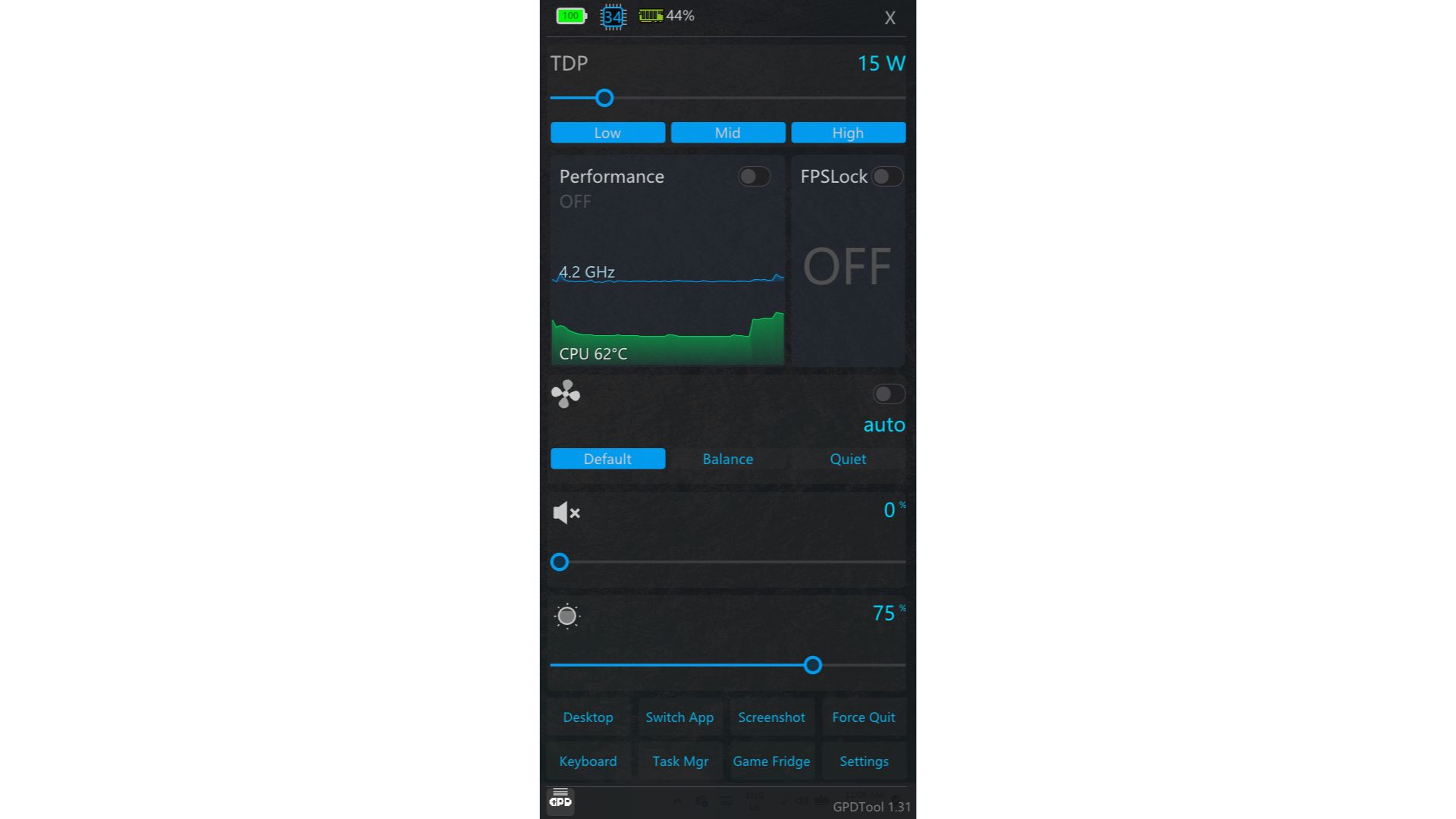
You may find the text is by default in Chinese language, you can change it to your preferred language by following the steps in the below image:
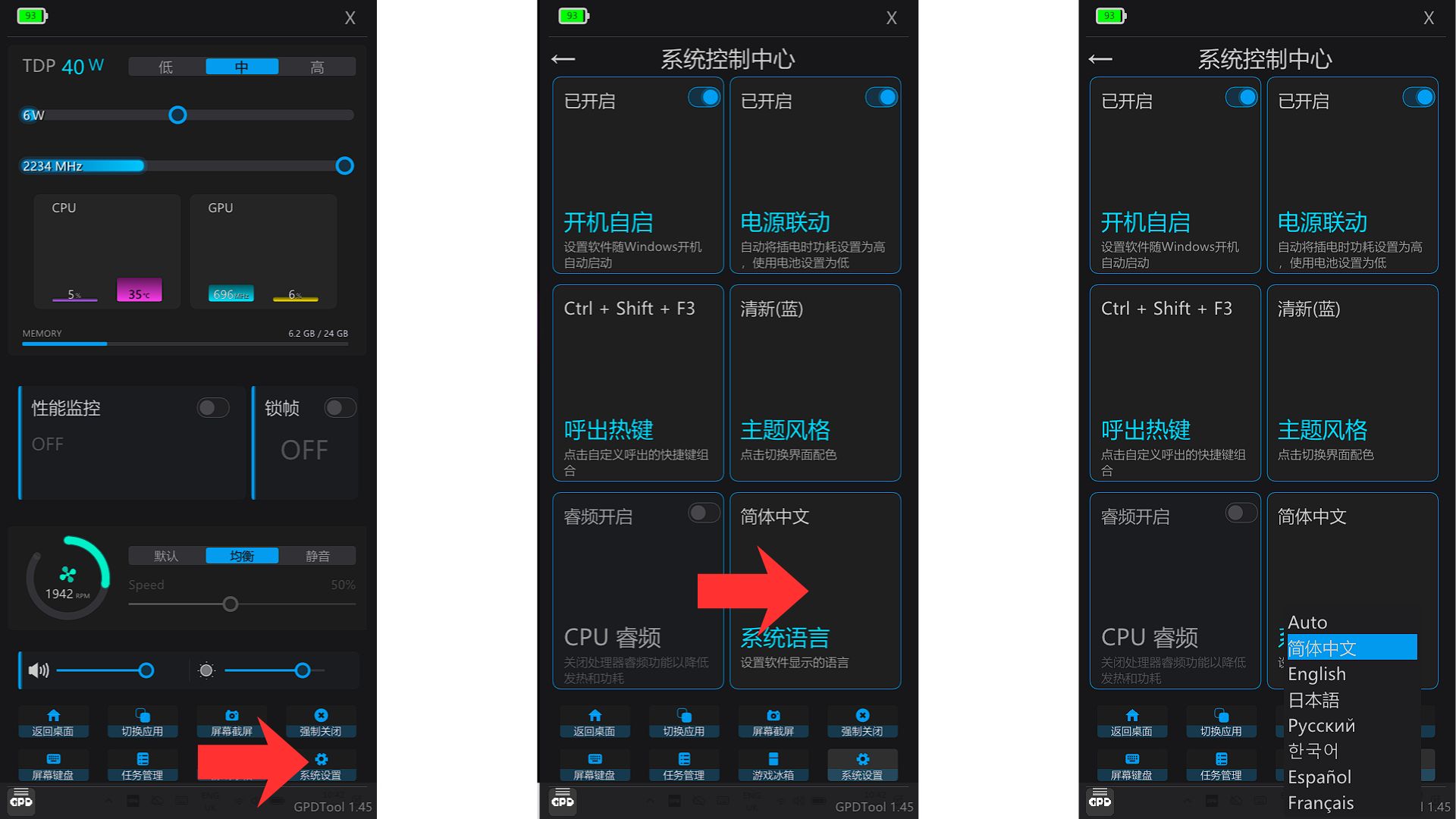
A quick run down over all the options you have.
TDP Settings
Use this section to adjust your device’s Thermal Design Power (TDP). The available range depends on your specific GPD model.
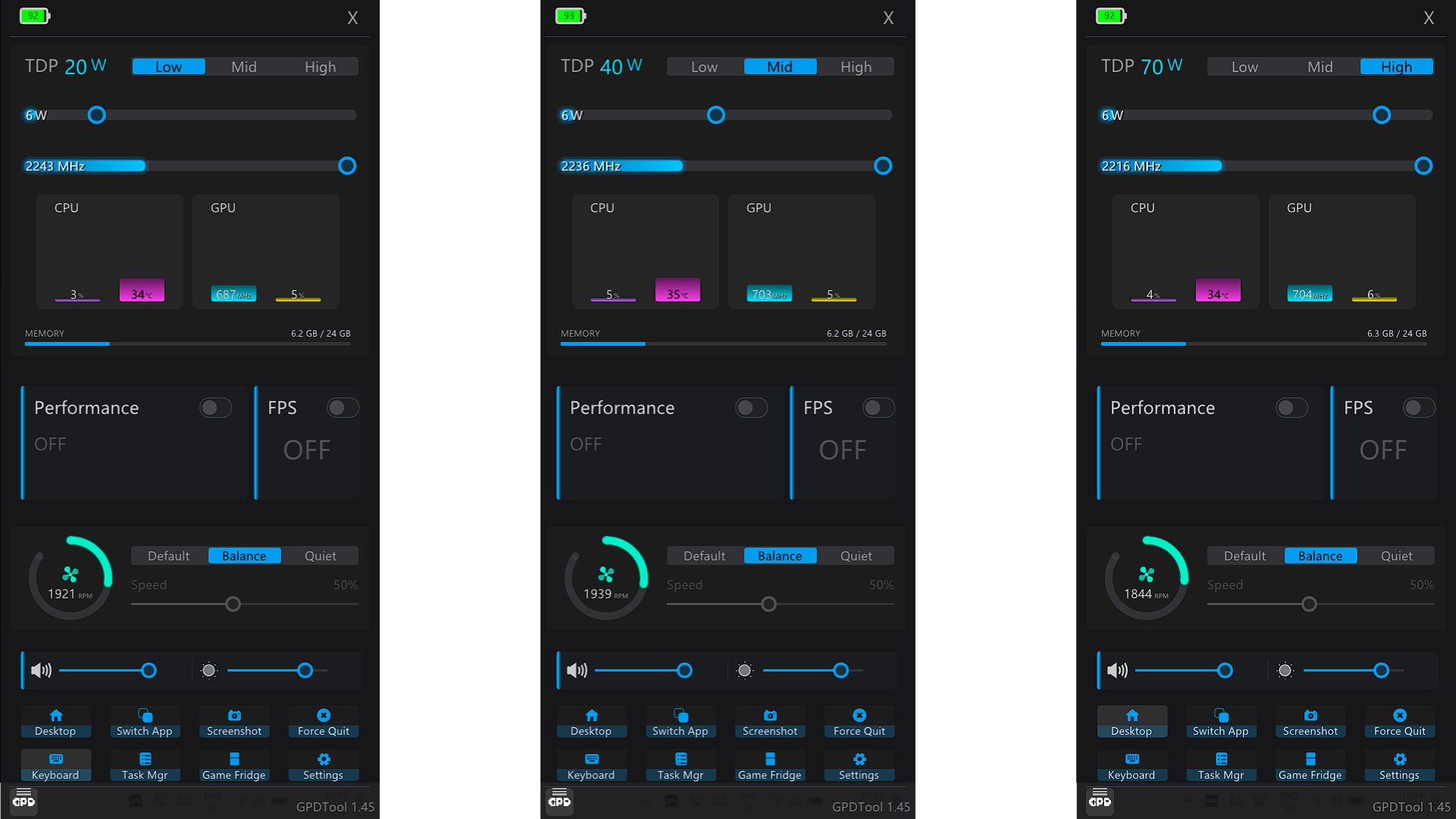
You can move the slider manually or use the Low, Mid, or High presets for faster changes.
Performance
The Performance option requires RivaTuner to be installed. In some cases, DirectX components may also be required before the overlay works correctly.
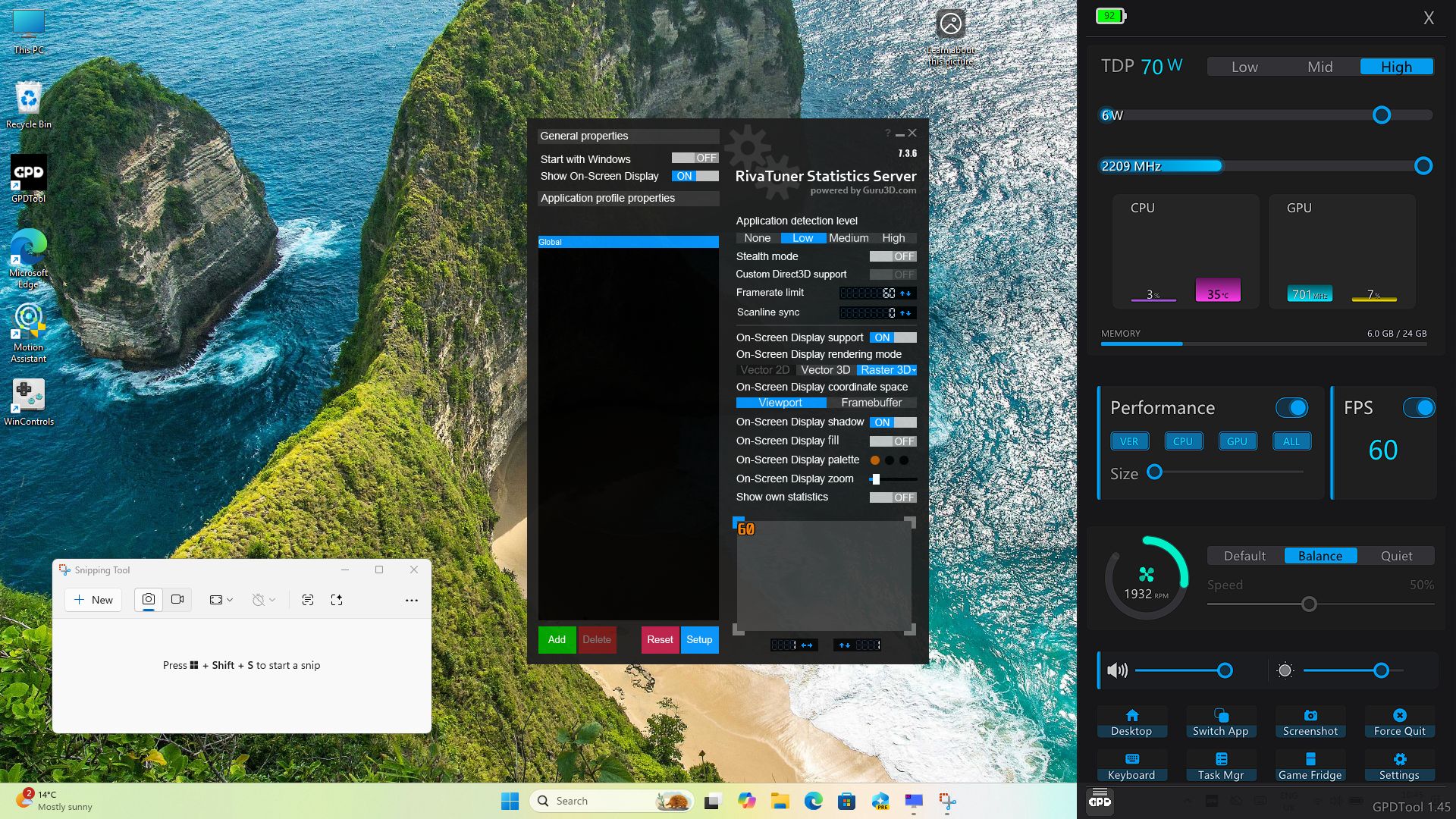
Once enabled, the performance overlay can show useful information such as FPS, CPU temperature, and other live system data.
FPSLock
Use FPS Lock to cap frame rates in supported games. This can help lower power draw, reduce heat, and improve battery life in some scenarios.
Fan Speed
GPD Tool lets you switch between Automatic, Default, Balance, and Quiet fan behaviour. You can also disable Auto mode and manually set a custom fan speed.
Volume and Brightness Settings
Use the sliders to adjust system volume and screen brightness without leaving the overlay.
Shortcut Buttons
- Desktop – Will minimise all software and show the desktop
- Switch App – Brings up the Windows task switcher
- Screenshot – Saves a screenshot to your Photos “Screenshot” folder
- Force Quit – Choose software to close
- Keyboard – Brings up an on-screen keyboard
- Task Mgr – Brings up the Windows Task Manager
- Game Fridge – Freeze and Unfreze compatible software to improve performance
Settings
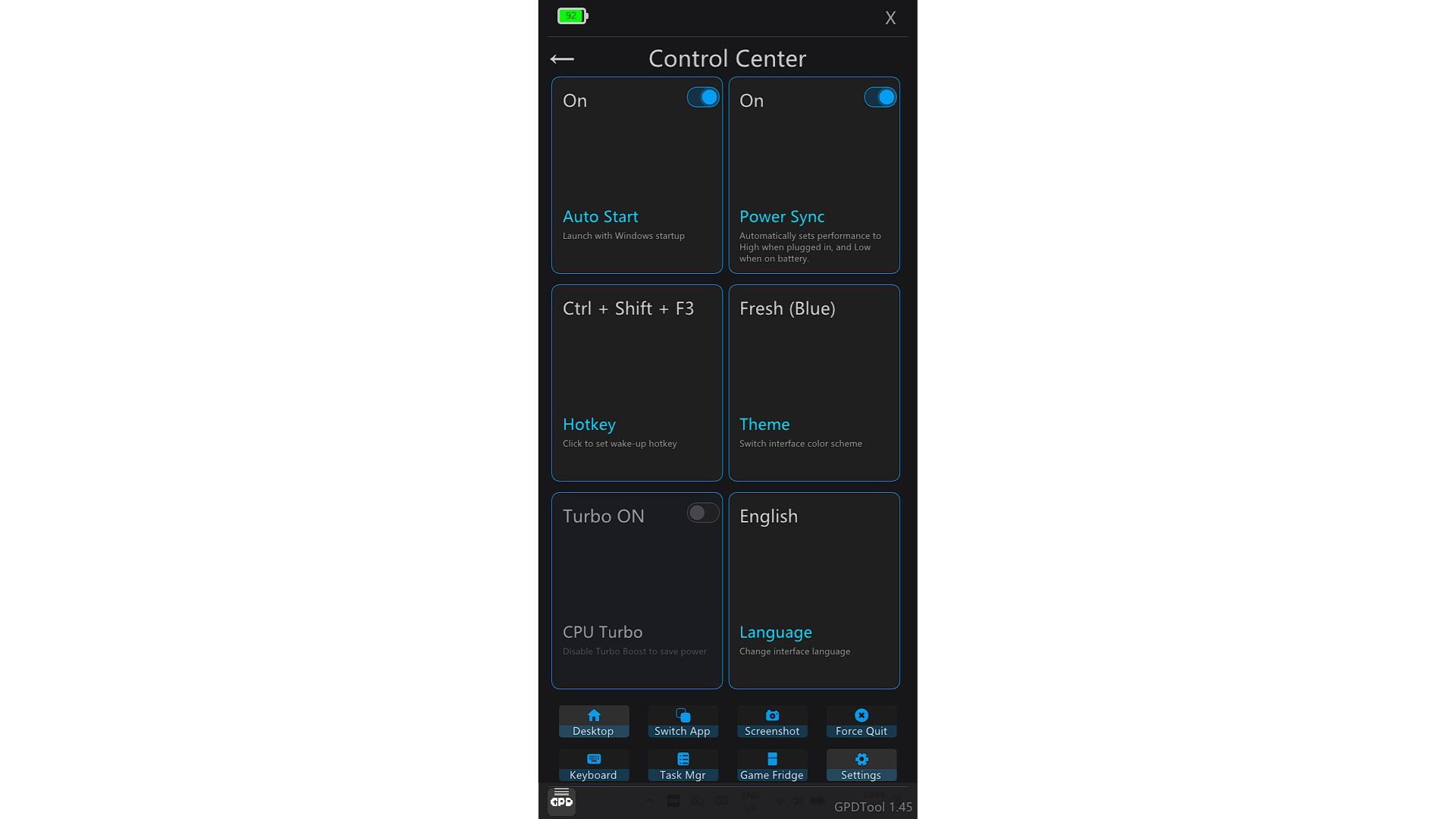
- Auto Start – Enable or disable the GPD Tool from launching when booting Windows
- Power Sync – As described. It will automatically set performance to high when plugged in, and to Low performance when on battery.
- Hotkey – Define a hotkey to bring up the GPD Tool Overlay
- Theme – Choose between three colour themes; Fresh Blue, Cyber Yellow and Vibe Purple
- CPU Turbo – Enable or disable Turbo Boost which improves performance with some games
- Language – By default it should automatically select based on the Windows language but you can manually change it here.
Back Button Configuration
If your GPD device includes rear buttons, you can assign custom functions or button combinations from the Back Button Configuration menu. You can access the options by pressing the small GPD logo in the bottom left area of the overlay.
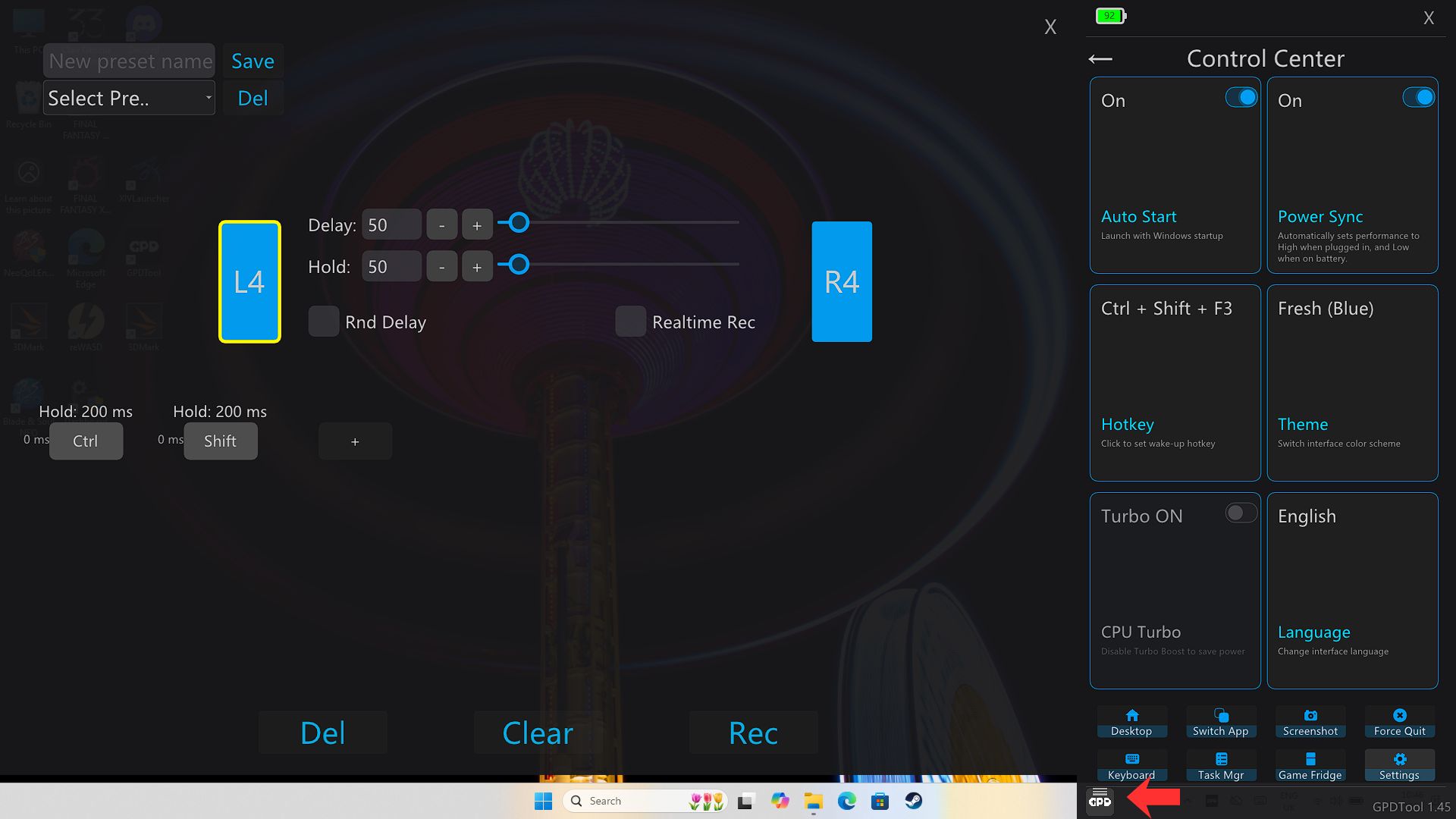
From here you can define what the back buttons, if your GPD handheld has them, for example a button combination.
Expanded Troubleshooting
GPD Tool is not opening
If GPD Tool is not opening, first check the Windows system tray for the GPD Tool icon. If it is running in the background, clicking the icon should open the overlay.
If the icon is missing, restart the device, run Windows Update, install the latest AMD drivers, and try launching GPD Tool again.
The GPD Tool overlay is not appearing in-game
If the overlay is not showing in-game, make sure GPD Tool is running and confirm that the hotkey has not been changed. You should also test the default shortcut, CTRL + SHIFT + F3, outside the game first.
If the problem only happens in one game, close the game, reopen GPD Tool, and test again. Some fullscreen or anti-cheat protected titles may behave differently.
The Performance option is greyed out or cannot be enabled
If the Performance option cannot be enabled, install or reinstall RivaTuner Statistics Server and make sure DirectX components are installed. Restart Windows after installation, then test the option again.
- RivaTuner download: https://www.guru3d.com/download/rtss-rivatuner-statistics-server-download/
- DirectX package: https://www.microsoft.com/download/details.aspx?id=35
The hotkey is not working
If the GPD Tool hotkey is not working, open the Settings menu and confirm which shortcut is currently assigned. Another utility may already be using the same key combination.
Try assigning a different hotkey, save the change, and then restart GPD Tool.
GPD Tool was installed but some features still do not work
If features are missing after installation, make sure Windows is fully updated, the latest AMD graphics drivers are installed, and your device has been restarted after setup. Some functions may depend on additional system components or device-specific firmware.
GPD Tool reports issues after updating
If a newer version introduces problems, confirm whether the release requires a controller firmware update or a newer software dependency. For example, some releases may need a newer controller firmware version before all shortcuts work correctly.
If needed, uninstall the current version, restart your device, and reinstall the latest compatible release.
Anti-cheat or game compatibility issues appear after installation
If a game reports anti-cheat or compatibility issues, update to the latest available version of GPD Tool first, as newer releases may already include fixes. Then test with the game closed and reopen it after the update is complete.
GPD Tool does not start automatically with Windows
If GPD Tool does not launch on startup, open the Settings menu and make sure Auto Start is enabled. Then restart Windows and confirm that the tray icon appears after login.
Additional FAQ
What does GPD Tool replace?
GPD Tool replaces the older MotionAssist software on compatible GPD devices.
How do I open GPD Tool?
You can open GPD Tool from the Windows system tray or by pressing CTRL + SHIFT + F3.
Do I need RivaTuner for GPD Tool?
You only need RivaTuner for the performance monitoring features. Basic GPD Tool functions should still work without it.
Do I need DirectX for GPD Tool?
Some performance overlay functions may require DirectX components to be installed.
Can I remove GPD Tool later?
Yes. Recent releases include an uninstall option through the normal Windows uninstall process in Control Panel.
Questions & answers 4
I install the latest 1.6v of gpd tool on my gpd pocket 3 but the fan options are greyed out, the gpd mhz and % utilisation are not dynamically updated and always show as 0. Additionally the TDP doesn’t work – when set to low @ 15w on battery, the gpd tool app show the switch from 35w to 15w when unplugged but the laptop consistently running above 15w maxing at 25 (which is pl2 max value in bios with 22.5w min for sustained). I tried to run motion assistant and again the fan option is still grey out. I check windefender and WinNT/Winring0 isn’t blocked and both motion assistant and gpd tool folder are set to ignored. Please help. I just want dynamics tdp (10-15W when unplugged and 20-30w when plugged in [the bios only allow for 25w max] to work with dynamic fan curve manual preset) and cpu and gpu to usage and mhz to be displayed correctly. I did a refresh install using the latest firmware for win11 22h2 and installed the driver pack 1.7v okay. I upgraded to win 11pro My pocket 3 is the i7 1195g7 variant
We do not make the software, GPD does. I would recommend using the standard Motion Assist until it is supported. It may not be supported right now because it is an Intel based device, and generally the devices are AMD based.
Any update?
The latest version is now added, v1.60