




Files used in this guide
Changelog
- Source guide: How to enable Windows Updates on GPD MicroPC 2
Older versions stay downloadable for rollbacks — every version keeps its own verified file.
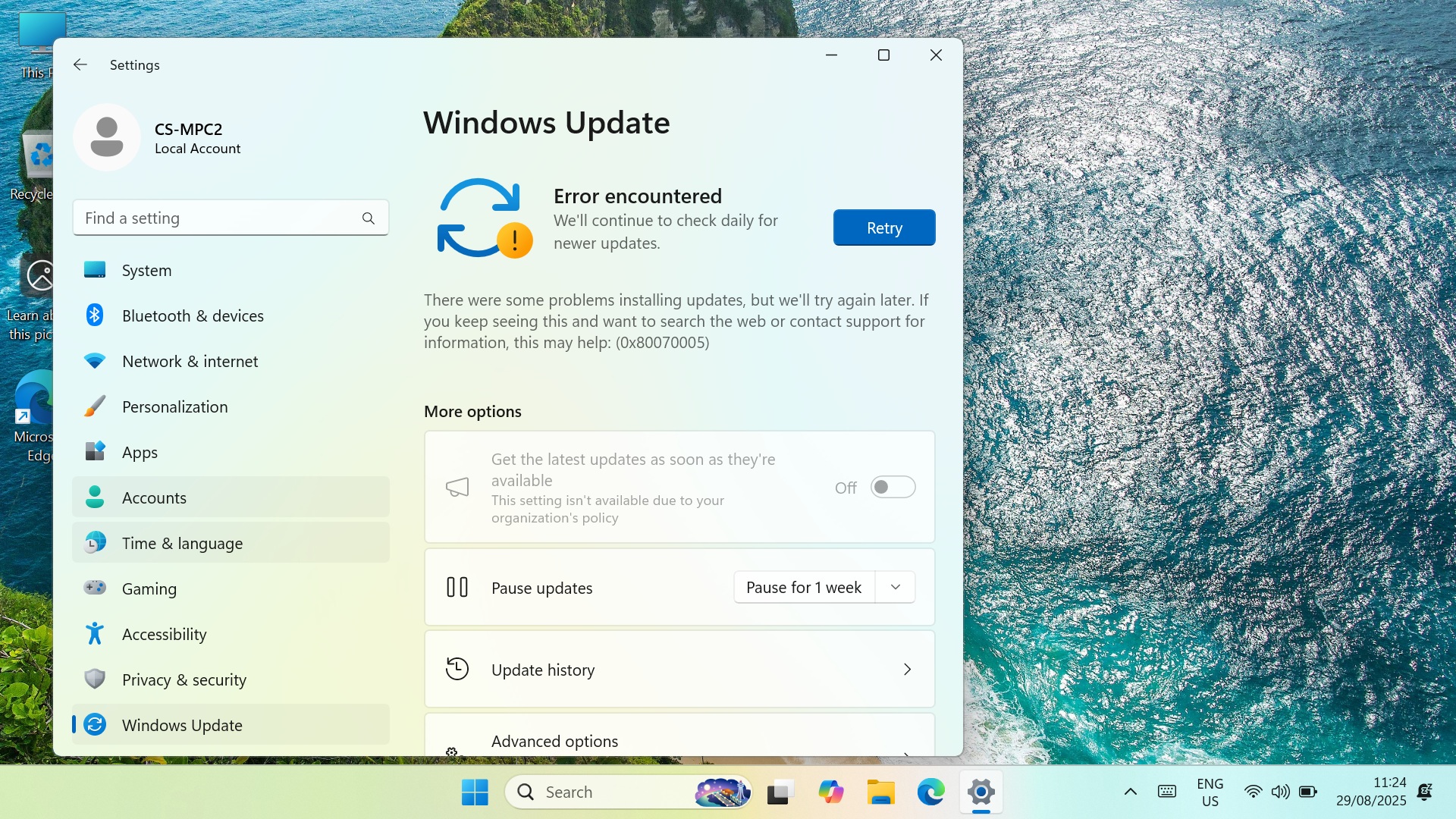
If you are getting an error that Windows is unable to run Windows Updates error 0x8007005, and asking to Retry, then your Windows Update settings may be disabled. You can re-enable them simply by downloading Windows Update Blocker, running the software and enabling the updates again. Here is our step by step guide.
First confirm that Windows Update is constantly prompting to Retry with error 0x8007005.
Download Windows Update Blocker v1.8 here, extract all the contents and run the Wub_x64.exe file

Click on the Enable Updates radio button, and then click on Apply Now button. Aafter a few moments the Service Status graphic will update to show the service has been enabled.

You can now close the software and run Windows Update as normal.
Popular right now
What people are buying this month
Prices as listed on each store


GPD WIN 5 (AI Max HX 385 – 32GB_RAM/1TB_NVME) (Raven Black)



 on 4 stores

MANGMI Pocket Max (Snapdragon 865 – 8GB_RAM/128GB_STORAGE) (Retro GB)
 on 14 stores

From the blog
Visit the blog GPD MicroPC 2 N350 Is Here: The 2026 Upgrade Brings Newer Intel Performance
4 June 2026
GPD MicroPC 2 N350 Is Here: The 2026 Upgrade Brings Newer Intel Performance
4 June 2026
 GPD MicroPC 2 N350 Is Available Now: The 2026 Refresh Adds Newer Intel Power
4 June 2026
GPD MicroPC 2 N350 Is Available Now: The 2026 Refresh Adds Newer Intel Power
4 June 2026
 Can the GPD MicroPC 2 For Daily Use Really Replace Your Laptop and Tablet? A Week-Long Test
10 November 2025
Can the GPD MicroPC 2 For Daily Use Really Replace Your Laptop and Tablet? A Week-Long Test
10 November 2025
 I Replaced My Laptop and Tablet with a GPD MicroPC 2 for daily use for a Week: Here’s What Happened
10 November 2025
I Replaced My Laptop and Tablet with a GPD MicroPC 2 for daily use for a Week: Here’s What Happened
10 November 2025
Questions & answers