




Files used in this guide
Changelog
- WinControls **(current)** | v2.08 | 2025-11-10 | WIN 5 Controller Customization Tool
Older versions stay downloadable for rollbacks — every version keeps its own verified file.
Versions (3)
- Updated HID data reporting for third-party software button status.
- Fixed controller calibration issues.
- Update MotionAssistant alongside this firmware.
- Modified HID data reporting to support third-party software reading real-time button status.
- Update MotionAssistant simultaneously for full compatibility.
- Switch to controller mode first, then upgrade.
Older versions stay downloadable for rollbacks — every version keeps its own verified file.
Changelog
- Optical Finger Navigation (OFN) mouse firmware — resolves the optical finger mouse drift issue.
Older versions stay downloadable for rollbacks — every version keeps its own verified file.
Changelog
- GamePad Test Calibration Tool | V1.04 | 2025-11-10 | Tool for WIN 5 grip back button mapping, programming, and vibration adjustment
Older versions stay downloadable for rollbacks — every version keeps its own verified file.
This guide will show step by step on how to update the GPD WIN 5 Controller Firmware.
First, download the latest v1.12 GPD WIN 5 controller firmware here.
Please note that while firmware updating is generally fine, there are risks. Please ensure you follow all steps correctly, identify that you are installing the correct firmware for your device, have a fully charged battery and also connected to a charger. Do not switch off the device unless instructed to. We do not accept responsibility if something goes wrong.
Changelog:
V1.09
- Fixed an issue where holding a back button would intermittently send release signals when mapped to a single action or multiple actions without intervals.
- Fixed an issue where the controller would occasionally fail to enumerate successfully on startup, requiring a power cycle to connect.
- Three hidden buttons are now triggered by specific HID data reports (BUF[8] → Short-press Mode key, BUF[9] → Left back button, BUF[10] → Right back button, BUF[11] → Reserved).
V1.11
- Updated the HID data reporting method to support third-party software in obtaining button status.
It is recommended to update MotionAssistant accordingly.
V1.12
- Updated the HID data reporting method to support third-party software in obtaining button status.
- Fixed controller calibration issues.
It is recommended to update MotionAssistant accordingly.
Installing the GPD WIN 5 Contoller Firmware Update
Extract the contents of the download to your GPD WIN 5. You will see a file named GPD_WIN 5_V1.12_260512.exe double click on it to open the software.
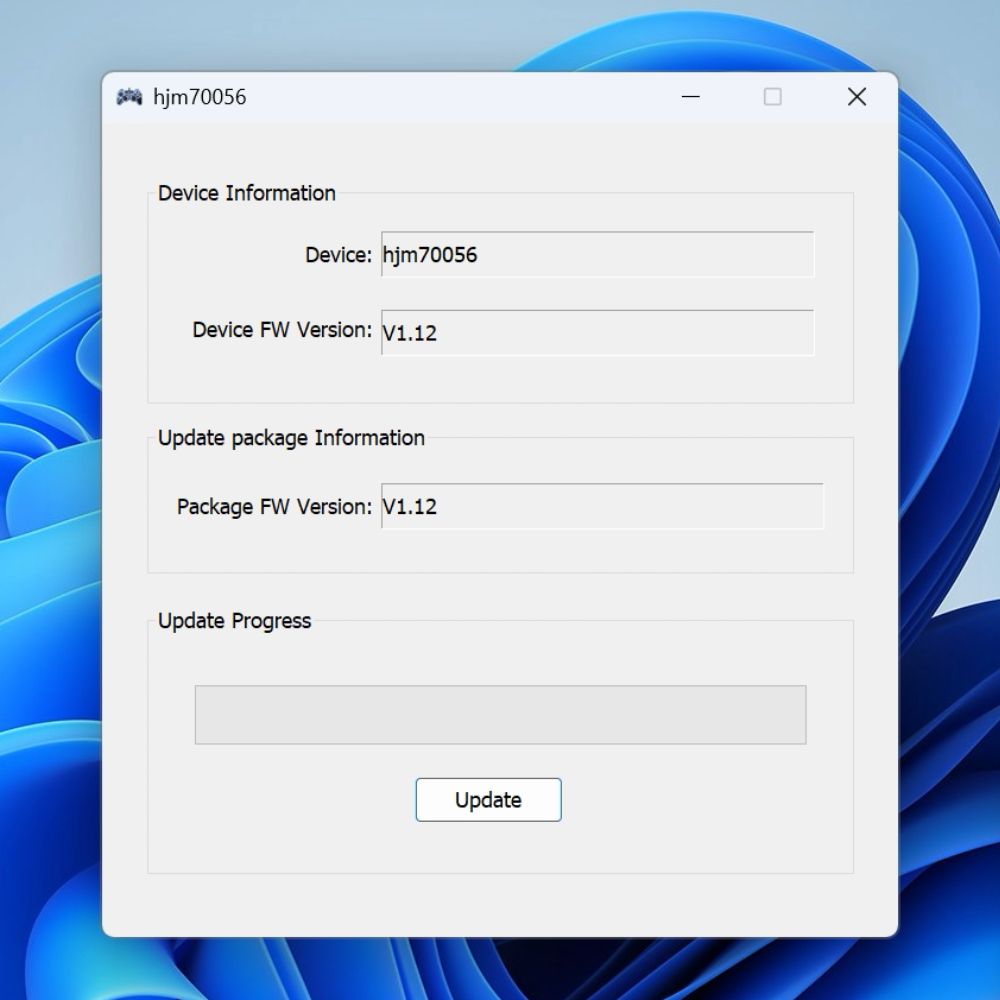
After a few moments, the software will show the current Device FW Version, in this instance v1.08, and the Package FW version number that the software will update it to, in this instance v1.12.
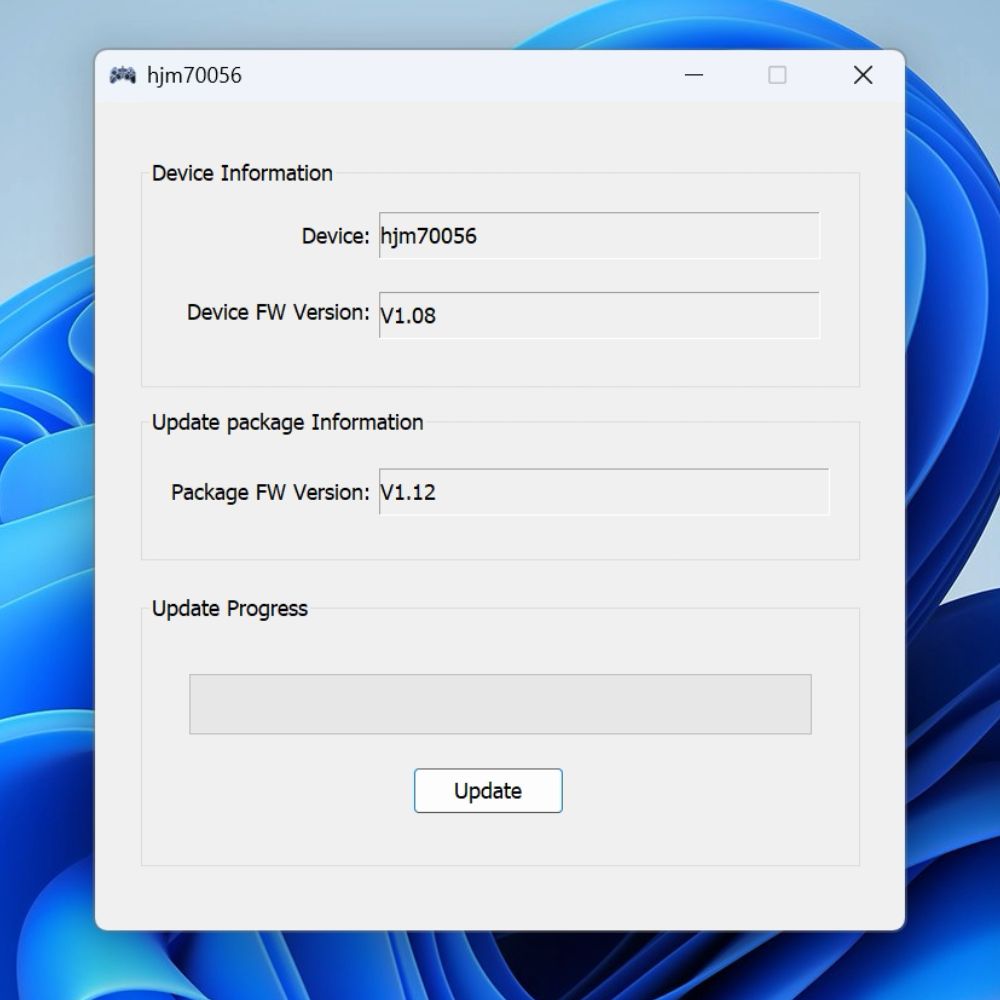
If the version numbers are different, click the Update button to proceed with the Controller Firmware upgrade.
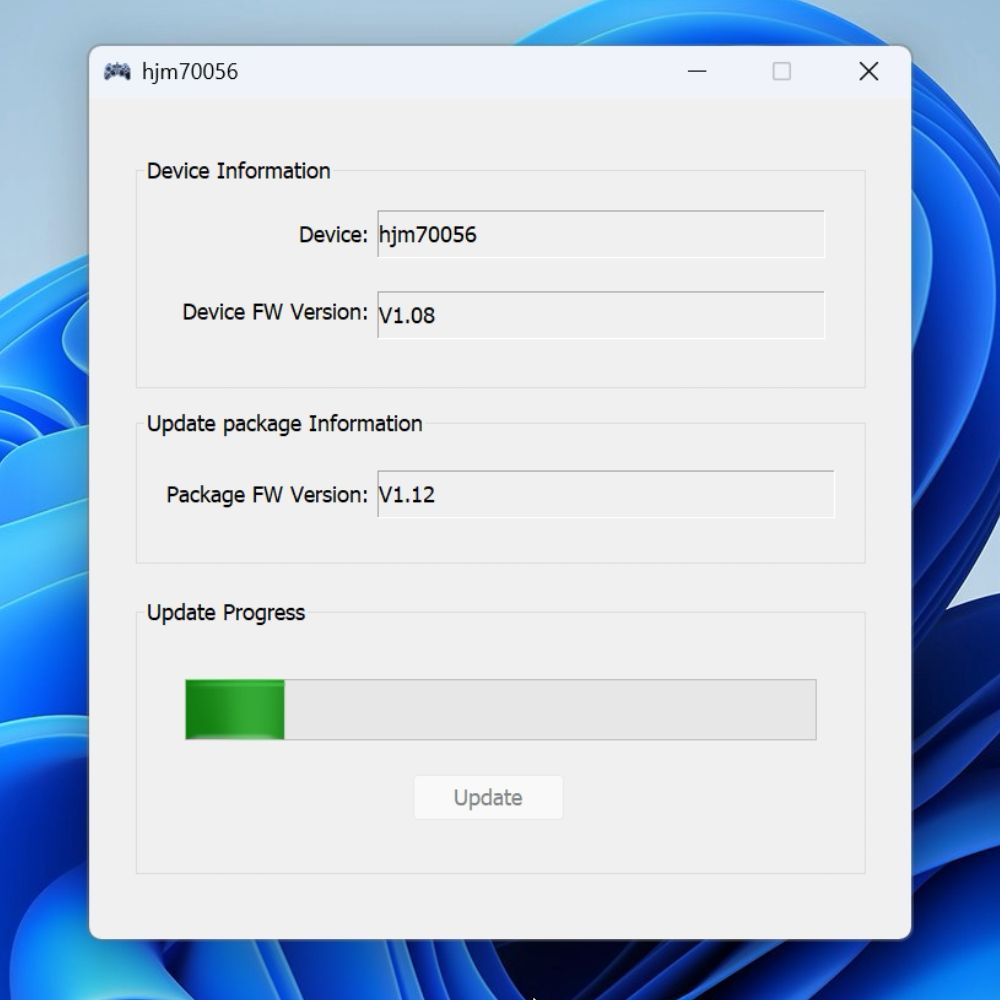
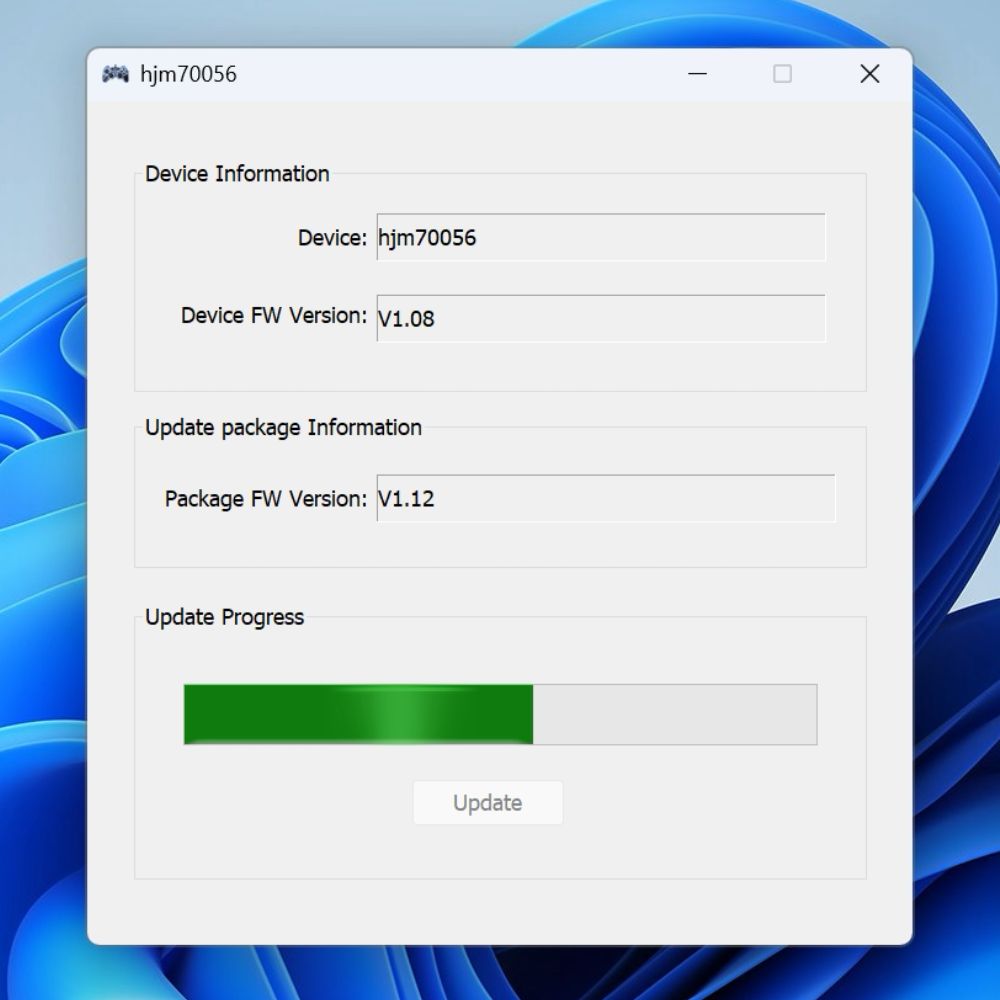
The process will take around one minute. Do NOT switch off the device, close the software or press any inputs during this period of time.
When the upgrade has completed, a notification will be shown
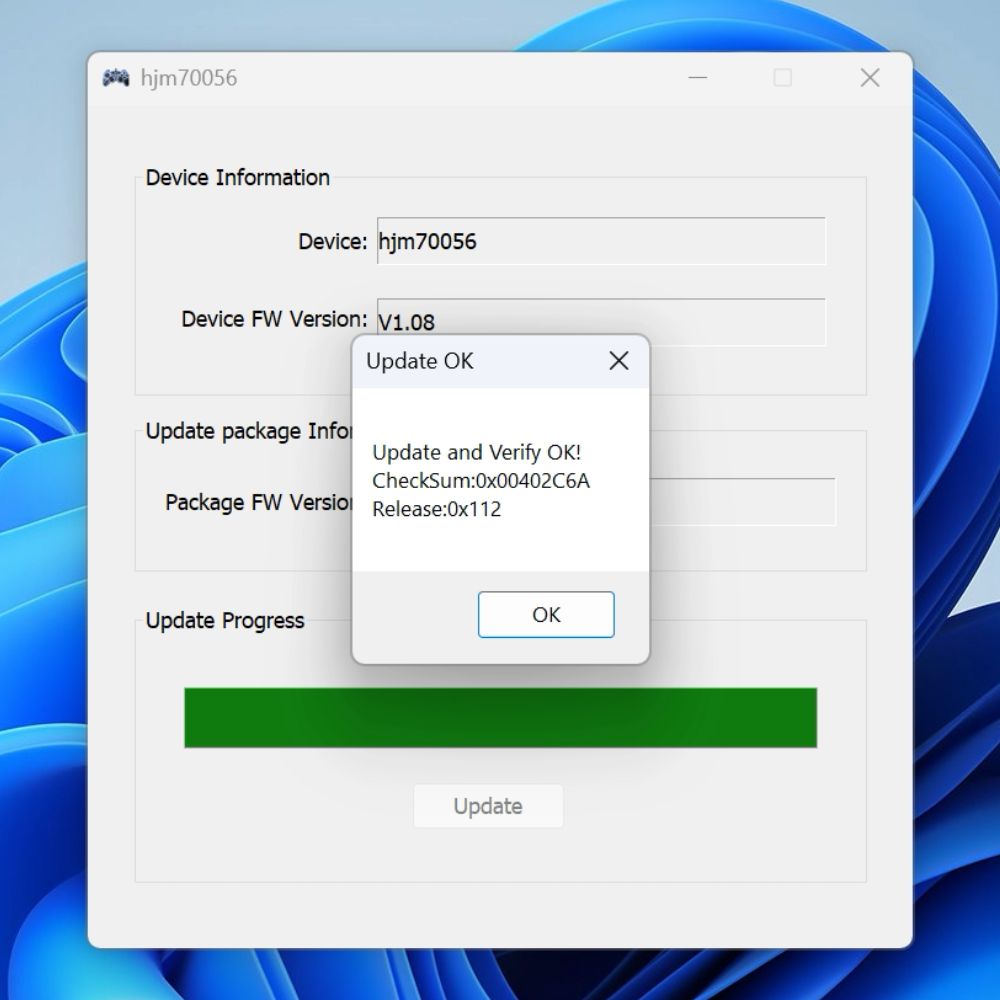
Click on the OK button and after a few moments the software will refresh and show the Device FW Version has not been updated to the latest version, in this instance v1.12.
You can now close the software. We advise rebooting once afterwards and you can then return to using your GPD WIN 5.
Questions & answers