




Whether you have a broken add-on, or an add-on that only works if you have extra hardware in your house somewhere, there may be a time when you want to stop an add-on from being loaded.
Open Kodi, click on the System or Settings menu, then select Add-ons. From here, you need to go to Enabled or My Add-ons. Normally, you’ll need to head to Video Add-ons now (or PVR clients if you get messages about DVB, or other TV card add-ons), but if you can’t find the add-on you want to disable or remove in this list, please check the other lists shown before you click on Video Add-ons.
In either case, once you’ve located the add-on you’re interested in, click on it, then select Uninstall or Disable.
Now return to Kodi’s homescreen (there is normally a shortcut for this, with an icon of a home), click the power/standby icon and then select Exit. Some skins will instead have a Power/Quit/Exit menu option. Now restart Kodi, and if you get any further messages about add-ons you don’t need, repeat the process.
For Video Reference Please Check The Video Below Were We Disable Ororo Tv Addon:
Latest from the blog
Visit the blog GPD WIN Mini Ultra – A Bigger 8-inch 120Hz Screen, Intel Arc G3 Extreme and Dual USB4 v2.0
27 October 2026
 RockTek PJ500 Ultra Review – A 1080p Home Cinema Projector for Streaming and Gaming
27 October 2026
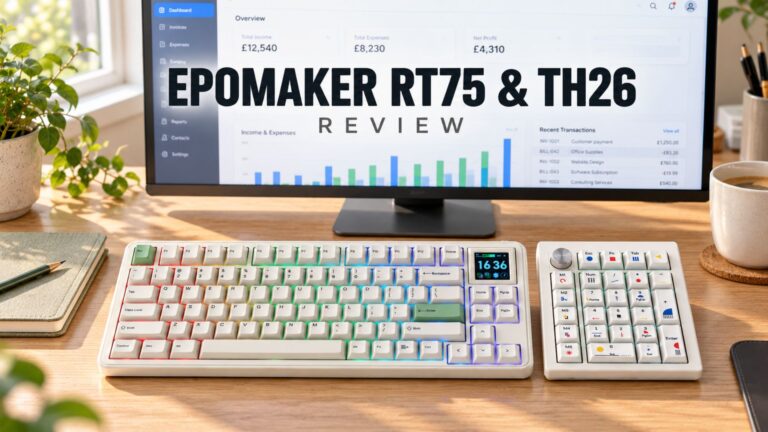 EPOMAKER RT75 and TH26 Review – Retro 75% Keyboard with Detachable Screen and 5-Key Macro Numpad
26 October 2026
 GEEKOM A5 2027 Review – A Compact Mini PC Home Lab
21 October 2026
Questions & answers