




Files used in this guide
Versions (2)
- Source guide: How to Reflash AYN Odin 2 Firmware
- Source guide: How to Reflash AYN Odin 2 Firmware
Older versions stay downloadable for rollbacks — every version keeps its own verified file.
Changelog
- Source guide: How to Reflash AYN Odin 2 Firmware
Older versions stay downloadable for rollbacks — every version keeps its own verified file.
This guide is your comprehensive resource on reflashing firmware for your AYN Odin 2 devices. Whether you’re aiming to improve performance, fix bugs, or explore new features, our step-by-step instructions will lead you through the process with ease and precision.
Before We Start
Before you begin reflashing your Android Gaming Handheld, it’s essential to ensure you have all the necessary tools listed below. We will provide links to the required firmware & software later in the guide, so there’s no need to search for them right now.
You will need:
- Windows device
- AYN Odin 2
- USB-C cable
- QPST Tool software
- Firmware
Download AYN Odin 2 Firmware
| Model | Download Link |
| AYN Odin 2 | Download, Alternate Link |
AYN Odin 2 firmware update instructions
The instructions provided by AYN can be hard to understand at times. That’s why we’re going to walk you through the entire process step-by-step!
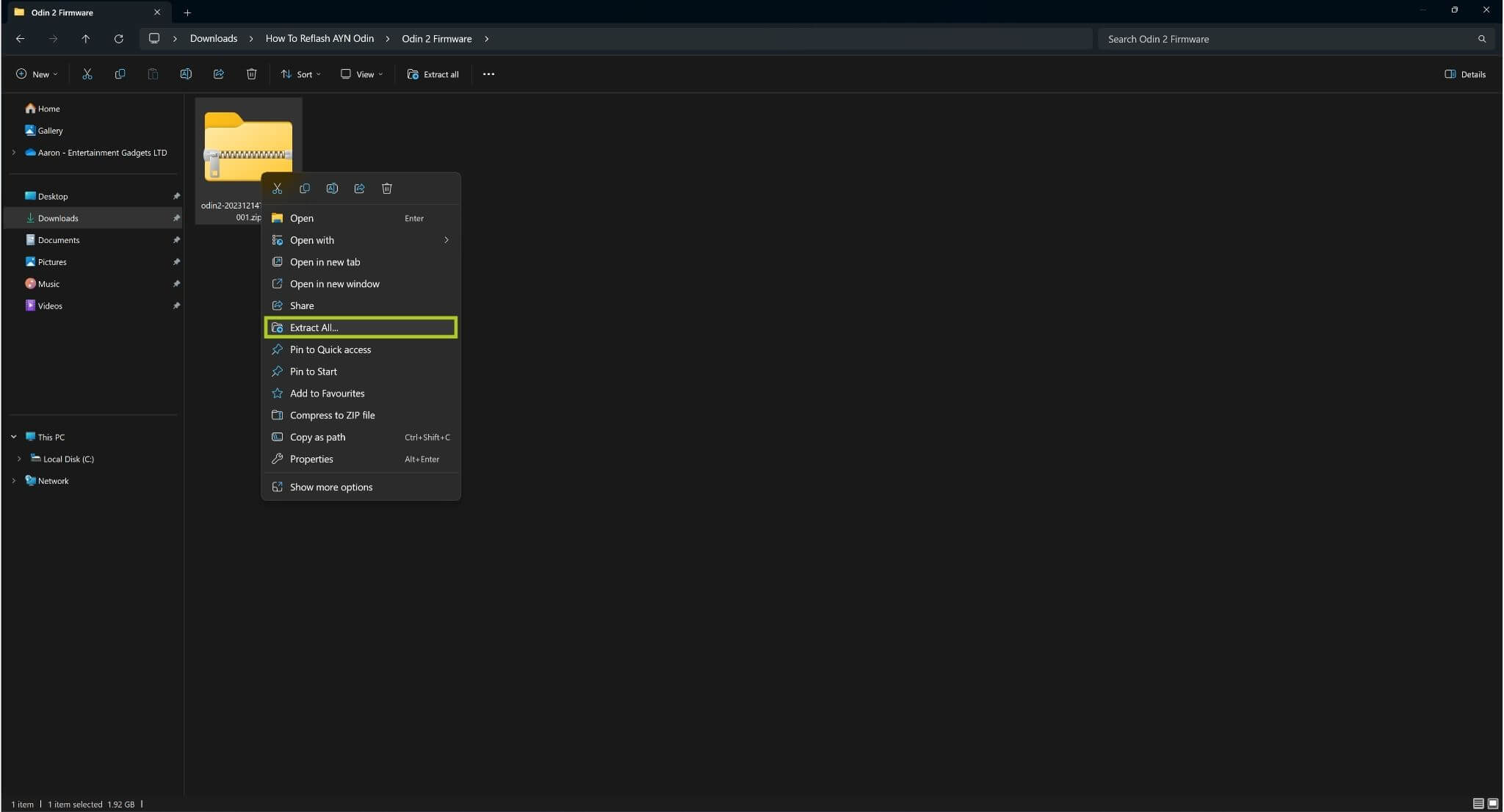
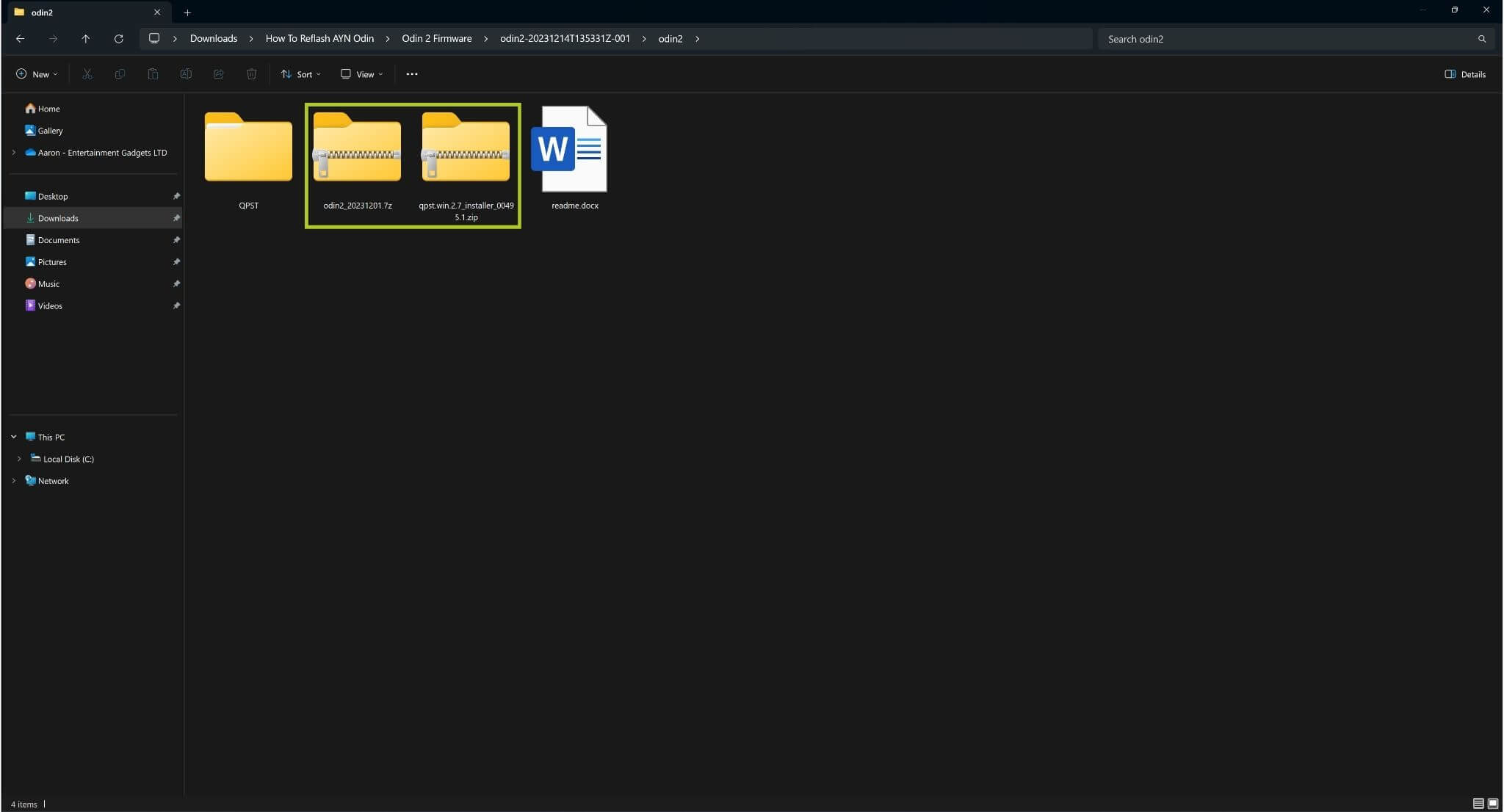
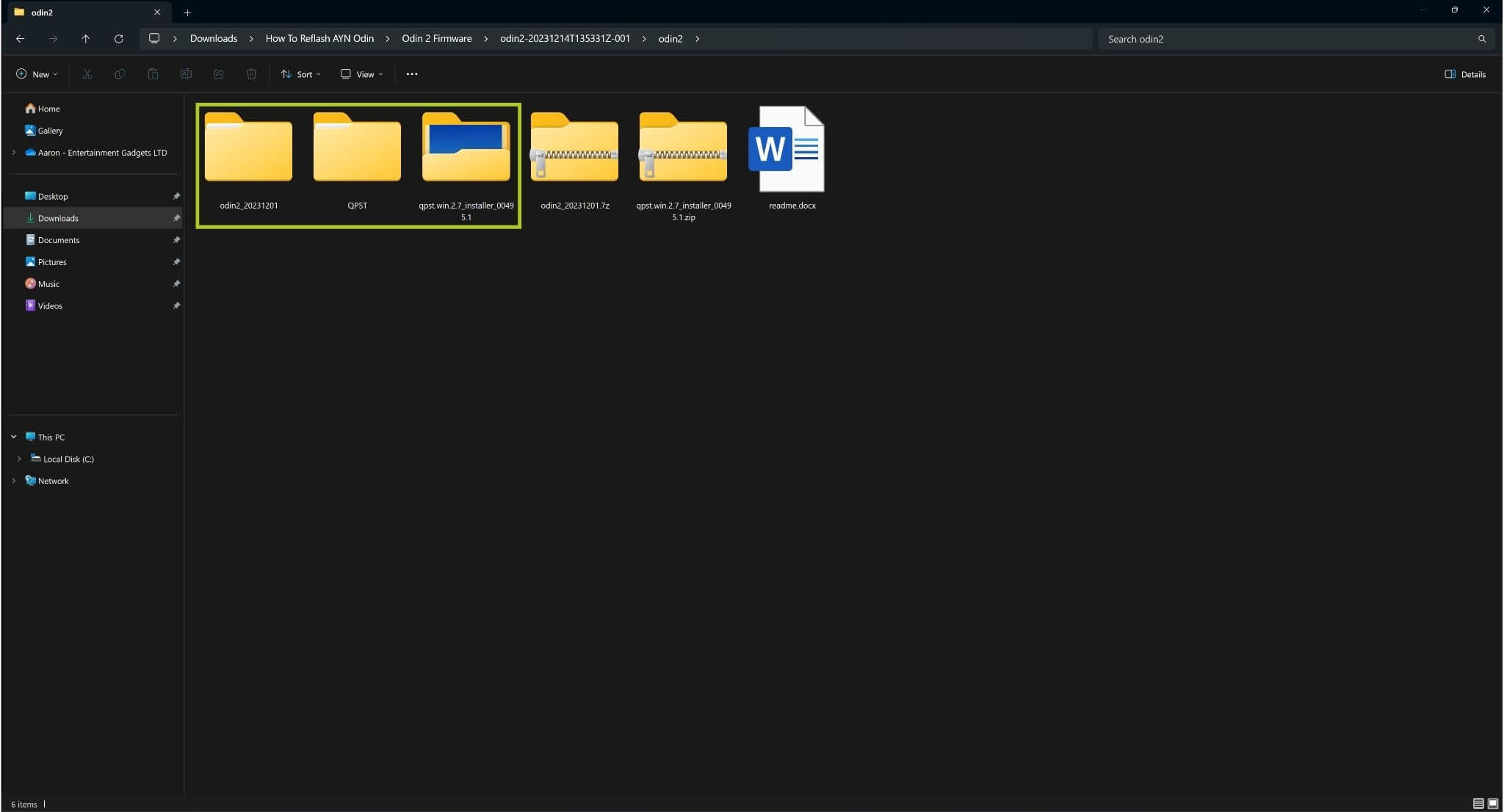
On your Windows device, Extract the downloaded zip file (refer to Image 1 below). Open the extracted folder and then Extract all compressed folders within (see Images 2 & 3 below).
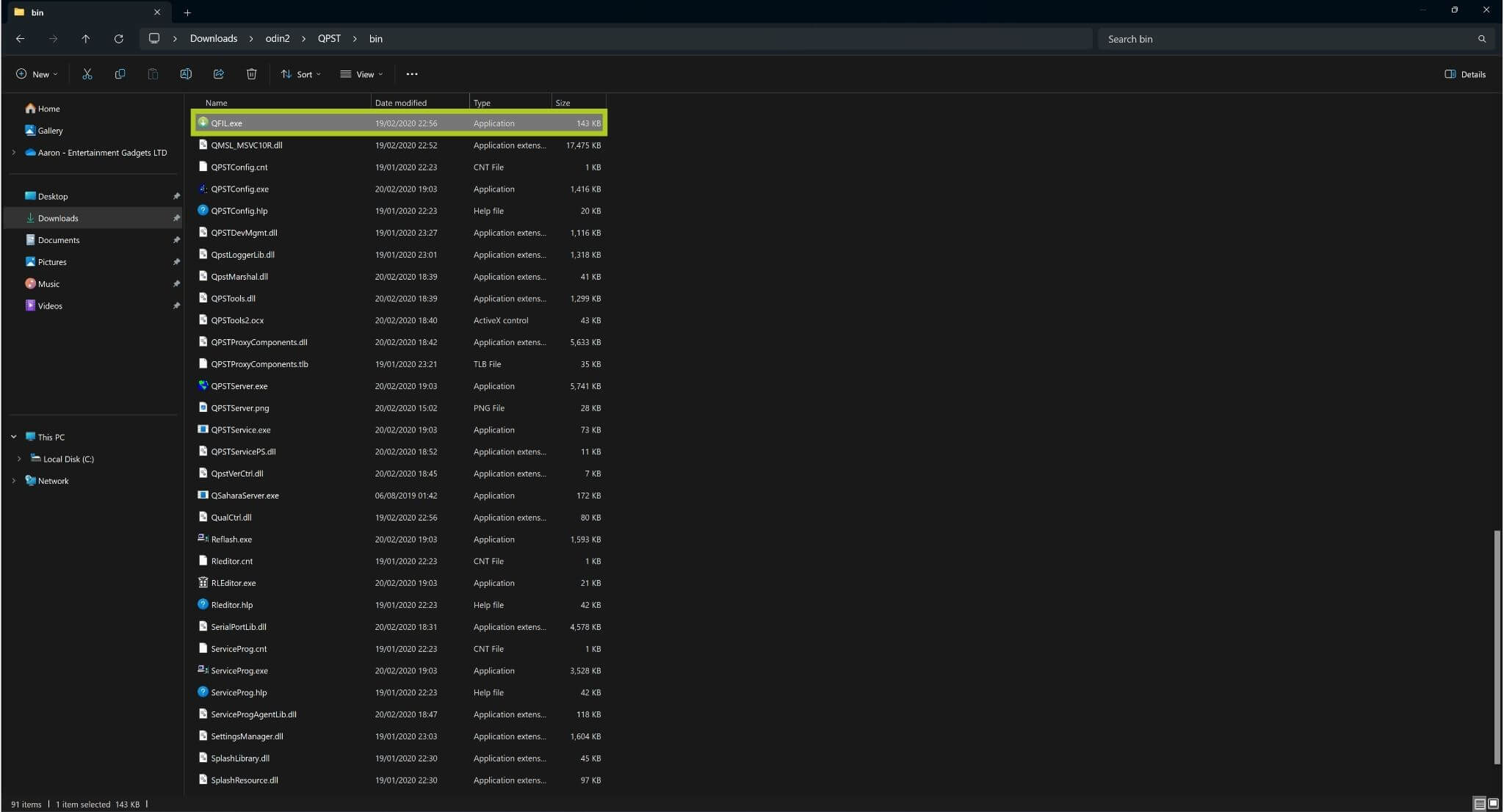
Navigate to QPST\bin and run QFIL.exe (see Image 4 below). A program window will open, from here, ensure the Flat Build option is selected – then click Browse… and open the xbl_s_devprg_ns.melf file located in odin2\odin2_20231201 (shown in Images 5 & 6 below).
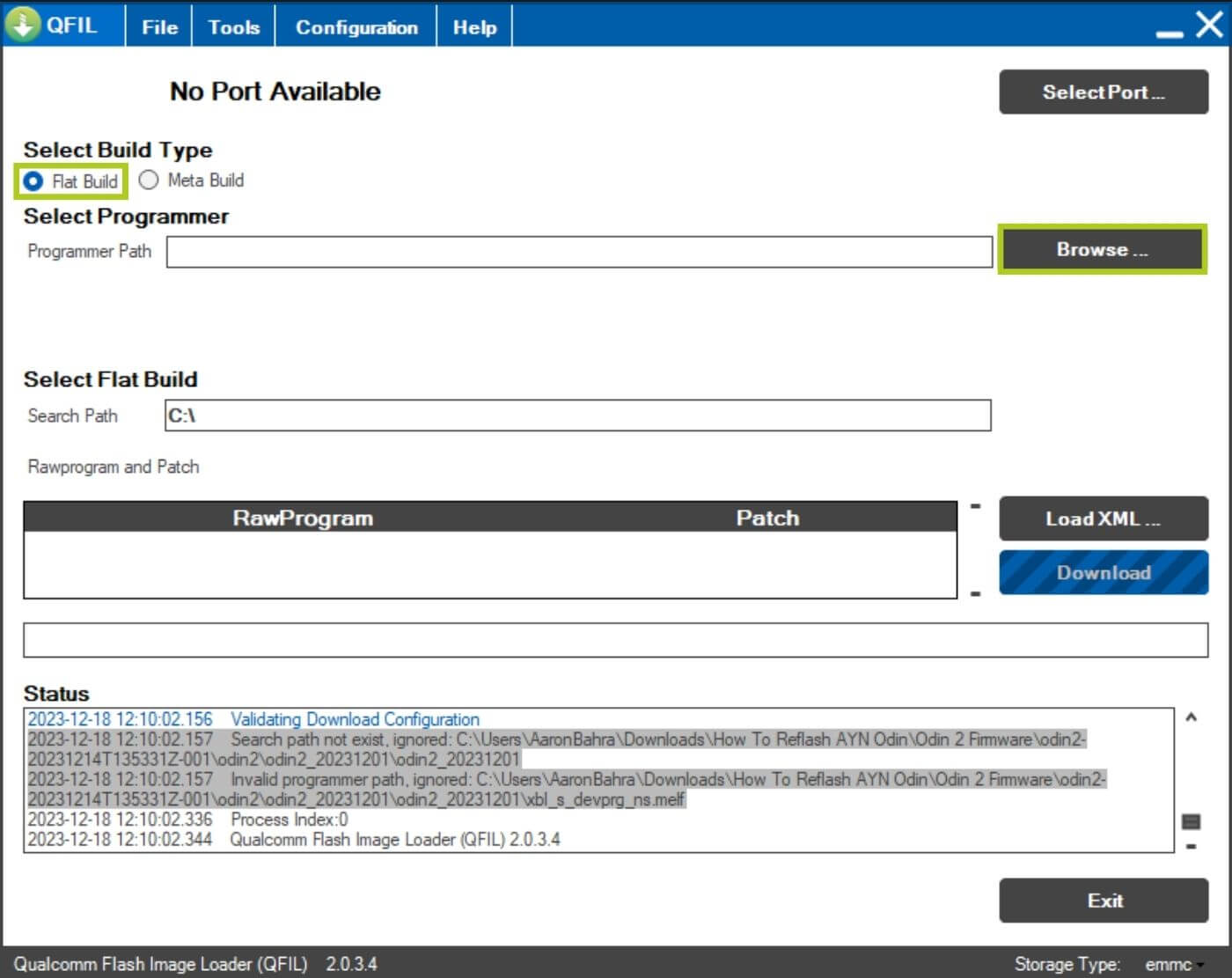
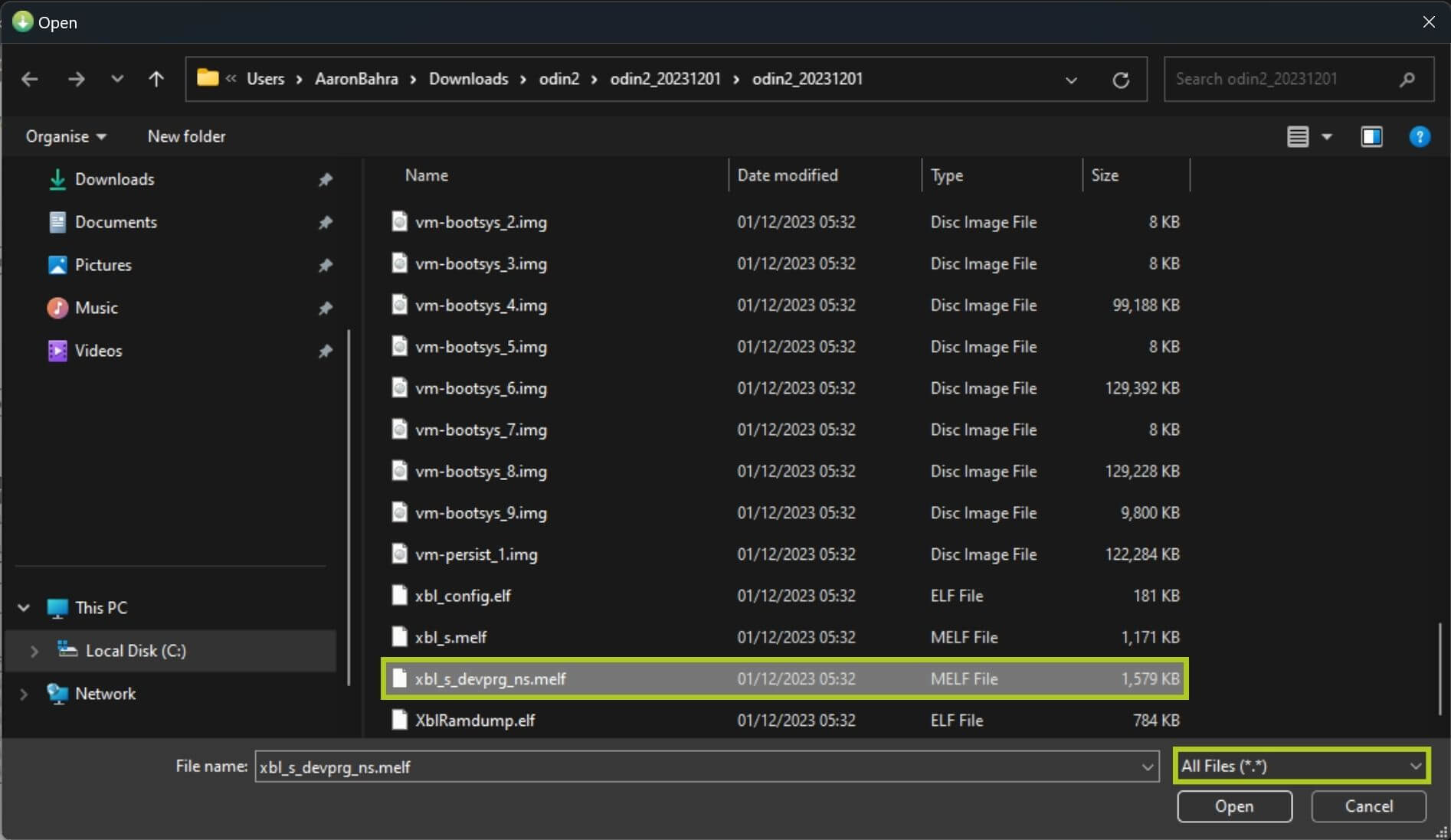
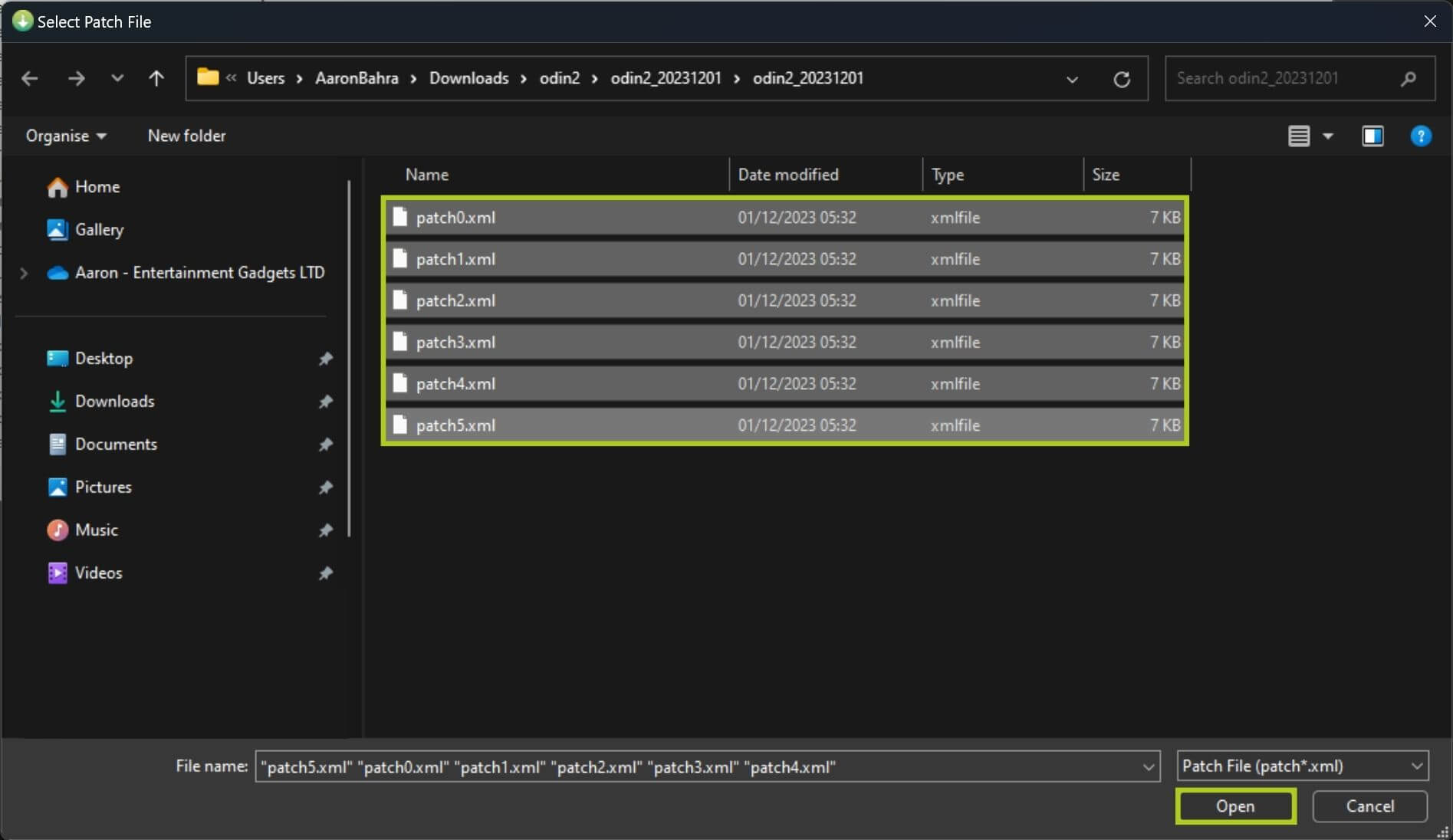
Select Load XML… and open all of the raw program XLM files located in odin2\odin2_20231201 by holding the Ctrl key and clicking on the respective files (see Images 7 & 8 below). Another window will be displayed immediately afterwards – open all patch XML files from the same location (refer to Image 9 below).


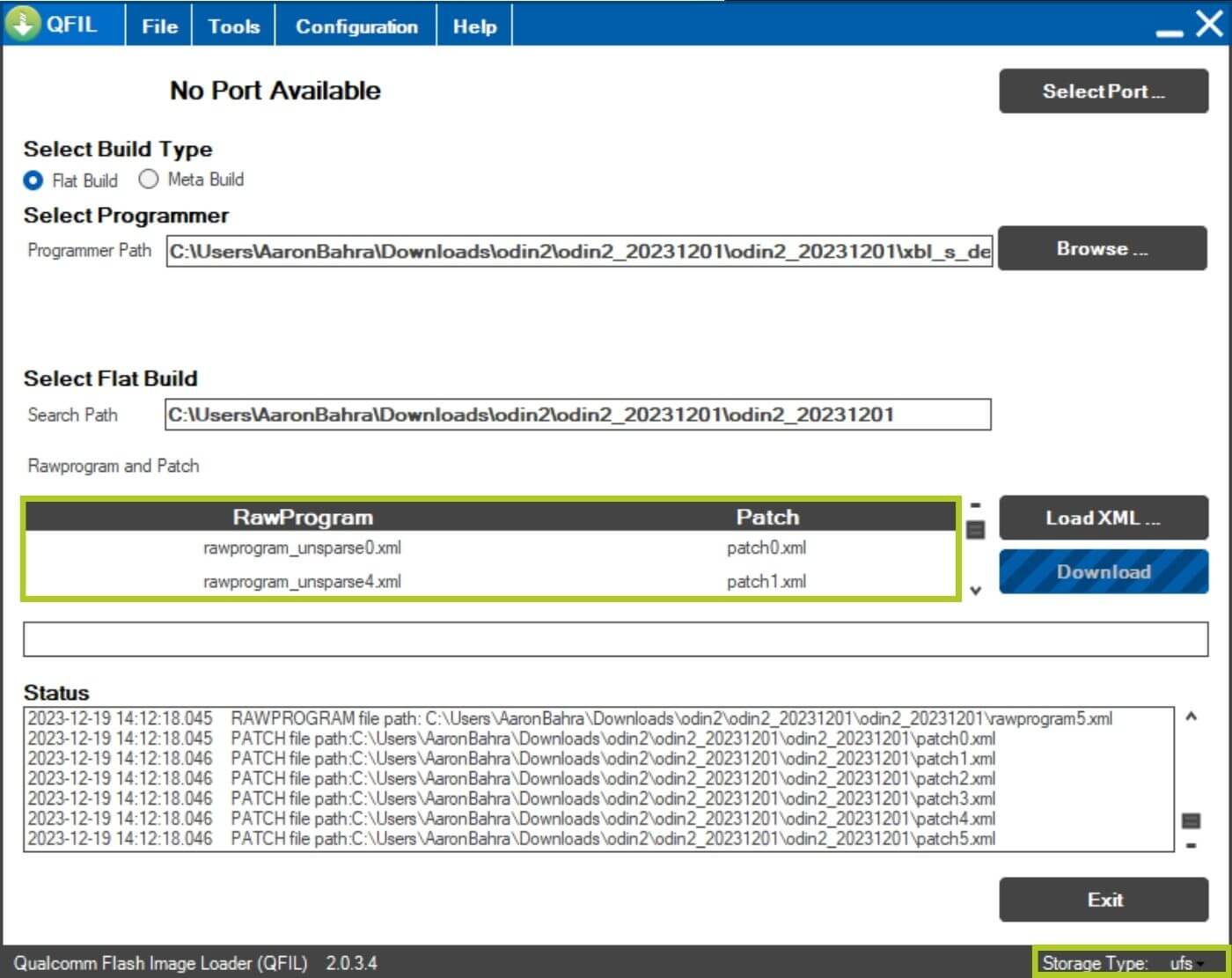
You should be able to see the RawProgram and Patch files loaded in (see Image 10 below). Before proceeding, ensure that the Storage Type is set to UFS – to change simply click the Storage type located at the bottom right and select UFS (refer to Images 10 & 11 below).

Ensure your device is powered down and connect it to the computer. At this point, you should see that there is still No Port Available in QFIL (Image 12 below). We recommend you open Device Manager so you can check if the port is correctly recognised once we power the device (Image 13 below) – as you may need to update drivers if it’s not recognised here.
Press and hold the volume- and power buttons. This will go into the Odin 2 bootloader. Select Emergency Mode, and the Device Manager should recognise the correct port (Qualcomm HS-USB QDLoader 9008).


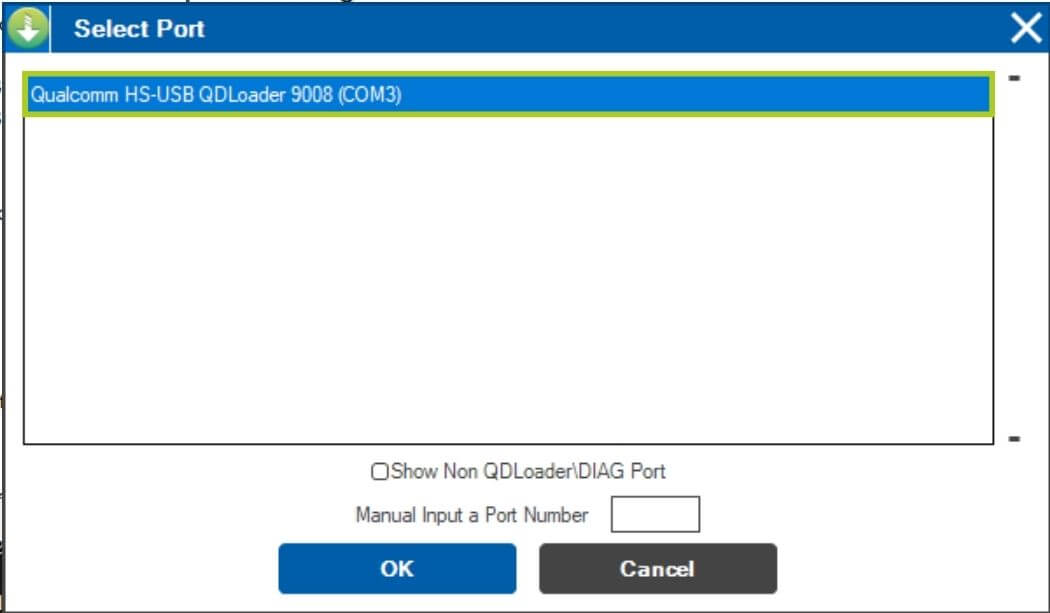
In the QFIL program, you will also be asked to select an Existing Port. Click on Select Port… and choose the correct port (Qualcomm HS-USB QDLoader 9008) and press OK (refer to Images 14 & 15 below). Sometimes the port may be automatically recognised and selected, if this is the case simply proceed to the next step.

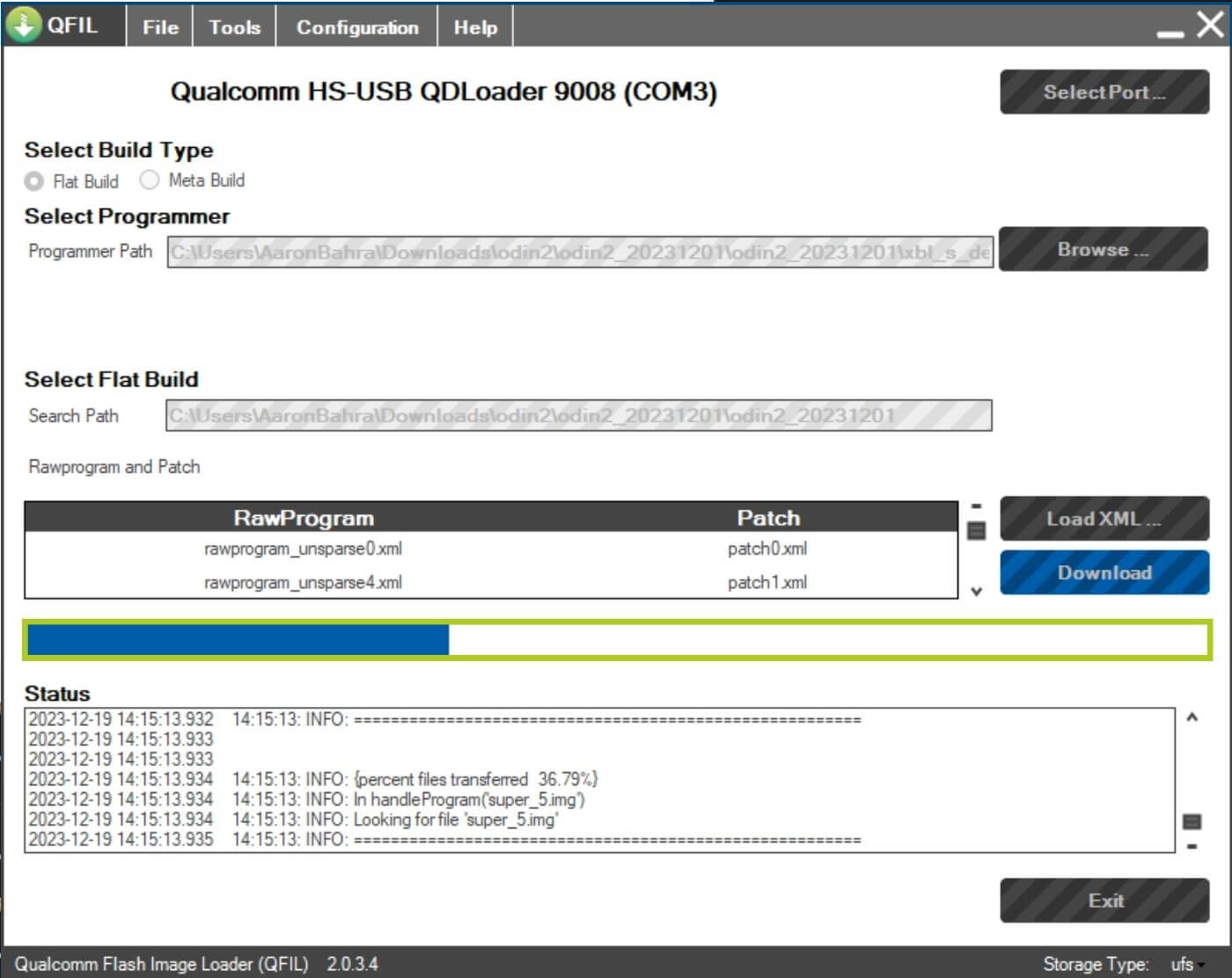
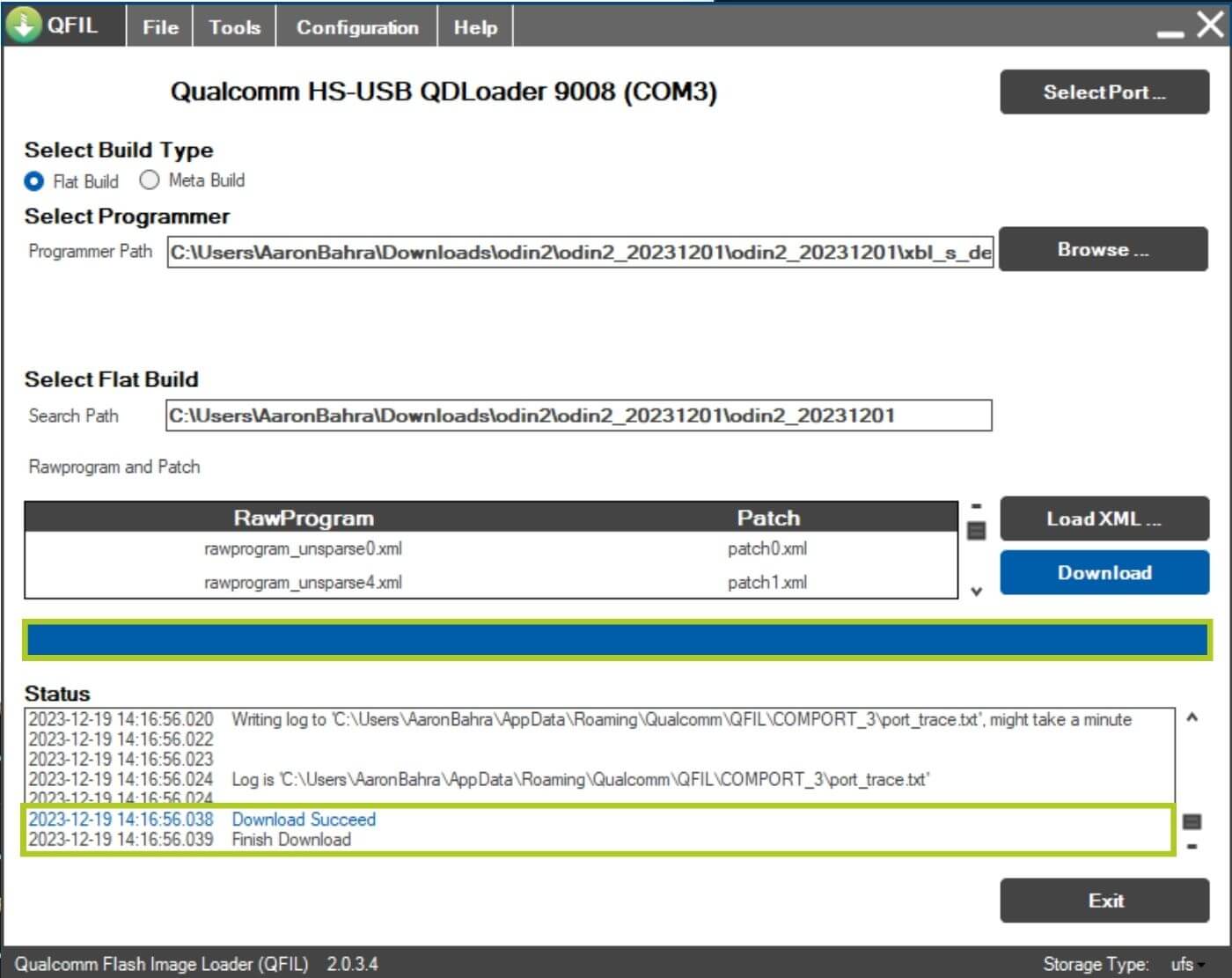
With the correct port selected, press Download to begin the firmware reflashing (Image 16 below). You will see a blue bar indicative of the progress – during this time, do not disconnect your device or you may risk rendering the device inoperable. Once complete, you will see Finish Download displayed in the Status box (see Image 18 below). Afterwards, you can simply need to exit the program and boot your Android Gaming Console.

Troubleshooting AYN Odin 2
We encountered a few issues whilst trying to install these drivers with the provided instructions, so we made a guide and are covering potential issues.
Emergency Mode
When entering the handheld bootloader and selecting Emergency Mode, it’s best to press Download in QFIL as quickly as possible. Spending too much time here has been known to cause issues.
Disabling Driver Signature
Disable your driver’s signature in the boot menu by pressing F7 whilst restarting your PC. From here select:
- Troubleshoot
- Advanced
- Startup Settings
- Restart
Doing this will cause your PC to reboot with the driver signature disabled until the next time you reboot your device. From here, we recommend updating the drivers and then performing the reflashing whilst the driver signatures are disabled.
Driver Update for AYN Odin 2
If your port is not being recognized, update its driver through the Device Manager. First, download the required port driver from the link provided below.
| Drivers | Download Link |
| Qualcomm HS-USB QDLoader 9008 | Download |
Download, and extract the CAB file. Open Device Manager and add/update the drivers by clicking on either the specific device or Action, and then Update Driver. Search for the drivers locally and install them.
Questions & answers 8
Amigo primero que nada muchas gracias… un aporte muy importante para los que estamos en este mundillo… Lo hice y funciono perfecto, el unico problema es que pense que reestableceria el root que le hice pero apartentemente no ocurrio, creo que es asi ya que no logro actualizarla por la via convencional. Por casualidad sabes si tengo opcion de revertir eso tambien? Gracias compañero
Hola. El firmware solo debe usarse si tiene problemas al iniciar. Puede actualizar al firmware más reciente desde la actualización OTA. Si ingresa a Configuración -> Sistema -> Actualizar mientras está conectado a Internet, se le pedirá que actualice al firmware más reciente.
Hola amigo
Primero, te pido disculpas por la demora en responder; no había visto tu mensaje antes. Efectivamente, cuando compré el dispositivo había una actualización pendiente, que realicé siguiendo el proceso tradicional desde ajustes -> sistema -> actualizar, tal como mencionaste. La actualización se completó sin inconvenientes.
Posteriormente, decidí hacerle root al dispositivo siguiendo un tutorial de YouTube, lo cual también funcionó perfectamente y quedó rooteado sin problemas. Sin embargo, unos días después, cuando apareció una nueva actualización, empecé a tener problemas y surgió el error 20. Supuse que el problema estaba relacionado con el rooteo, así que intenté revertirlo aplicando un flash completo, siguiendo tu tutorial, que, por cierto, es excelente y muy útil para aquellos a los que nos gusta este tema y queremos solucionar problemas por nuestra cuenta. ¿Posiblemente me la banearon desde AYN por haberla rooteado? ¿Podre revertirlo de algun modo?. Muchas gracias master.
Hola. No creo que AYN te haya prohibido por rootear el dispositivo. Si nos compró el dispositivo en Droix, comuníquese con nuestro servicio de atención al cliente en [email protected] con su número de pedido y el problema. Nuestro servicio de atención al cliente podrá investigar el problema más a fondo y ofrecer una solución.
Hi, I followed all the steps and everything went well. The problem is that it’s impossible to update via OTA. I don’t see any updates. Any solution?
If you reflashed the firmware then it likely means you are on the latest firmware update already.
Well, I’m stuck on this firmware version, to be honest I don’t know if my version was Odin2ex before flashing the recovery firmware, is there any way to find out?
The firmware on these guides is the latest we have from the manufacturers. If the app is not reporting there is an update then its likely on the latest.