The process for updating the GPD WIN MAX 2 2025 HX 370 firmware is fairly straightforward, but it can be daunting if you have not performed a BIOS update before. Our step by step guide will walk you through the process.
Next you will need to download the BIOS files. Please ensure that you are downloading the correct BIOS for your device. This BIOS update is for the GPD WIN MAX 2 2025 HX 370 model ONLY. We do not accept responsibility if something goes wrong.
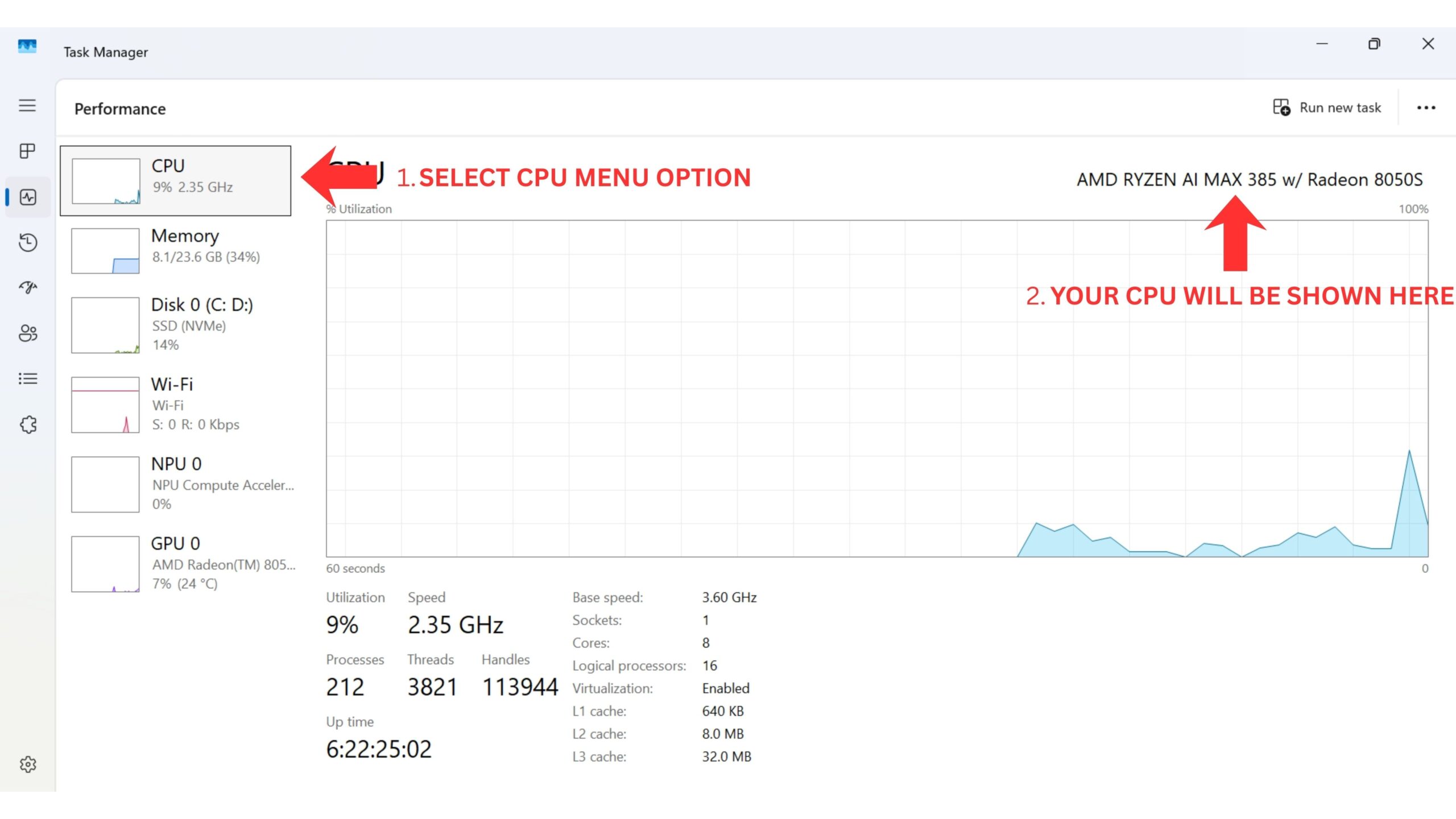
Ways to identify your CPU on your device:
- To access Task Manager, right click on the Windows Start icon and choose Task Manager from the list. Alternatively you can type Task Manager in the Windows Search Bar.
- You can find your CPU model in Windows quickly through Settings (About your PC), or the System Information app (msinfo32), all showing the processor’s name and spec.
Using Settings (Easiest for Windows 10/11)
Click the Start Menu (Windows icon) and type about.
Select About your PC from the results.
Look under “Device specifications” for the Processor entry, which lists your CPU model (e.g., Intel Core i7-10750H).
Download the BIOS update
You can download the GPD WIN MAX 2 2025 HX 370 ONLY BIOS updates here. These are not for the 8840U model. Please note some virus checkers may incorrectly report it as a virus and we recommend disabling any Anti Virus software before downloading and not re-enabling it until the BIOS update is completed.
Setting up the USB drive
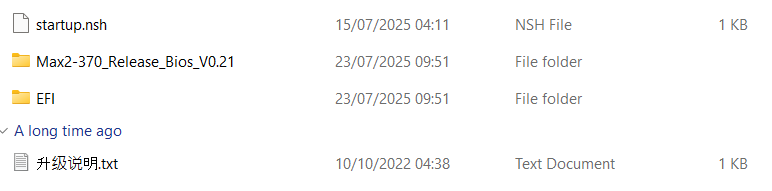
Extract the BIOS update download and you will see three BIOS versions, 0.18, 0.19 and 0.21. Extract the version that you wish to install, usually the latest one.
Format your USB drive to FAT 32, if your are unfamiliar with the process, read our step by step guide here on how to format a large USB drive here.
Copy all of the contents (files and folders) of the BIOS update to the USB drive.
Installing the GPD WIN MAX 2 2025 BIOS update
Ensure that your GPD WIN MAX 2 2025 is fully charged with the charger connected.
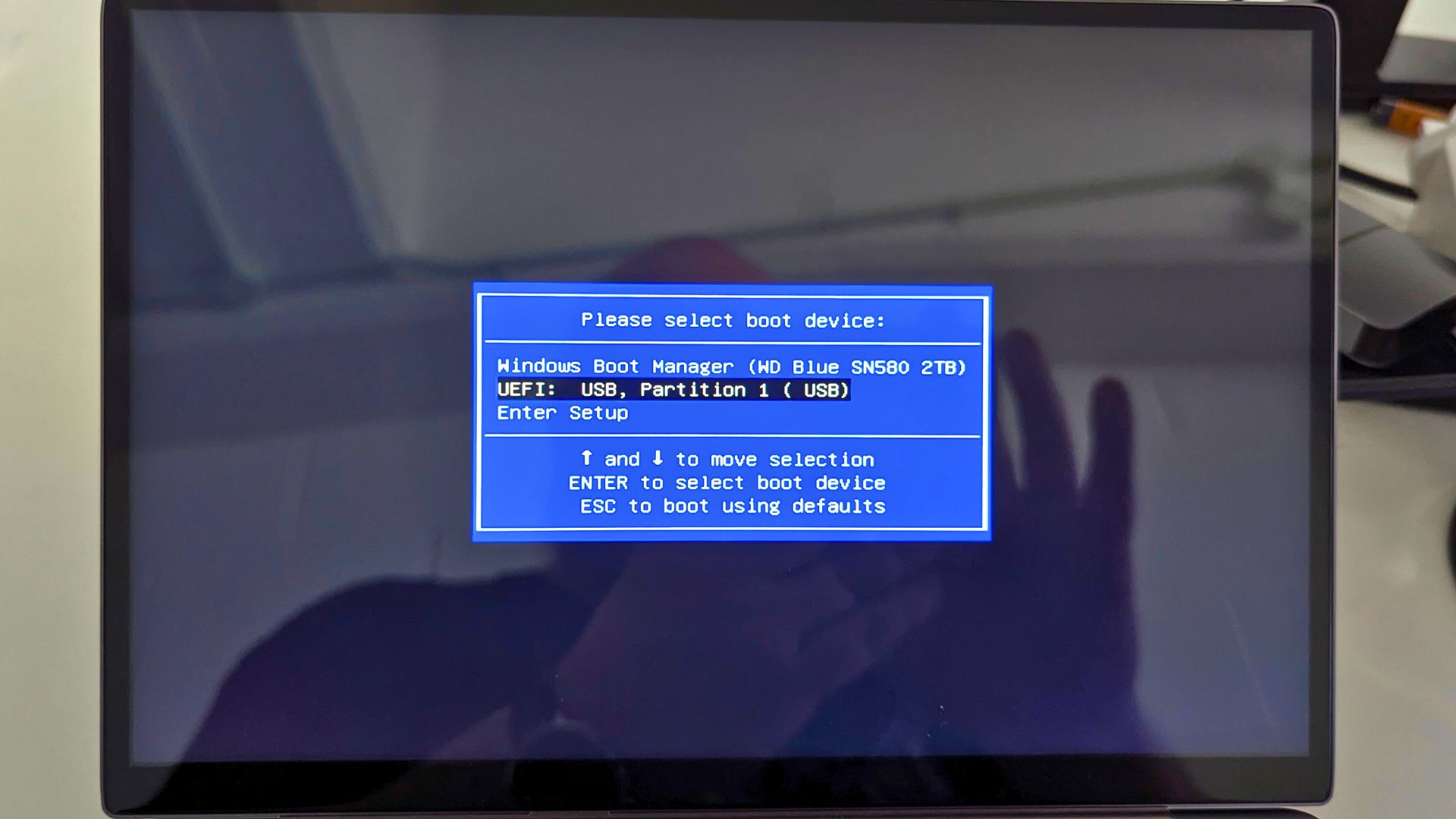
Power on the GPD WIN MAX 2 2025 and repeatedly press the F7 key on the keyboard. After a few moments the boot menu will appear. Press the Down arrow key on the keyboard and select the USB drive, then press ENTER.
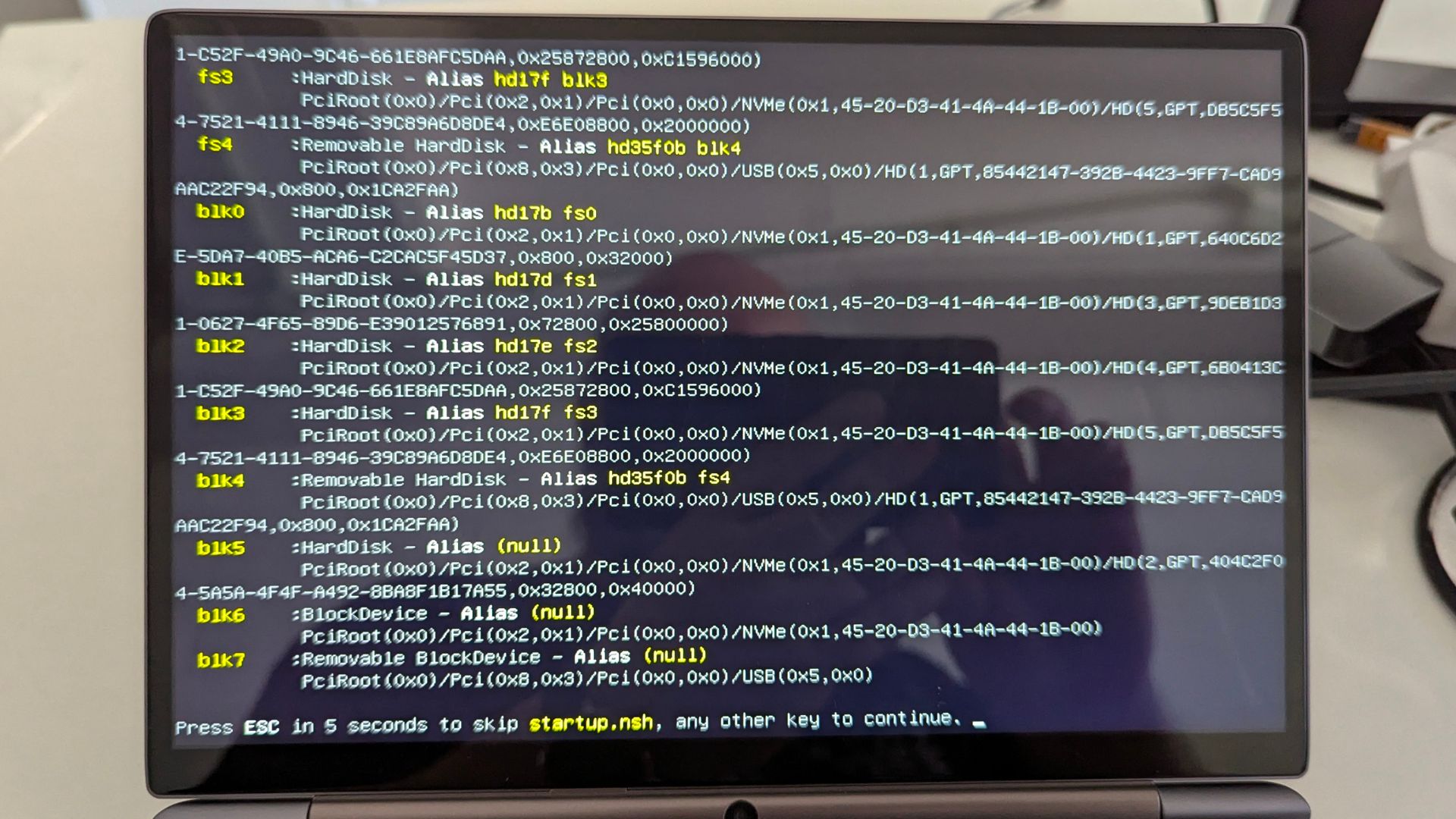
Some text will appear to show the status of the setup. You can press ESC key if you wish to cancel, or wait a few moments to automatically start or press any key to instantly start.
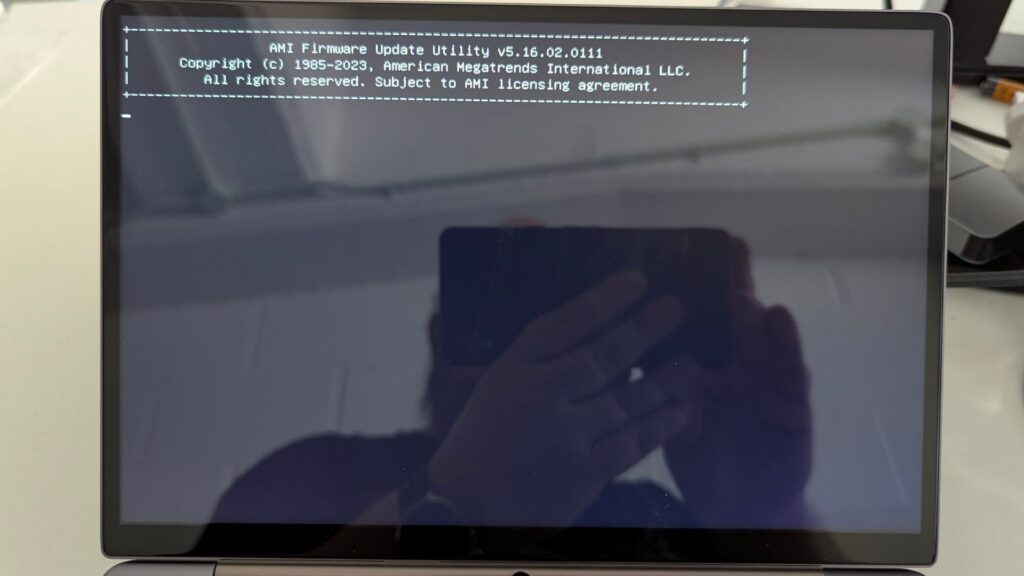
After a few moments, the AMI Firmware Update Utility screen will display. This will show for around 20-30 seconds, do not press any keys or power down the device.
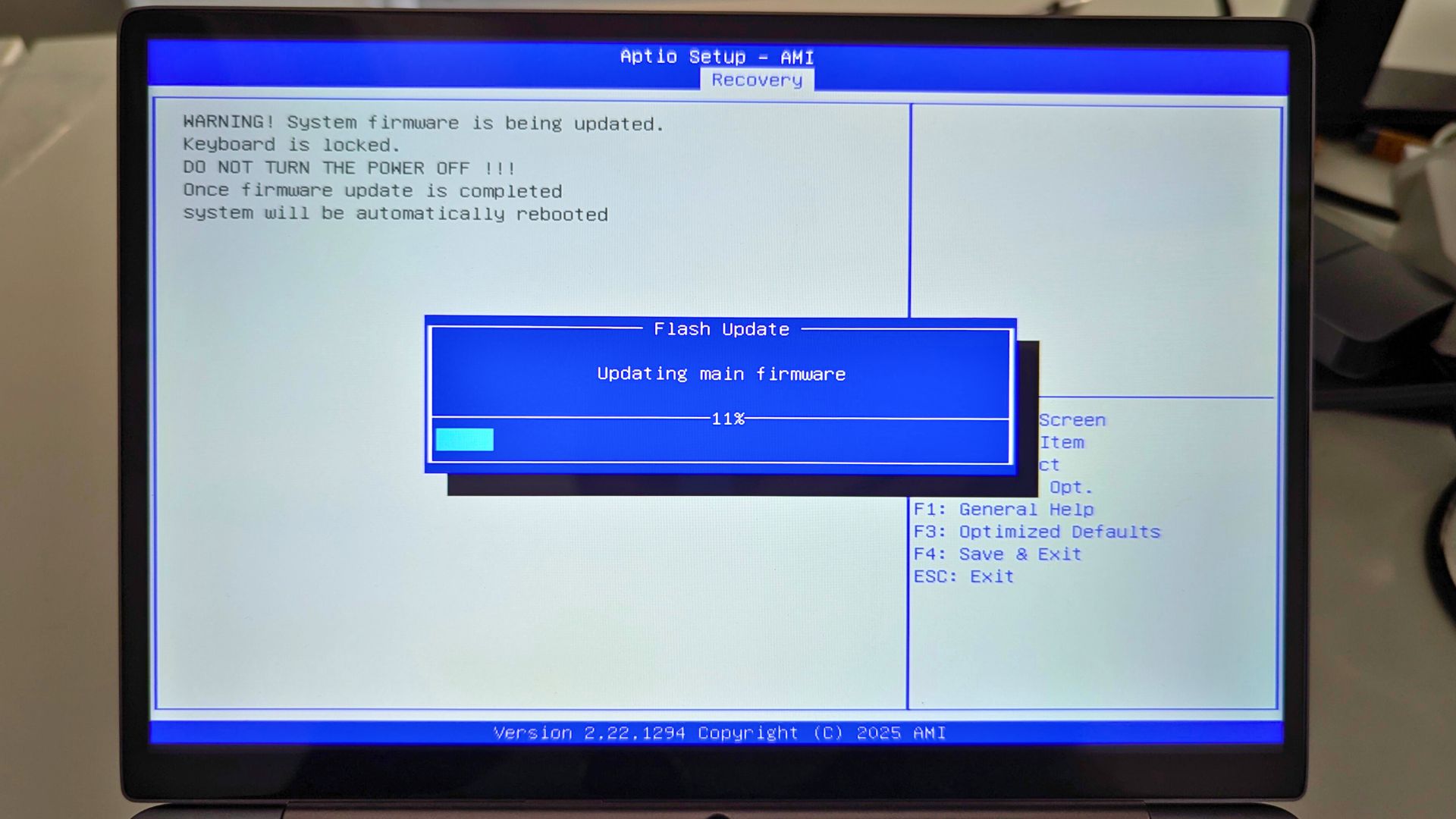
The BIOS flashing screen will now show. It will appear to do nothing for around 30 seconds. Do not press any keys or power down the device.

The update process will now begin and show the update progress as it installs the BIOS update. This process takes a few minutes. Do not press any keys or power down the device.
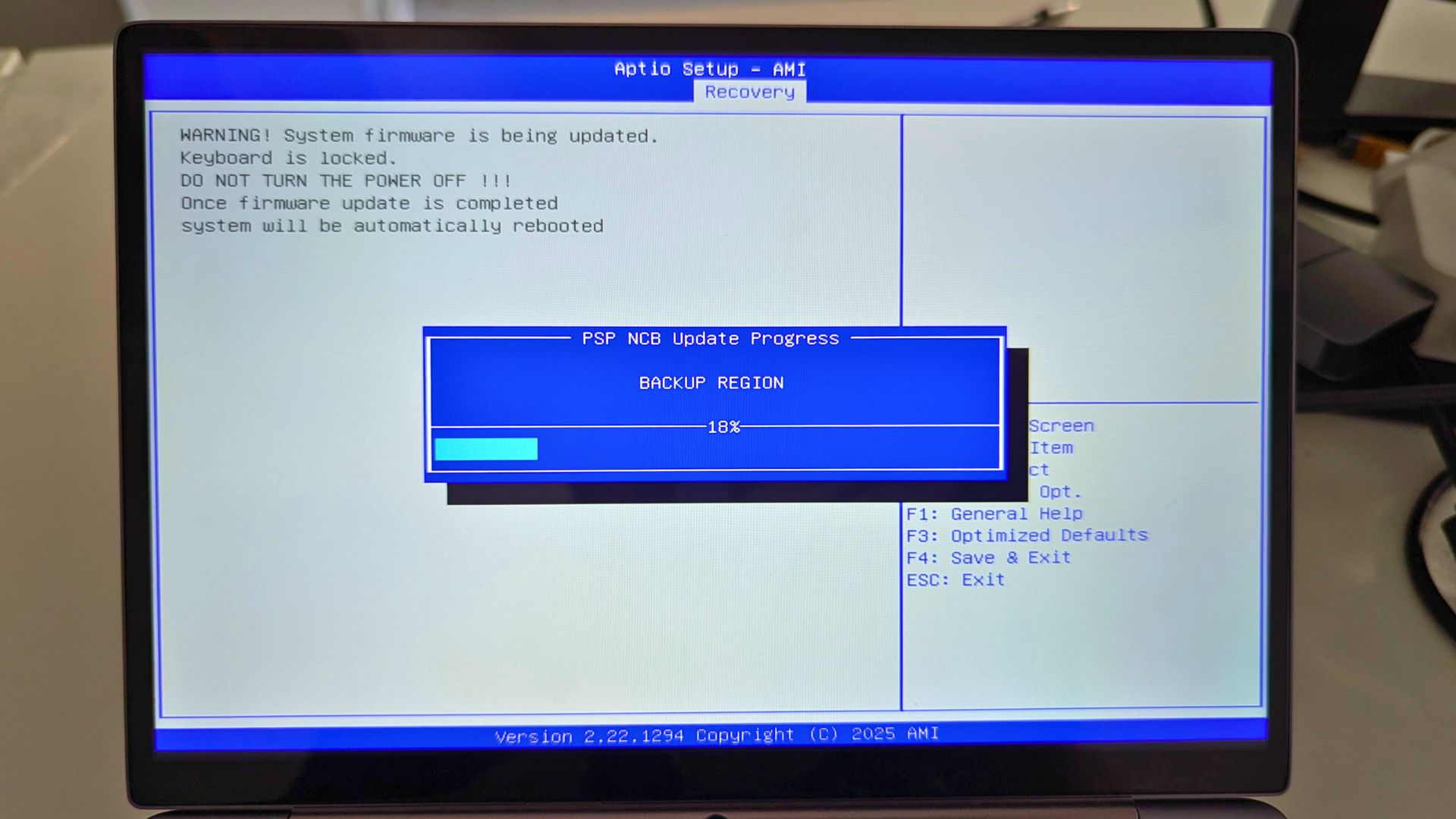
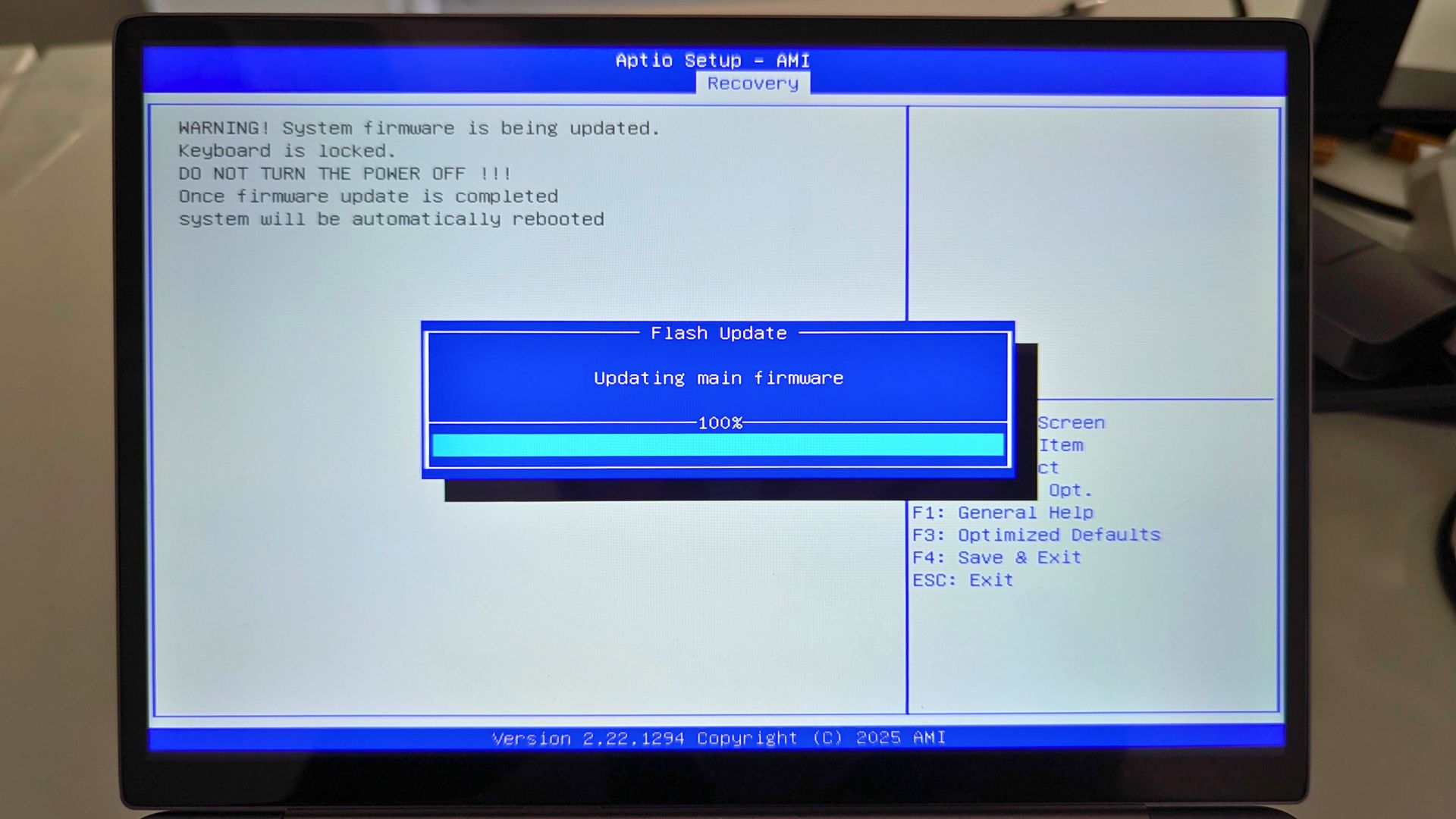
Once the BIOS update process has completed, the GPD WIN MAX 2 2025 will reboot and update. The device may reboot once or twice more during this process. Do not press any keys or power down the device.

Once the update is complete, it will boot into Windows and you can continue to use your GPD WIN MAX 2 2025 as normal.
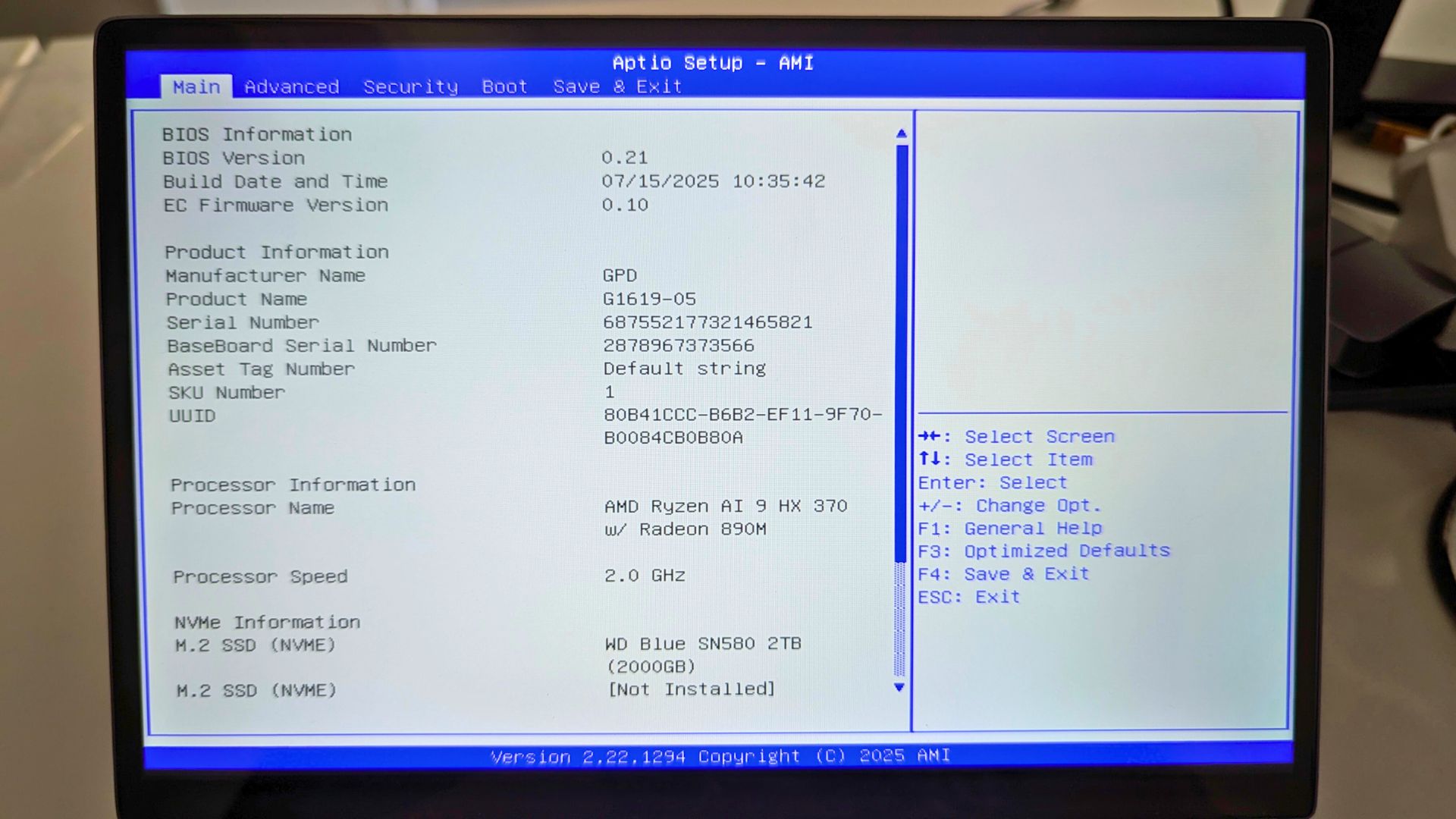
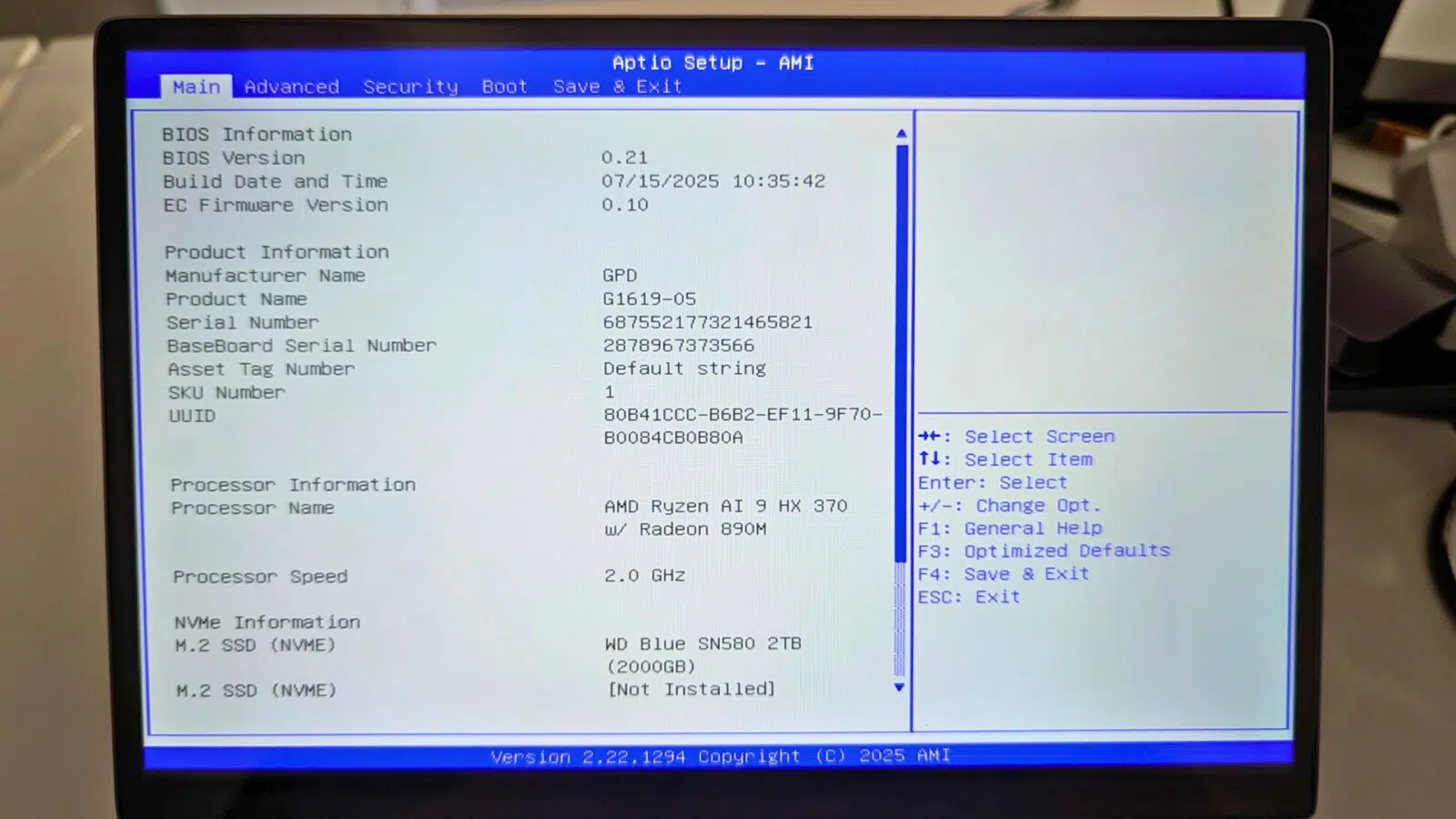
If you want to check the BIOS firmware has installed, you can check in the BIOS menu. Power on the device and repeatedly press ESC to boot to the BIOS menu. You can check the BIOS version (0.21) and the EC Firmware version (0.10) to confirm which version is installed.