




Some software or games such as FIFA 23 require your device to have Secure Boot enabled in order to be able to run the software. This guide will show you how to enable Secure Boot on your device step by step. This guide was written using the ONEXPLAYER 2 but it should be similar for any device.
To enable secure boot you need to enter your devices BIOS. The quickest way to do this for any device is from Windows. Click on the Power icon on the Start Menu and hold the SHIFT key and click on the Restart menu option.

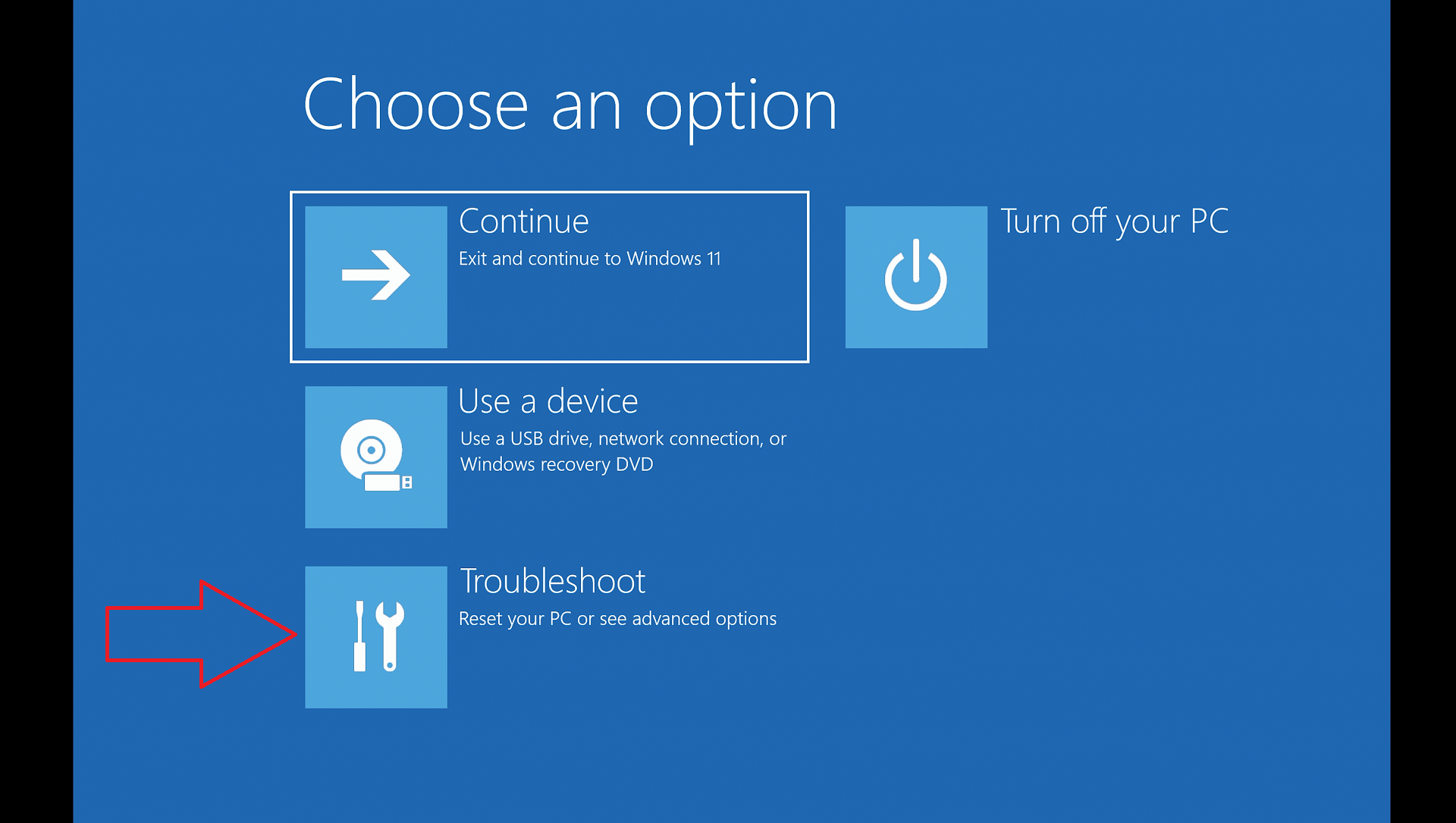
After a few moments your device will restart and you will be launched into the Windows Recovery mode. Choose Troubleshoot
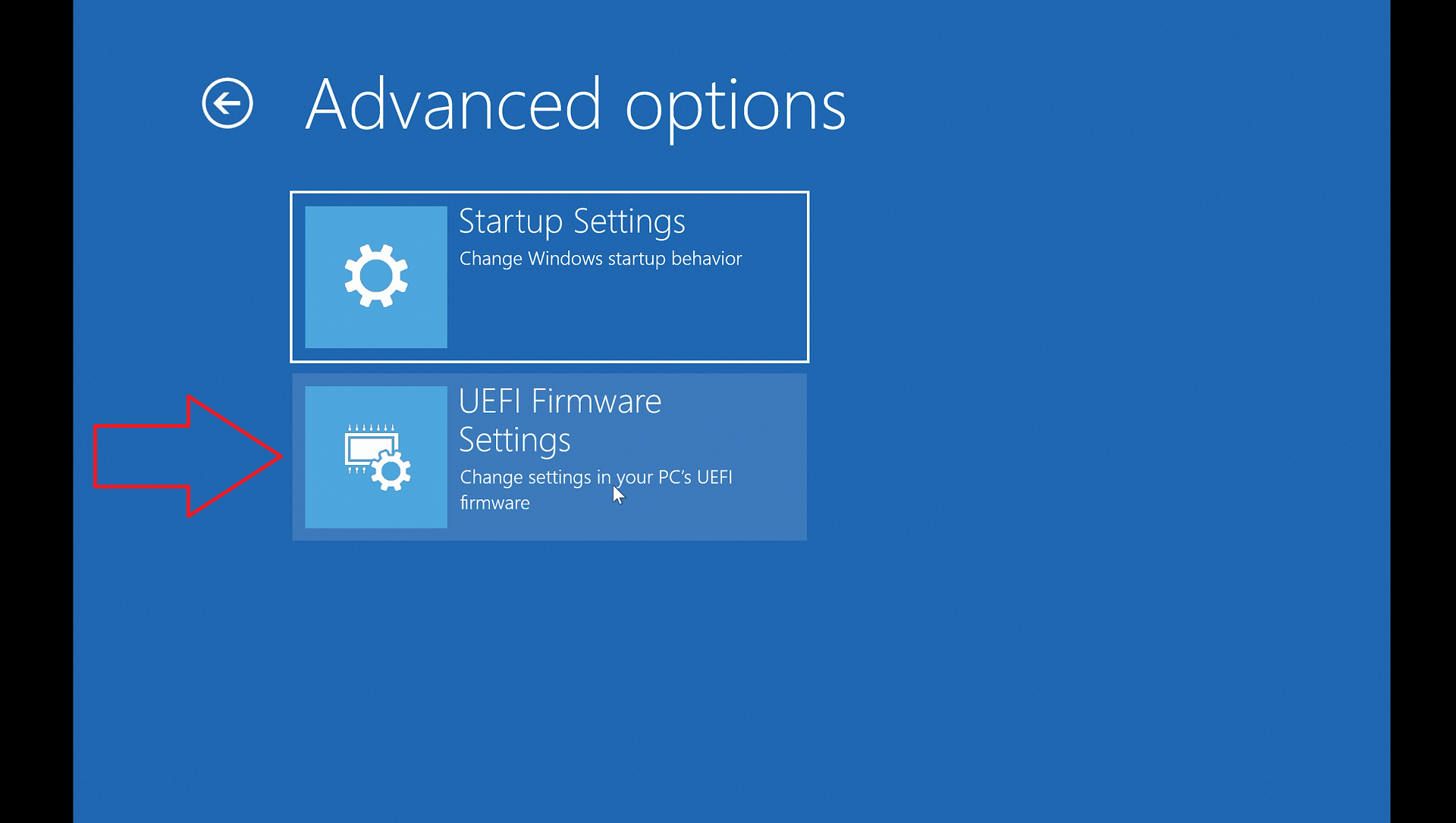
Choose UEFI Firmware Settings from the menu options
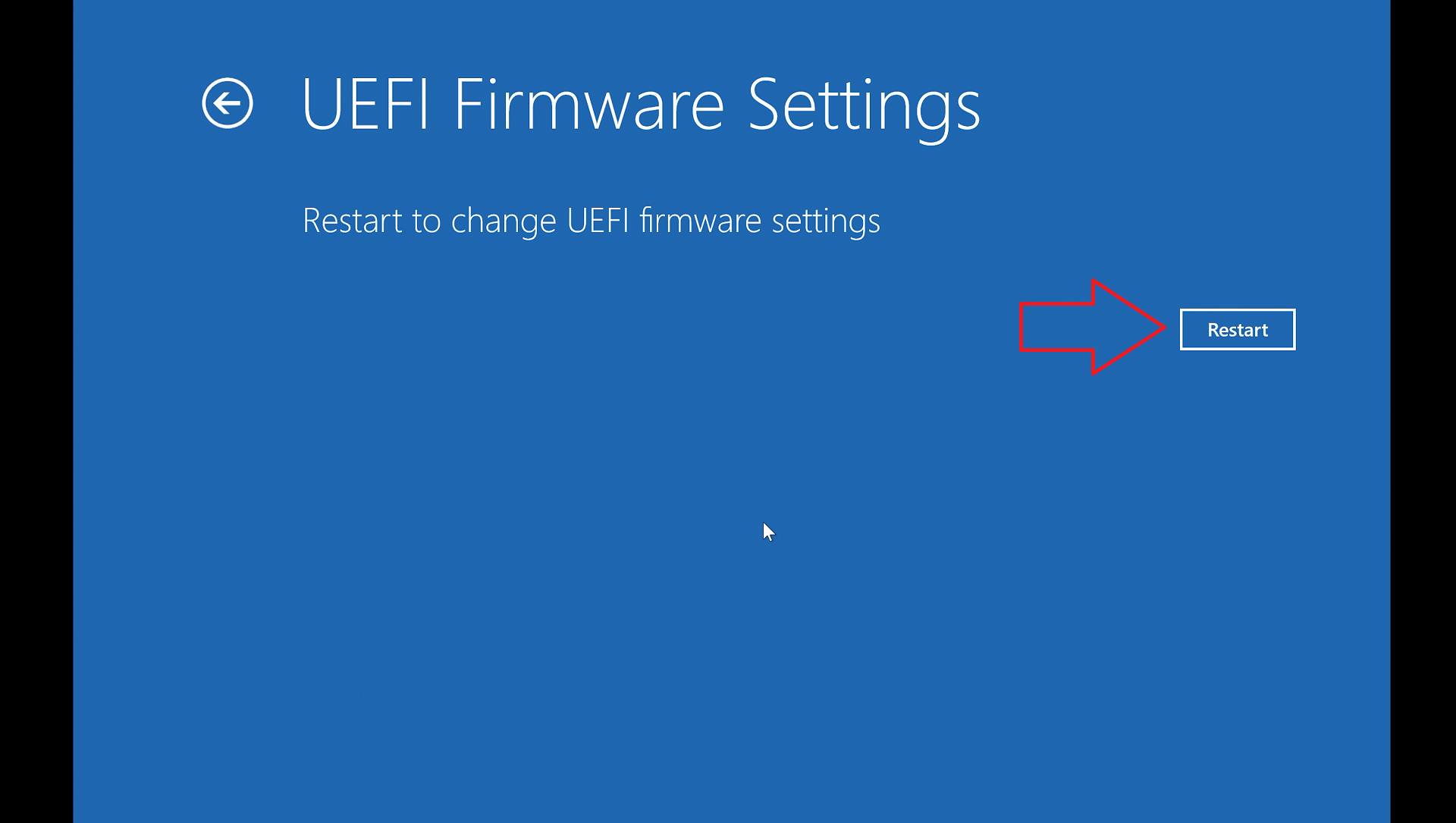
Click on Restart to continue
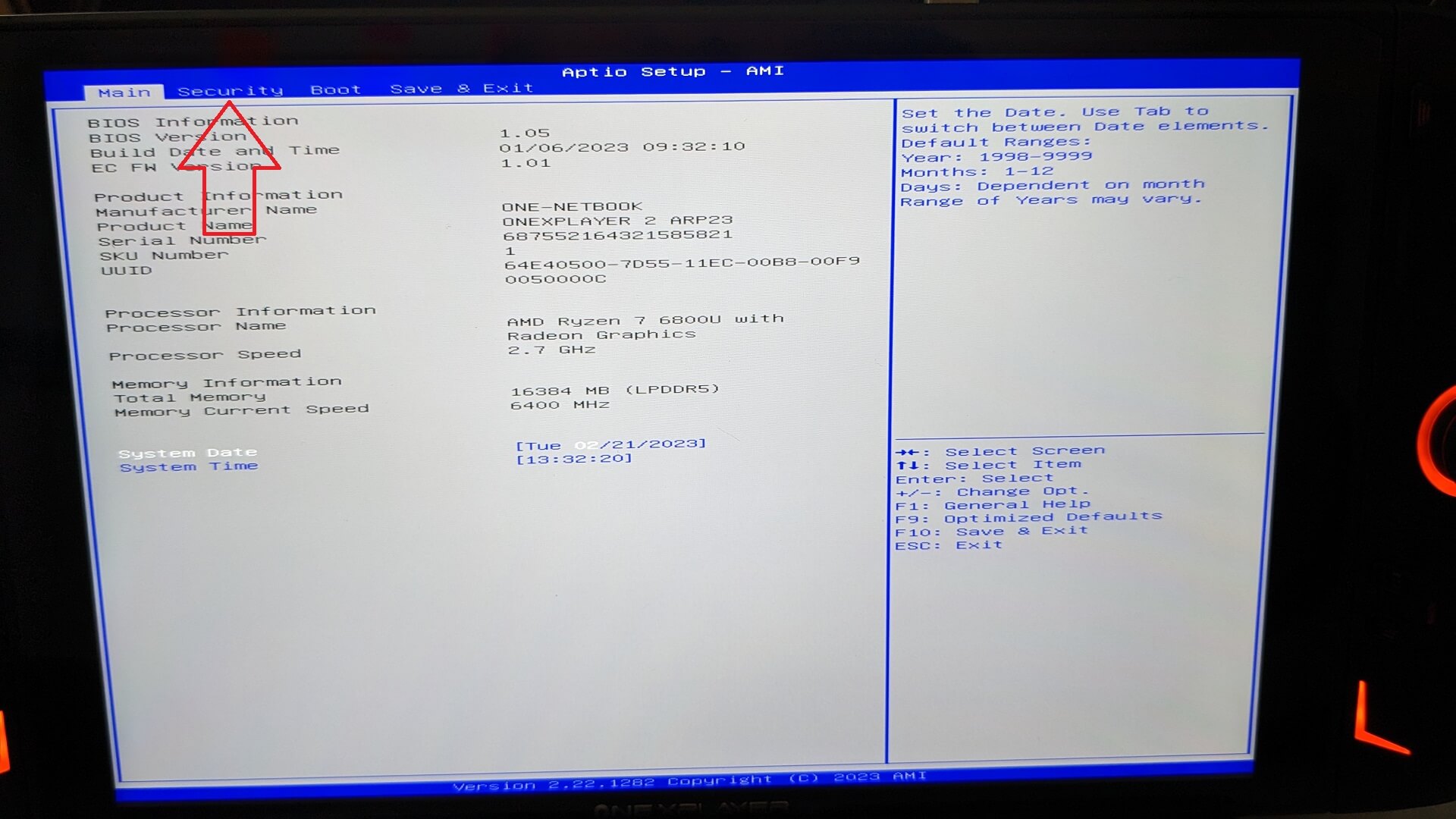
The device will now restart and boot into the BIOS. Choose the Security menu option from the top of the screen.
Scroll down the list and choose the Secure Boot option
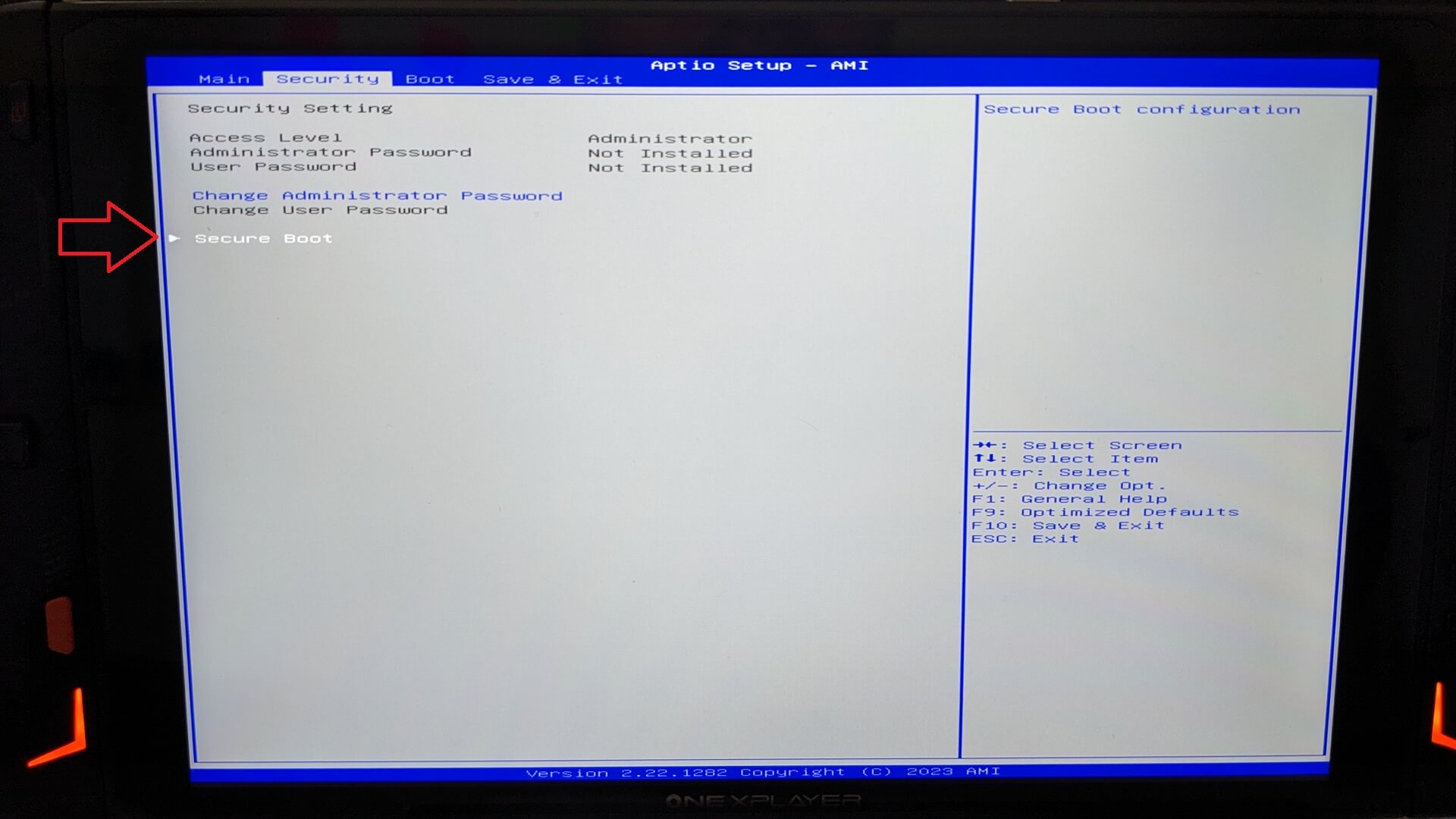
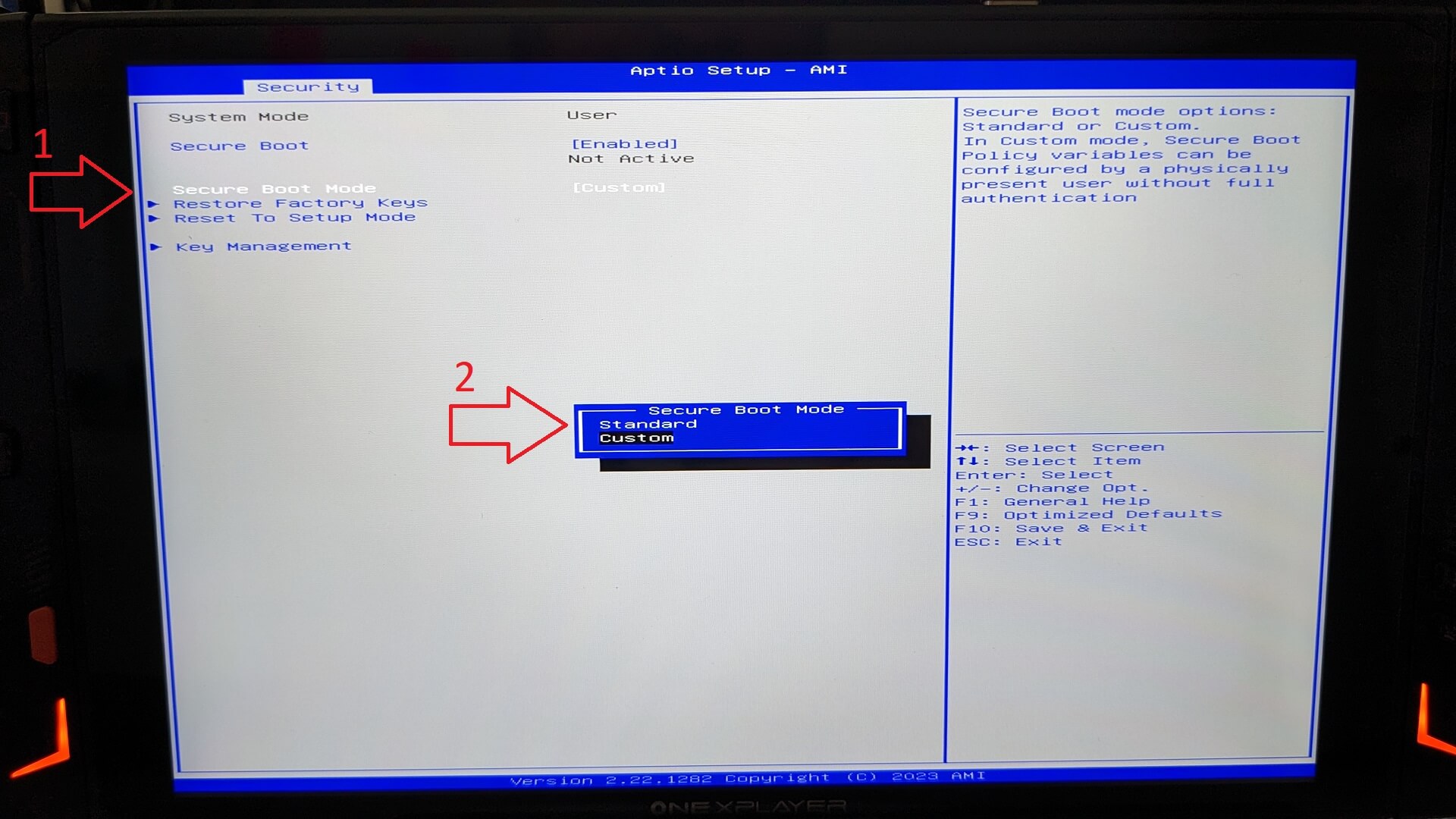
Select Secure Boot from the menu options, then Enabled from the pop up options. Choose YES if prompted to confirm changes.

Select Secure Boot Mode from the menu options, then Standard from the pop up options. Choose YES if prompted to confirm changes.
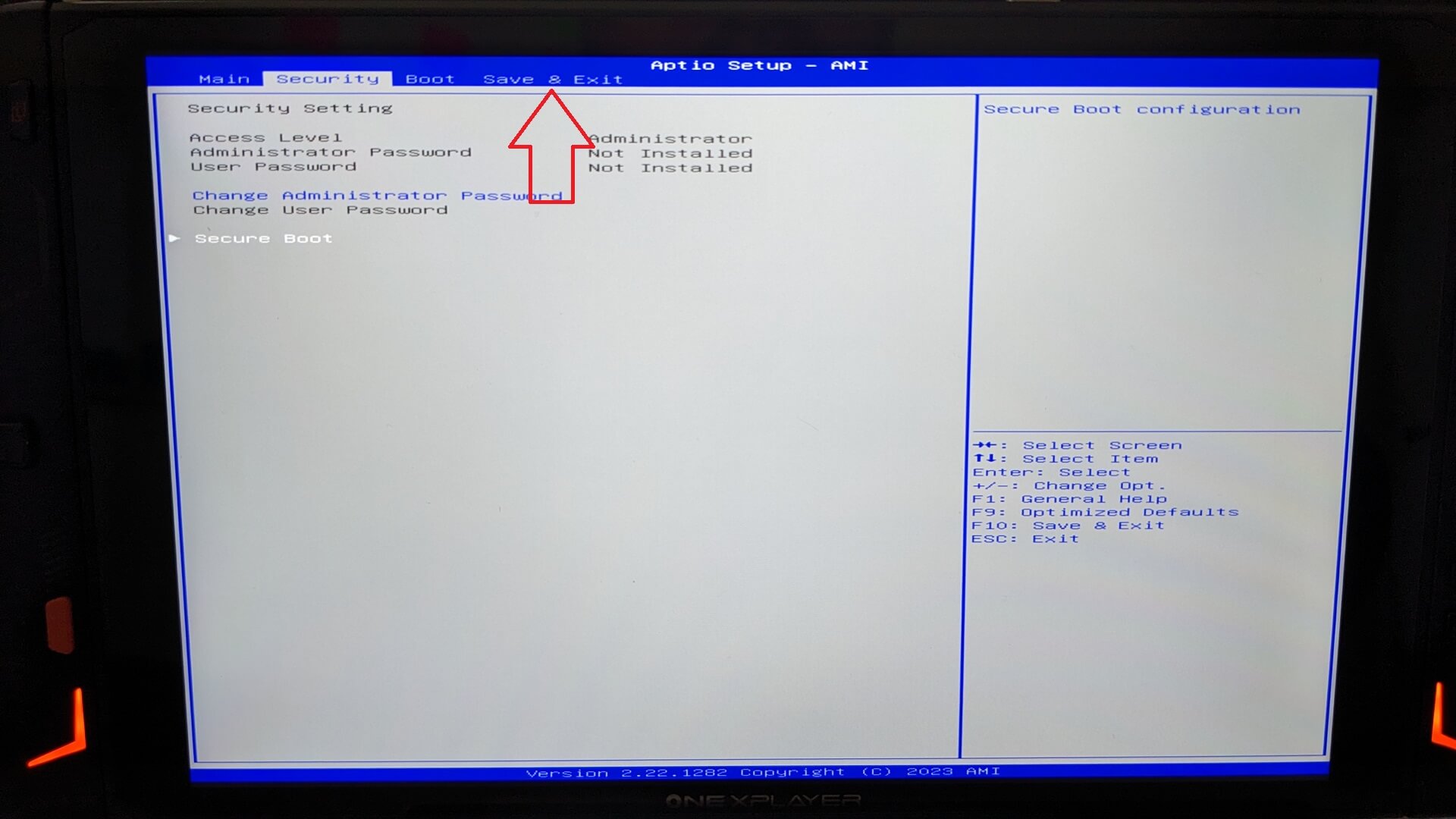
Press the ESC key to go back one menu screen, then choose Save & Exit from the top of the screen.
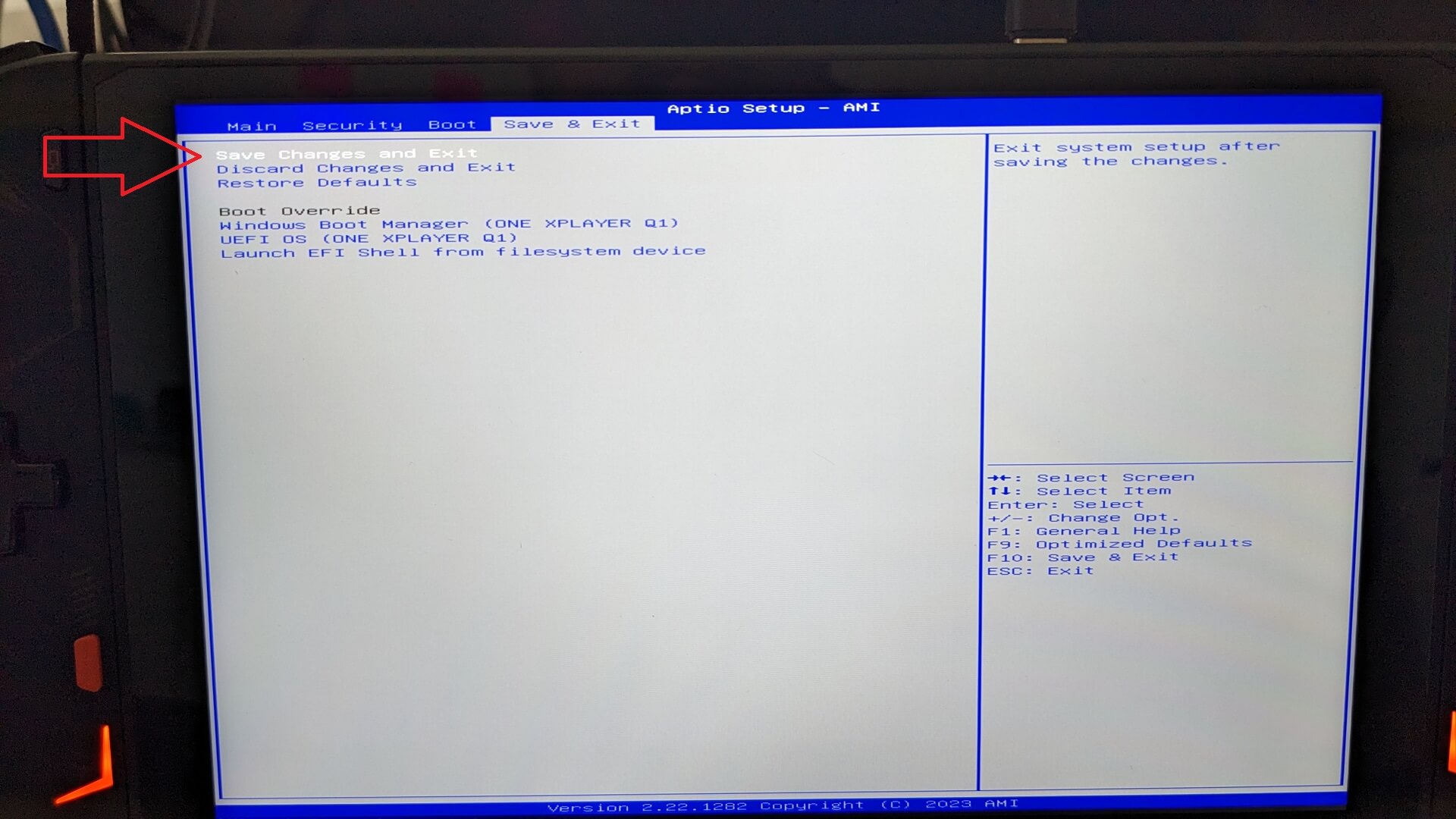
Choose Save Changes and Exit
When prompted to Save configuration and exit, choose YES.

Your device will now reboot with Secure Boot Enabled and you can now run your software.
As a note, if you are still having issues running the software then you may need to close any launchers or overlay software such as AYANEO SPACE and ONEXPLAYER “OXP” Overlay as these can be seen as ‘cheating’ software with gaming anti-cheat software.
Latest from the blog
Visit the blog ONEXPLAYER 3 Review – 8.8-Inch AMOLED Gaming, Modular Controls and Surprising Battery Life
14 October 2026
ONEXPLAYER 3 Review – 8.8-Inch AMOLED Gaming, Modular Controls and Surprising Battery Life
14 October 2026
 KONKR Pocket BLOCK Announced: A Tiny Vertical Android Handheld with a 4:3 Screen
1 October 2026
KONKR Pocket BLOCK Announced: A Tiny Vertical Android Handheld with a 4:3 Screen
1 October 2026
 KONKR Pocket ADVANCE review – A pocket-sized GBA-focused Android gaming handheld
24 September 2026
KONKR Pocket ADVANCE review – A pocket-sized GBA-focused Android gaming handheld
24 September 2026
 KONKR Pocket Advance Pre-order: A Compact Android Handheld Built for Retro Gaming
23 September 2026
KONKR Pocket Advance Pre-order: A Compact Android Handheld Built for Retro Gaming
23 September 2026
Questions & answers 2
Dobrý den Secure Boot blokuje štart Windowsu prosím o pomoc s notebookom Lenovo Legion 5-15ARH05H (typ 82B1). V systéme vidím BIOS FSCN26WW z 9. 9. 2022 a TPM od AMD vo verzii 3.47.0.5.
skušal som nainštalovat novú verziu 28 ale bolo pisane že to je pre win 10 a ja mam 11 nainštalovalo ju ale nepomohlo mi to
Call of Duty hlási „BIOS firmware: Update Required“ a „Secure Boot not Enabled“. Skúšal som aktualizovať BIOS a v nastaveniach BIOSu som zvolil „Restore Factory Keys“. Keď potom zapnem Secure Boot, zobrazí sa hláška „Windows Boot Manager has been blocked by the current security policy“ a Windows sa nespustí. Pri vypnutom Secure Boote sa Windows spustí normálne.
Prosím o radu, ako bezpečne obnoviť správne nastavenie Secure Bootu a či je pre tento model dostupná vhodná aktualizácia BIOSu alebo TPM firmvéru. Nechcem riskovať stratu dát ani zablokovanie štartu Windowsu.
Ďakujem za pomoc.
Táto príručka je určená predovšetkým pre prenosné herné počítače, takže v prípade problémov, ktoré v nej nie sú zahrnuté, možno budete musieť požiadať o podporu priamo spoločnosť Lenovo.