




If you have arrived at this post, you either already know what a device ID is, or have been asked to provide it and would like help locating it.
What is a device ID?
Your DroiX Device ID (applies to Android based models) is a preset alpha-numeric code tied to your device.
You can either download it from our own DroiX Market or Google’s Play Store. To use our Market, open it up, scroll down to General Tools, then open the Device ID entry. Select install and follow the on screen instructions. Afterwards, if you open the list of all Android applications installed on your device (normally a shortcut on your homescreen, with an icon of a circle with six dots, or titled “Apps” or “My Apps”), you’ll find Device ID is now installed.
If you prefer to use the Play Store:
To start with, please make sure you have signed into Google’s Play Store on your DroiX device. Please see https://droix.zendesk.com/hc/en-gb/articles/360010555258-First-Run-Of-Google-s-Play-Store if you need to sign in, but aren’t sure what to do.
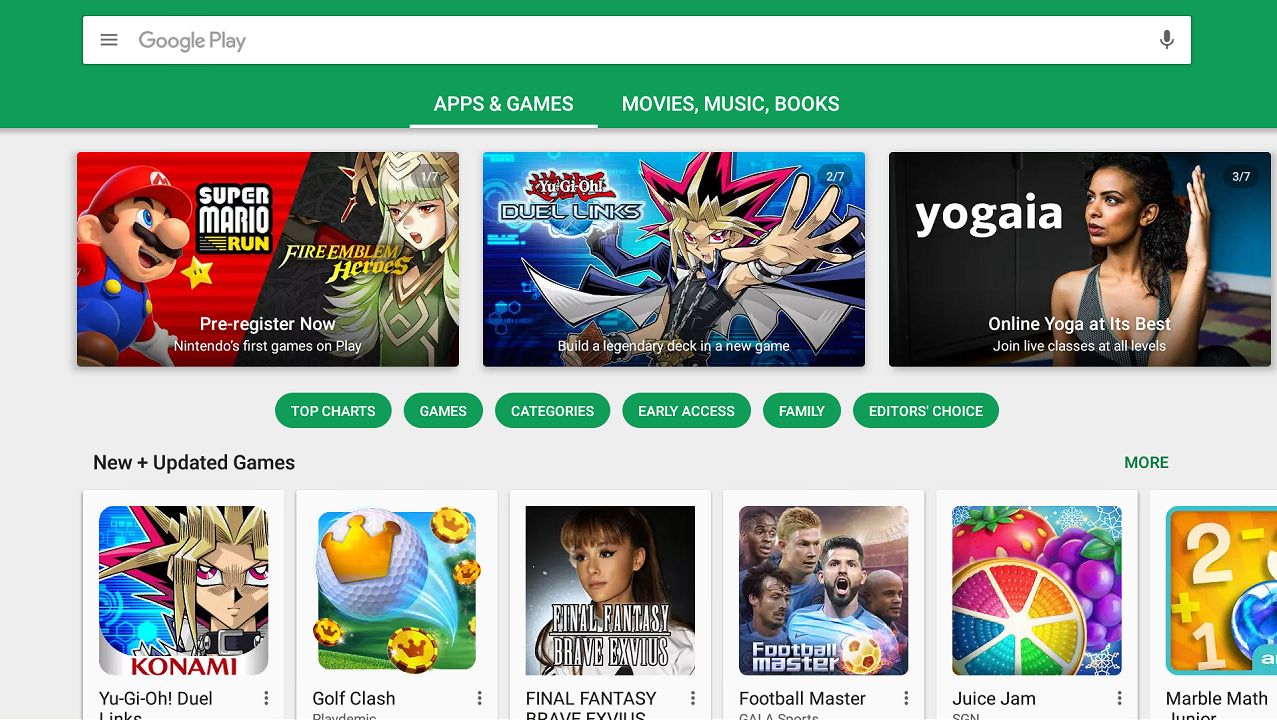
Open the Play Store and enter “Device ID” as a search term in the bar at the top.

From the results, click on the Evozi version


You’ll be shown the permissions this application requires, accept them if you’re happy to do so.

Once installed your screen should look like this.

You can open the app and either copy the Android Device ID and paste into an email, or copy the code (carefully please) manually.

Latest from the blog
Visit the blog GPD WIN Mini Ultra – A Bigger 8-inch 120Hz Screen, Intel Arc G3 Extreme and Dual USB4 v2.0
27 October 2026
GPD WIN Mini Ultra – A Bigger 8-inch 120Hz Screen, Intel Arc G3 Extreme and Dual USB4 v2.0
27 October 2026
 RockTek PJ500 Ultra Review – A 1080p Home Cinema Projector for Streaming and Gaming
27 October 2026
RockTek PJ500 Ultra Review – A 1080p Home Cinema Projector for Streaming and Gaming
27 October 2026
 EPOMAKER RT75 and TH26 Review – Retro 75% Keyboard with Detachable Screen and 5-Key Macro Numpad
26 October 2026
EPOMAKER RT75 and TH26 Review – Retro 75% Keyboard with Detachable Screen and 5-Key Macro Numpad
26 October 2026
 GEEKOM A5 2027 Review – A Compact Mini PC Home Lab
21 October 2026
GEEKOM A5 2027 Review – A Compact Mini PC Home Lab
21 October 2026
Questions & answers