




Files used in this guide
Changelog
- Source guide: How to update the GPD WIN 5 BIOS
Older versions stay downloadable for rollbacks — every version keeps its own verified file.
Updating the BIOS on your GPD WIN 5 is a crucial step for optimizing performance, improving system stability, and ensuring compatibility with the latest software. While the idea of flashing firmware can sometimes seem technical, GPD has provided a user-friendly utility that automates most of the work. This guide will walk you through the entire procedure step-by-step—from extracting the files to the final reboot—ensuring you can safely upgrade your device without any guesswork.
Please note that while BIOS updating is generally fine, there are risks. Please ensure you follow all steps correctly, identify that you are installing the correct BIOS for your device, have a fully charged battery and also connected to a charger. Do not switch off the device unless instructed to. We do not accept responsibility if something goes wrong.
Download the BIOS Update
Begin by downloading the GPD WIN 5 BIOS update here. Unzip or extract the folder’s contents directly onto your device’s storage. Inside, you will locate an executable file with a name resembling BIOS_WIN5_V2.25_GPD.exe, though the specific numbers may change based on the version you are installing.
Changes in v2.25 are:
- Upgrade codebase to PI1.0.0.2a_110 from PI1.0.0.2_109.
- Update DDR ID mapping.
BIOS Update First Stage
Launch the BIOS_WIN5_V2.25_GPD.exe application. After a brief pause, a command window will pop up displaying system information and a request to press a key to proceed. Take a moment to review the text on the screen, and when you are prepared, press any key on the keyboard to move forward.
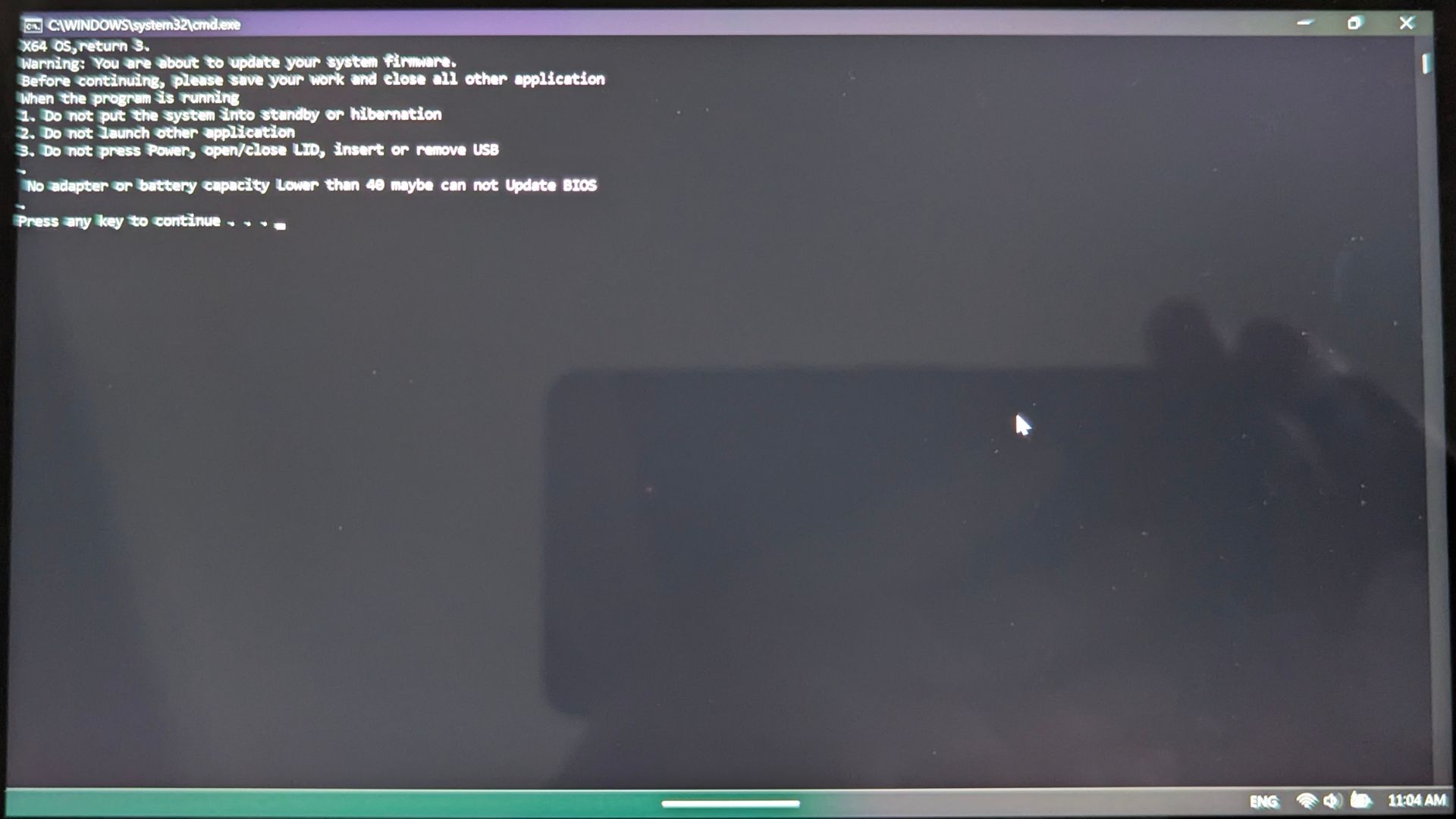
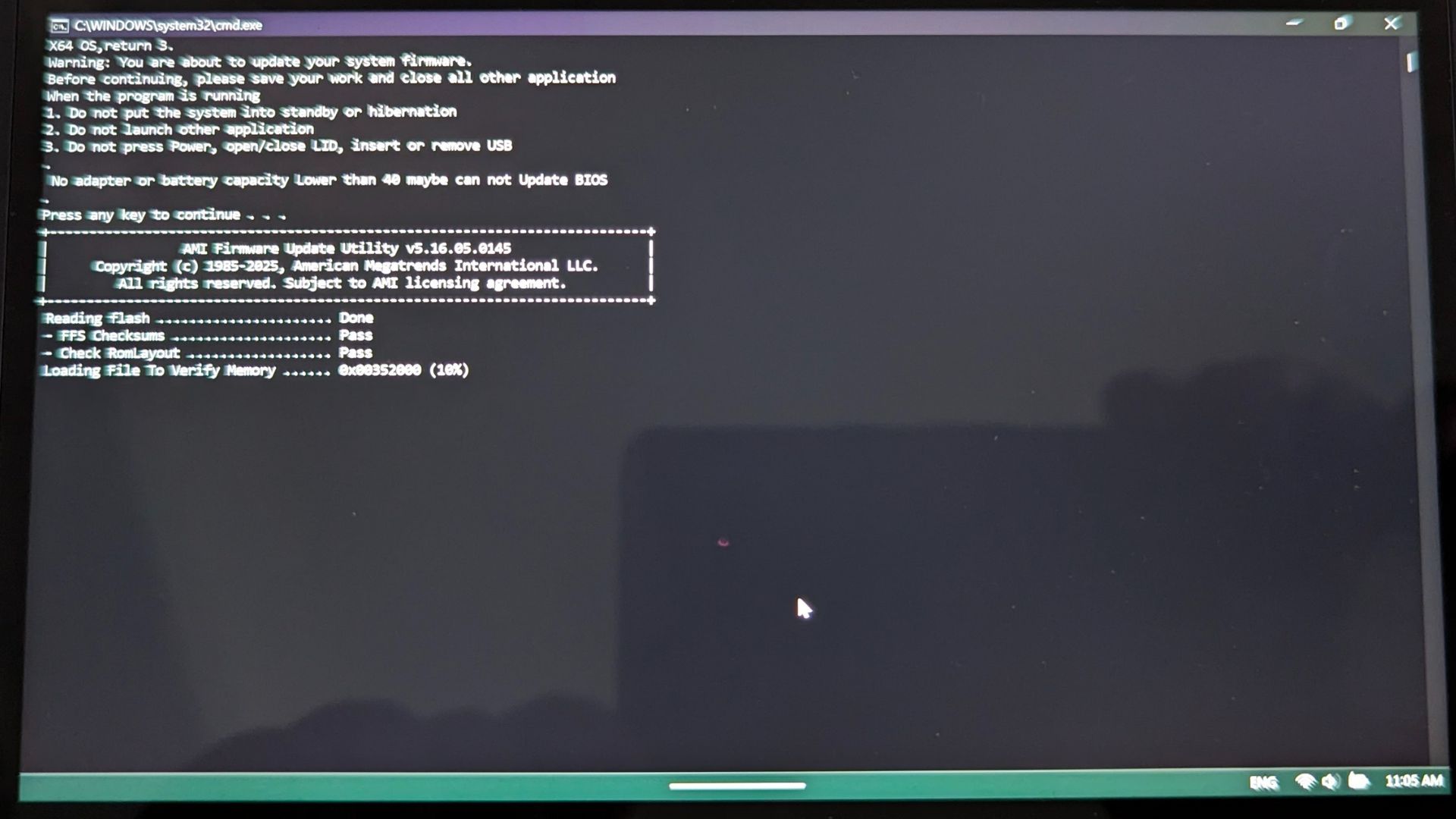
The utility will immediately begin a series of diagnostic checks to verify system integrity. You can expect this validation phase to last only a few minutes.
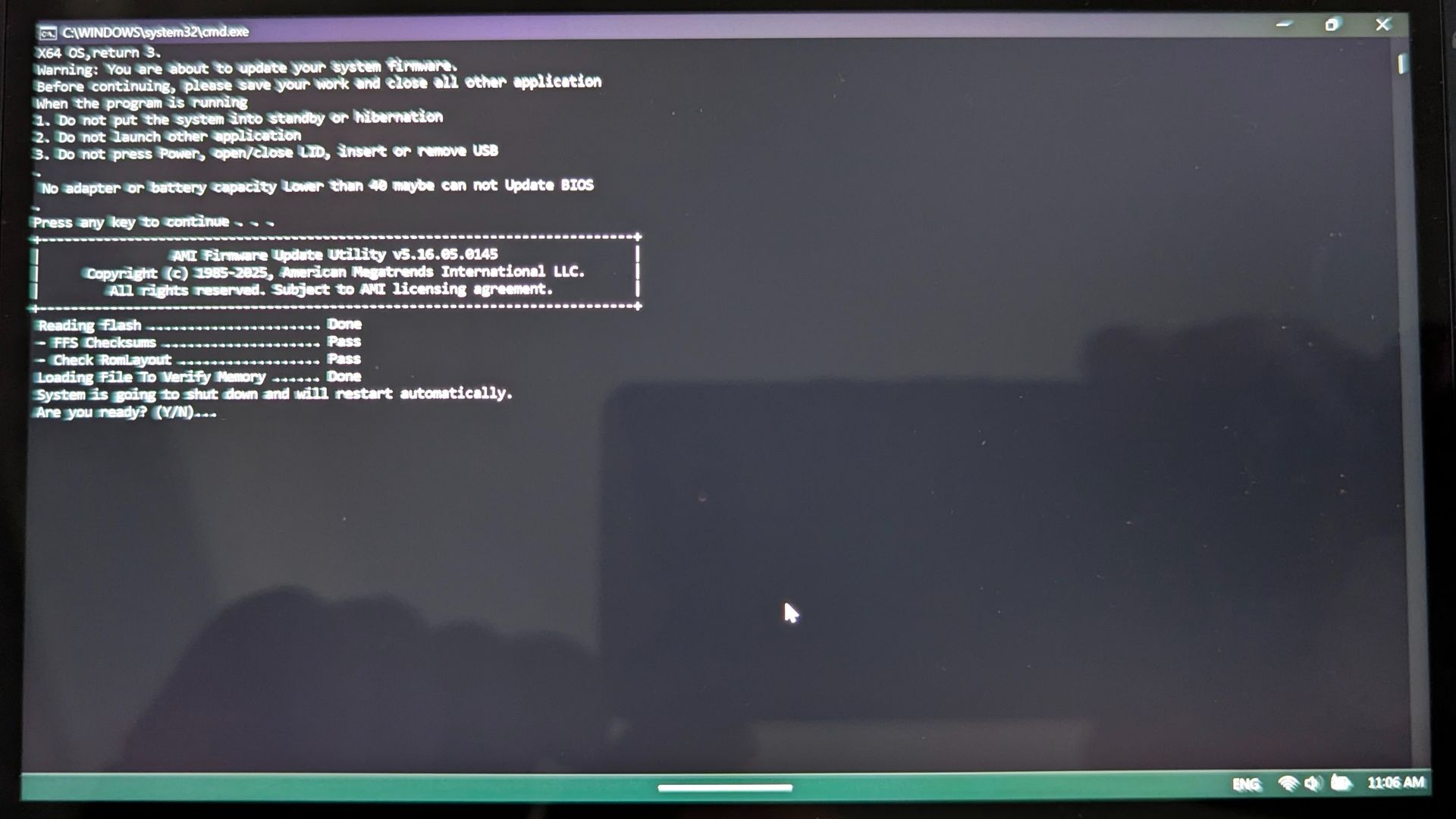
When the diagnostics are finished, the system will ask for confirmation to restart the device and finalize the installation. You will see a prompt asking for a YES or NO response. Simply type Y to proceed with the reboot or N if you wish to abort the process.
BIOS Update Second Stage
Your GPD WIN 5 will restart and enter the dedicated BIOS flashing interface. There will be a short delay before the actual procedure kicks in; it might appear as if the device is idle, but please be patient and allow it to run its course.
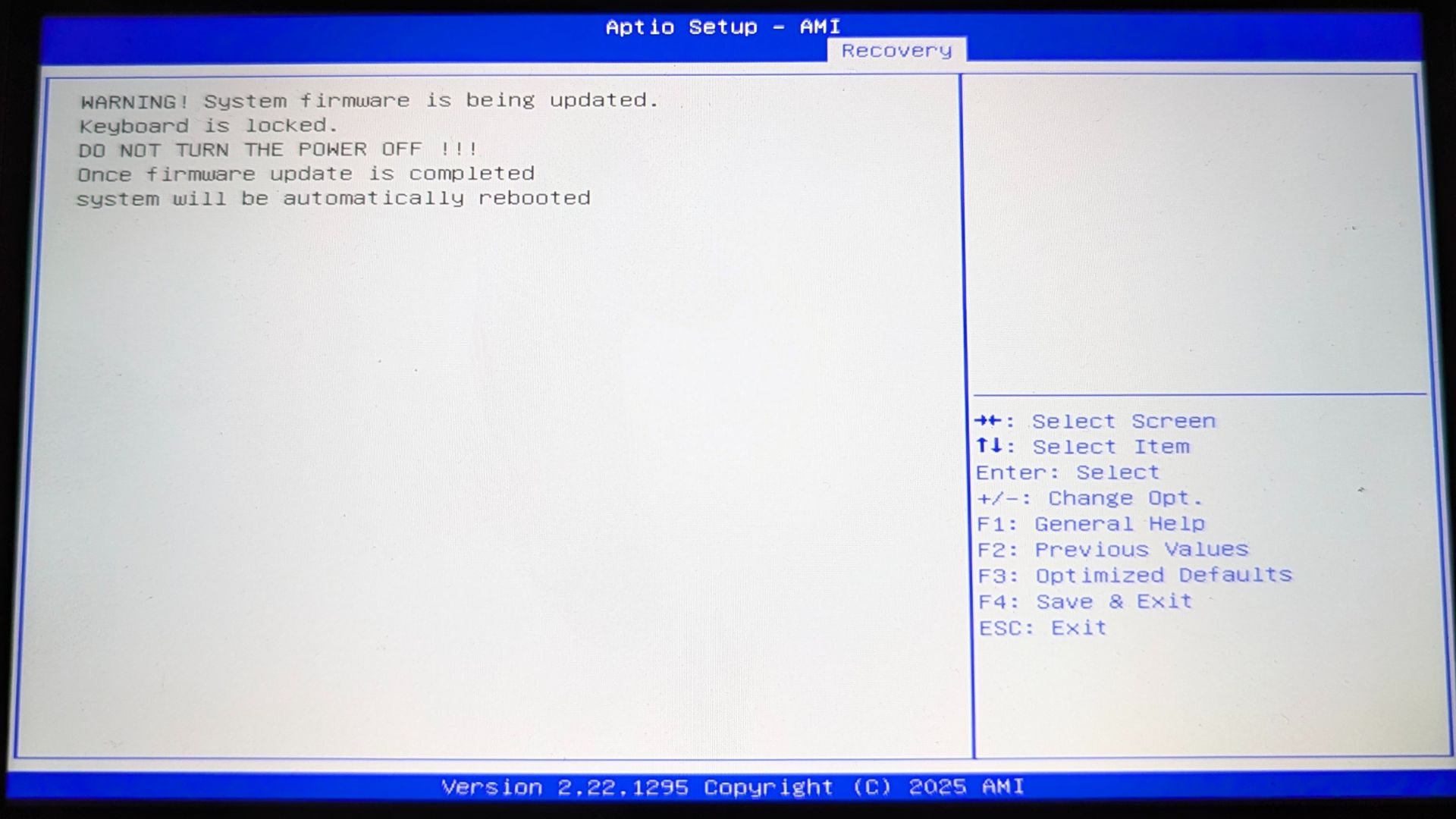
The firmware installation will officially start, showing a progress bar or status indicators on the display. It is absolutely critical that you do not turn off the device or interact with any buttons, joysticks, or the touchscreen while this operation is active.
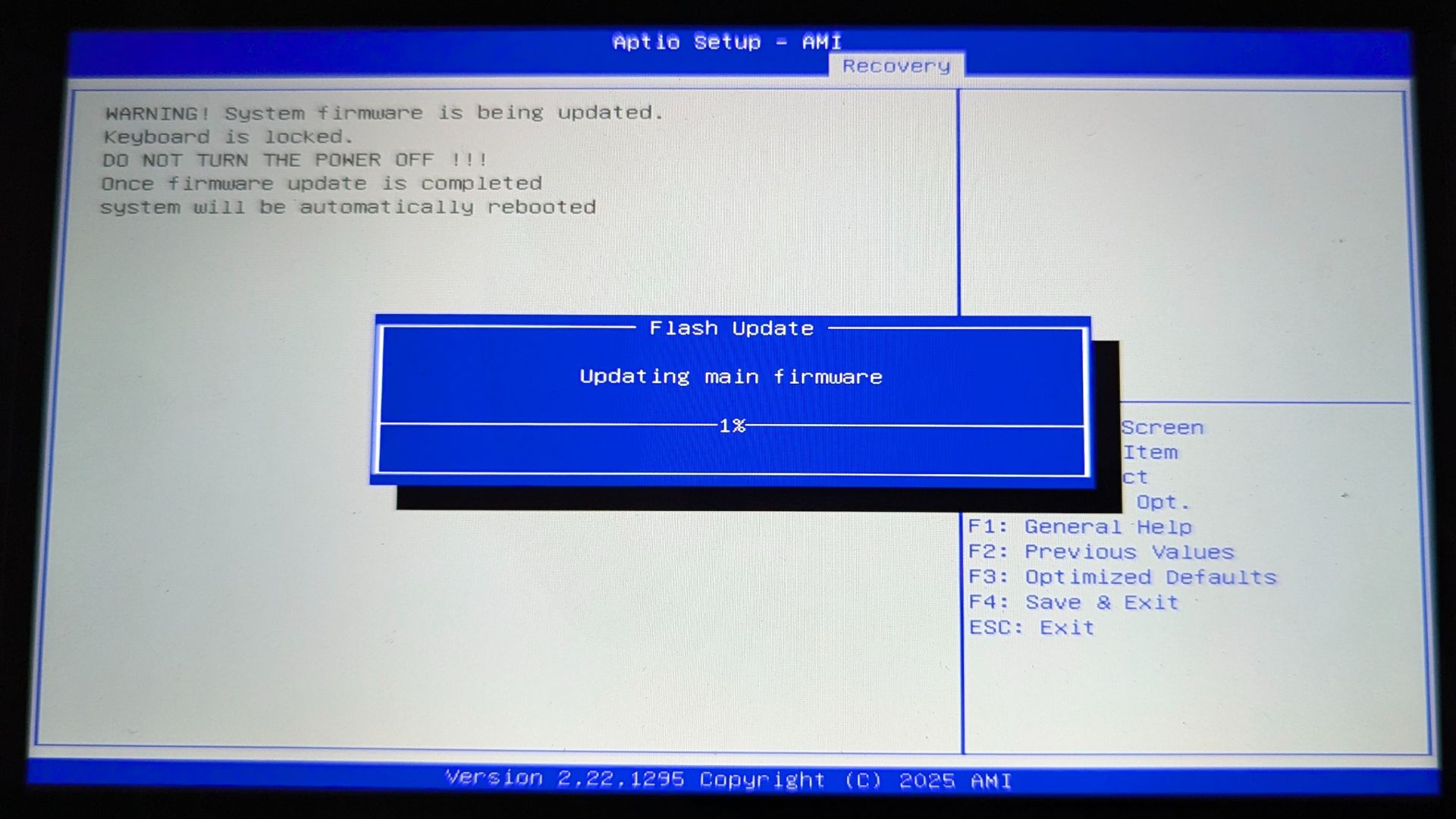
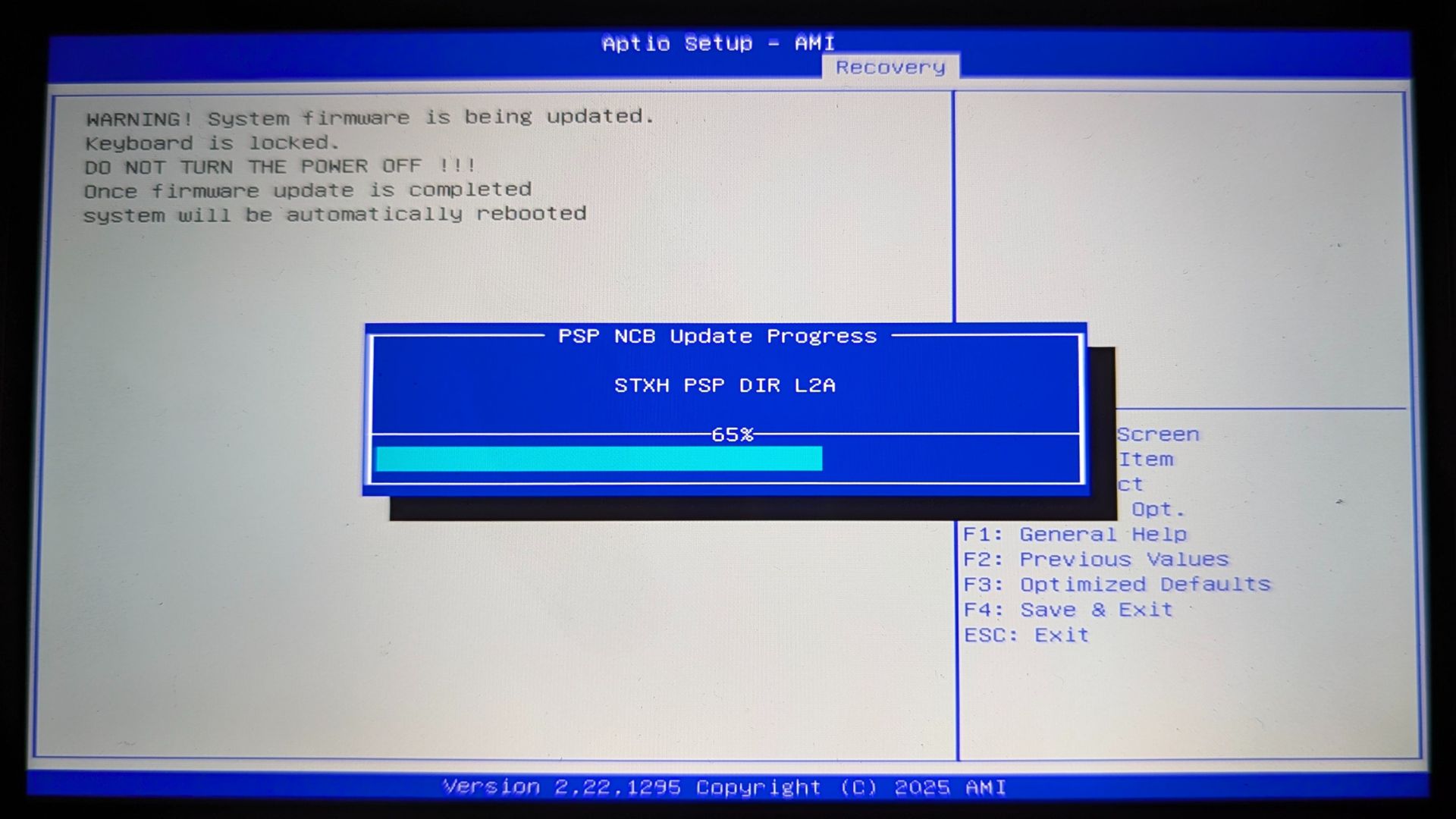
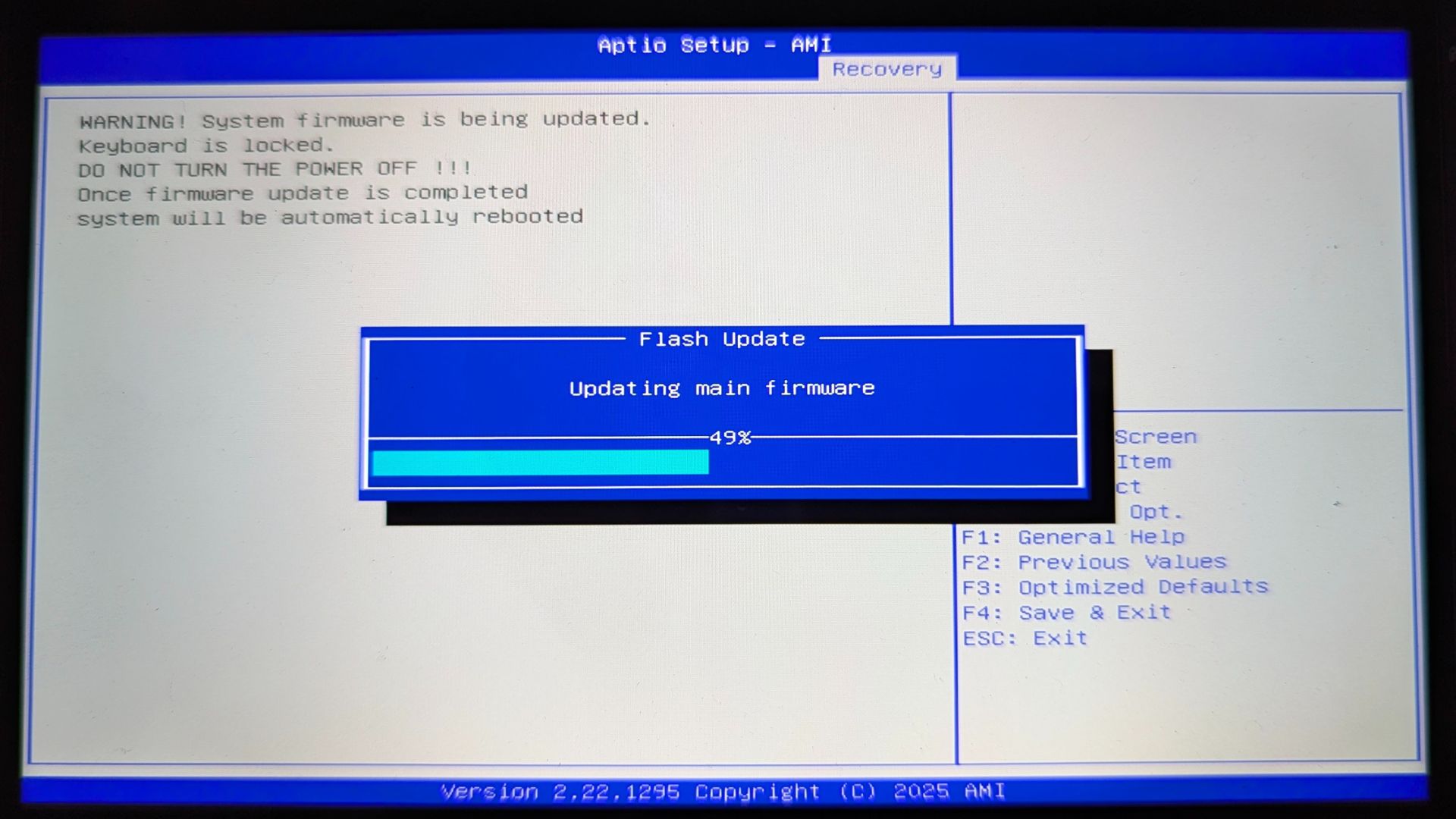
Second Stage Updating BIOS
Once the installation phase concludes, the device will reboot automatically, resulting in a black screen that persists for one or two minutes. As before, refrain from touching any controls or forcing a shutdown during this sensitive phase. The process is only finished when the device completely powers down; you will know it is safe when the internal cooling fan stops spinning and the noise ceases.
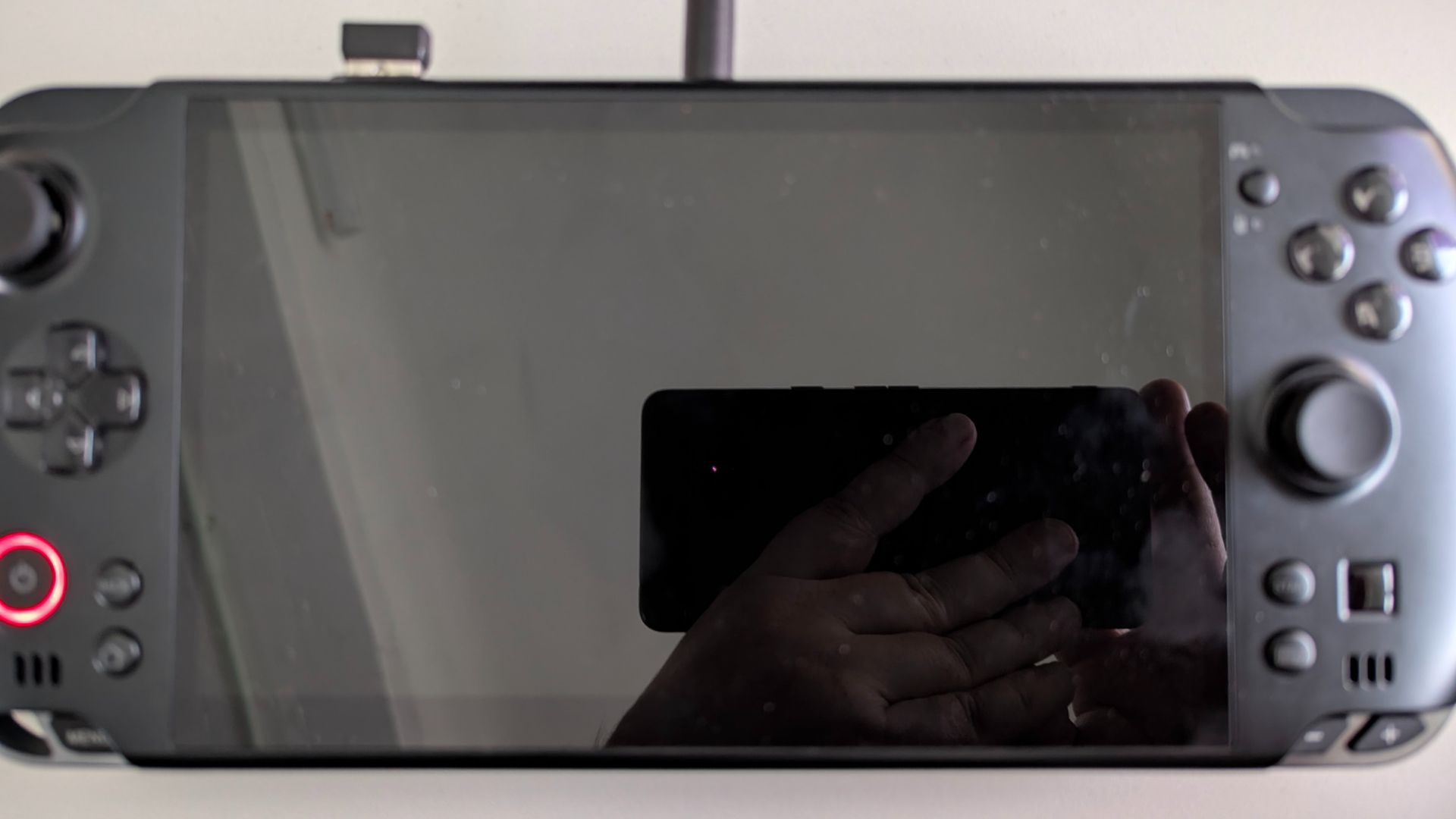
BIOS Update Third Stage
Verify that the GPD WIN 5 has completely shut down. Next, press and hold the power button for a few seconds to turn it back on. Be aware that this initial boot will be slower than a standard startup because the system is performing final configurations and checks. Do not attempt to power off or press buttons while waiting for the screen to activate.
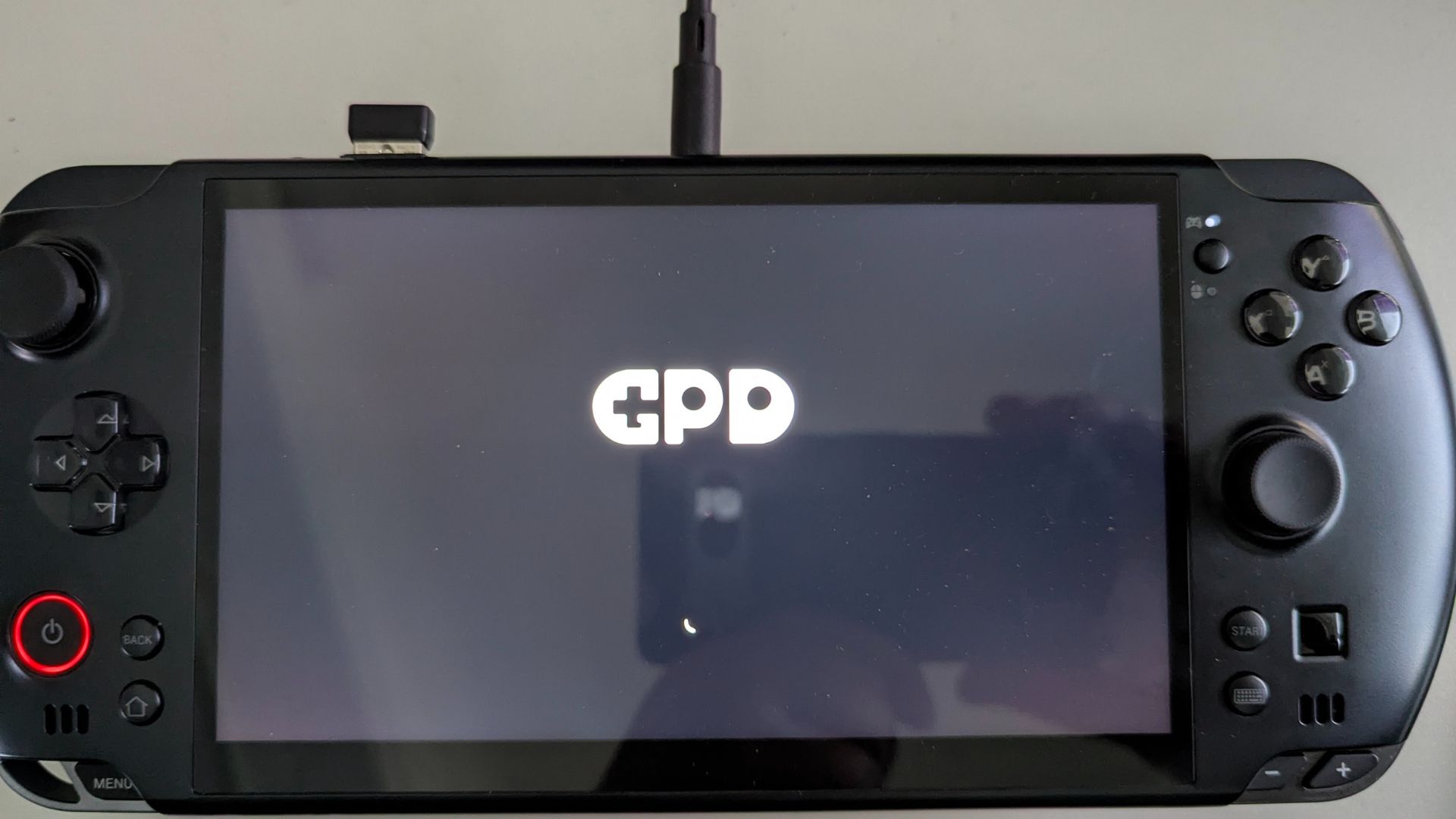
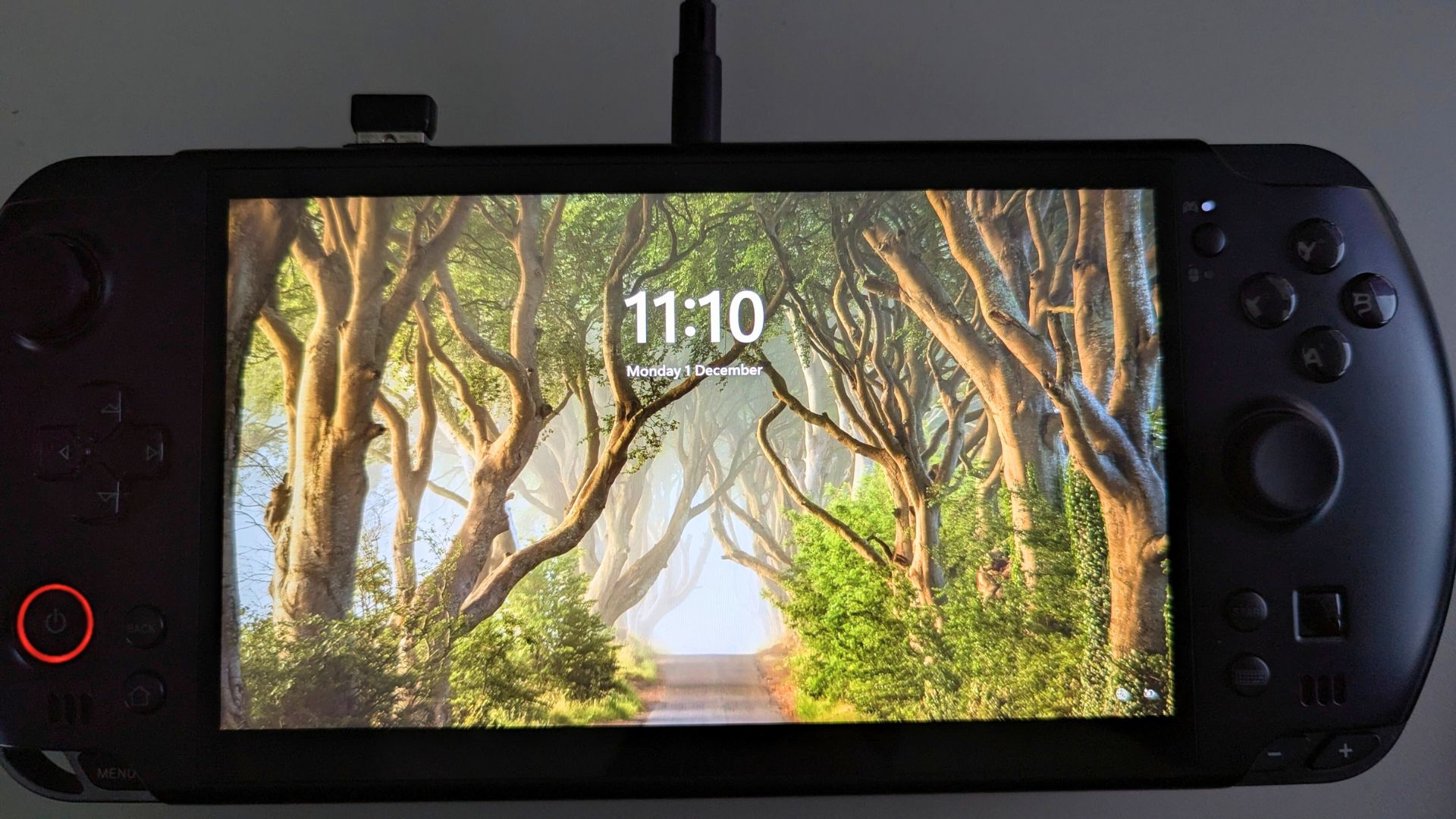
When these checks are done, Windows will boot up as usual, indicating the process is successful and you are free to resume using your handheld.
Checking the BIOS version
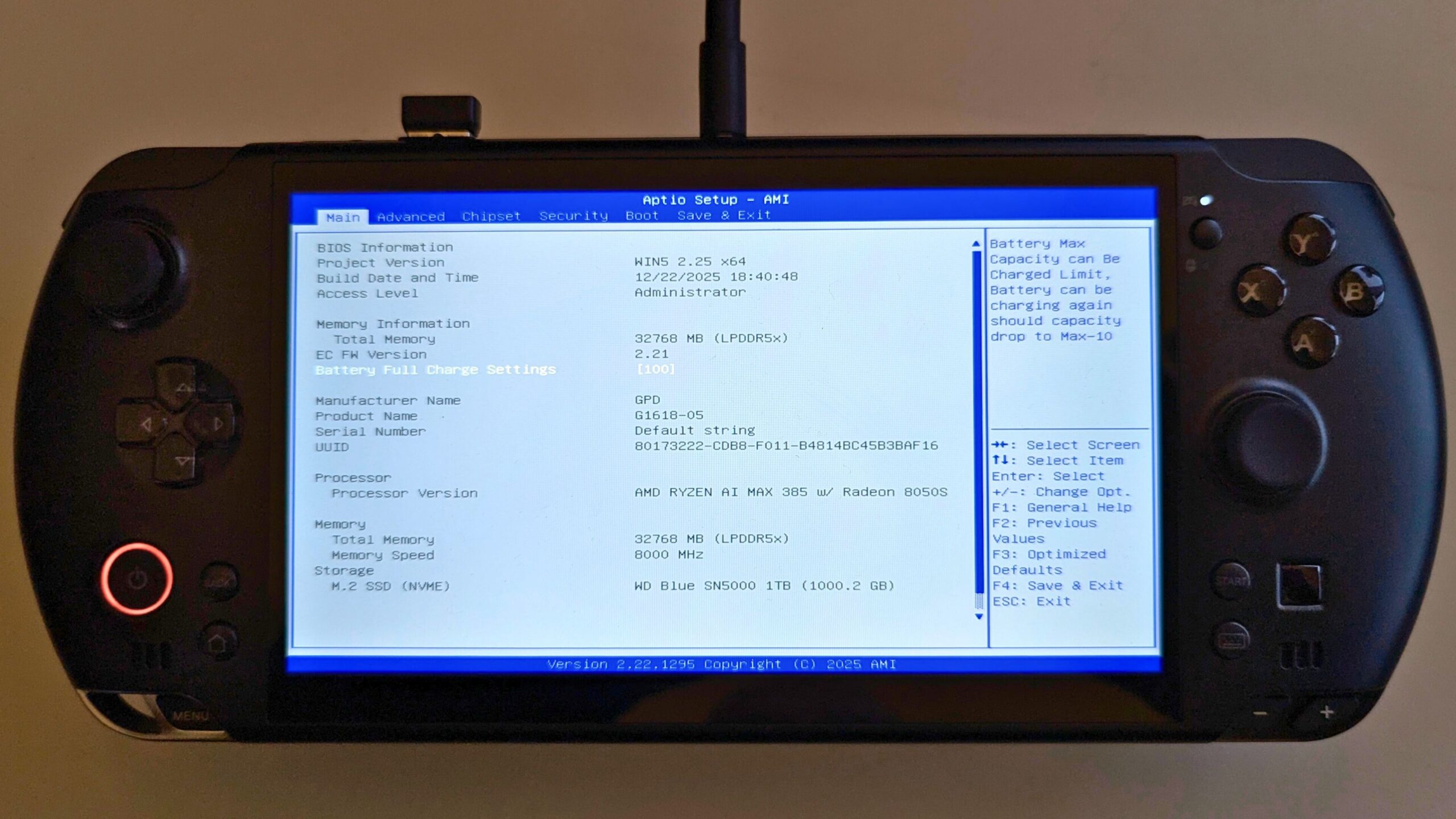
To verify the installation was successful, you must access the BIOS menu. This requires plugging in an external keyboard via USB to the GPD WIN 5. Power on the device and immediately tap the ESC key repeatedly.
In the BIOS menu, you can verify the update by looking at the Project Version (e.g., WIN5 2.25 x64) and the EC FW Version (e.g., 2.21).
Questions & answers 5
Thank you for this! Super helpful.
There are some issues with Windows installing the latest gfx drivers over AMD’s which results in a reinstall of the drivers every couple of days. Followed guides to no avail but trying pausing updates for now and stopping auto driver install. But as Win Home, no group policy to put a rule in place!
Anyway, please continue with these guides and files for users 🙂 hopefully some of the small quirks will be worked out over time 🙂 It is a phenomenal device!
I have seen a couple of reports with the drivers trying to update recently on different devices, sounds it might be an AMD and Windows Update conflict rather than a specific device issue. Did you install the drivers with the AMD Graphics Auto Detect & Install tool at https://www.amd.com/en/supp… I use this and havent had Windows trying to update them. Hope that helps.
Thanks for the reply guys! Yes, think it is as you say, an AMD conflict and Windows update conflict, not device issue so to speak.
Yep, installed from the auto detect multiple times, installed via the full driver/adrenaline package also. Haven’t had an issue for a couple of days since pausing Windows update…but not sure if that is actually helping and if it is, it’s not a long term fix (but is more tolerable!). Also have device driver install automatically off, but even that didn’t work on it’s own before. The combination however seems to have been OK for a couple of days.
Device performs phenomenal and a couple of minor issues expected with such a device. Hopefully GPD will put out some regular updates to refine things a bit 🙂
Thank you for your help!
Just got my GPD Win 5 device yesterday! I have an issue with the GPD Win 5 battery – the device cannot detect the device even though it can be powered by the battery. Running powercfg/batteryreport shows that no battery is installed. I have perform a reinstallation of battery drivers, and also perform an update of BIOS as instructed here.
Check there is nothing blocking the battery connector on both the Win 5 and batery. Also check that the battery is fully connected to the Win 5 and the battery clips are fully secured. This may help if its connected but only loosly. If you purchsed the Win 5 from us a DROIX, please email [email protected] with your order number and some details on the issue and our customer service can look into this further. Thanks.