

Adjusting the Thermal Design Power (TDP) of a device enables you to raise or lower its power consumption, which in turn impacts its performance. This can be advantageous when you require maximum performance for demanding applications, or alternatively, when you prefer lower performance for simple tasks like reading an eBook to conserve battery. This guide provides a step-by-step walkthrough on how to modify the TDP on the GPD MicroPC 2.
Entering the BIOS Menu
To begin, switch on your GPD MicroPC 2 and, without delay, start tapping the Backspace key on the keyboard multiple times. You must continue to do this until the BIOS menu is displayed. If your device boots into Windows, simply shut it down and attempt the process again.

Modifying the GPD MicroPC 2 TDP Settings
Use the keyboard’s Up & Down arrow keys to highlight the OEM System Configuration option, and then press the Enter key to proceed.

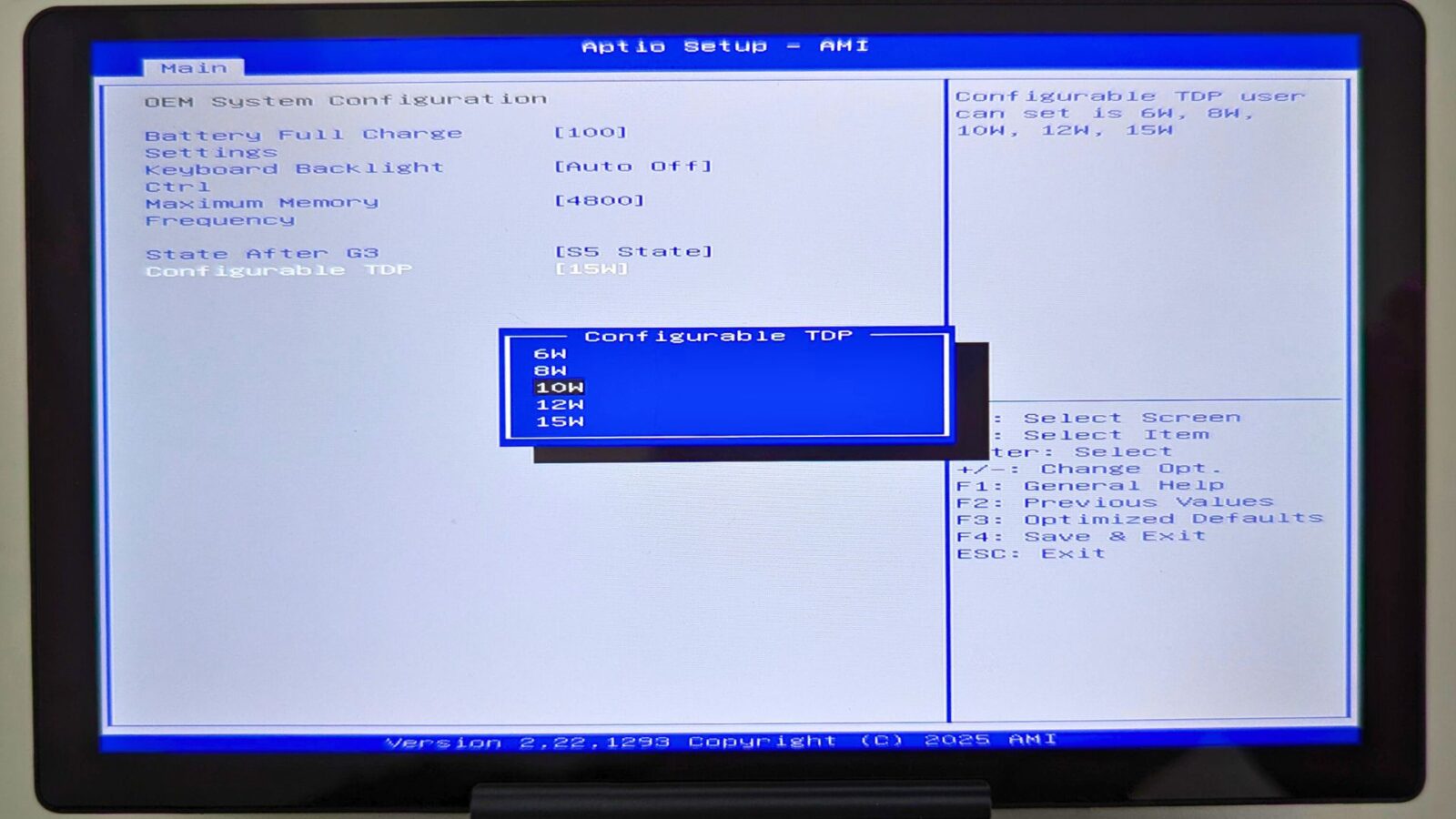
Once you are in the OEM System Configuration menu, move the selection to Configurable TDP and press Enter.

A new menu will then appear, presenting the various TDP settings you can choose from. Note that the options available here may differ depending on whether you have the N250 or N300 model of the device.

A lower Wattage value results in lower power draw and reduced performance, whereas a higher value increases power consumption for higher performance. The standard TDP setting is 10W. Use the Up & Down arrow keys to highlight your preferred TDP, and then press the Enter key to confirm it.
Next, press the ESC key on your keyboard one time to return to the main BIOS screen. Then, use the Left & Right arrow keys to navigate over to the Save & Exit menu tab. Select the Save Changes and Exit option.

Your GPD MicroPC 2 will then restart, applying the new TDP setting you have selected. Once the device has finished booting into Windows, you can resume using it as normal.