




Файлове, използвани в това ръководство
Дневник на промените
- Изходно ръководство: Как да инсталирате MinUI персонализиран фърмуер
- Изходно ръководство: Как да инсталирате Spruce Custom Firmware на Miyoo A30
- Изходно ръководство: Персонализиран фърмуер за ретро ръчни конзоли
По-старите версии остават за изтегляне за връщане назад - всяка версия поддържа свой собствен проверен файл.
Дневник на промените
- Изходно ръководство: Как да инсталирате Spruce Custom Firmware на Miyoo A30
По-старите версии остават за изтегляне за връщане назад - всяка версия поддържа свой собствен проверен файл.
Ако имате Miyoo A30 преносима конзола за ретро игри и искате да постигнете максимална производителност от нея, силно препоръчваме персонализирания фърмуер Spruce. Той предлага разнообразие от подобрения и функции, включително оптимизирани емулатори, по-изчистен интерфейс и изживяване при разглеждане на игри, оптимални настройки и още много. Ето нашето ръководство как да инсталирате Spruce.
Ще ви е необходимо
| Най-новият персонализиран фърмуер Spruce | https://github.com/tenlevels/spruce |
| MiniTool Partition Wizard | https://cdn2.minitool.com/?p=pw&e=pw-free |
Изтеглете и разархивирайте архива на Spruce
Изтеглете най-новата версия на Spruce OS от тук. Кликнете с десен бутон върху файла и изберете Extract All и разархивирайте в нова папка на вашия компютър
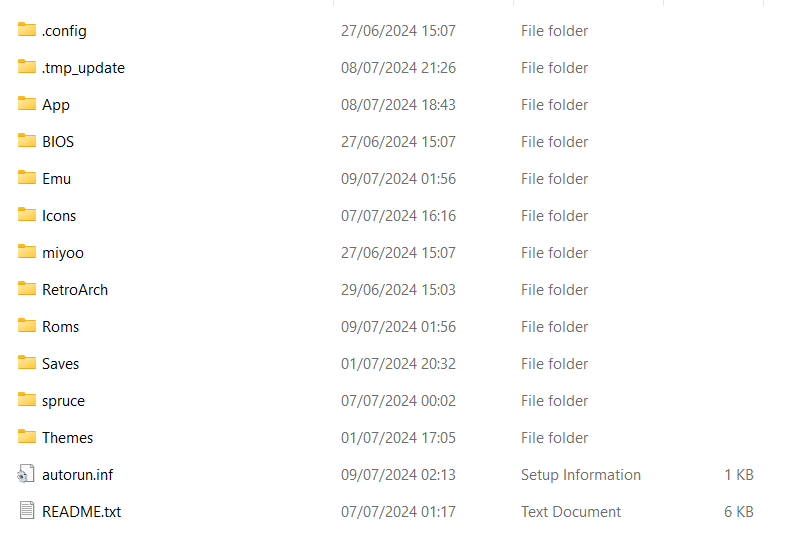
След разархивирането ще получите списък с папки и файлове, подобни на показаните по-долу
Прехвърлете файловете от старата карта на новата карта
Ако искате да прехвърлите вашите игри и файлове за запазване от оригиналната micro SD карта на Miyoo A30 classic gaming handheld, можете да го направите сега.
Поставете оригиналната Micro SD карта в компютъра си и навигирайте до съответното устройство за нея. Ще видите редица файлове и папки.
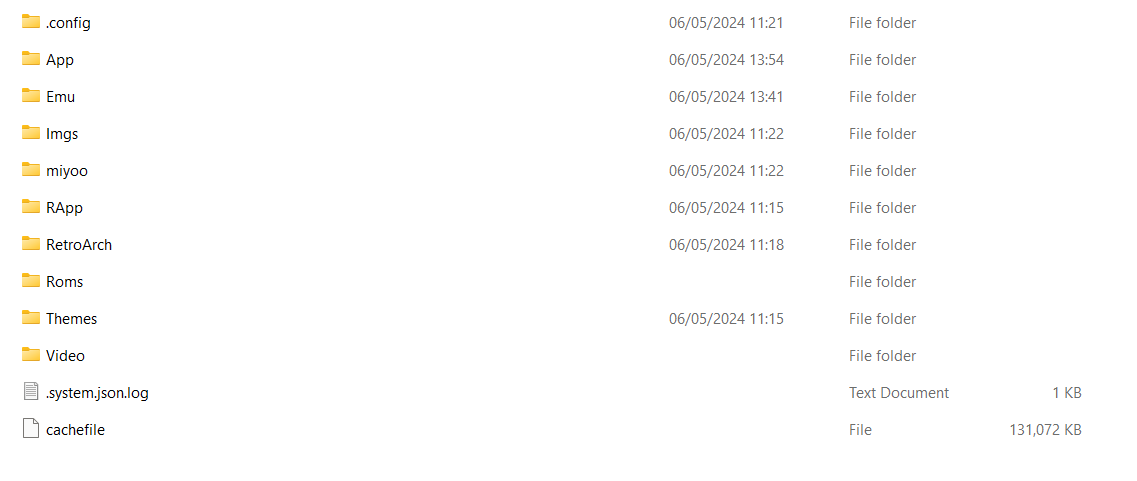
Кликнете с десен бутон върху папката Roms и я копирайте в основната папка на файловете на Spruce, които разархивирахте на компютъра си. Сега вашите игри ще бъдат копирани на компютъра. В зависимост от броя на игрите на картата това може да отнеме известно време.
Можете също да копирате старите си файлове за запазване и файлове за състояние на запазване. Навигирайте до /RetroArch/.retroarch/ папка и копирайте saves и states папки в Saves папка в основата на Spruce.
Подготовка на новата Micro SD карта
Препоръчваме използването на MiniTool Partition Wizard за подготовка на новата micro SD карта за вашата преносима ретро гейминг конзола. Изтеглете и инсталирайте софтуера.
Форматиране на micro SD картата
Стартирайте софтуера MiniTool Partition Wizard. Поставете micro SD картата в компютъра си. Картата ще се появи в MiniTool. Двойно и тройно проверете дали използвате правилното устройство за вашата micro SD карта за следния процес!
Кликнете с десен бутон върху устройството на micro SD картата и изберете Изтриване на всички дяловес. След това щракнете с десния бутон върху Неразпределено пространството вдясно и изберете Създаване.
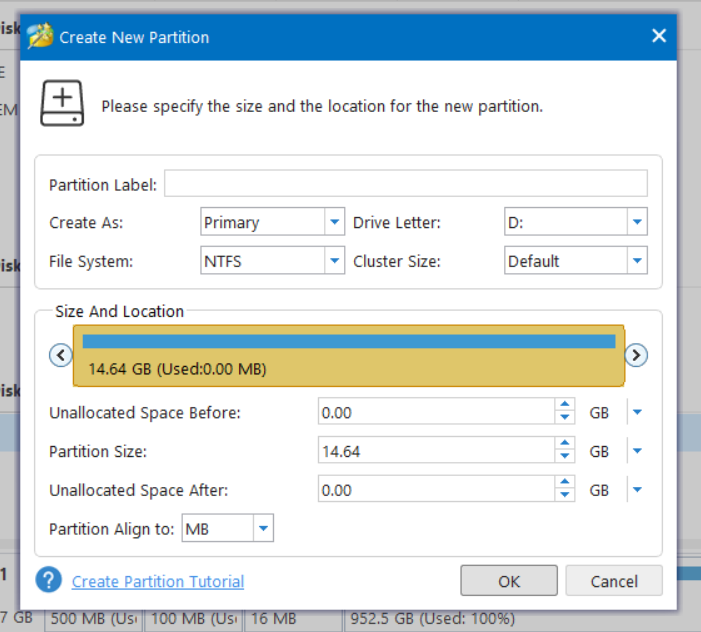
Ще се покаже меню с някои опции, за Файлова система опцията, променете това на FAT32, след което щракнете върху OK. Проверете двойно и тройно дали сте избрали правилното устройство за вашата micro SD карта. Сега щракнете върху Прилагане, софтуерът ще изтрие оригиналните дялове и след това ще форматира картата в FAT32. Това може да отнеме известно време, ако картата е голяма.
Копиране на Spruce на micro SD картата
Сега можете да копирате цялото съдържание на новата си micro SD карта наведнъж. Навигирайте до папката Spruce, която сте разархивирали и сте копирали вашите игри & се запазват. Маркирайте всички файлове и папки, като натиснете CTRL+A и след това копирайте файловете, като натиснете CTRL+C. След това навигирайте до новата си micro SD карта и натиснете CTRL+V.
Всичко ще бъде копирано на новата ви micro SD карта наведнъж. Това може да отнеме известно време, ако имате голям брой игри. Не изваждайте micro SD картата и не изключвайте компютъра по време на този процес.
Първо стартиране на Spruce OS
След като всички файлове бъдат копирани на micro SD картата, можете безопасно да я извадите. Сега я поставете в Miyoo A30 преносимата конзола за игри и я включете.
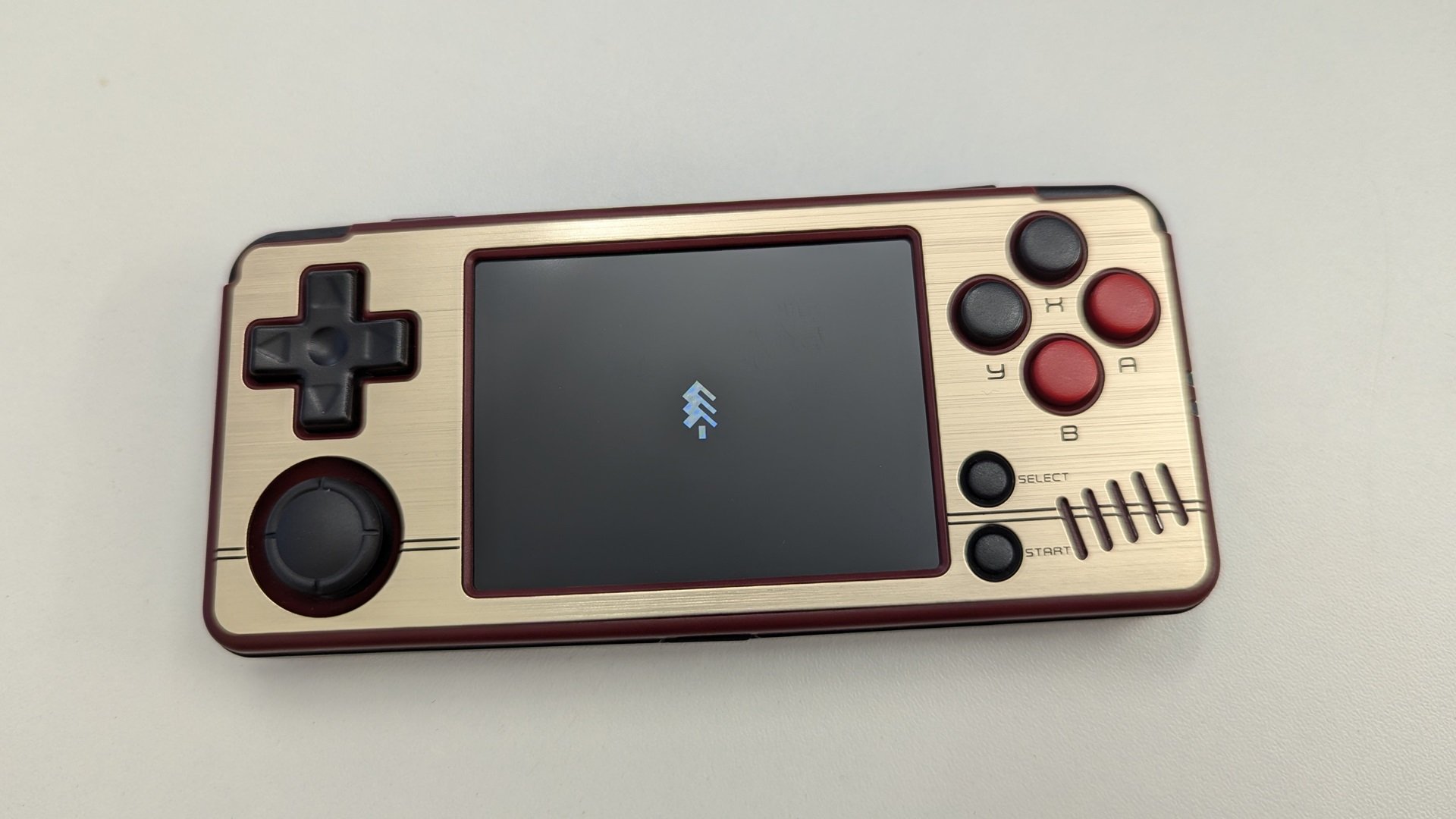
Първото стартиране ще отнеме повече време от обичайното, тъй като приключва настройката на софтуера и сканира за всички игри, които сте копирали. Отново това може да отнеме известно време, ако имате много игри.
След като приключи, вече ще можете да използвате Miyoo A30 ретро конзолата за игри със Spruce OS. Приятна игра!
Latest from the blog
Visit the blog GPD WIN Mini Ultra – по-голям 8-инчов 120Hz екран, Intel Arc G3 Extreme и два USB4 v2.0 порта
27.10.2026
GPD WIN Mini Ultra – по-голям 8-инчов 120Hz екран, Intel Arc G3 Extreme и два USB4 v2.0 порта
27.10.2026
 RockTek PJ500 Ultra – ревю на 1080p домашен кино проектор за стрийминг и игри
27.10.2026
RockTek PJ500 Ultra – ревю на 1080p домашен кино проектор за стрийминг и игри
27.10.2026
 Ревю на EPOMAKER RT75 и TH26 – Ретро 75% клавиатура с отделящ се екран и макро нъмпад с 5 клавиша
26.10.2026
Ревю на EPOMAKER RT75 и TH26 – Ретро 75% клавиатура с отделящ се екран и макро нъмпад с 5 клавиша
26.10.2026
 Ревю на EPOMAKER HE65 V2 TMR – 8K безжична скорост и хибридни суичове за компактни геймърски клавиатури
19.10.2026
Ревю на EPOMAKER HE65 V2 TMR – 8K безжична скорост и хибридни суичове за компактни геймърски клавиатури
19.10.2026
Въпроси и отговори 2
não é bom, não suporta 30 min jogando psp e depois trava
Isso pode ser um problema porque o emulador não é totalmente compatível com um jogo específico.