




Files used in this guide
Changelog
- Source guide: ONEXPLAYER X1 AMD and Mini display resolution fix
Older versions stay downloadable for rollbacks — every version keeps its own verified file.
After updating the AMD graphics drivers for the ONEXPLAYER X1 AMD and ONEXPLAYER X1 Mini models you may have noticed that the various display resolutions such as are no longer available to select. This guide will show how to restore the available display resolutions.
Download and unzip the EDID file from here.
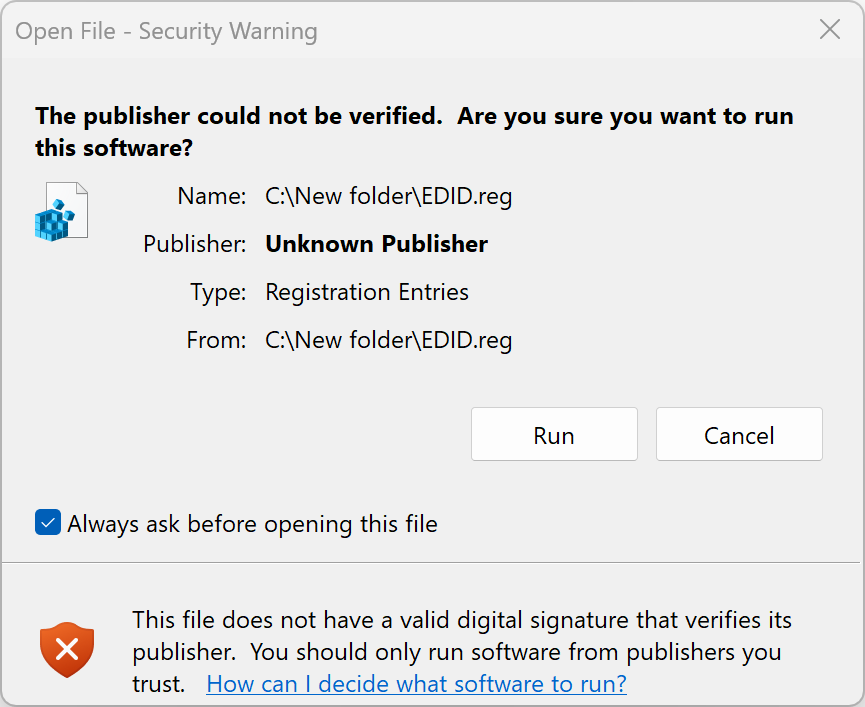
You will have a file named EDID.reg. Double click on this file, a notification will appear asking if you are sure you wish to open this file, choose Run.
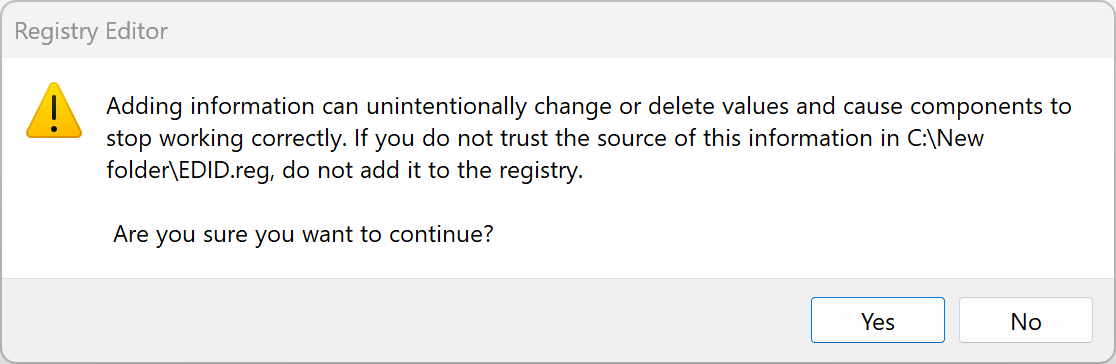
A second notification will appear asking if you are sure you wish to continue. Choose Yes.
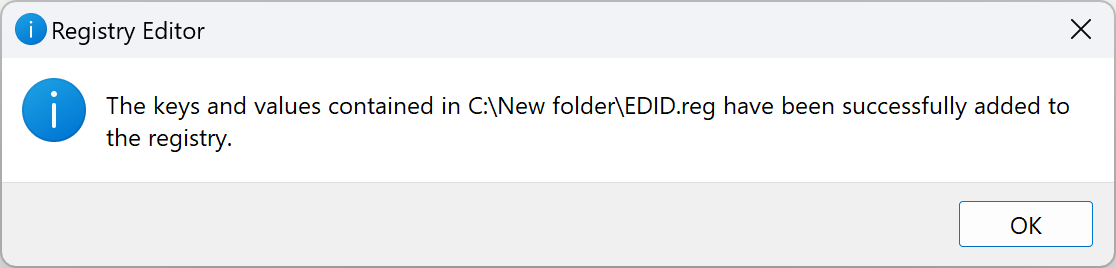
A third notification will now show to confirm that the keys and values have been added to the registry. Click on OK to close the notification.
Reboot your ONEXPLAYER X1.
Once rebooted, right click on the desktop and choose Display Settings. Click on the drop down menu for Display Resolution and you will now see the various resolutions have been restored.
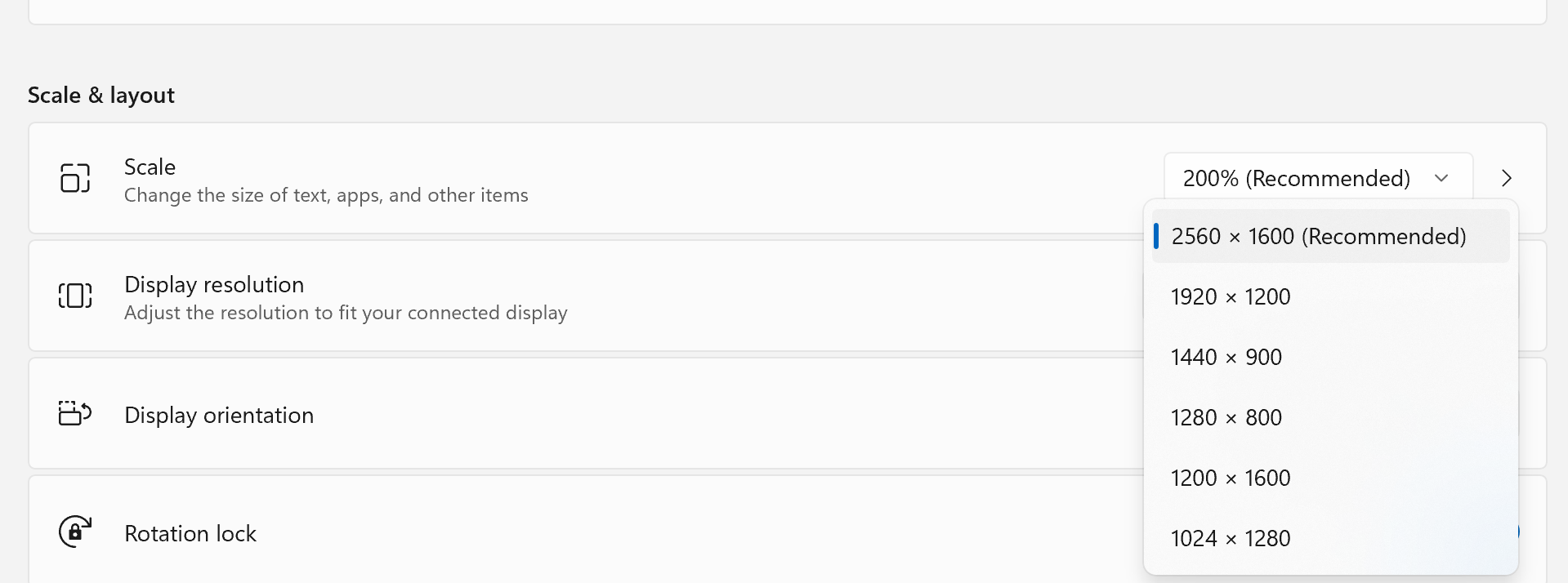
You can now choose any resolution you would like. Until ONEXPLAYER update their drivers, you may need to do this procedure every time you update the graphics drivers.
Questions & answers 4
I’ve already done this and it worked. But I suspect it doesn’t solve everything, because I have an external ugreen hub that supports 8k at 30 herz, but I’m only getting full HD from the X1.
Is there any way to extend the solution?
I’ve had the X1 for 2 or 3 days.
You should be able to go higher than 1920×1080, up to 4K at least. I am not sure if the hardware itself supports any higher i.e. 8K 30Hz.
Please lost 1920×1080 only apear 1920×1200 and others
This is the only resolutions we have. You could try downloading the drivers on the ONEXPLAYER website and that may reinstall the settings.