




A firmware update is rolling out for the RockTek GX1 over the next few weeks. This guide will cover what is new in this Android gadget firmware update as well as a step by step guide on how to check for and install the firmware update.
Whats new in the Rocktek GX1/GT1 GTV14 firmware update
This firmware update is quite sizable with a comprehensive list of changes, bugfixes and improvements.
System Core & Stability
- Default Standby Mode: The default standby mode has been changed to Shutdown or Suspend to reduce power consumption when the device is idle.
- USB Operation Stability: Fixed an issue where rapid up/down navigation with a USB drive connected could cause system UI crashes on specific screens.
- CEC Function Optimization: Resolved a bug where the system language would not sync correctly when a CEC-connected device was plugged or unplugged, ensuring consistent A/V system control.
- Power Management: Implemented automatic adaptor power supply capability detection for more stable operation under different power conditions.
Audio-Visual & Display Features
- Dynamic Range Matching: Added support for “Match Content Dynamic Range” mode. This feature automatically switches the dynamic range format (SDR/HDR) based on playback content and provides full support for Dolby Vision (DV) playback and switching.
- Streaming App Updates: Pre-installed Netflix and Prime Video applications have been updated to their latest versions for optimal performance and content compatibility.
Certification & Security Compliance
- Google Certification Attributes: Added the required “reference design fingerprint” properties to meet Google certification requirements. The latest Android security patches have also been integrated.
- Device Attestation Support: Added necessary for_attestation property files in the oem partition to address certain ATV/NTS/Amazon lab test failures and improve certification pass rates.
Pre-installed Apps & Services
- LED Color Management App: Pre-installed the LED Color application in the oem partition, allowing users to customize the color and behavior of the device’s status LED.
- Remote Pairing App: Updated the built-in remote control pairing application for an improved setup experience.
- System Service: Integrated a Board Information Service to provide more accurate hardware details to the system and supporting applications.
Localization & User Experience
- Multi-language System Optimization: Enhanced system language support and translations for multiple countries/regions. Interface text is now more accurate and localized, improving the international user experience.
Checking for RockTek GX1/GT1 firmware update
From the RockTek GX1 home screen, navigate to the Settings menu, and then navigate to and select System
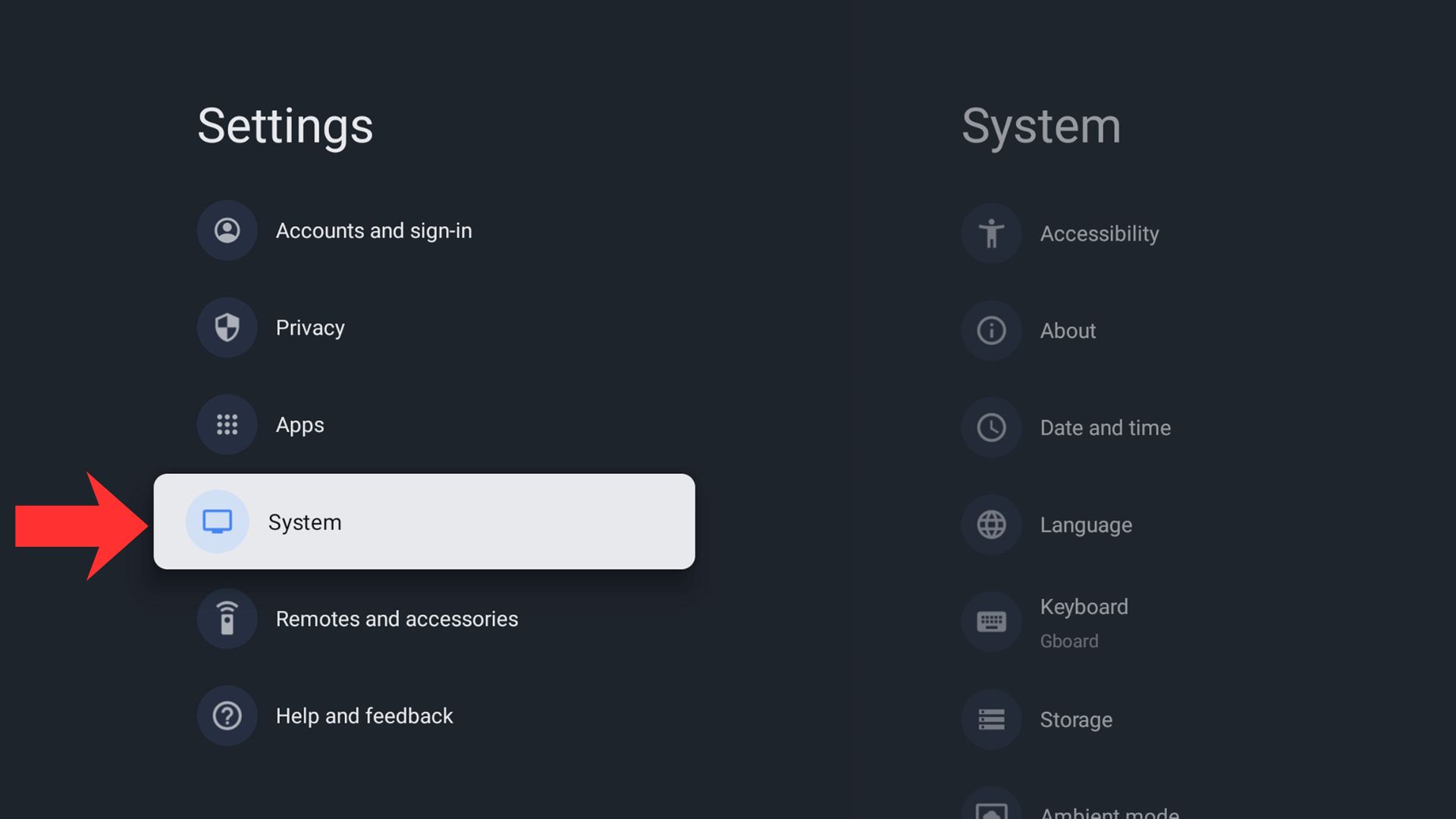
Next, navigate to and select About
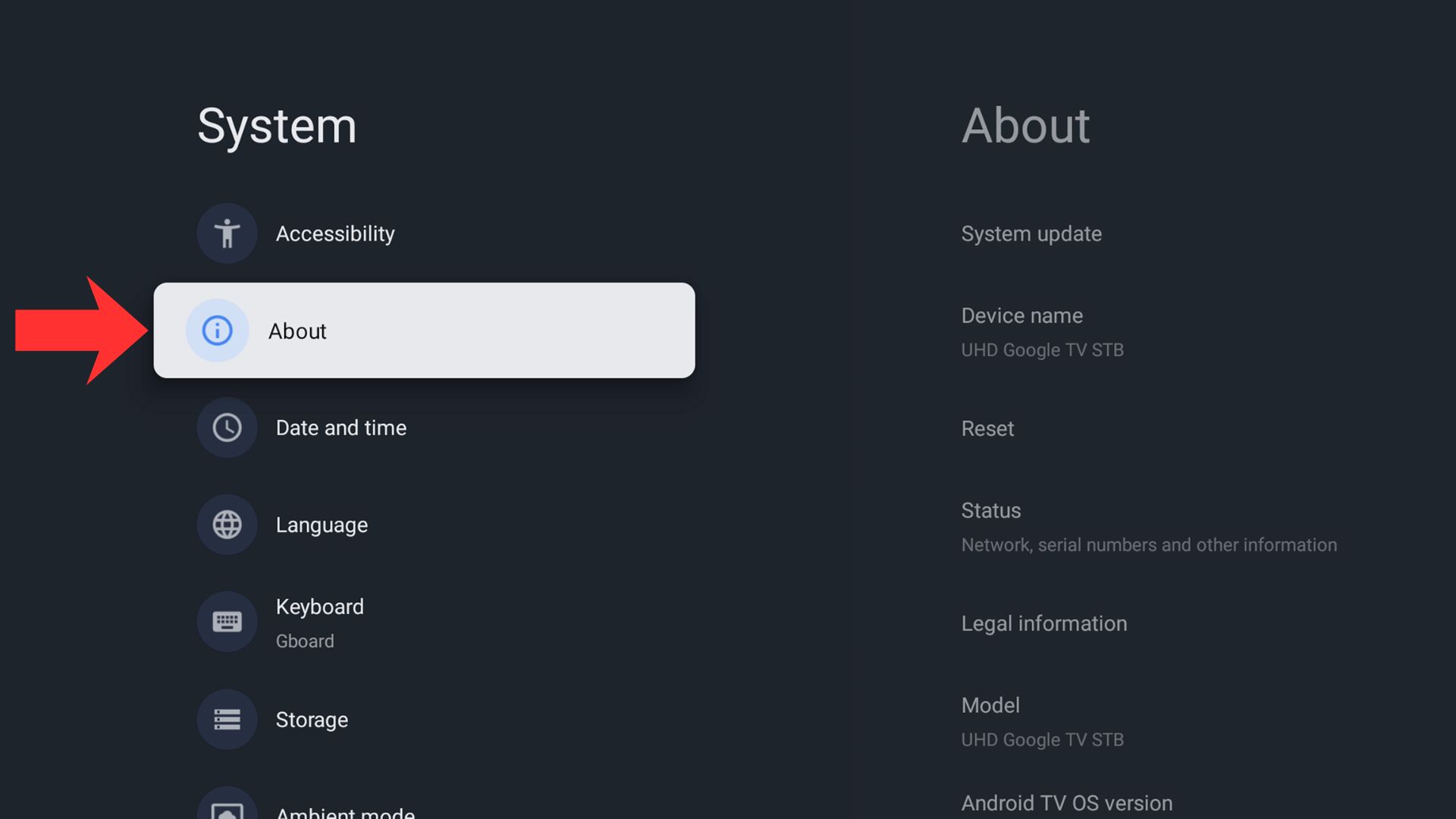
Navigate to and select System Update
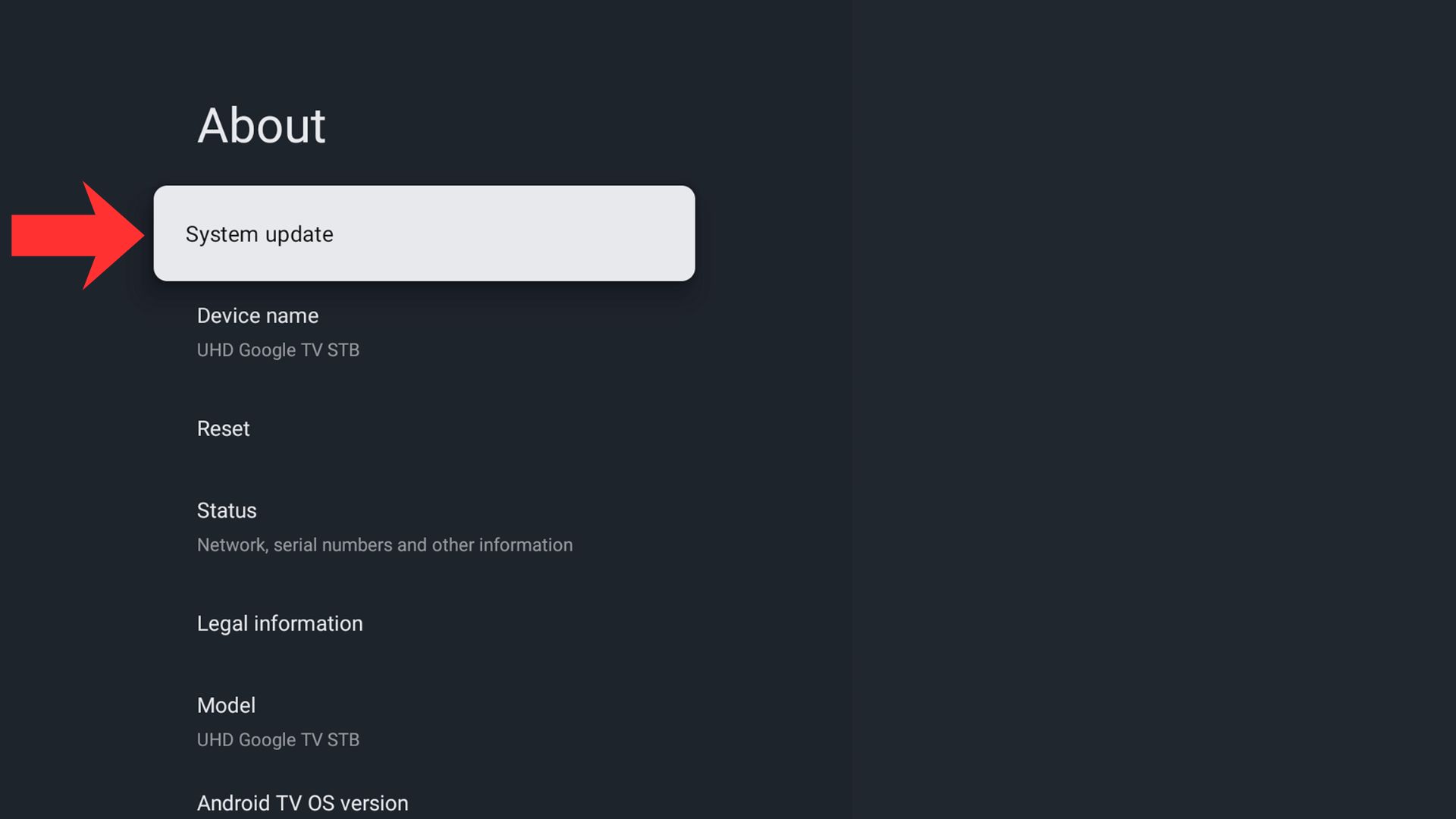
It will now check for an OTA update for the device. This may take a few moments to complete.
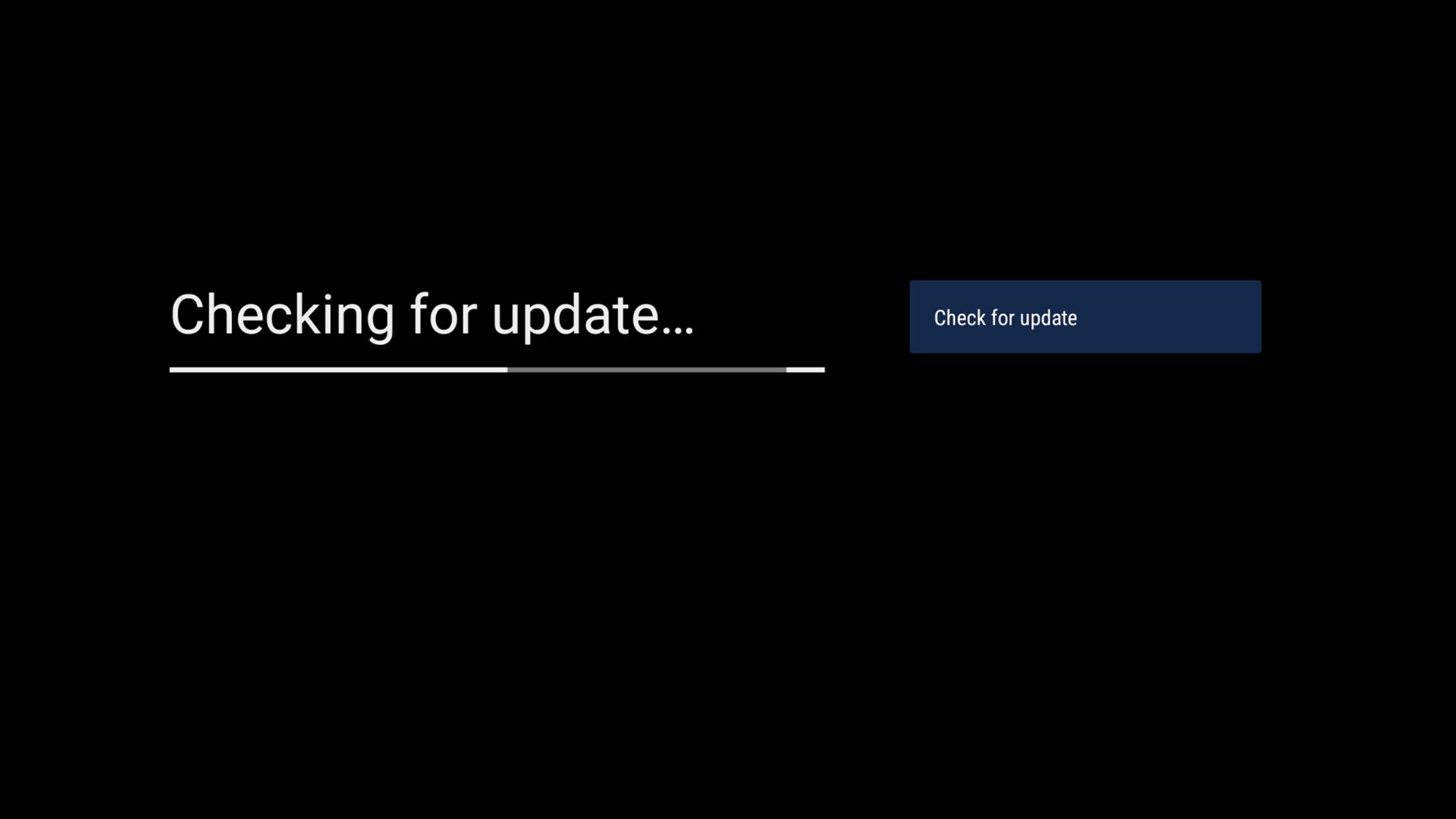
If an update is available it will start to download and verify. If there is not a firmware update then you may already be on the latest version or it has not been rolled out to your device. In this case, check back in a few days.
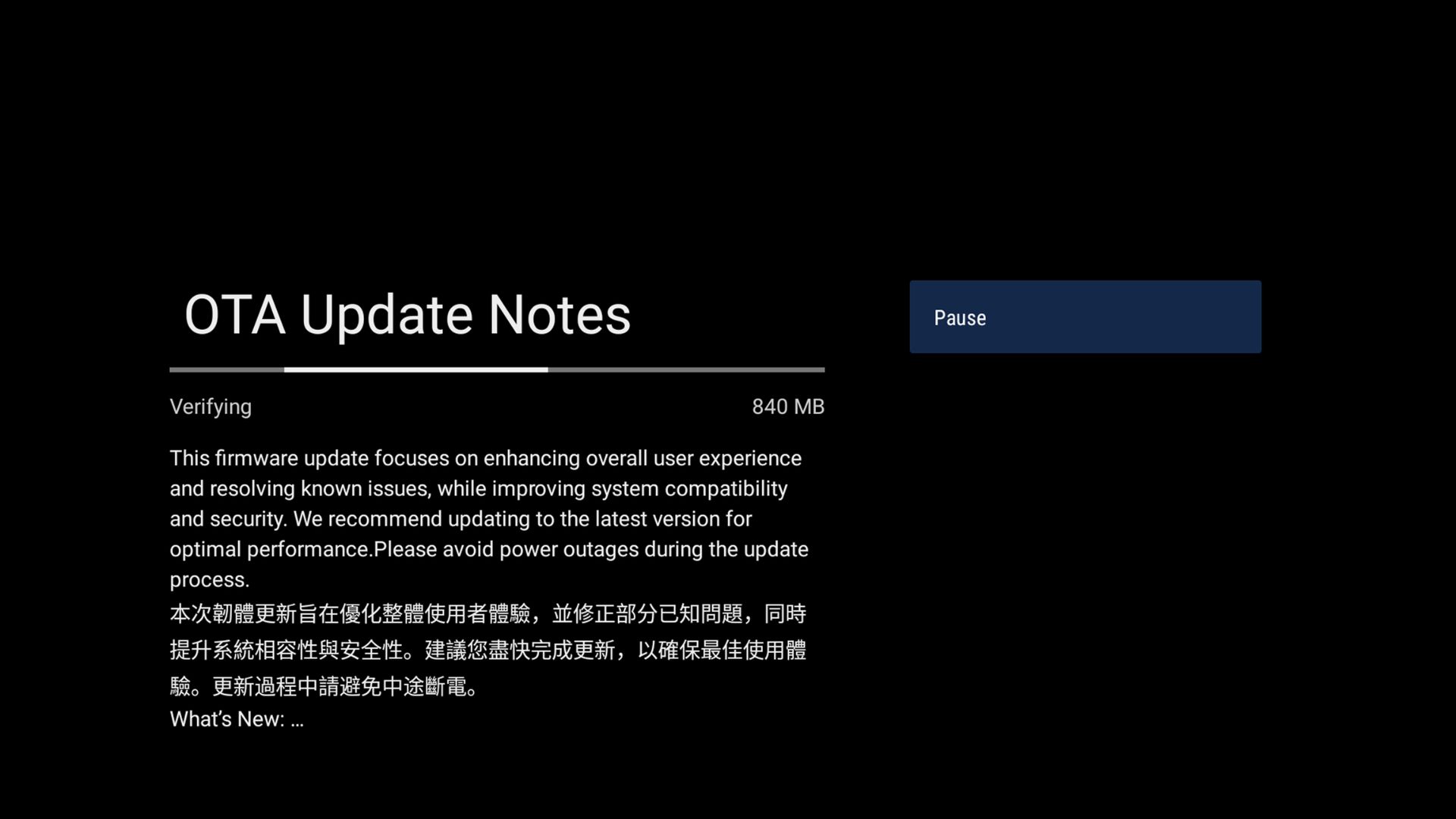
If you have a firmware update available – after a few moments, a two step process of updating the firmware will begin. The first step will take around 10-15 mins and the second step a bit shorter at around several minutes. During this process, DO NOT switch off your device or press any buttons on the remote control.
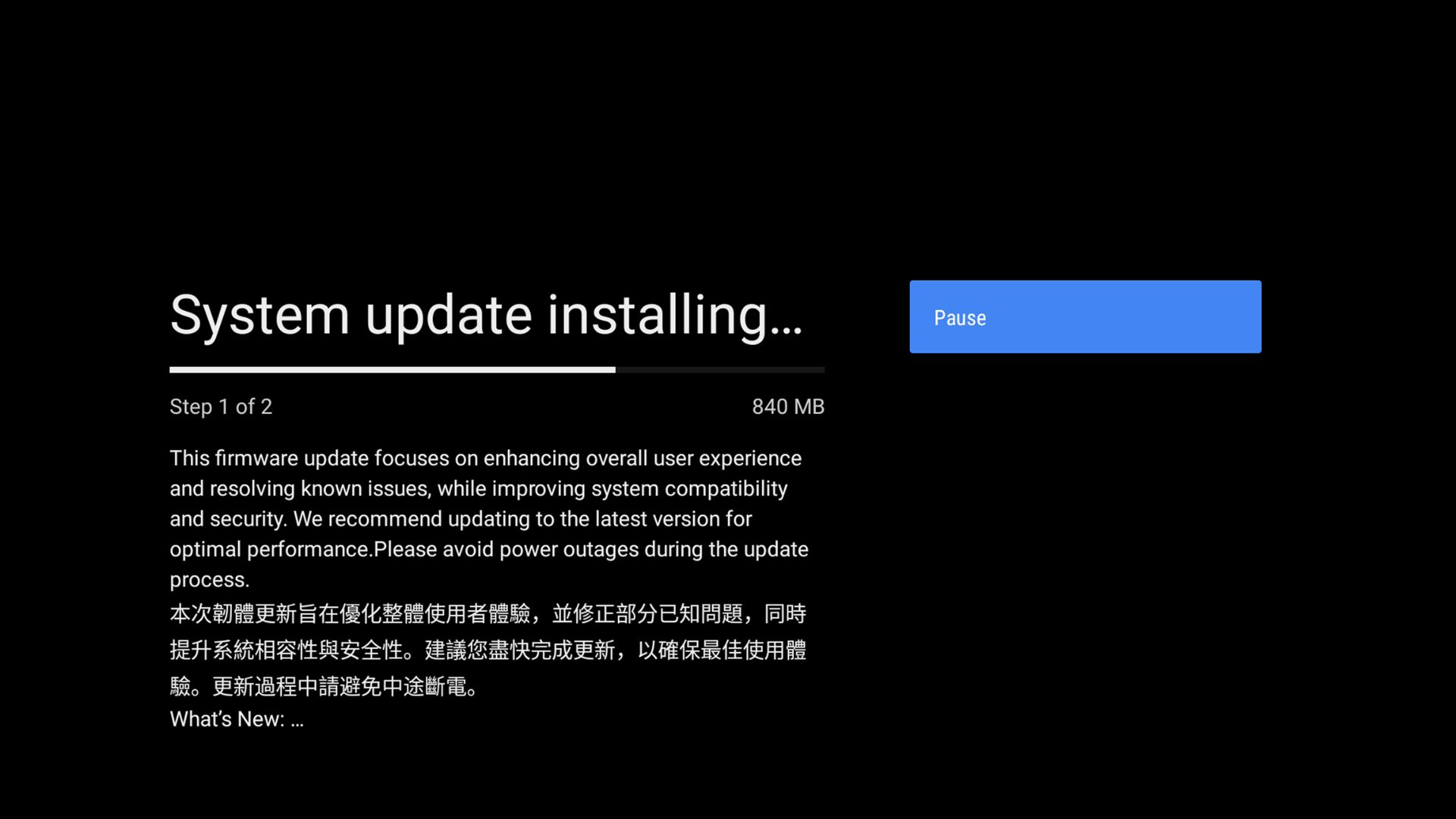
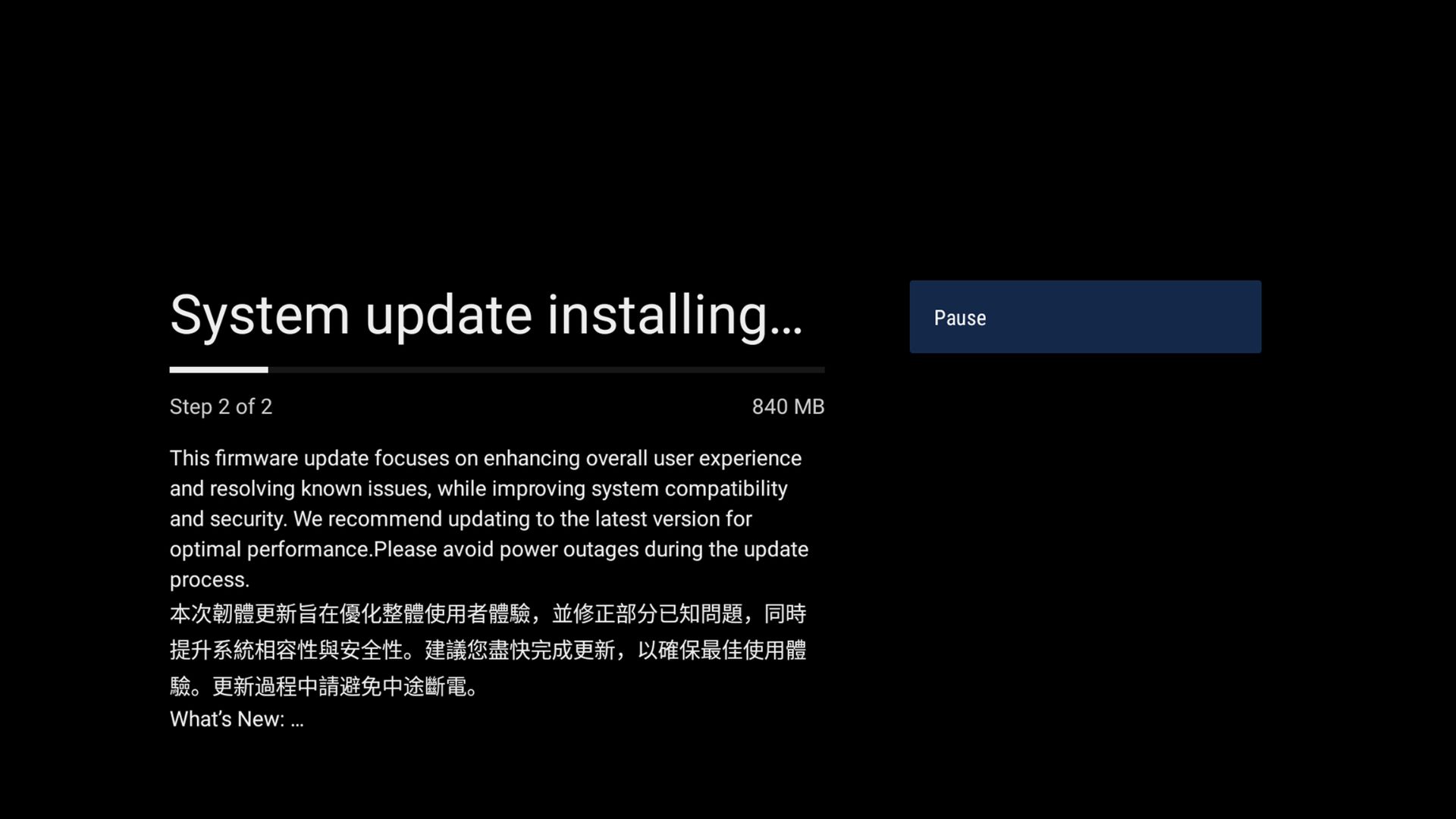
Once the update has completed, you will be prompted to restart the device. Press the central button on your remote to restart when ready.
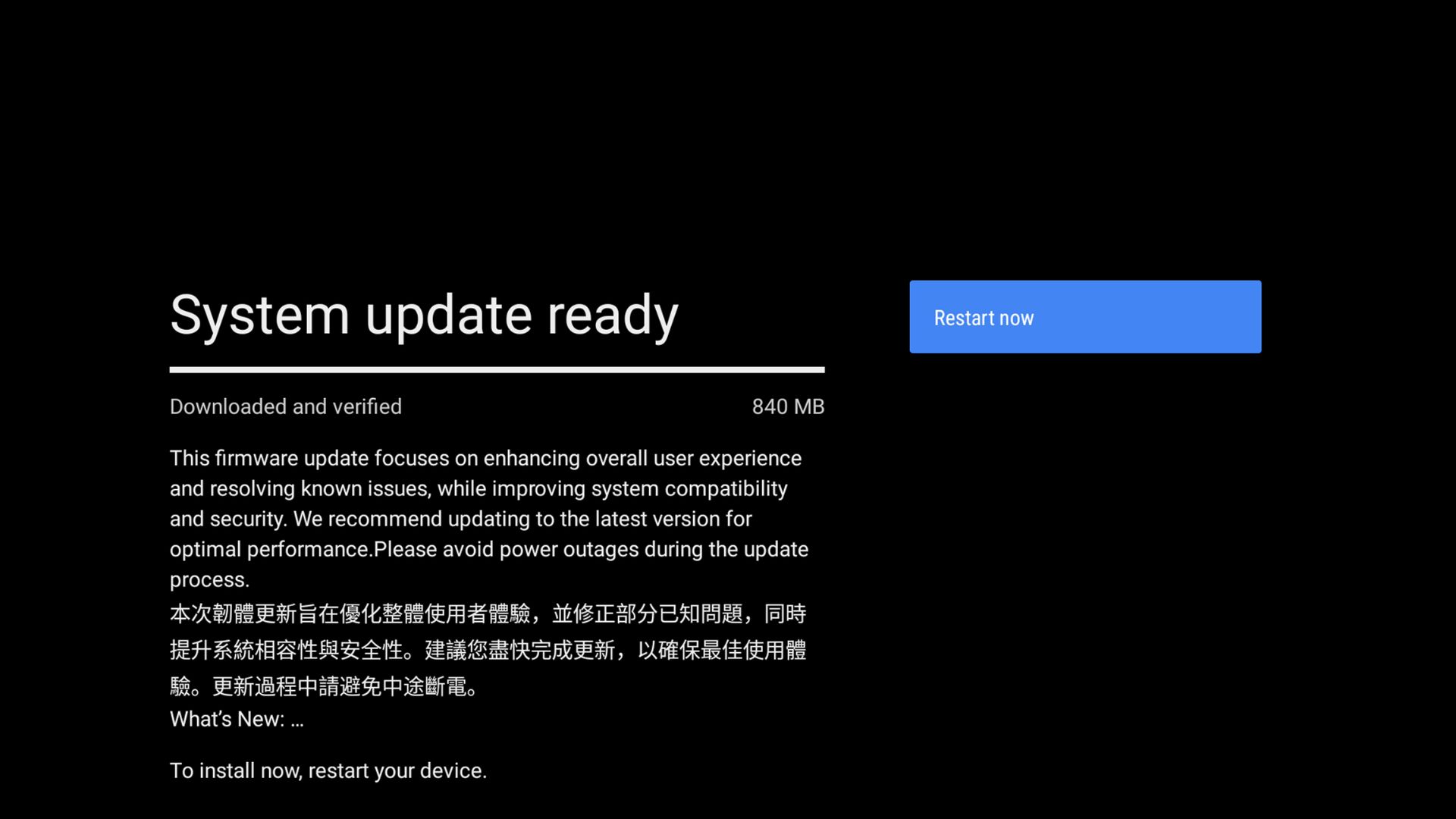
The device will restart and after a few moment the RockTek GX1 Boot screen will display for a few minutes while the update completes. During this process, DO NOT switch off your device or press any buttons on the remote control.
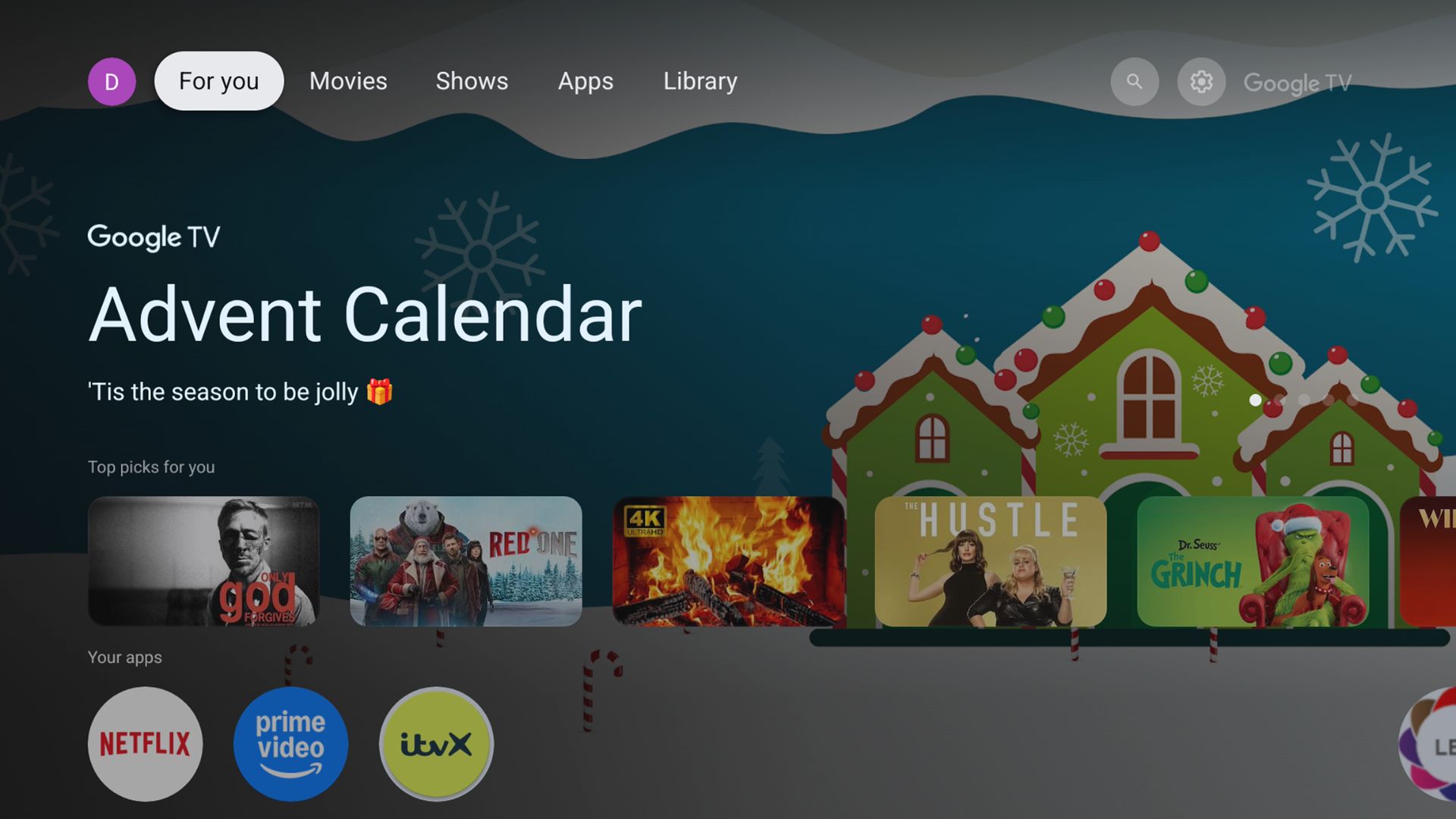
When the update is completed, the Google TV screen will display for a few minutes then boot into the RockTek GX1 Home Screen where you can now continue to use your Android TV box as usual.
Questions & answers