




There are applications and program add-ons to do this job automatically, but if you want to carry this out manually, perhaps prune the add-ons you don’t use etc, please do the following:
Open the ES File Explorer application on your device and expand the LOCAL menu. Click on the Home link. Expand the TOOLS menu below that now and turn on Show Hidden Files. Now click on the Home/ shortcut under the LOCAL menu and navigate to (click on each folder name listed:)
- Android/Data/org.xbmc.kodi/files/.kodi/userdata and the addon_data folder
- Android/Data/com.semperpax.spmc/files/.spmc/userdata (and the addon_data folder) for SPMC/older DBMC installations
- Android/Data/uk.droidbox.dbmc/files/.dbmc/userdata (and the addon_data folder) for more recent DBMC installations
Copy and paste these two directories to a new location, if you use a USB device or memory card, the backup will remain in place even if you need to factory reset in the future.
To double check it works, you could install Kodi on a phone/tablet/PC/Mac , NOT configure it, close Kodi down. Then “restore” (copy and paste back place) the backup you made above to your non-DroiX® device, and see if the set up is transferred OK. If it does, you should be reasonably confident that your backup is functioning and will work on your DroiX® (without having to actually wipe your DroiX®’s Kodi install first!).
Latest from the blog
Visit the blog GPD WIN Mini Ultra – A Bigger 8-inch 120Hz Screen, Intel Arc G3 Extreme and Dual USB4 v2.0
27 October 2026
GPD WIN Mini Ultra – A Bigger 8-inch 120Hz Screen, Intel Arc G3 Extreme and Dual USB4 v2.0
27 October 2026
 RockTek PJ500 Ultra Review – A 1080p Home Cinema Projector for Streaming and Gaming
27 October 2026
RockTek PJ500 Ultra Review – A 1080p Home Cinema Projector for Streaming and Gaming
27 October 2026
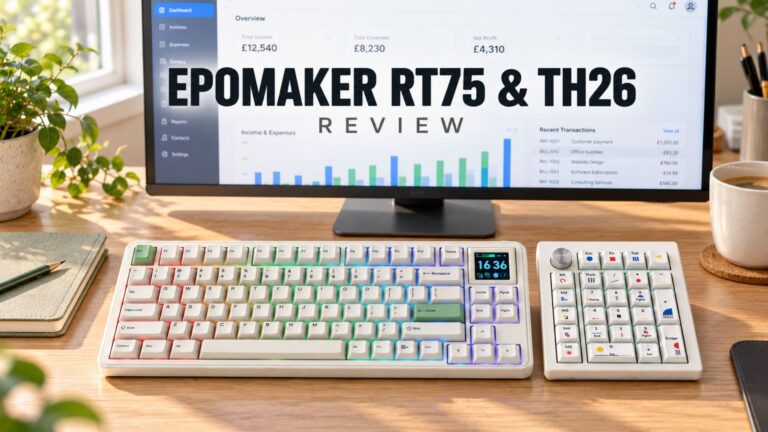 EPOMAKER RT75 and TH26 Review – Retro 75% Keyboard with Detachable Screen and 5-Key Macro Numpad
26 October 2026
EPOMAKER RT75 and TH26 Review – Retro 75% Keyboard with Detachable Screen and 5-Key Macro Numpad
26 October 2026
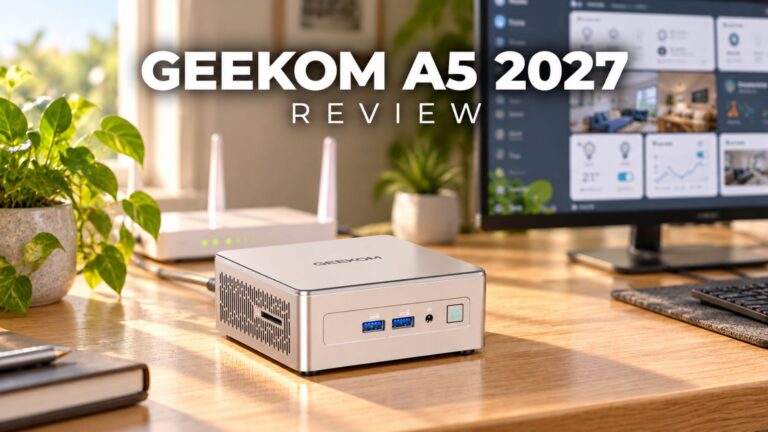 GEEKOM A5 2027 Review – A Compact Mini PC Home Lab
21 October 2026
GEEKOM A5 2027 Review – A Compact Mini PC Home Lab
21 October 2026
Questions & answers