




Some retro game handhelds have external Micro SD Card slots and the emulator settings need to be updated for them to start the file browser in the external Micro SD Card instead of the internal storage. Setting the new default folder saves a lot of time as you will not need to browse folders every time to play a game. This guide will show you how to do update an emulator to the new default folder location.
In this example we will be using the Mega Drive/Genesis emulator PicoDrive, but you can repeat the process for the majority of the emulators.
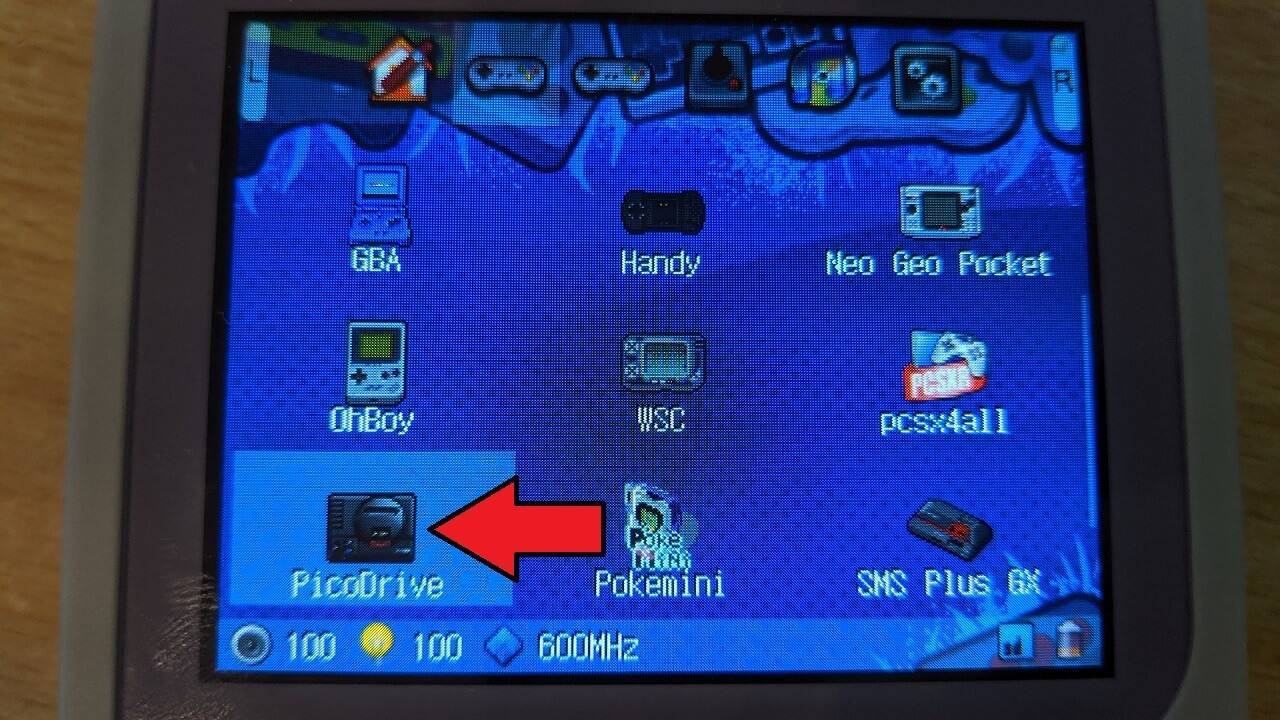
First, highlight the emulator icon that you wish to update. In this example we have chosen PicoDrive. Press the SELECT button once.
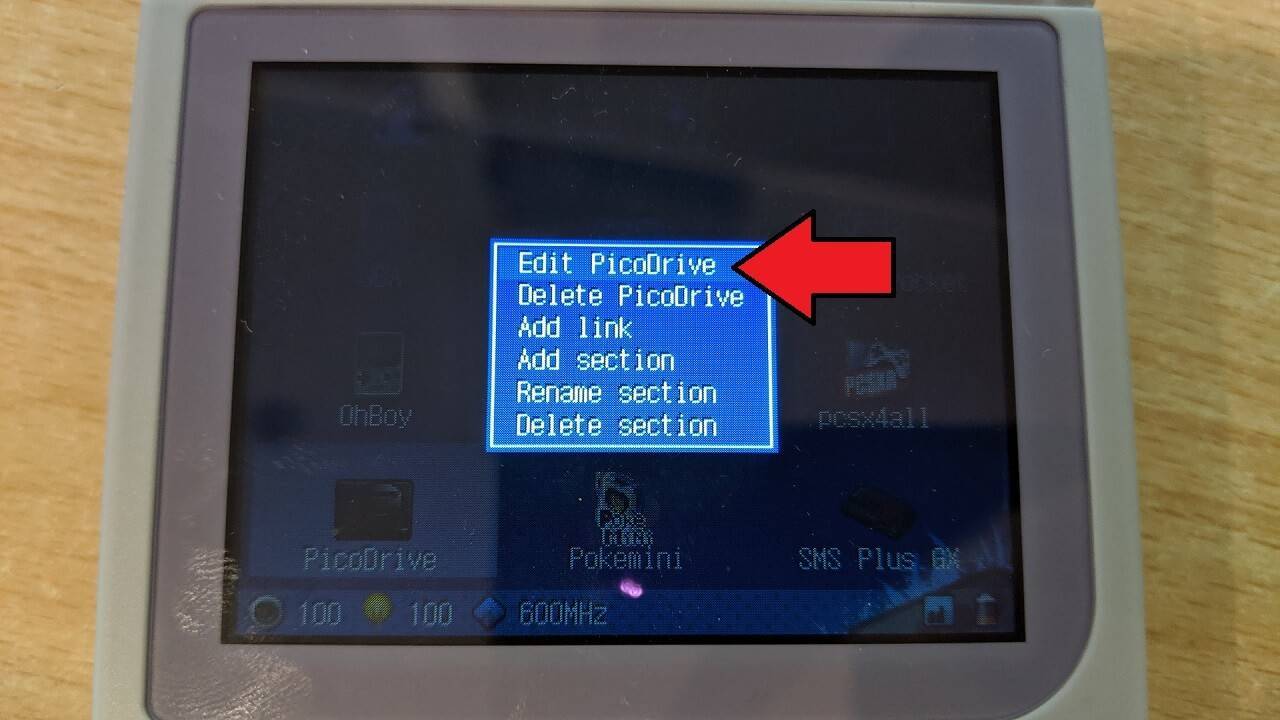
A pop up menu will appear. Choose the first option, Edit PicoDrive
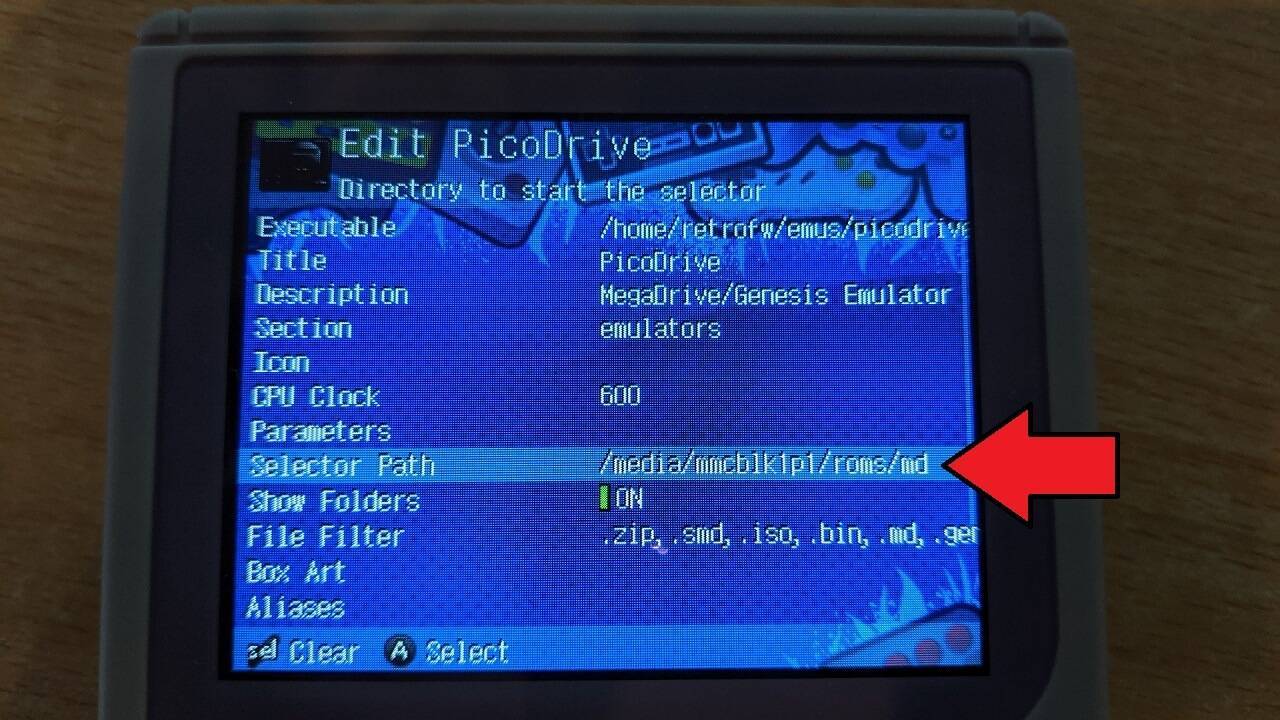
Scroll down the menu until Selector Path and choose this menu option
This screen will show the internal storage, so we need to go back a few folders to access the Micro SD Card. To do this, click on the first option which should be an Up Arrow with two dots .. beside it. This will move back one folder.
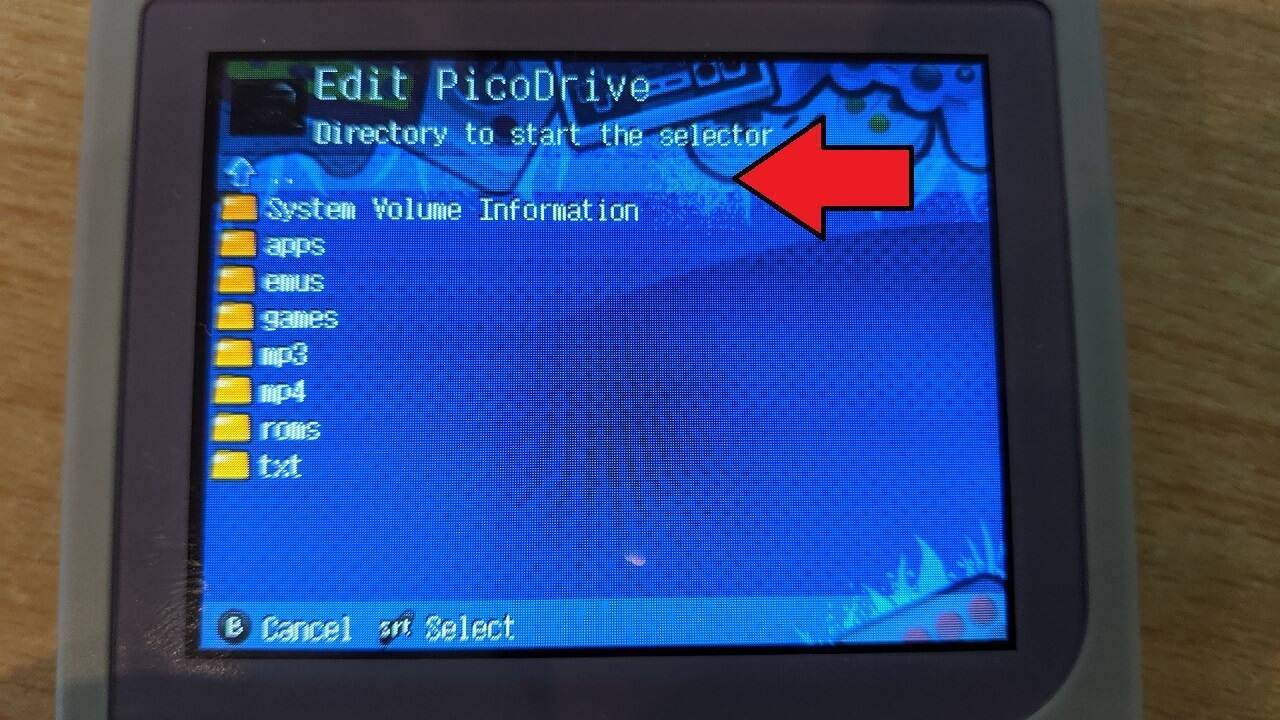
Continue choosing the two dots .. until you can not see them. You will see similar to the below photo
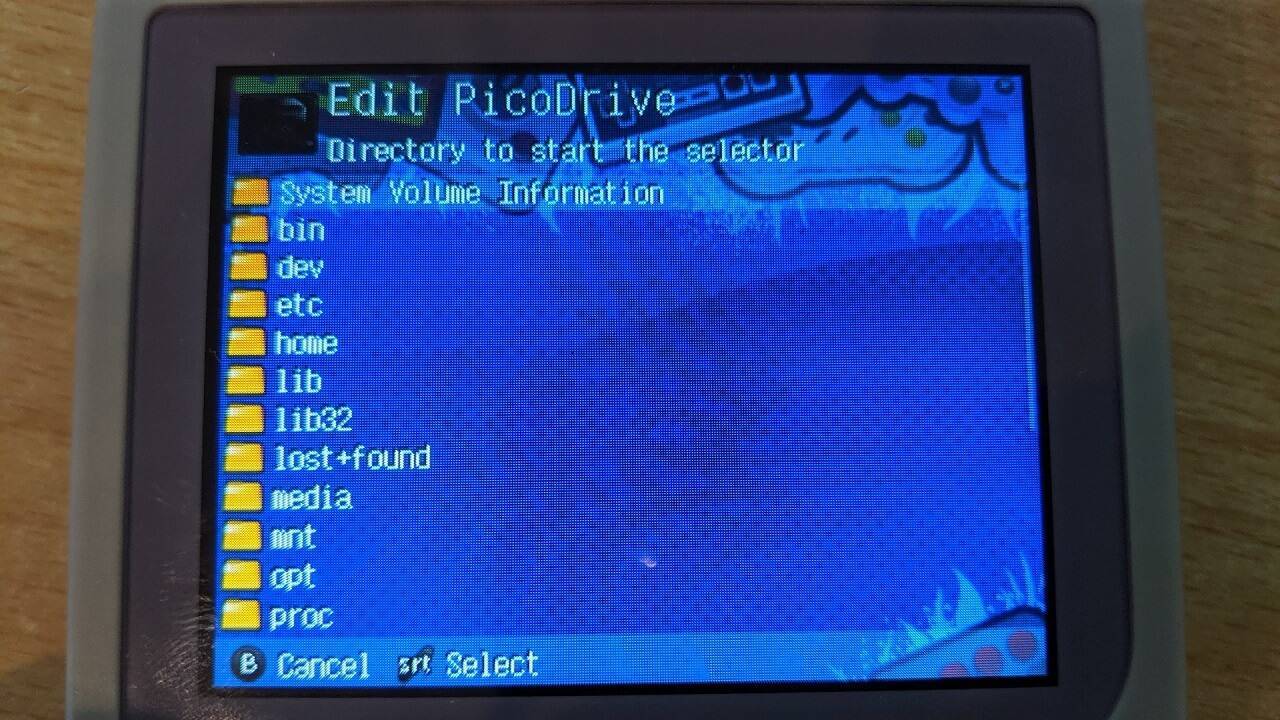
Scroll down the folders and choose media
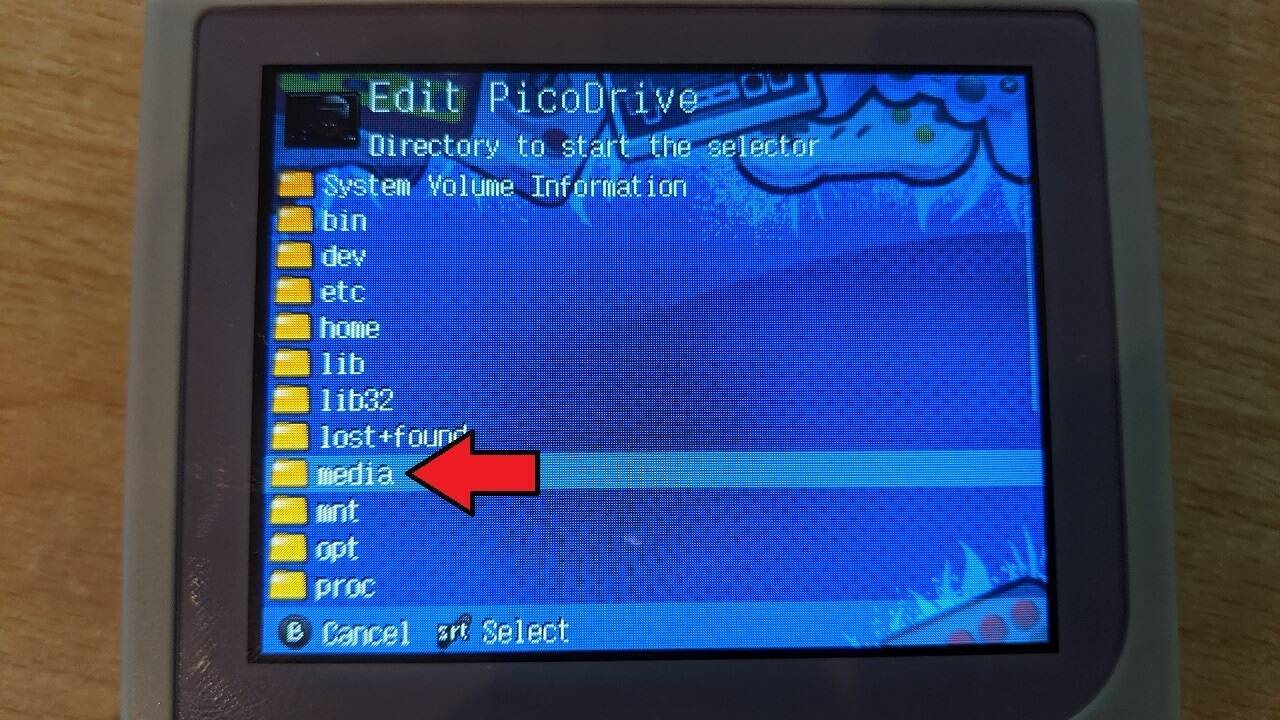
Two or more folders will be shown, one will be the internal storage and the second will be the external storage. In most cases, the external storage is called mmcblk1p1, choose this folder
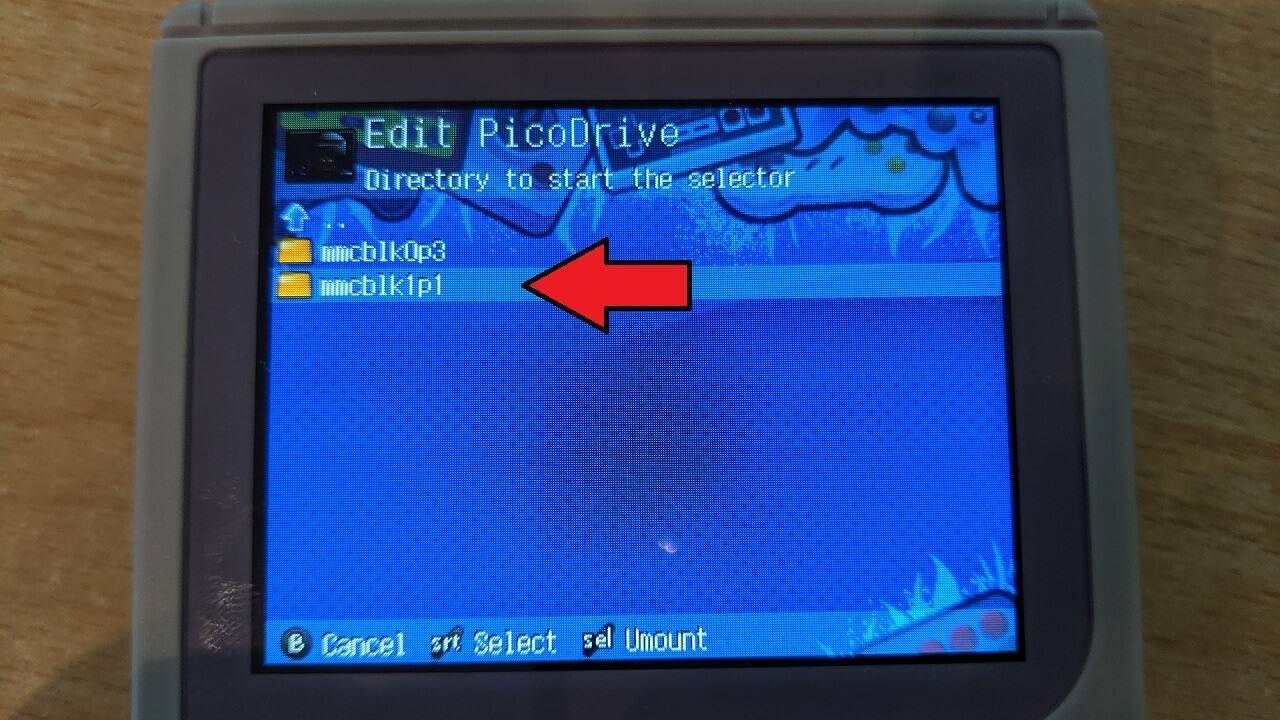
The folders on your external Micro SD Card will be shown. You can now navigate the folders to choose the location of the ROMs. In this example we will be picking MEGADRIVE. It may take a few seconds to update if you have many files in the folder.
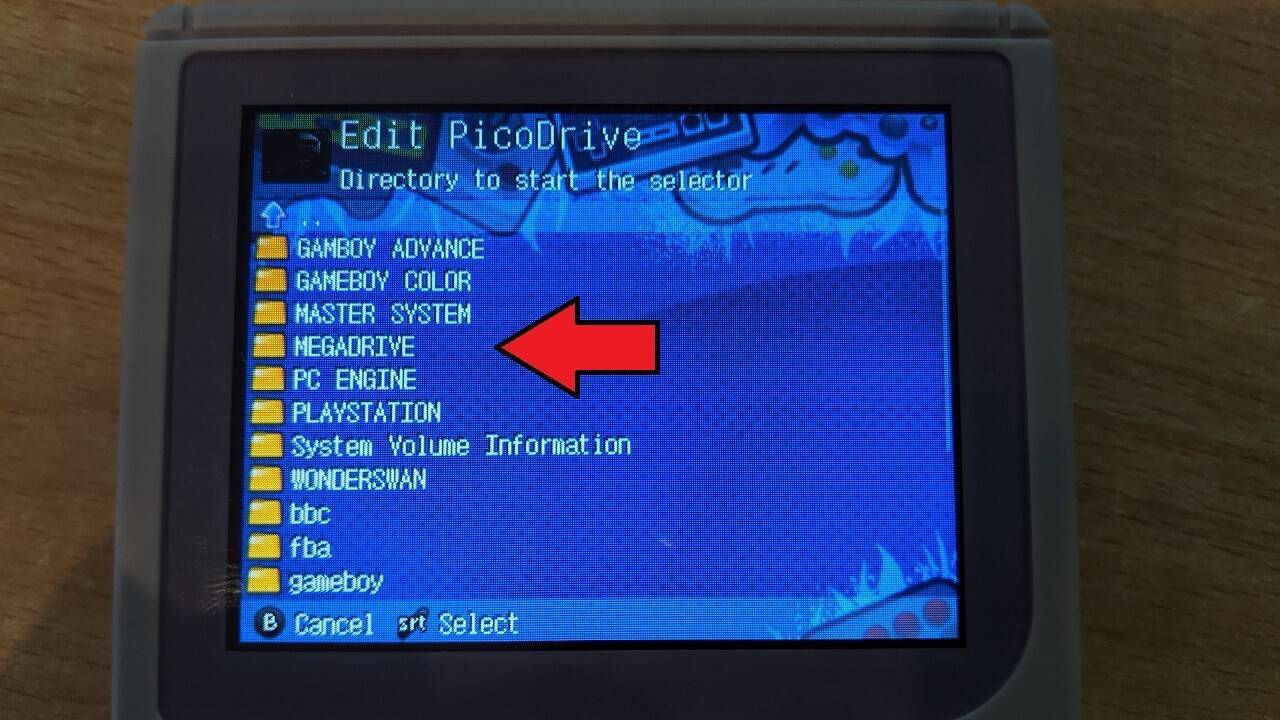
When the screen updates you will see an empty folder, this is normal and will be where your ROM files are located. If so, press the START button to confirm the folder choice.
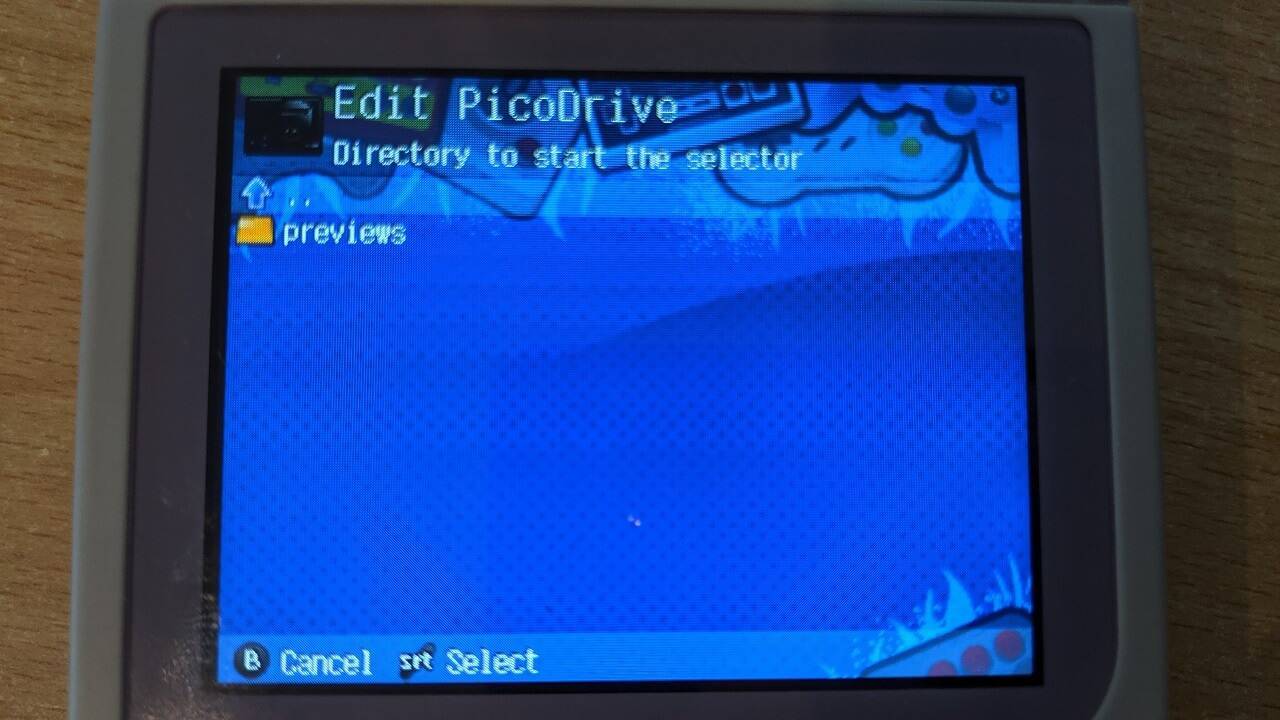
You will return to the Edit emulator menu. Press SELECT to confirm the changes.
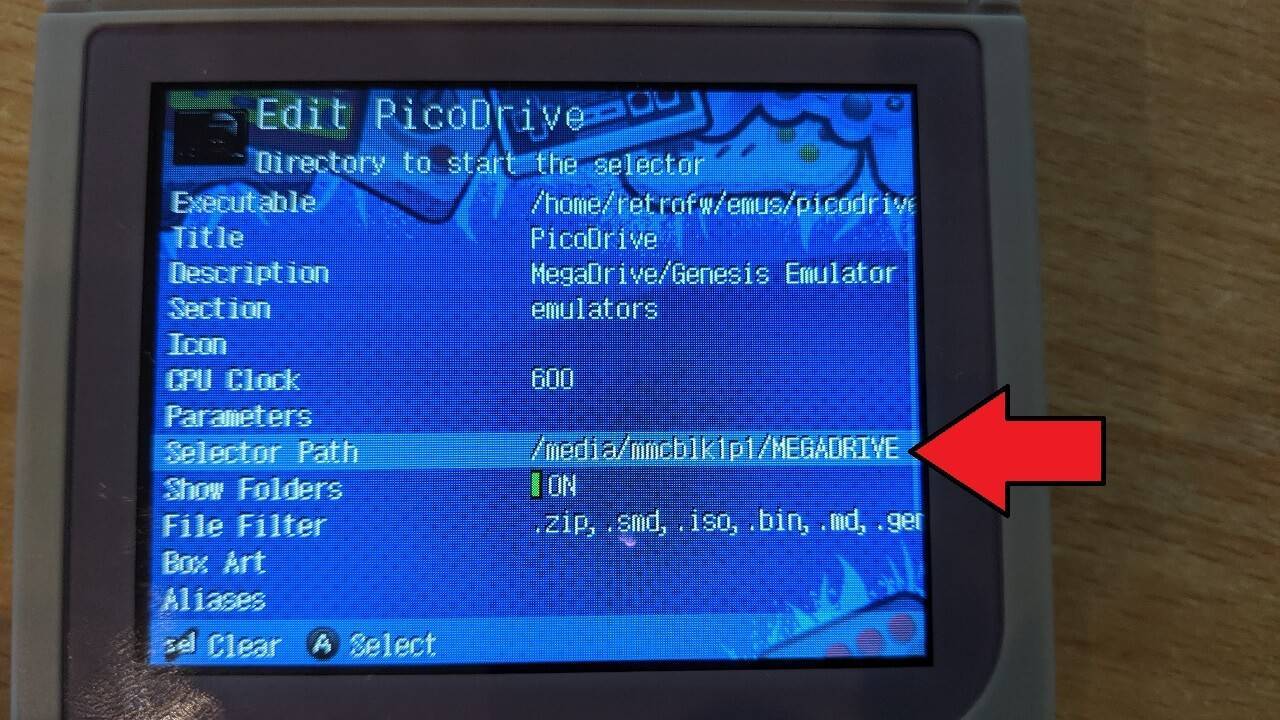
The default folder for the emulator will now be updated. Choose the PicoDrive emulator to launch the file browser, it will now start in the new folder on the external Micro SD Card.
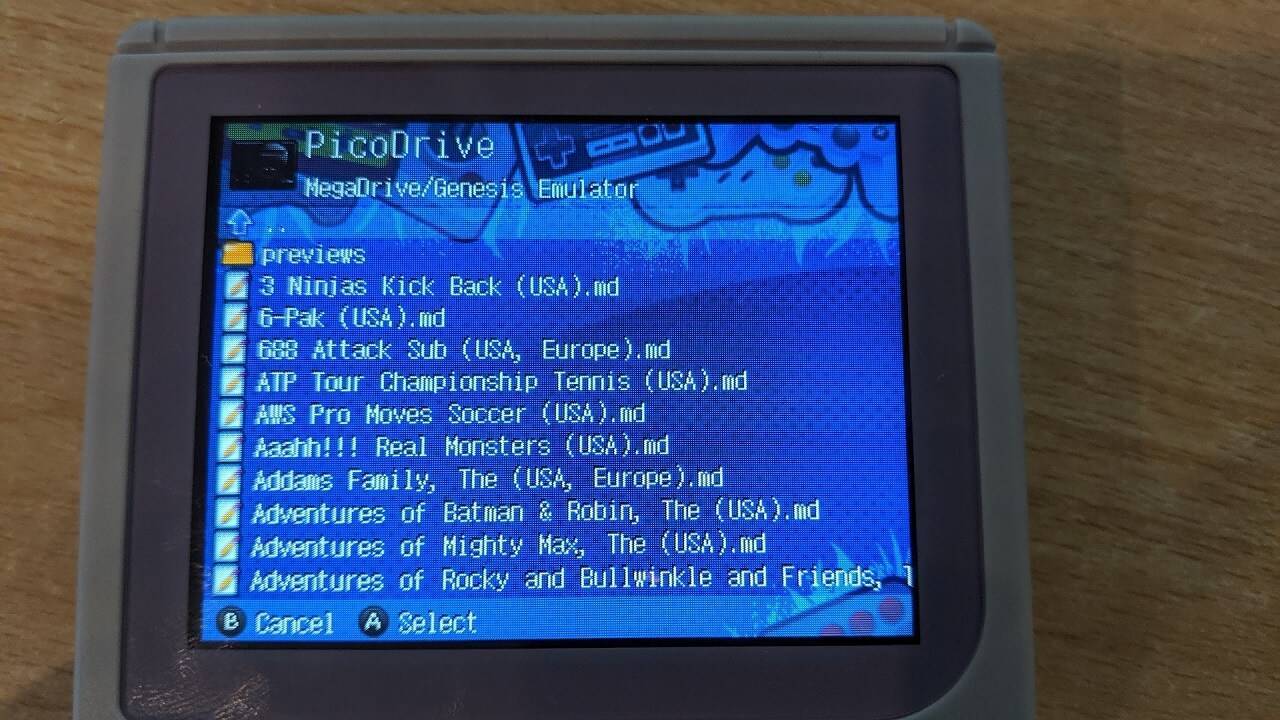
You can repeat this process for any emulator that uses the file browser to load a game.
Latest from the blog
Visit the blog EPOMAKER Carbon X Review – 46 g Carbon-Fibre 8K Wireless Mouse for Competitive FPS
2 November 2026
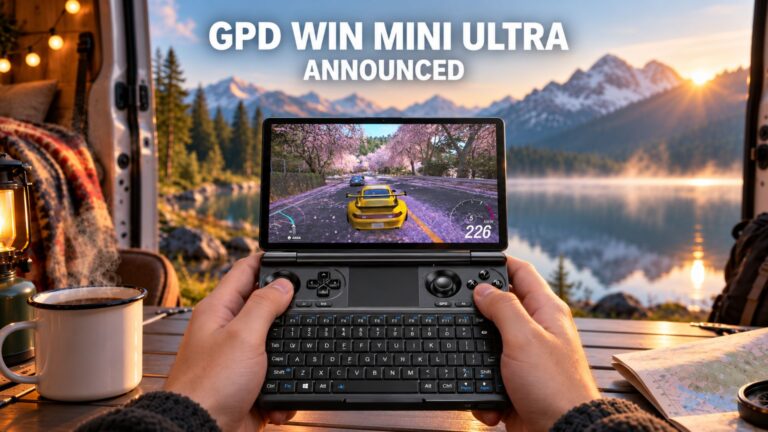 GPD WIN Mini Ultra – A Bigger 8-inch 120Hz Screen, Intel Arc G3 Extreme and Dual USB4 v2.0
27 October 2026
 RockTek PJ500 Ultra Review – A 1080p Home Cinema Projector for Streaming and Gaming
27 October 2026
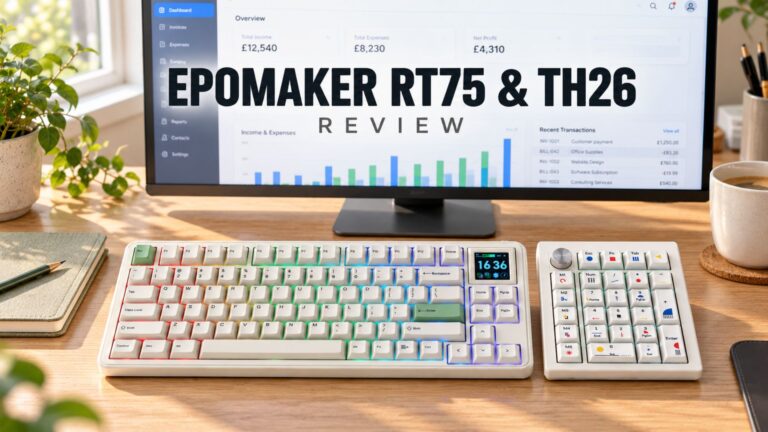 EPOMAKER RT75 and TH26 Review – Retro 75% Keyboard with Detachable Screen and 5-Key Macro Numpad
26 October 2026
Questions & answers