




Occasionally Windows Updates can cause incompatibilities such as random crashing, blue screens and not booting. We recommend uninstalling the latest Windows Update before taking further action such as reinstalling Windows from scratch.
Method 1: Using Advanced Startup (For Blue Screen Issues)
Since you’re experiencing blue screen issues, this method is most appropriate:
1. Hold the Shift key while selecting Restart from the lock screen
2. Select Troubleshoot when the recovery screen appears
3. Choose Advanced options
4. Select Uninstall Updates
5. Choose between:
– Uninstall latest quality update (for regular updates)
– Uninstall latest feature update (for major version updates)
Method 2: If You Can Access Windows
If you manage to get into Windows normally:
1. Press Windows + I to open Settings
2. Click on Windows Update
3. Select Update history
4. Click Uninstall updates
5. Find the problematic update if known, (or the latest one if unsure) and click Uninstall
Important Notes
The ability to roll back updates has some limitations:
– You only have 10 days to roll back major version updates
– Some updates cannot be uninstalled[6]
– After rolling back, you can temporarily pause future updates to prevent automatic reinstallation by going to Windows Update settings and toggling “Pause updates”
It’s recommended to back up your important files before performing any system recovery operations.
Latest from the blog
Visit the blog EPOMAKER Carbon X Review – 46 g Carbon-Fibre 8K Wireless Mouse for Competitive FPS
2 November 2026
 GPD WIN Mini Ultra – A Bigger 8-inch 120Hz Screen, Intel Arc G3 Extreme and Dual USB4 v2.0
27 October 2026
 RockTek PJ500 Ultra Review – A 1080p Home Cinema Projector for Streaming and Gaming
27 October 2026
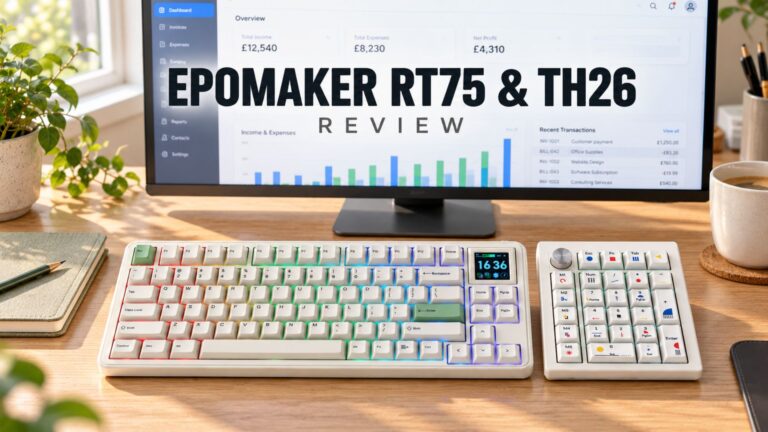 EPOMAKER RT75 and TH26 Review – Retro 75% Keyboard with Detachable Screen and 5-Key Macro Numpad
26 October 2026
Questions & answers