




Please open Kodi, and follow these steps:
System (click the menu entry please)>Video>Subtitles
On some skins you may need to click on Settings, or Power/Exit/Quit then Settings.
Make sure subtitles are enabled, and also make sure “Languages to download subtitles for” only has English entered there. Finally Preferred subtitle language is set to English (you’ll need to scroll down a bit to find it).
Now, when you watch a video move the cursor and you’ll see the normal playback controls towards the bottom of the screen. One of these looks like a rectangle with a horizontal line at the bottom. If you click this icon (different skins may use different icons), you should be able to download subtitles there if they aren’t in the video stream itself. If the initial search doesn’t find any subtitles, press the right cursor a couple of times, and you’ll be able to try searching using the other subtitle service.
If the subtitle you download is not in sync with the audio, search again and try a different subtitle result.
Was this article helpful?
Latest from the blog
Visit the blog GPD WIN Mini Ultra – A Bigger 8-inch 120Hz Screen, Intel Arc G3 Extreme and Dual USB4 v2.0
27 October 2026
 RockTek PJ500 Ultra Review – A 1080p Home Cinema Projector for Streaming and Gaming
27 October 2026
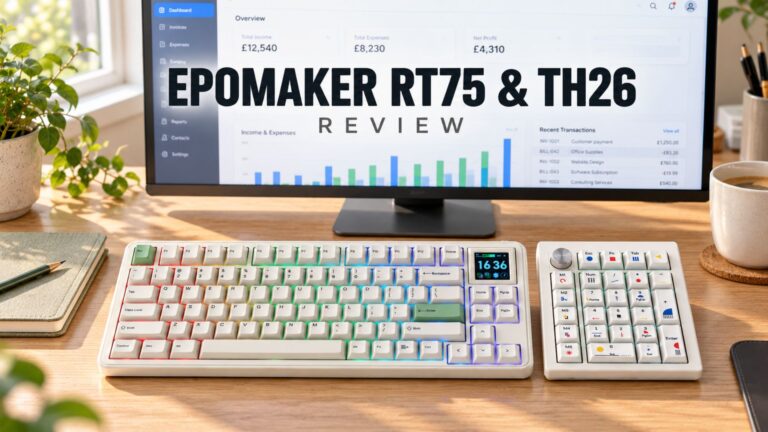 EPOMAKER RT75 and TH26 Review – Retro 75% Keyboard with Detachable Screen and 5-Key Macro Numpad
26 October 2026
 GEEKOM A5 2027 Review – A Compact Mini PC Home Lab
21 October 2026
Questions & answers