




NOTE: Performing this installation will erase the storage and reinstall Windows from scratch on your GPD Win so please ensure you have backed up any important files before proceeding!
The GPD Win should be fully charged before starting this procedure. You will need a 8GB or larger USB Memory Stick to copy the files onto.
Download the GPD Win firmware from: https://1drv.ms/u/s!AlRdlhGu3fjihnVvY3r-rplbbZJl
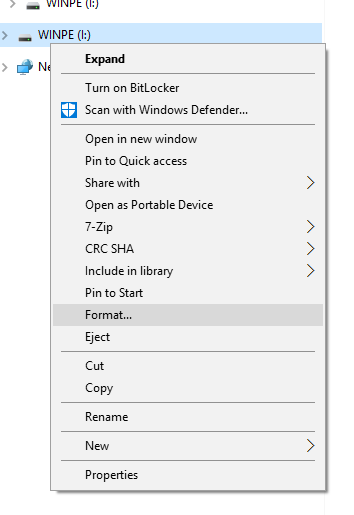
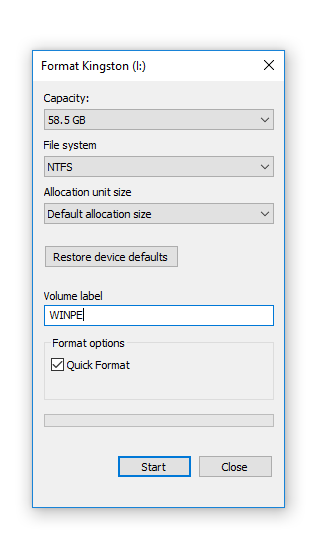
Connect your 8GB or larger USB Memory Stick to your PC. In Explorer, Right Click on the USB Memory Stick and choose the Format option. Change the File System to NTFS, and the Volume Label to WINPE as shown below or the firmware flash will not work.
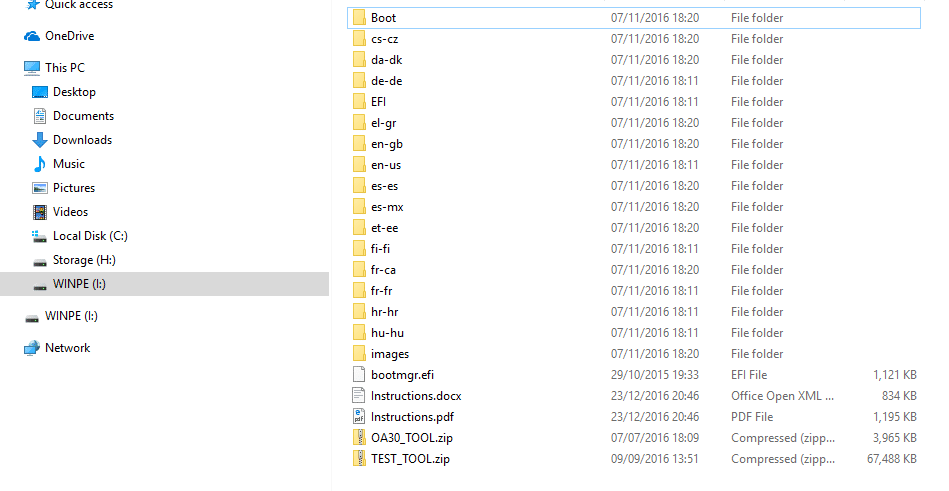
Extract the contents of the GPD Win firmware file to the root of the USB Memory Stick (so don’t put the contents in a new folder, just at the very beginning of the drive). This process may take some time to complete.
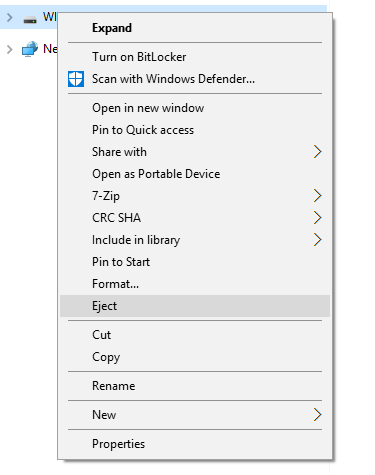
Once completed, you can right click on the USB Memory Stick and choose Eject.
Connect the USB Memory Stick to the USB 3.0 port on the back of the GPD Win.
Switch the GPD Win on, immediately hold the Fn button and repeatedly tap the F7 button until the Boot Manager screen appears. NOTE: The display will be rotated 90 degrees and is perfectly normal in this process.
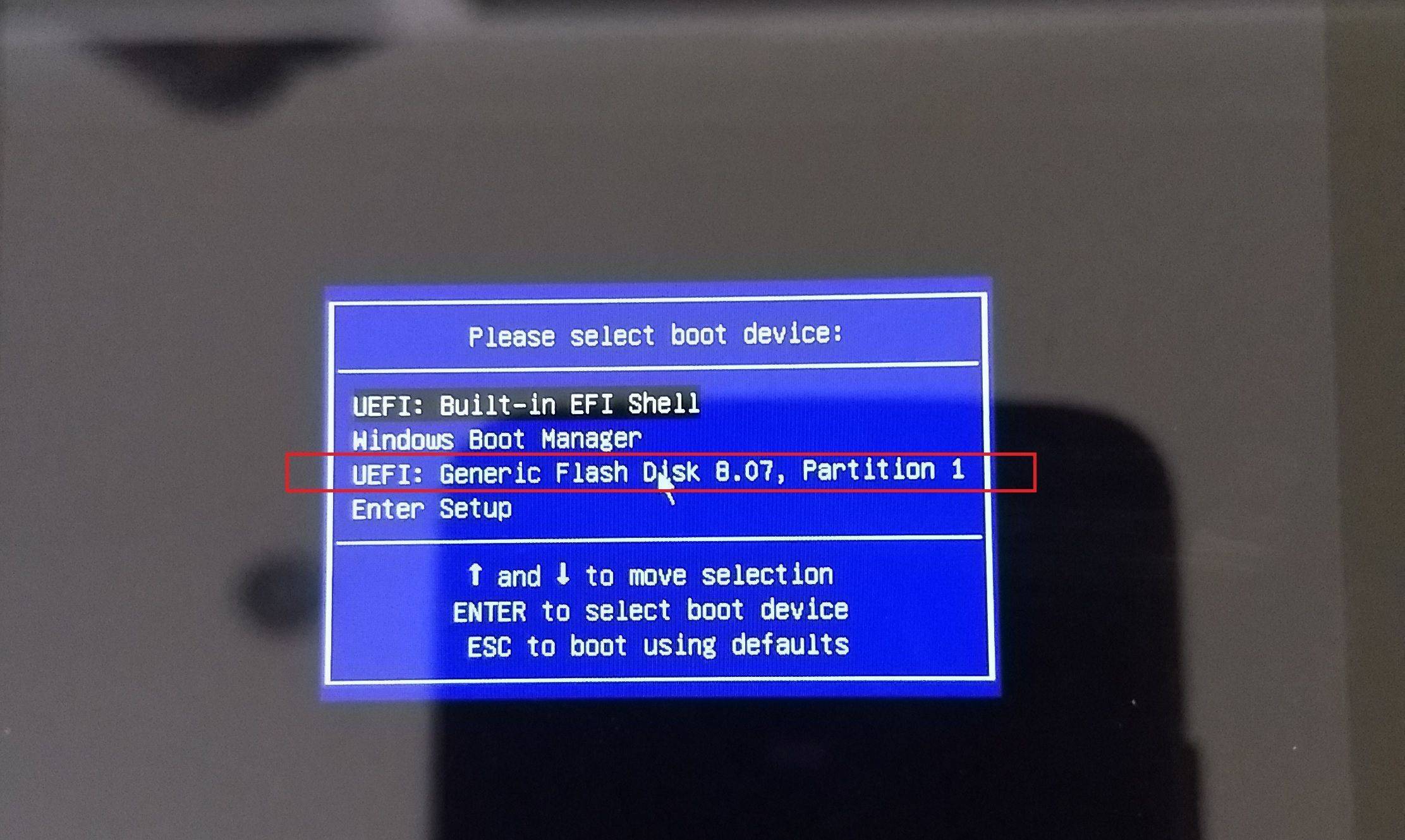
Using the Up/Down buttons on the GPD Win keyboard, navigate to your USB Memory Stick and then press the Enter button to choose it.
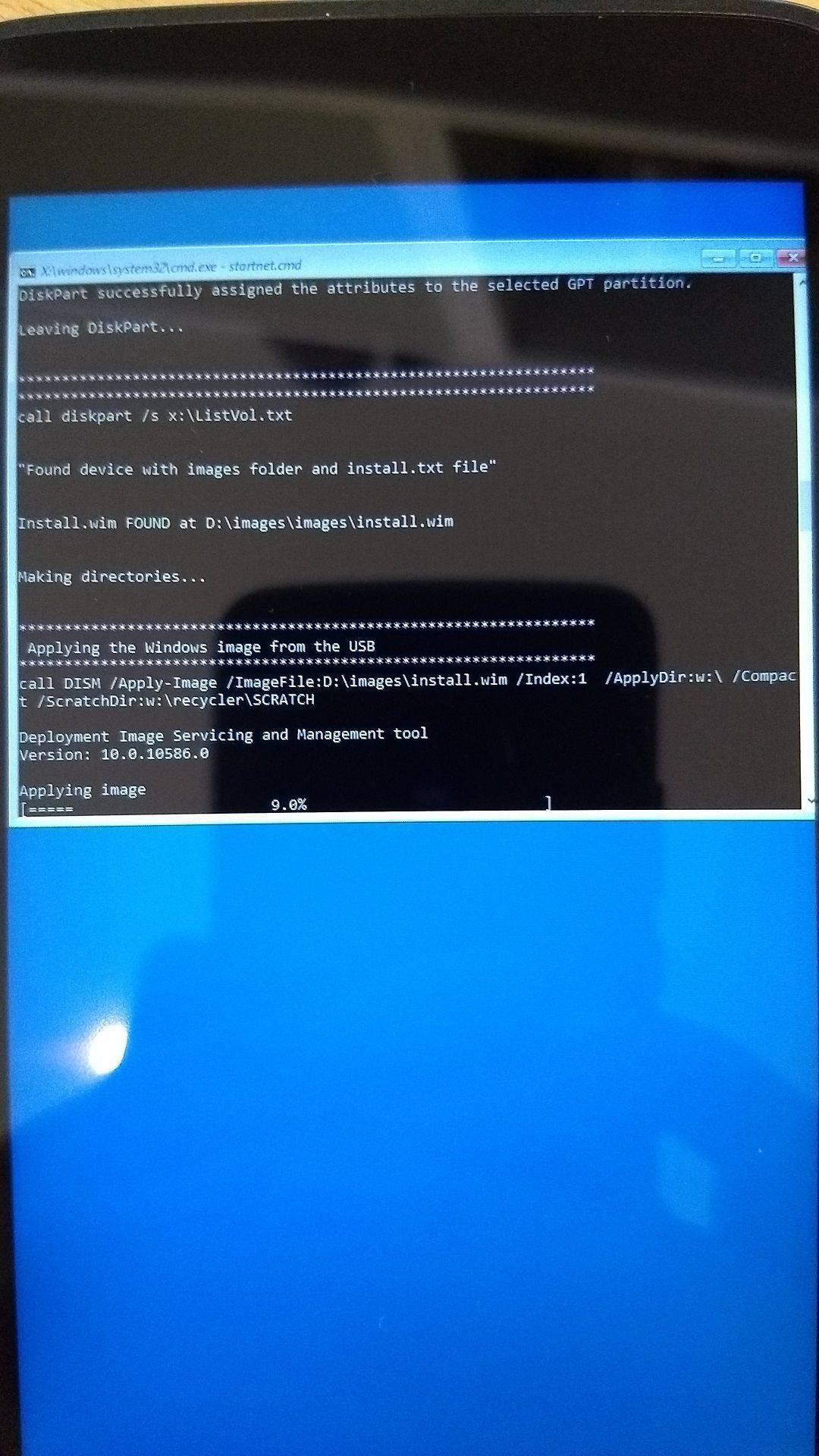
The firmware reflash will now proceed and is automated – you can now leave it until you see the Windows desktop again. The process will take around 20 to 30 minutes, do not switch the device off or press any buttons during this time.
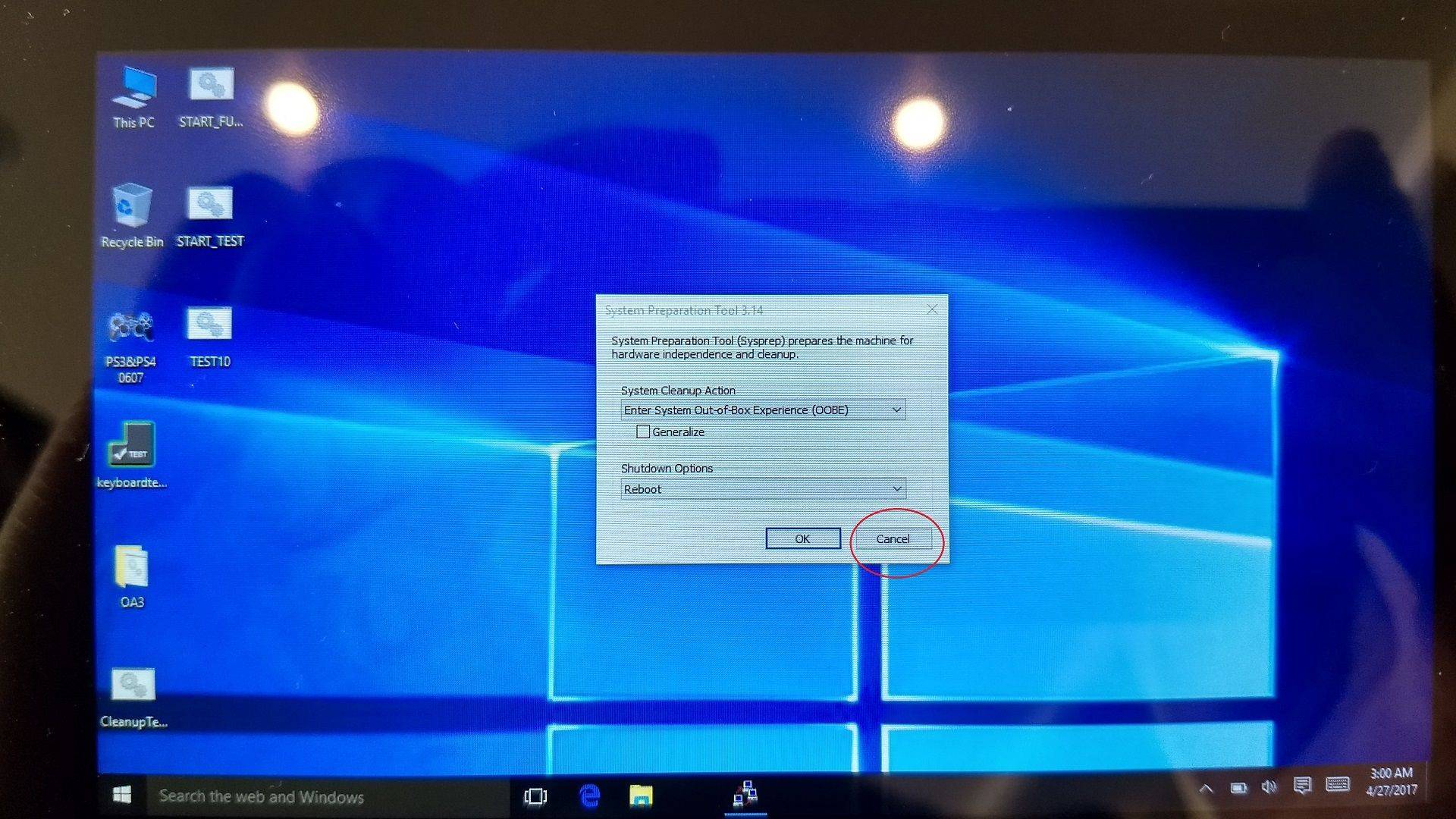
Once you are on the desktop, press the Cancel button on the Window that appears, do NOT press OK!
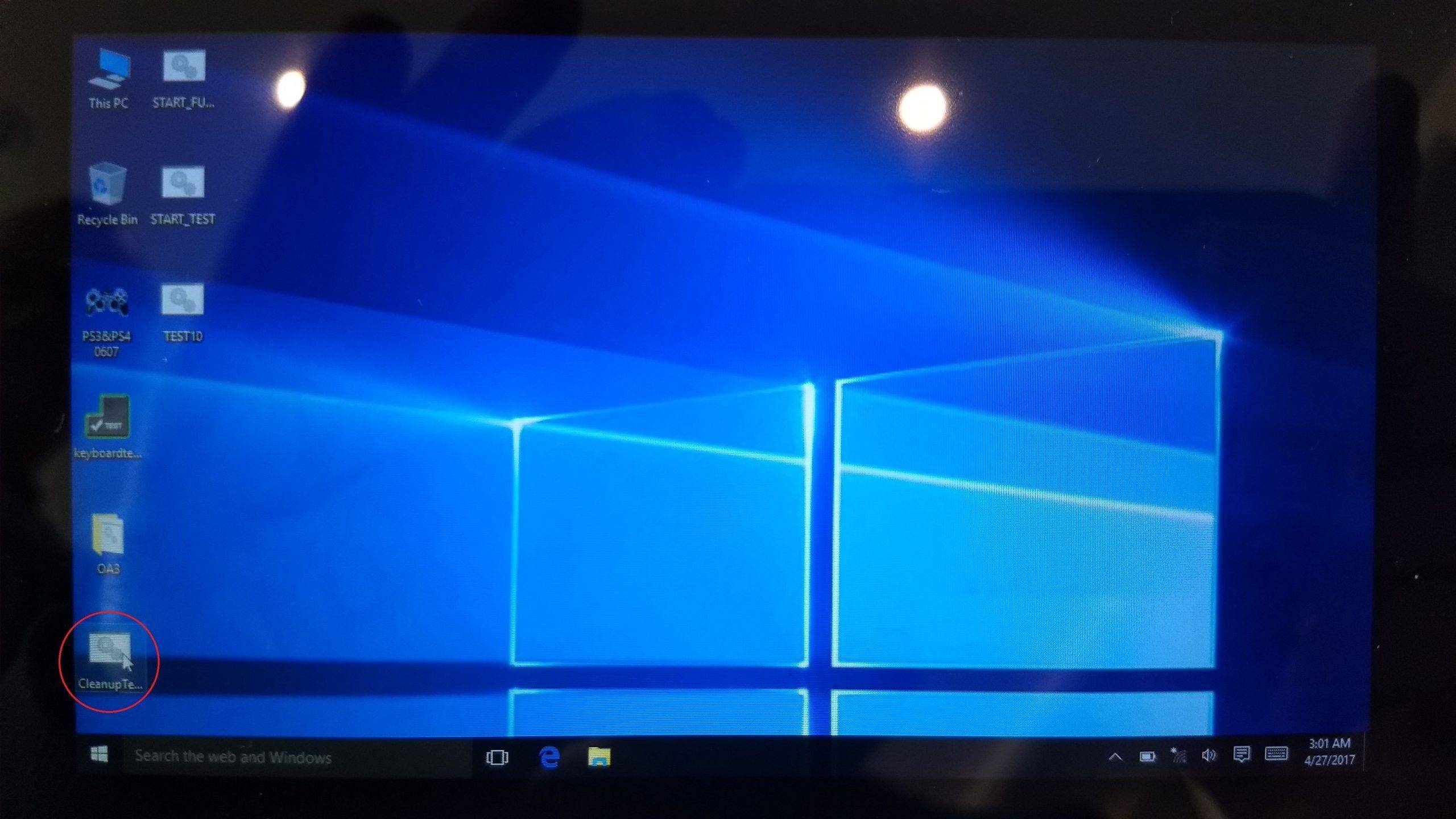
You can now double click on the Cleanup Test icon on the desktop to run a clean up.
The GPD will now perform some cleanup tasks, let them complete, and afterwards the device will switch off. Once this is done, you can now switch the device back on and it will boot to the Windows first use screen, it is now ready to use.
Latest from the blog
Visit the blog EPOMAKER Carbon X Review – 46 g Carbon-Fibre 8K Wireless Mouse for Competitive FPS
2 November 2026
EPOMAKER Carbon X Review – 46 g Carbon-Fibre 8K Wireless Mouse for Competitive FPS
2 November 2026
 GPD WIN Mini Ultra – A Bigger 8-inch 120Hz Screen, Intel Arc G3 Extreme and Dual USB4 v2.0
27 October 2026
GPD WIN Mini Ultra – A Bigger 8-inch 120Hz Screen, Intel Arc G3 Extreme and Dual USB4 v2.0
27 October 2026
 RockTek PJ500 Ultra Review – A 1080p Home Cinema Projector for Streaming and Gaming
27 October 2026
RockTek PJ500 Ultra Review – A 1080p Home Cinema Projector for Streaming and Gaming
27 October 2026
 EPOMAKER RT75 and TH26 Review – Retro 75% Keyboard with Detachable Screen and 5-Key Macro Numpad
26 October 2026
EPOMAKER RT75 and TH26 Review – Retro 75% Keyboard with Detachable Screen and 5-Key Macro Numpad
26 October 2026
Questions & answers