




Files used in this guide
Changelog
- Source guide: How to update the GPD MicroPC 2 BIOS
Older versions stay downloadable for rollbacks — every version keeps its own verified file.
The process for updating the GPD MicroPC 2 firmware is fairly straightforward, but it can be daunting if you have not performed a BIOS update before. Our step by step guide will walk you through the process.
Please note that while BIOS updating is generally fine, there are risks. Please ensure you follow all steps correctly, identify that you are installing the correct BIOS for your device, have a fully charged battery and also connected to a charger. Do not switch off the device unless instructed to. We do not accept responsibility if something goes wrong.
Download the BIOS update
You can download the GPD MicroPC 2 BIOS update here. Please note some virus checkers may incorrectly report it as a virus as the software updates the BIOS.
Changes for v2.17
- Support Windows update EC.
- Fix Touch Screen no function after S3 resume while OS is Linux issue.
- This BIOS was built with EC V2.14 included, Please update BIOS with AC inserted.
Pre-install set up
Please first ensure your GPD MicroPC 2 is fully charged and that the charger is connected.
It is recommended to close any software that is currently running as the device will automatically reboot after the update is completed.
Extract the .zip file you downloaded. You will have a file named BIOS_M2_V2.17_GPD.exe in the AfuWin folder , the numbers may be different depending on the version.
Installing the GPD MicroPC 2 BIOS update
Double click on the BIOS_M2_V2.17_GPD.exe and accept any Administrator access prompts. After a few moments a command prompt window will display
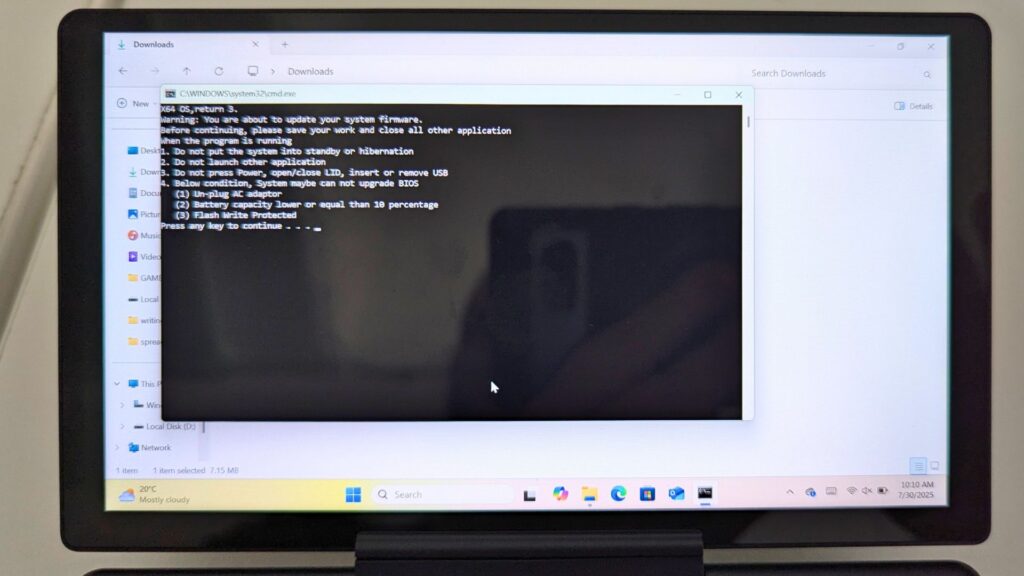
Please ensure your device is fully charged and the charger is connected, then press any key to proceed with the BIOS update.

After a brief wait, you will be prompted to reboot the device to proceed with the BIOS update.
Once rebooted, the BIOS update will now proceed. Do not switch off the device during this process. It will take a couple of minutes to update.
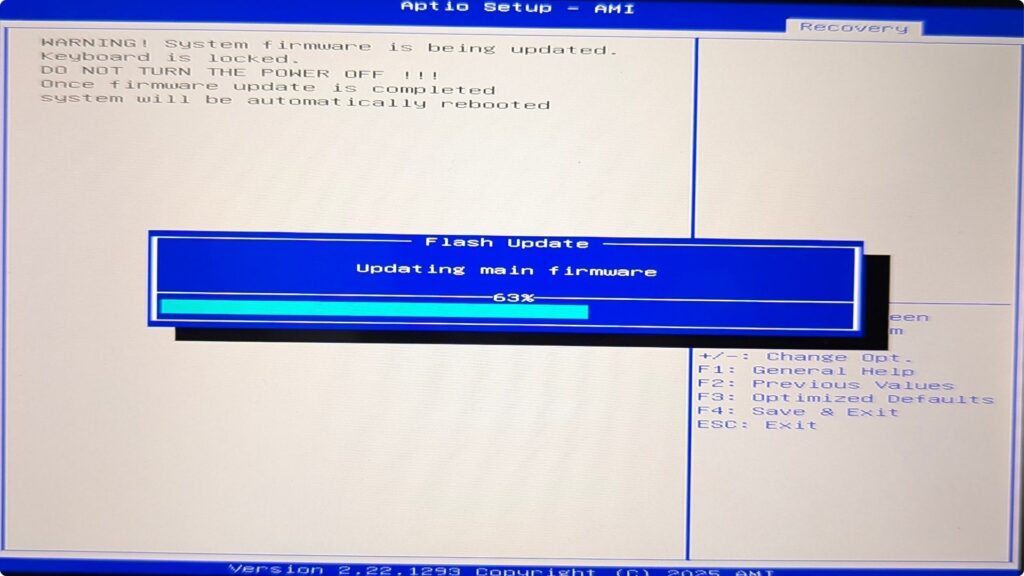
When the update is complete, the GPD MicroPC 2 will reboot and show a blank screen. Do NOT switch off or press any buttons during this process. It may take a few minutes.
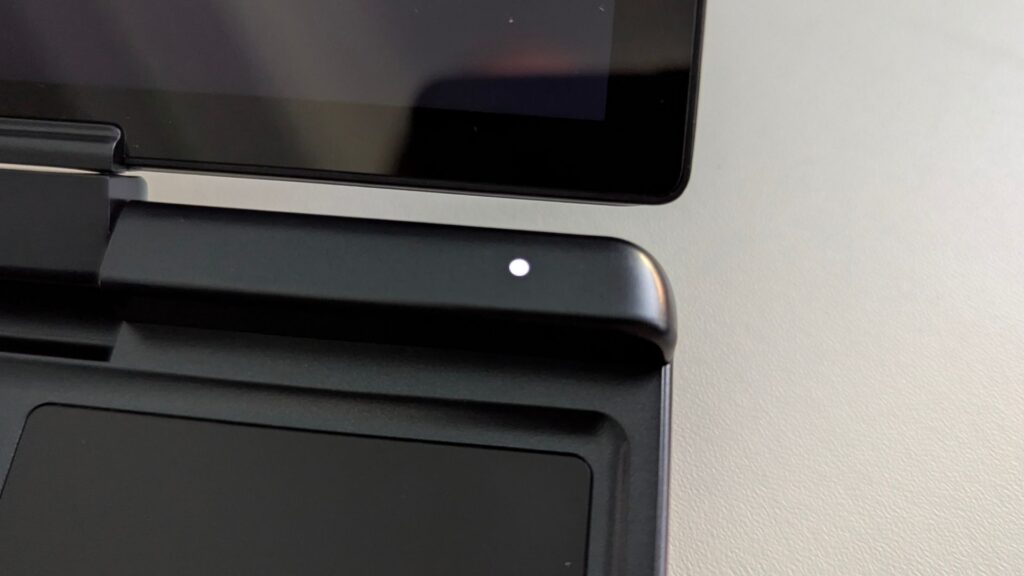
It will take a few moments for Windows to shut down and for the GPD MicroPC 2 to fully power off. Once the power LED is off, you can press the Power button to switch on the device and Windows will reboot as normal. Please note, it may take a few seconds longer to boot the first time after a BIOS update.
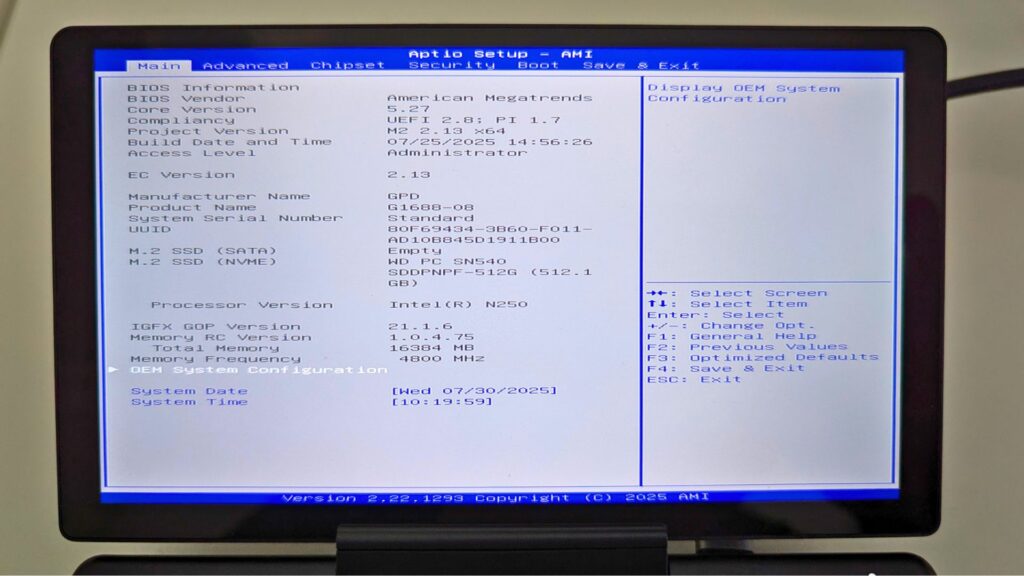
The BIOS update process is now completed and you can continue using your device. If you want to check the BIOS update has been applied, you can check in the BIOS menu under the Project Version and EC Version numbers. Please note that the versions for both of these may not match, in the below example photo it is version 2.13 as it is taken from an older BIOS update.
Questions & answers 2
To whom this may be useful: I followed this tutorial to update from BIOS version 2.13 to BIOS version 2.16.
After the update, the “EC version” was still on 2.13. However, the “Project version” is on 2.16 and the “Build date and time” matches the date of version 2.16 in the file “BiosChanges..txt” – 2025-09-03.
So I assume that the BIOS has been updated to 2.16, although the EC version is still on 2.13.
This is contradictory to the statement on this site: “If you want to check the BIOS update has been applied, you can check in the BIOS menu under the EC Version number”.
Hi, thanks for the update. At the time of making the guide this information was correct for the version numbers. But the latest version does update the Project Version only, so you would have two different versions for the BIOS and EC. I will update the guide to reflect this as it will change over newer versions.