




After replacing or upgrading the SSD in a GPD device, Windows should normally reactivate once the correct edition of Windows is installed and the device is online. An SSD replacement does not normally change the device’s motherboard-based licence. If Windows does not activate, use the checks below before purchasing another licence.
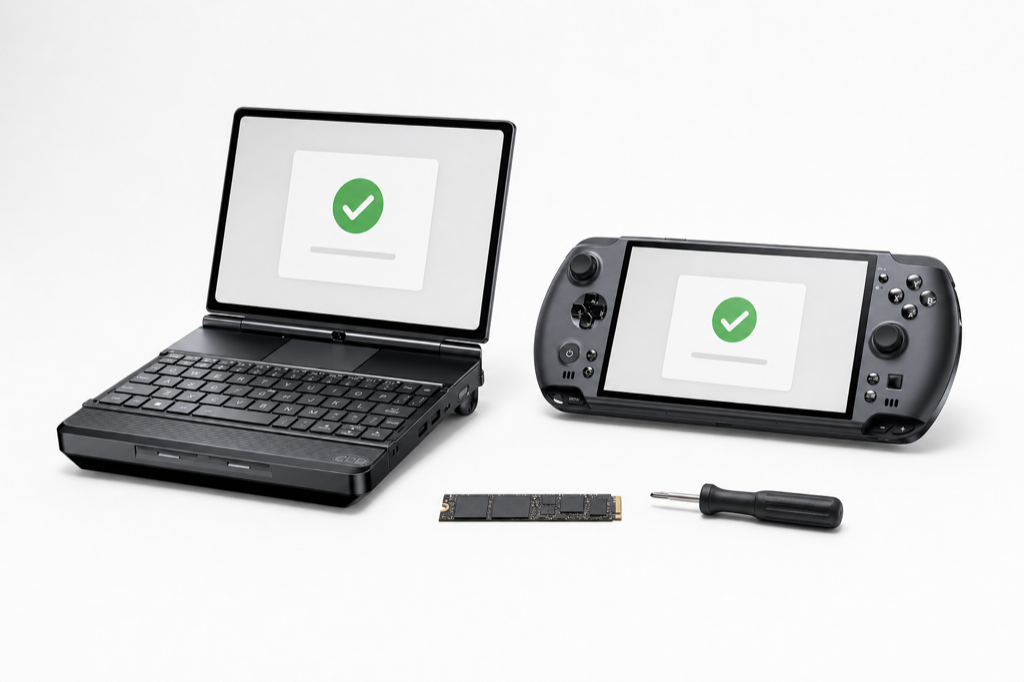
Before you start
- Back up any files you need before replacing the SSD.
- Install the same Windows edition the device was licensed for, for example Windows 11 Home or Windows 11 Pro. An edition mismatch can prevent activation.
- Keep the original motherboard in the device. Replacing the motherboard is treated as a significant hardware change and may require a different activation route.
- Connect to a reliable internet connection after Windows setup has finished.
1. Install the correct edition of Windows
During Windows setup, select I don’t have a product key if you are prompted for one. On supported OEM devices, Windows Setup may detect a key stored in the device firmware and apply it automatically. Choose the edition that matches the licence already associated with the device.
Do not enter a key from another PC, an online key generator, or an activation script. These can leave Windows incorrectly licensed or create a support issue later.
2. Connect to the internet and let Windows check activation
Complete setup, connect to Wi-Fi or Ethernet, then leave the device online for a few minutes. Windows activation normally completes automatically after it can verify the device’s licence.
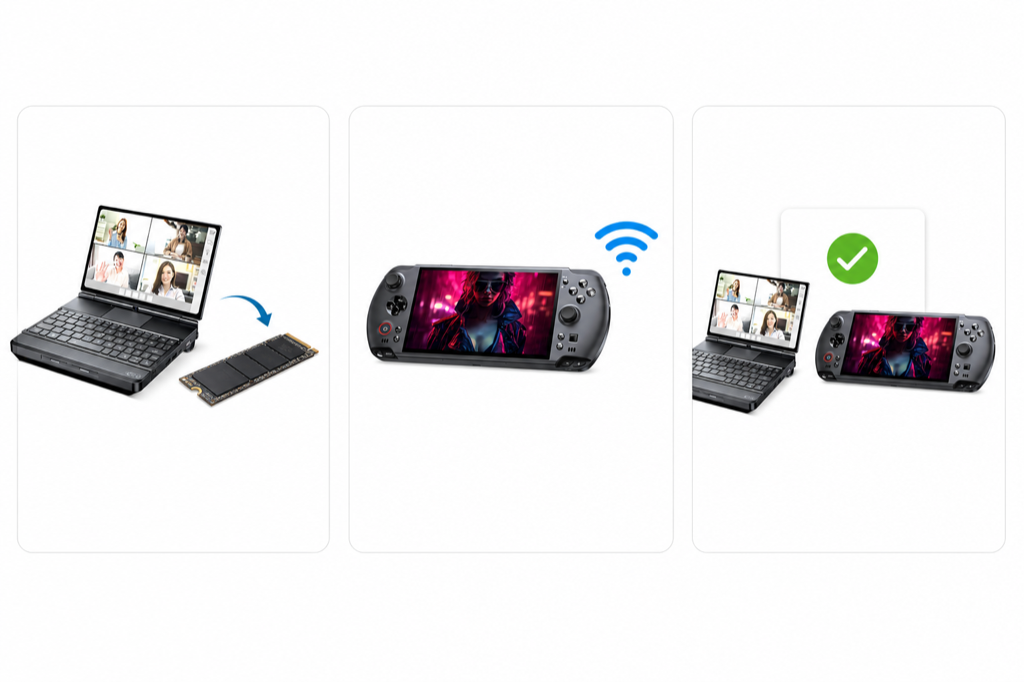
3. Check the activation status
Open Settings > System > Activation. You are looking for a message such as Windows is activated or Windows is activated with a digital licence.
If Windows is not activated
- Confirm the installed Windows edition matches the licence.
- Restart the device and reconnect to the internet, then check Activation again.
- If the device was previously activated with a digital licence linked to your Microsoft account, select Troubleshoot on the Activation page and follow the hardware-change recovery prompts using that same account.
- Record the exact activation error code shown in Settings.
If the issue remains, contact DROIX Support with your order number, GPD model, installed Windows edition and the exact error code. Please do not send a full product key or serial number in a public message or screenshot.
Do I need to boot the original SSD first?
Not normally. A correct, same-edition reinstall on the original motherboard can activate online without the original SSD. However, activation depends on the device’s licence state and Windows edition, so follow the checks above if it does not complete automatically.
Why do some devices activate immediately while others do not?
Windows activation is tied to the device’s licence and hardware configuration. Windows Setup can detect an OEM key stored in firmware on supported devices, but an activation result can also depend on the installed edition and the device’s existing activation state. The exact reason for an individual activation error cannot be confirmed from the error message alone.
Microsoft references
From the blog
Visit the blog GPD WIN MAX 3 Pre-order – Ryzen AI Max+ Power in a Modular Handheld Gaming PC
21 September 2026
GPD WIN MAX 3 Pre-order – Ryzen AI Max+ Power in a Modular Handheld Gaming PC
21 September 2026
 GPD WIN MAX 3 Review – A Powerful Handheld Laptop for Gaming and Work
28 August 2026
GPD WIN MAX 3 Review – A Powerful Handheld Laptop for Gaming and Work
28 August 2026
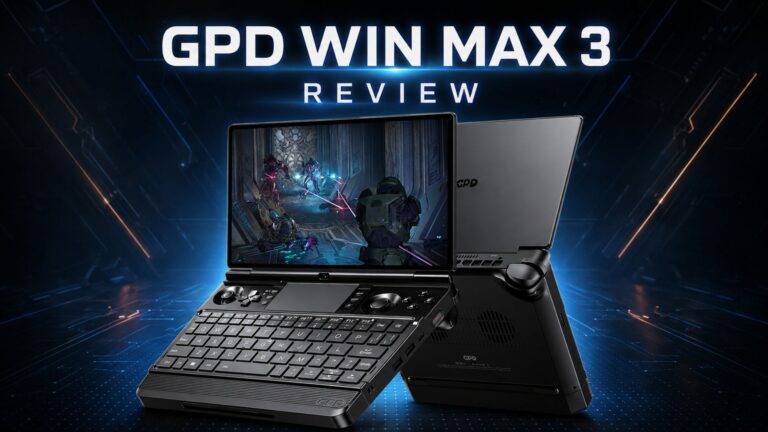 GPD WIN MAX 3 Review – Ryzen AI Max+ Power in a Modular Handheld Gaming PC Laptop
27 August 2026
GPD WIN MAX 3 Review – Ryzen AI Max+ Power in a Modular Handheld Gaming PC Laptop
27 August 2026
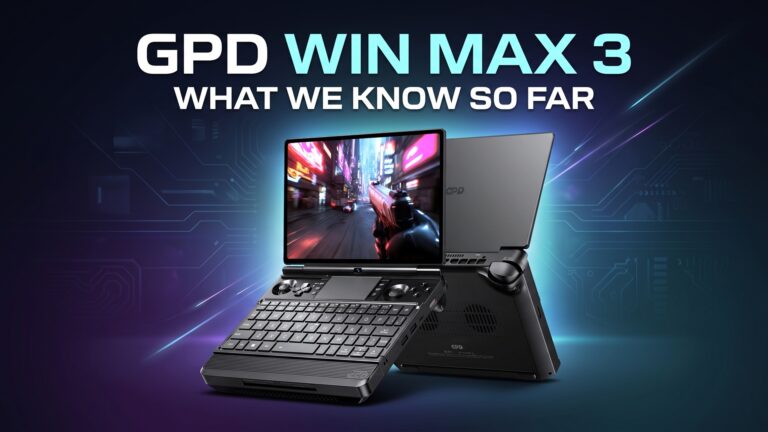 GPD WIN MAX 3 Details Revealed: Ryzen AI Max+ Power, 165Hz AMOLED and Modular Battery Design
26 June 2026
GPD WIN MAX 3 Details Revealed: Ryzen AI Max+ Power, 165Hz AMOLED and Modular Battery Design
26 June 2026
Questions & answers