




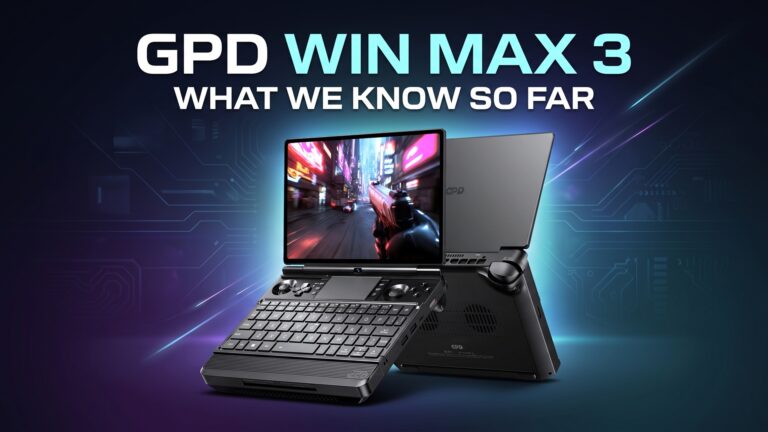
The GPD WIN MAX 3 is a Windows 11 handheld gaming laptop with AMD Ryzen AI Max+ processors, Radeon 8060S graphics, a 9.06-inch AMOLED touchscreen, built-in game controls and a full-size keyboard.
Its modular design allows you to use the WIN MAX 3 with the removable 97Wh battery module, the optional cooling-fan module or directly from the included 180W power adapter. This guide covers the first steps to take after unpacking your device, including checking the hardware, setting up Windows, updating drivers, testing the controls and installing useful software.
The GPD WIN MAX 3 is available with AMD Ryzen AI Max+ 388 or Ryzen AI Max+ 395 processors, up to 128GB of LPDDR5X memory and up to 4TB of PCIe 4.0 NVMe storage.
Inspecting the GPD WIN MAX 3
Before switching on your GPD WIN MAX 3, we recommend checking the device and included accessories for any signs of damage that may have occurred during delivery.
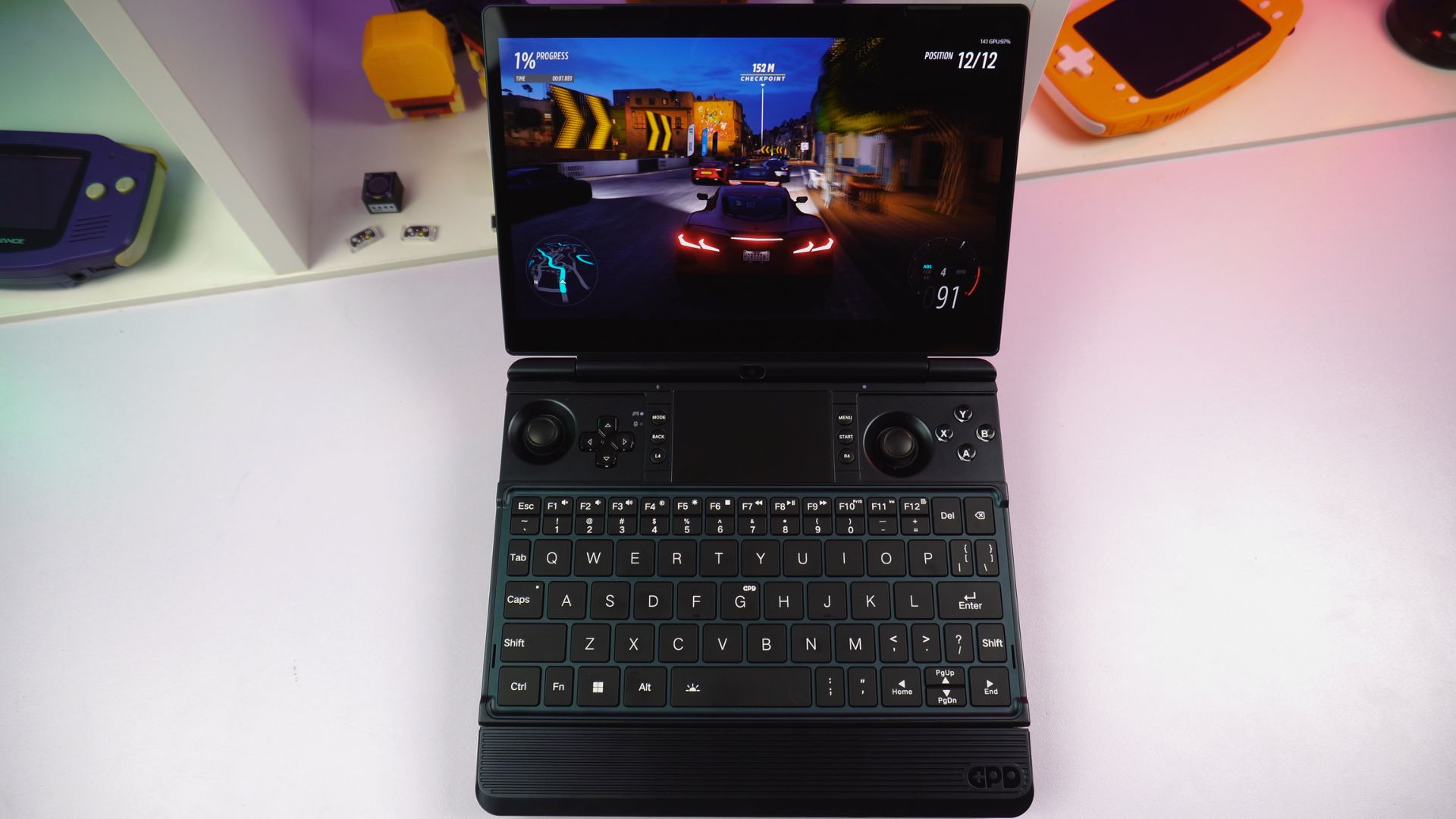
The standard package includes:
- GPD WIN MAX 3
- External 97Wh battery module
- DC power adapter
- DC power cable
- Module slot cover
- Product manual
Check the external chassis
Inspect the outer casing, display and hinge for cracks, dents, deep scratches or other signs of damage.
Pay particular attention to:
- The corners and edges of the chassis
- The display glass and curved screen edges
- The hinge area
- The USB, HDMI and audio ports
- The front module connector
- The rear DC input and USB4 port
- The battery module contacts and magnets
Do not use the device if the battery module, charging connector or chassis appears damaged. Contact the retailer before continuing with setup.
Check the display
Open the lid carefully and inspect the 9.06-inch AMOLED display. Look for cracks, pressure marks or areas that appear damaged.
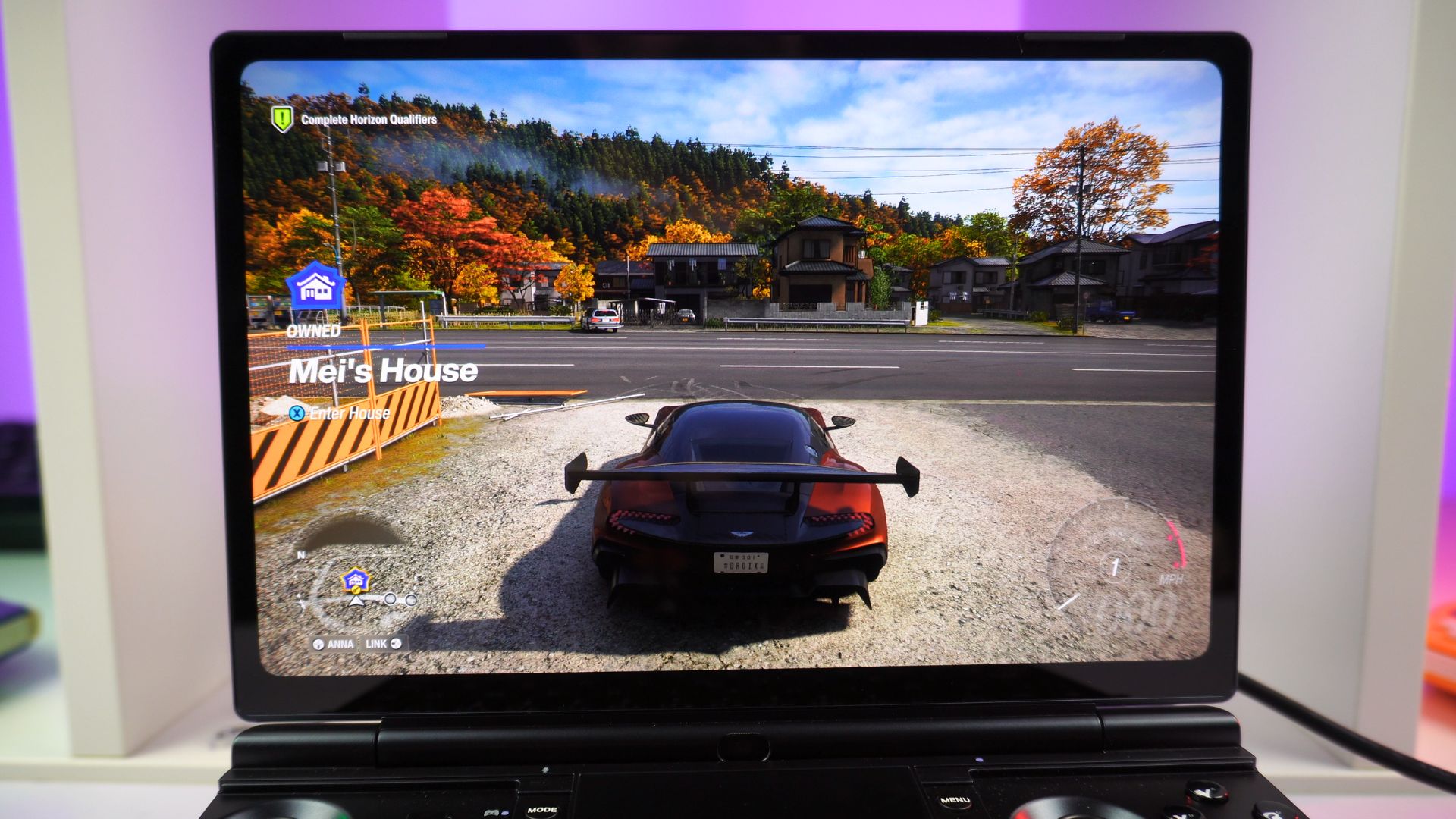
Once Windows has started, check that:
- The entire display lights up correctly
- Touch input works across the screen
- There are no visible lines or large areas of dead pixels
- The display brightness can be adjusted
- The refresh rate can be changed
The display supports 2400 × 1504 resolution and refresh rates of 60Hz, 120Hz, 144Hz and 165Hz.
Check the game controls
You can test the built-in controls using the online gamepad tester at https://hardwaretester.com/gamepad
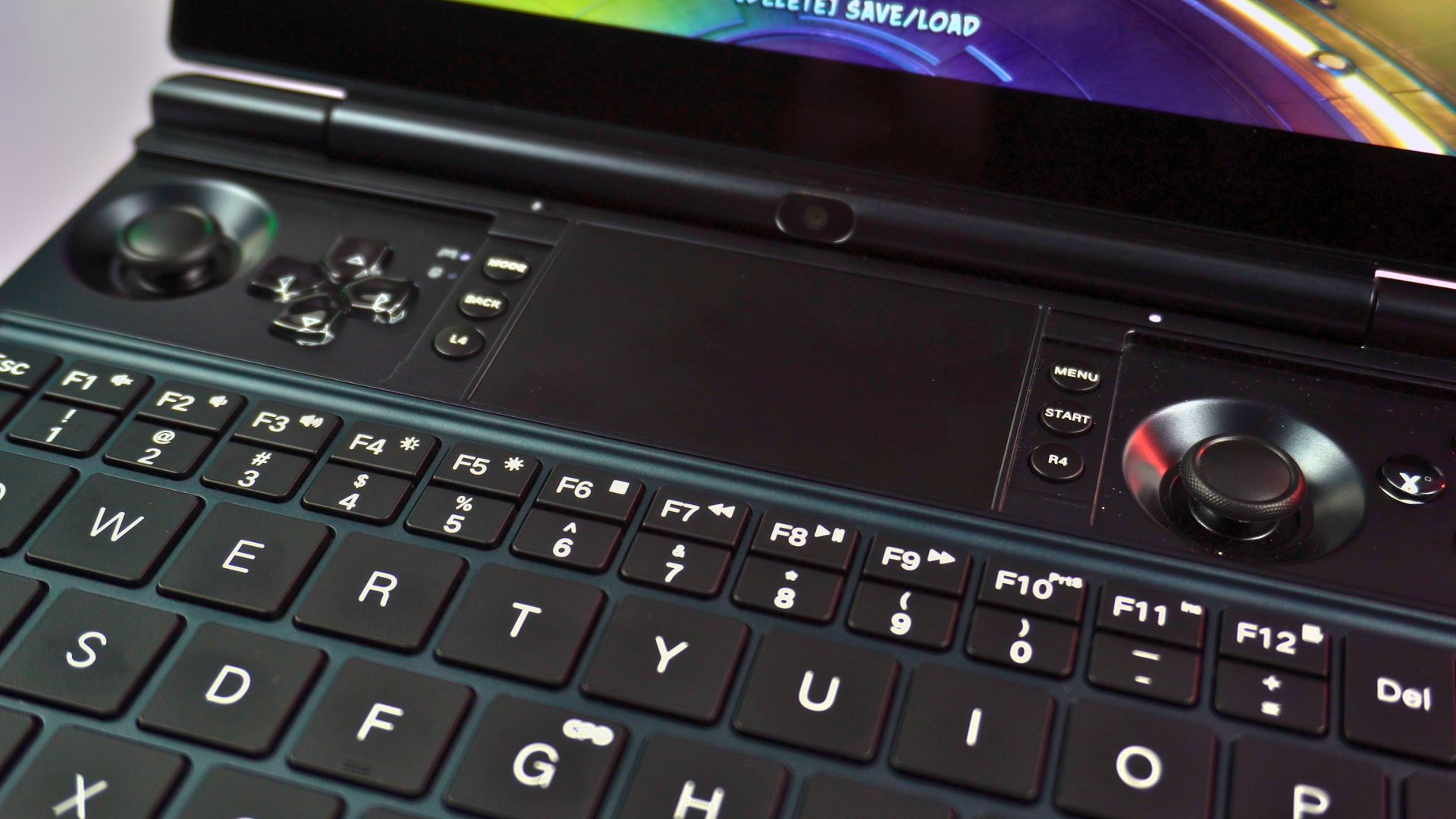
Check the following controls:
- Left analogue joystick
- Right analogue joystick
- D-pad
- ABXY buttons
- Left and right shoulder buttons
- Analogue triggers
- L4 and R4 buttons
- Start and Select buttons
- Xbox Game Bar button
- GPD Tool button
- Macro buttons
Move the analogue sticks slowly through their full range and check that the input returns to the centre correctly. Also test the analogue triggers by pressing them gradually rather than simply pressing them fully.
Testing the keyboard and touchpad
The GPD WIN MAX 3 has a backlit chiclet keyboard and an integrated touchpad. Test the keyboard by opening Notepad and pressing each character key, number key and commonly used function key. The keyboard backlight has two brightness levels and an off setting. Cycle through these by holding the Fn key and tapping the Space bar.

The touchpad supports Microsoft Precision Touchpad features. Test:
- Single-finger pointer movement
- Left and right clicks
- Two-finger scrolling
- Multi-finger gestures
- Dragging windows and icons
If the pointer moves slowly or feels inaccurate, check the Windows touchpad settings and sensitivity options.
Check the ports
Test each port with a suitable accessory such as a USB flash drive, mouse, keyboard or headphones.
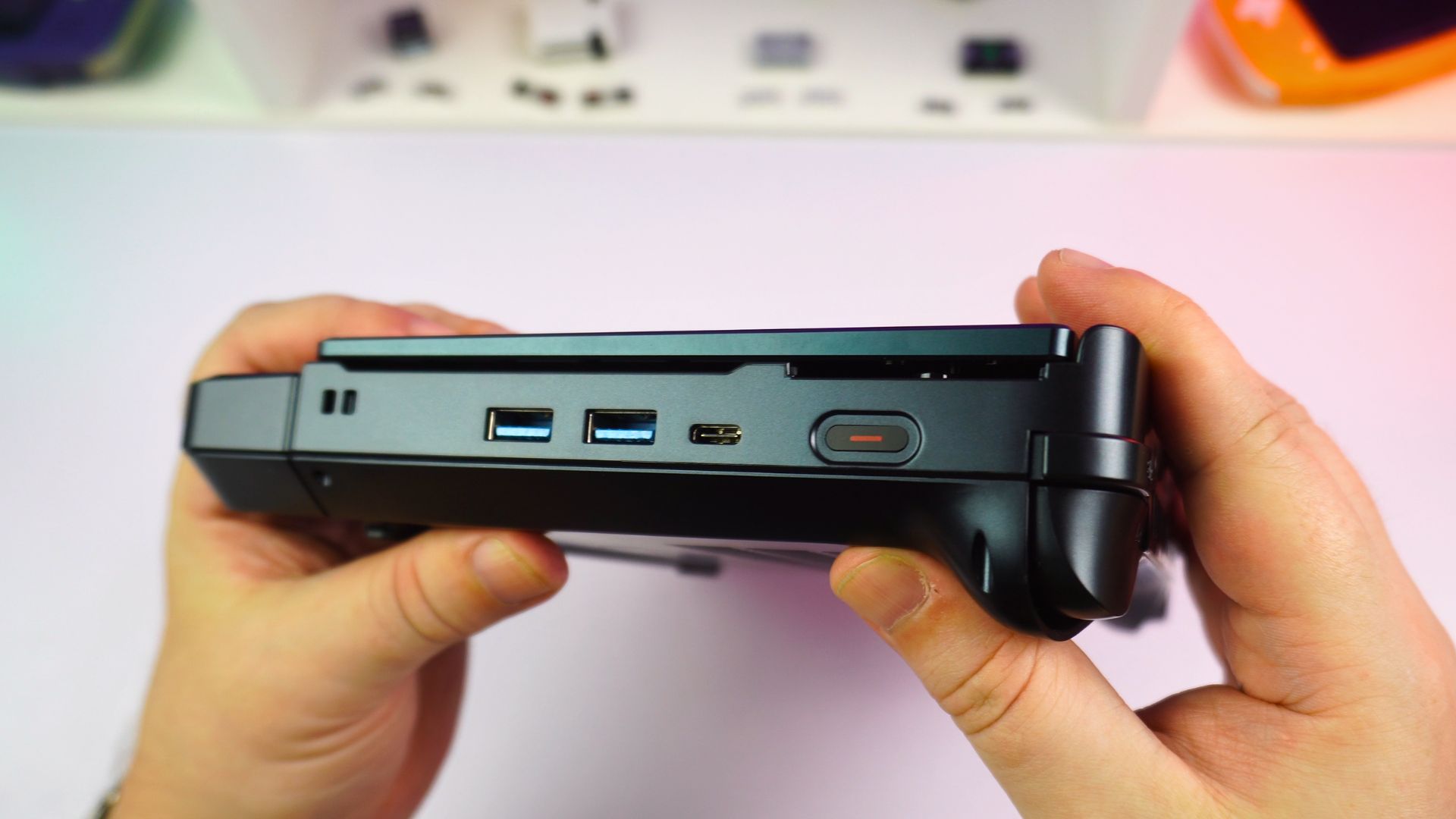
The GPD WIN MAX 3 includes:
- 1 × USB4 Type-C port
- 1 × USB 3.2 Gen 2 Type-C port
- 2 × USB 3.2 Gen 2 Type-A ports
- 1 × HDMI 2.1 FRL port
- 1 × 3.5mm headphone/microphone combo jack
- 1 × microSD Express card slot
- 1 × DC power input
The USB4 Type-C port supports DisplayPort 2.1, USB Power Delivery and external graphics connectivity. The separate USB 3.2 Gen 2 Type-C port supports data and DisplayPort output.
Check the speakers and headphone output
Play some audio through the built-in speakers. Then connect headphones or a headset to the 3.5mm audio jack and check that the sound switches correctly.
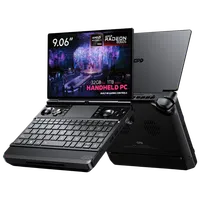

GPD WIN Max 3
Windows Handhelds
Processor ModelRyzen AI Max+ 388
Memory / Capacity32GB
Storage / Capacity1TB



 on 15 stores
Connecting the battery module
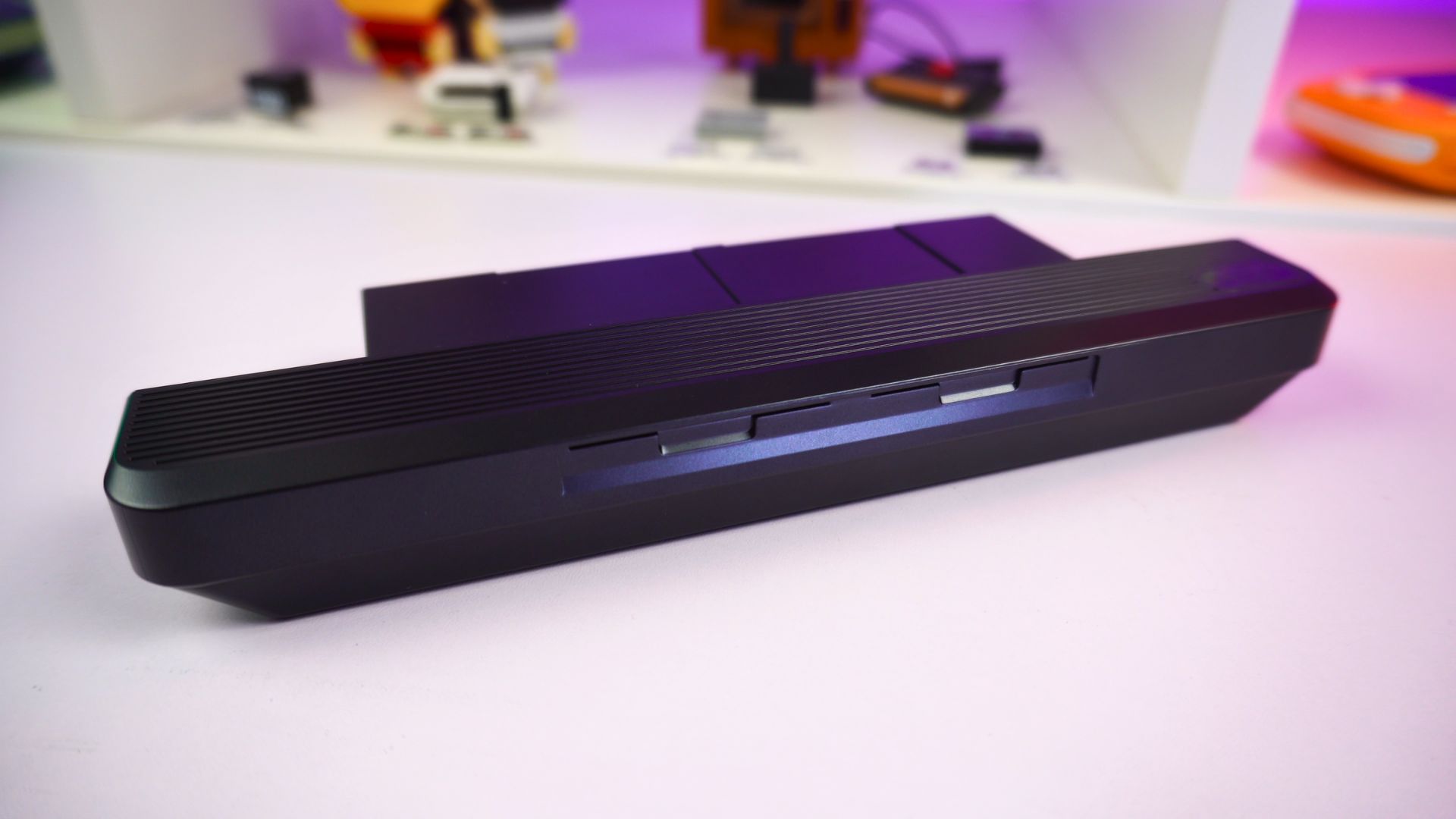
The GPD WIN MAX 3 uses an external magnetic battery module rather than a conventional internal battery. The battery module has a capacity of approximately 97.53Wh and attaches to the front of the device.
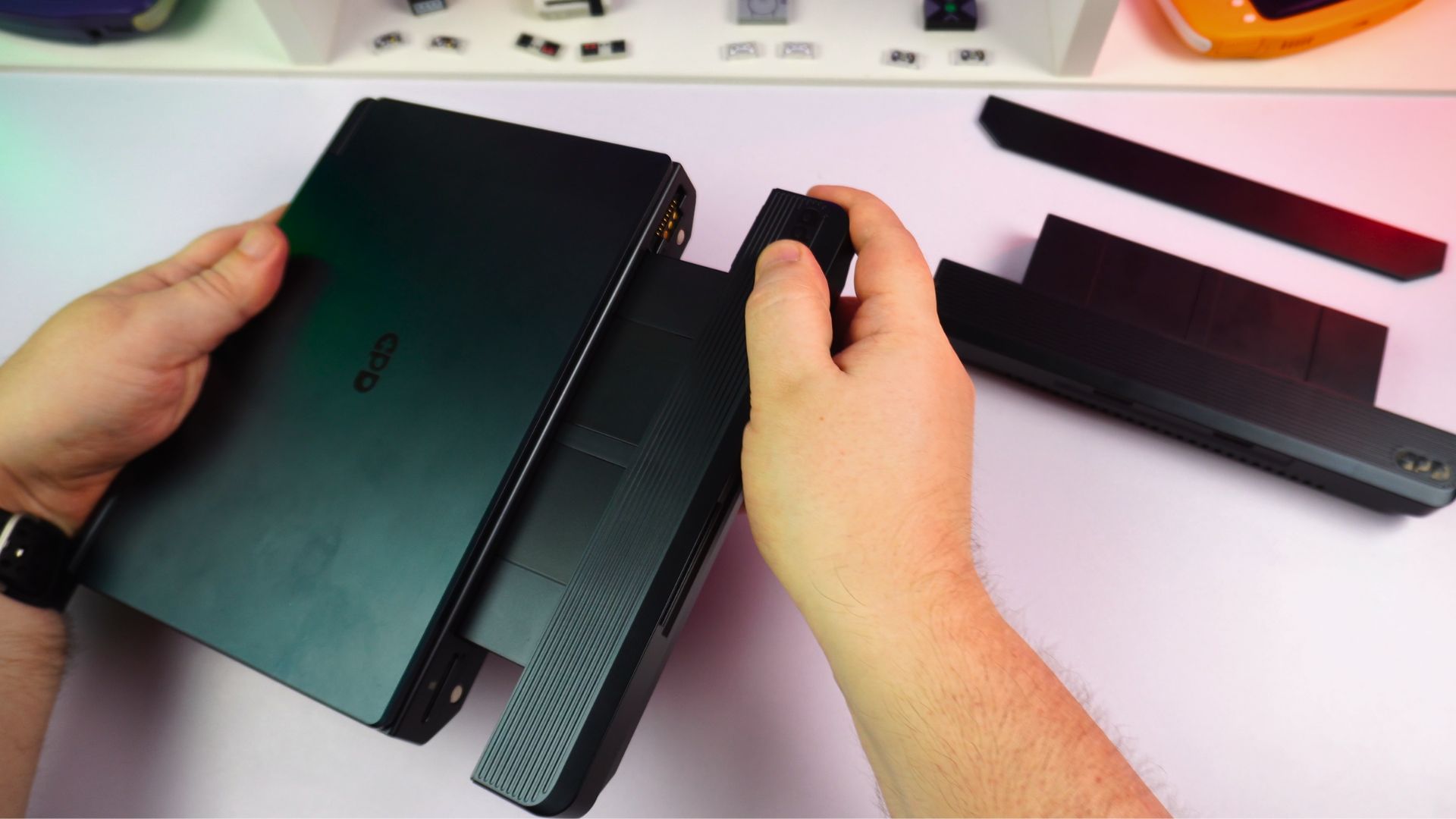
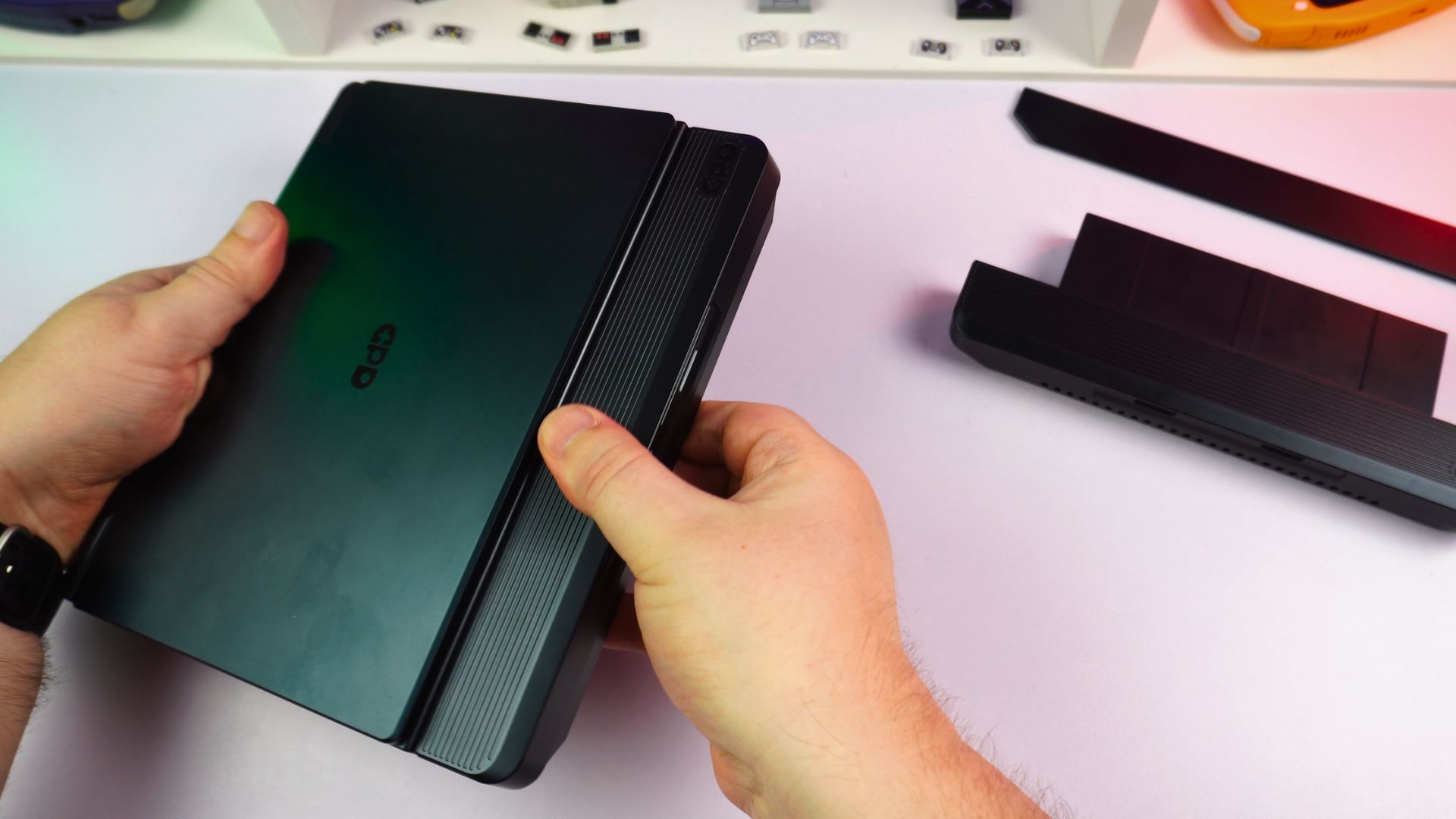
To connect the battery:
- Turn the GPD WIN MAX 3 off.
- Remove the protective cover from the module connector if fitted.
- Align the battery module with the front connector.
- Bring the module towards the device until the magnets pull it into position.
- Check that the module is seated evenly and securely.
- Connect the DC power adapter to the device.
- Allow the battery to charge before extended use.
The magnets hold the module firmly during normal use, but do not pull or twist the module sideways when removing it. Use one hand to firmly hold the device and the other to remove it carefully from the connector.
The device can also operate from DC power without the battery module attached.
Starting Windows for the first time
The GPD WIN MAX 3 comes with Windows 11 Home. To start the initial setup:
- Connect the battery module or plug in the 180W DC power adapter.
- Press the Power button located on the right side.
- Follow the Windows setup instructions.
- Select your language, region and keyboard layout.
- Connect to a Wi-Fi network.
- Sign in with a Microsoft account or create one if required.
- Set up Windows Hello or another sign-in method if available.
- Review the privacy and update settings.
- Allow Windows to complete the initial setup.
The power button includes an integrated fingerprint reader. If fingerprint authentication is available on your retail configuration, Windows will offer the option to set it up during or after the initial setup.
Create a recovery option
After completing the Windows setup, we recommend creating a recovery drive or keeping a current backup of important files. You can use Windows Backup, OneDrive or another backup application. A recovery drive can also be created from:
- Open the Start menu.
- Search for Recovery Drive.
- Open Create a recovery drive.
- Follow the instructions to create the drive on a USB flash drive.
Use a USB drive with enough capacity and do not store other important files on it.
Updating Windows 11
Keeping Windows updated helps maintain security, compatibility and system stability.
To check for Windows updates:
- Open the Start menu.
- Select Settings.
- Select Windows Update.
- Click Check for updates.
- Download and install any available updates.
- Restart the GPD WIN MAX 3 if requested.
- Repeat the process until no further updates are available.
Windows may restart more than once during the update process. Keep the device connected to power while major updates are being installed.
You can also open Advanced options in Windows Update to review update history, optional updates and restart settings.
Updating drivers
Windows Update
Windows Update is the easiest way to update many of the drivers used by the GPD WIN MAX 3.
- Open Settings.
- Select Windows Update.
- Click Advanced options.
- Select Optional updates if available.
- Install any suitable driver updates.
- Restart the device.
Device Manager
Device Manager can be used to check a specific hardware component.
- Right-click the Start button.
- Select Device Manager.
- Expand the category for the hardware you want to check.
- Right-click the device.
- Select Update driver.
- Choose Search automatically for drivers.
Do not remove a working driver unless you have a replacement available or support has advised you to do so.
AMD graphics and chipset drivers
The GPD WIN MAX 3 uses AMD Ryzen AI Max+ processors and integrated Radeon 8060S graphics.
For the latest compatible AMD graphics and chipset drivers, use the official AMD support website and its automatic driver detection tool: https://www.amd.com/en/support/download/drivers.html
Before installing a new driver, make a note of the current driver version. If a new driver causes a problem, this information can help with troubleshooting.
GPD software and drivers
GPD-specific software and updates may be provided through the DROIX Knowledge Base or official GPD support channels.
Only download BIOS updates, firmware and device-specific drivers from GPD, DROIX or another trusted official source. Do not install BIOS files intended for another GPD model.
Installing and using GPD Tool
The GPD WIN MAX 3 includes dedicated controls for opening GPD Tool.
Depending on the software version, GPD Tool may provide access to features such as:
- Performance and power profiles
- TDP or power-limit settings
- Fan and cooling controls
- Controller settings
- Gyroscope settings
- Macro configuration
- Display options
- Device information
The available options may differ depending on the version of GPD Tool and the installed firmware. When first using performance controls, start with the default or balanced profile. Increasing the power limit can improve performance but may also increase fan noise, heat and battery consumption. Avoid changing BIOS or advanced power settings unless you understand the effect of the change.
Adjusting the display
The GPD WIN MAX 3 has a 9.06-inch AMOLED touchscreen with a native resolution of 2400 × 1504.
To change the resolution or refresh rate:
- Right-click an empty area of the Windows desktop.
- Select Display settings.
- Choose the GPD WIN MAX 3 display.
- Adjust Display resolution or Advanced display settings.
- Select a refresh rate of 60Hz, 120Hz, 144Hz or 165Hz.
A higher refresh rate makes scrolling and compatible games feel smoother, but it may use more power.
For longer battery life, consider using 60Hz for office work and reading, 120Hz for a balance between smoothness and battery use, or 144Hz and 165Hz for games that can make use of the higher refresh rate.
The display also supports HDR10. HDR can improve compatible games and video content, but it may increase brightness and power consumption.
Installing games and applications
The GPD WIN MAX 3 runs Windows 11 Home, so you can install standard Windows applications and PC games.
Popular game stores include:
- Steam
- Xbox app and PC Game Pass
- Epic Games Store
- GOG
- Ubisoft Connect
- EA app
- Battle.net
When installing games, remember that the GPD WIN MAX 3 has a high-resolution display. Running a game at 1920 × 1080 or another lower resolution can improve frame rates and reduce power consumption.
For demanding games, start with the game’s recommended settings and adjust the resolution, graphics preset, texture quality, shadow quality, anti-aliasing, upscaling, frame-rate limit and performance profile as required.
The best settings depend on the game, processor configuration, power source and cooling module.
Using the GPD WIN MAX 3 with an external display
The GPD WIN MAX 3 can connect to a monitor or television through HDMI 2.1 or USB4.
To connect an HDMI display:
- Turn on the monitor or television.
- Connect an HDMI cable to the HDMI 2.1 port on the GPD WIN MAX 3.
- Select the correct HDMI input on the display.
- Press Windows + P.
- Choose Duplicate, Extend or Second screen only.
The USB4 Type-C port also supports DisplayPort 2.1 video output, including high-resolution output up to 8K at 60Hz according to the published specifications.
When using an external monitor, a USB-C dock or USB4 dock can also provide additional USB ports, networking and display connections.
Installing additional storage
The GPD WIN MAX 3 supports a main M.2 2280 PCIe 4.0 NVMe SSD and an additional M.2 2230 NVMe slot. It also includes a microSD Express slot for removable storage expansion.
Before opening the device:
- Back up your important files.
- Shut down Windows completely.
- Disconnect the power adapter.
- Remove the battery module.
- Allow the device to cool.
- Use the correct screwdriver and avoid touching exposed components.
An M.2 2230 installation may require access to the internal chassis. Only attempt this if you are comfortable working inside compact electronics. Otherwise, ask a qualified technician or contact support.
After installing an SSD:
- Start Windows.
- Right-click the Start button.
- Select Disk Management.
- Locate the new drive.
- Initialise it if Windows requests this.
- Create and format a new volume.
- Assign a drive letter.
Do not format the wrong drive. Check the drive capacity carefully before confirming any changes.
The microSD Express slot can be used for additional game storage and files. Standard microSD cards may also work at lower speeds, depending on compatibility.
Using the battery and fan modules
Battery module
The external battery module is designed for portable use. Battery life depends on the game or application, screen brightness, refresh rate, TDP and Windows power settings.
The GPD WIN MAX 3 review testing recorded approximately:
- 1 hour 47 minutes during a full-load Cinebench test at a 45W limit
- Around 12 hours while idle on the Windows desktop
- Approximately six hours during typical everyday use
These are test results from a pre-production Ryzen AI Max+ 388 unit and should not be treated as guaranteed battery life.
Fan module
The optional fan module provides additional cooling for sustained, mains-powered workloads. It may be useful when running demanding games for long sessions, using high-performance or high-TDP settings, performing video rendering or operating the device from a desk setup.
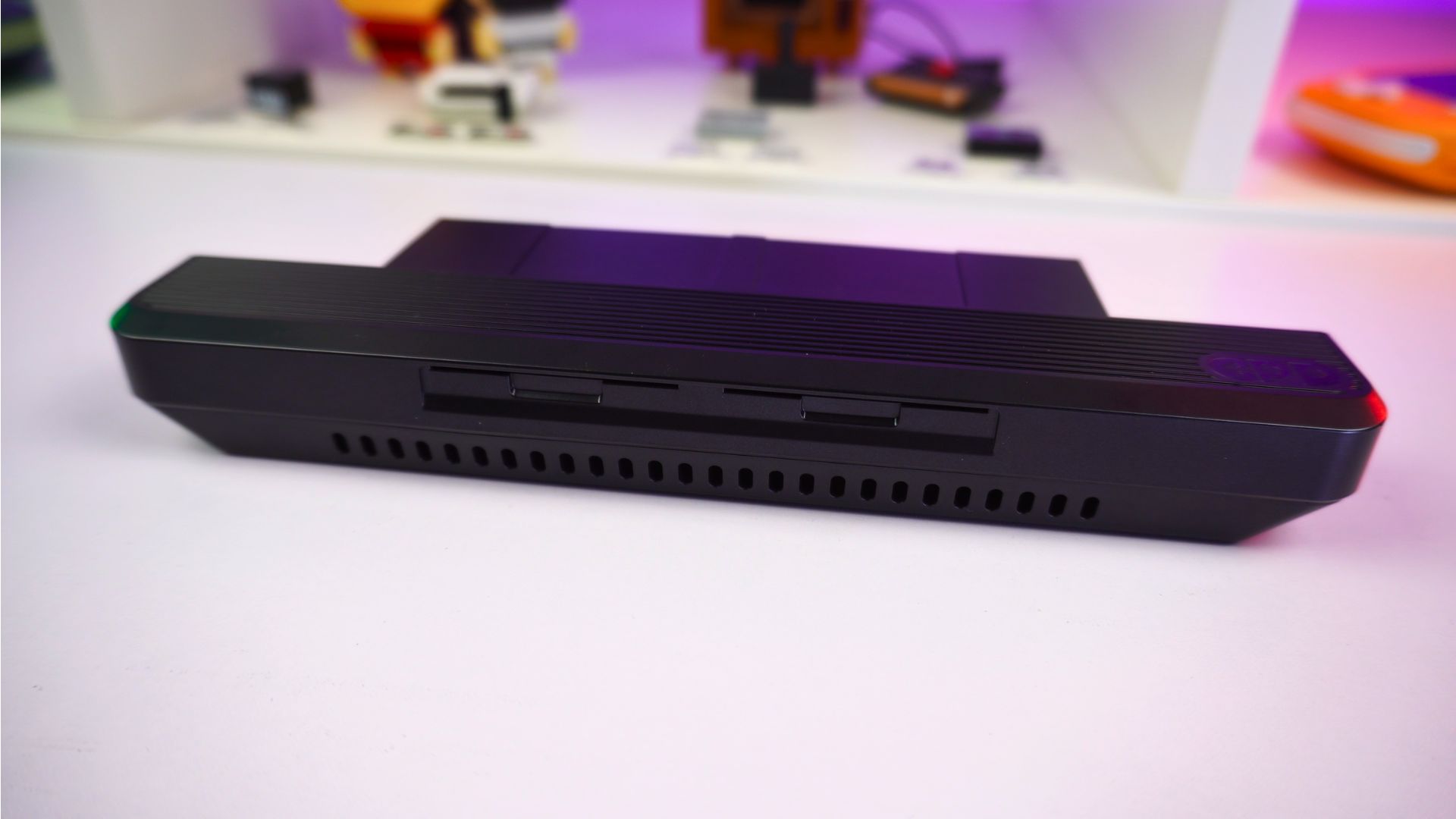
The fan module is not listed as part of the standard package. Check the product listing to confirm whether it is included in a particular bundle.
Power profiles
Use a lower power profile when running on battery and a higher-performance profile when connected to the 180W DC adapter.
Higher power settings can result in higher frame rates, higher temperatures, more fan noise, faster battery drain and shorter battery life.
Recommended software
Gaming
- Steam for PC game downloads and library management
- Xbox app for PC Game Pass
- Epic Games Store
- GOG
Emulation
- RetroArch for compatible classic systems
- RPCS3 for compatible PlayStation 3 games
- Vita3K for compatible PlayStation Vita games
- Xenia for compatible Xbox 360 games
Only use emulator software and game files in accordance with the applicable laws in your country. Compatibility varies between individual games.
Productivity
- Microsoft 365 or LibreOffice
- OneNote
- Google Chrome, Microsoft Edge or Firefox
- VLC Media Player
Utilities
- 7-Zip
- ShareX
- HWiNFO
- CrystalDiskInfo
Only download software from the official developer or publisher website.
Troubleshooting common problems
The GPD WIN MAX 3 does not turn on
Try the following:
- Connect the 180W power adapter.
- Leave the device charging for at least 15 minutes.
- Check that the DC connector is fully inserted.
- Disconnect and reconnect the battery module.
- Press and hold the power button for several seconds.
- Try starting the device with the battery module removed and the DC adapter connected.
If the device still does not start, contact support.
The battery is not detected
Check that:
- The battery module is aligned correctly
- The module connector is clean and undamaged
- The battery is seated fully against the device
- The DC adapter is connected
- Windows has been restarted
Do not use the battery if it is swollen, cracked, hot or physically damaged.
The device is running slowly
Check whether Windows updates are still installing, whether the device is running on battery power, whether a low-power profile is enabled, whether the game resolution is too high, whether the device needs additional cooling, whether the storage drive is nearly full or whether background applications are using system resources.
Open Task Manager by pressing Ctrl + Shift + Esc to check CPU, GPU, memory and disk usage.
The fan is noisy
Fan noise may increase during gaming or other demanding workloads, especially at higher TDP settings.
Try:
- Closing unnecessary applications.
- Selecting a balanced performance profile.
- Lowering the game’s graphics settings.
- Reducing the refresh rate.
- Ensuring that the ventilation openings are unobstructed.
- Using the optional fan module for sustained high-power workloads.
Do not cover the ventilation openings or use the device on soft bedding.
The display is blank on an external monitor
Try checking that the display is using the correct input, disconnecting and reconnecting the HDMI or USB-C cable, pressing Windows + P and selecting the required display mode, restarting the GPD WIN MAX 3 with the external display connected, testing another cable or display, and installing the latest graphics driver.
The touchscreen is not responding
Try restarting Windows, cleaning the screen with a soft, dry microfibre cloth, removing accessories that may be pressing against the display, checking Windows touchscreen and HID devices in Device Manager, and installing available Windows and driver updates.
Do not use abrasive cleaners or excessive pressure on the AMOLED display.
The controls are not working correctly
Try restarting Windows, reconnecting any controller or USB device, testing the controls at Hardware Tester, checking the controller settings in GPD Tool, checking for Windows or firmware updates, and testing the device without third-party controller software running.
If a control is physically stuck or does not register at all, contact support rather than forcing it.
GPD WIN Max 3
Windows Handhelds
Processor ModelRyzen AI Max+ 388
Memory / Capacity32GB
Storage / Capacity1TB
on 15 storesLooking after your GPD WIN MAX 3
To keep the device in good condition:
- Keep the ventilation openings clear.
- Avoid blocking the fan intake or exhaust.
- Do not expose the device to moisture.
- Store the battery module safely when removed.
- Do not leave the device in direct sunlight or a hot vehicle.
- Use the supplied or a compatible high-quality charger.
- Keep Windows, AMD drivers and GPD software updated.
- Back up important files regularly.
- Avoid opening the chassis unless necessary.
- Do not install BIOS files intended for another model.
- Transport the device in a protective case.
The AMOLED display should be cleaned with a soft microfibre cloth. Do not spray liquid directly onto the screen.
Contacting support
If you encounter a problem that cannot be resolved using this guide, contact DROIX before attempting repairs or opening the device.
When contacting support, provide:
- Your order number
- The GPD WIN MAX 3 processor configuration
- The installed RAM and storage capacity
- A description of the problem
- Any error messages
- The steps that cause the problem
- Photos or video where useful
- Details of any driver, BIOS or software changes recently made
The GPD WIN MAX 3 is covered by the DROIX two-year warranty when purchased from DROIX. Check the latest warranty terms for full conditions and exclusions.
From the blog
Visit the blog GPD WIN MAX 3 Pre-order – Ryzen AI Max+ Power in a Modular Handheld Gaming PC
21 September 2026
GPD WIN MAX 3 Pre-order – Ryzen AI Max+ Power in a Modular Handheld Gaming PC
21 September 2026
 GPD WIN MAX 3 Review – A Powerful Handheld Laptop for Gaming and Work
28 August 2026
GPD WIN MAX 3 Review – A Powerful Handheld Laptop for Gaming and Work
28 August 2026
 GPD WIN MAX 3 Review – Ryzen AI Max+ Power in a Modular Handheld Gaming PC Laptop
27 August 2026
GPD WIN MAX 3 Review – Ryzen AI Max+ Power in a Modular Handheld Gaming PC Laptop
27 August 2026
 GPD WIN MAX 3 Details Revealed: Ryzen AI Max+ Power, 165Hz AMOLED and Modular Battery Design
26 June 2026
GPD WIN MAX 3 Details Revealed: Ryzen AI Max+ Power, 165Hz AMOLED and Modular Battery Design
26 June 2026
Questions & answers