



Some devices require FAT32 formatted cards for tasks such as firmware updating, but if you have a 64GB or higher SD Card or USB driver, you wont be able to format it to FAT32 using the standard Windows format. Fortunately this is a Microsoft issue and to resolve it, all you will need to do is download a piece of software to be able to format it.
There are a number of programs that will allow you to format your large Micro SD Card to FAT32, here are three popular ones.
FAT32 Format GUI – http://www.ridgecrop.demon.co.uk/index.htm?guiformat.htm
Mini Tool Partition Wizard – https://www.partitionwizard.com/
DiskGenius – https://www.diskgenius.com/
The quickest and easiest program to use is FAT32 Format GUI. You can download and run the program from above.
First, check and double check that the Drive letter matches your SD card or USB drive. If it does not match, choose it from the drop down menu. The Allocation Size setting can be left as default. Choose Quick Format to save a lot of time when formatting.
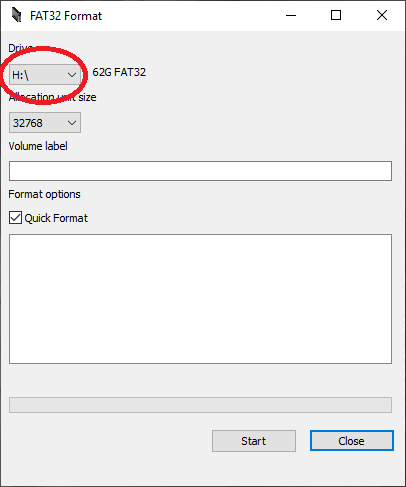
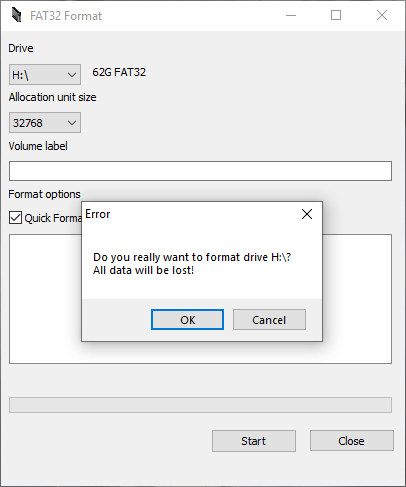
Once these have been checked, you can press the Start button to proceed. Double check that the right Drive letter has been chosen correctly and then press OK to continue.
The SD card/USB drive will now be begin to format to FAT32. This may take some time depending on the size of the card.
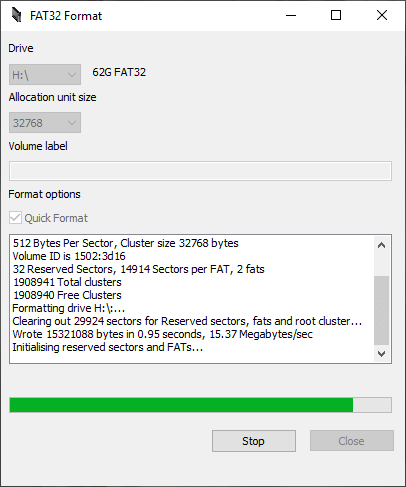
Once the card has finished formatting, you can choose the Close button to exit the program.
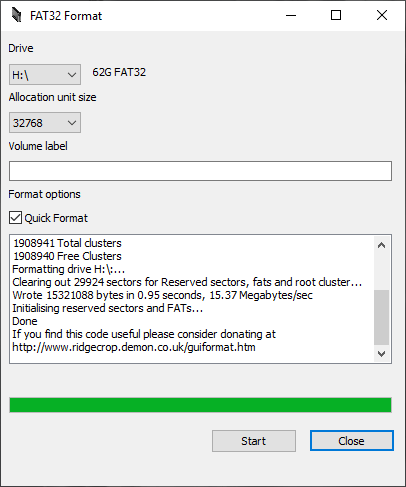
Your SD Card/USB Drive will now be formatted to FAT32 and ready to use on devices.
Latest from the blog
Visit the blog EPOMAKER Carbon X Review – 46 g Carbon-Fibre 8K Wireless Mouse for Competitive FPS
2 November 2026
 GPD WIN Mini Ultra – A Bigger 8-inch 120Hz Screen, Intel Arc G3 Extreme and Dual USB4 v2.0
27 October 2026
 RockTek PJ500 Ultra Review – A 1080p Home Cinema Projector for Streaming and Gaming
27 October 2026
 EPOMAKER RT75 and TH26 Review – Retro 75% Keyboard with Detachable Screen and 5-Key Macro Numpad
26 October 2026
Questions & answers