




Ако имате проблеми с актуализирането до най-новите AMD графични драйвери или имате проблем със съвместимостта, може първо да се наложи да деинсталирате старите драйвери, за да инсталирате други. Това лесно ръководство ще ви покаже процеса.
Деинсталиране на графични драйвери
AMD предоставя лесно приложение, което върши цялата работа вместо вас за деинсталиране на старите им графични драйвери. Можете да изтеглите техния софтуер Cleanup Utility тук.
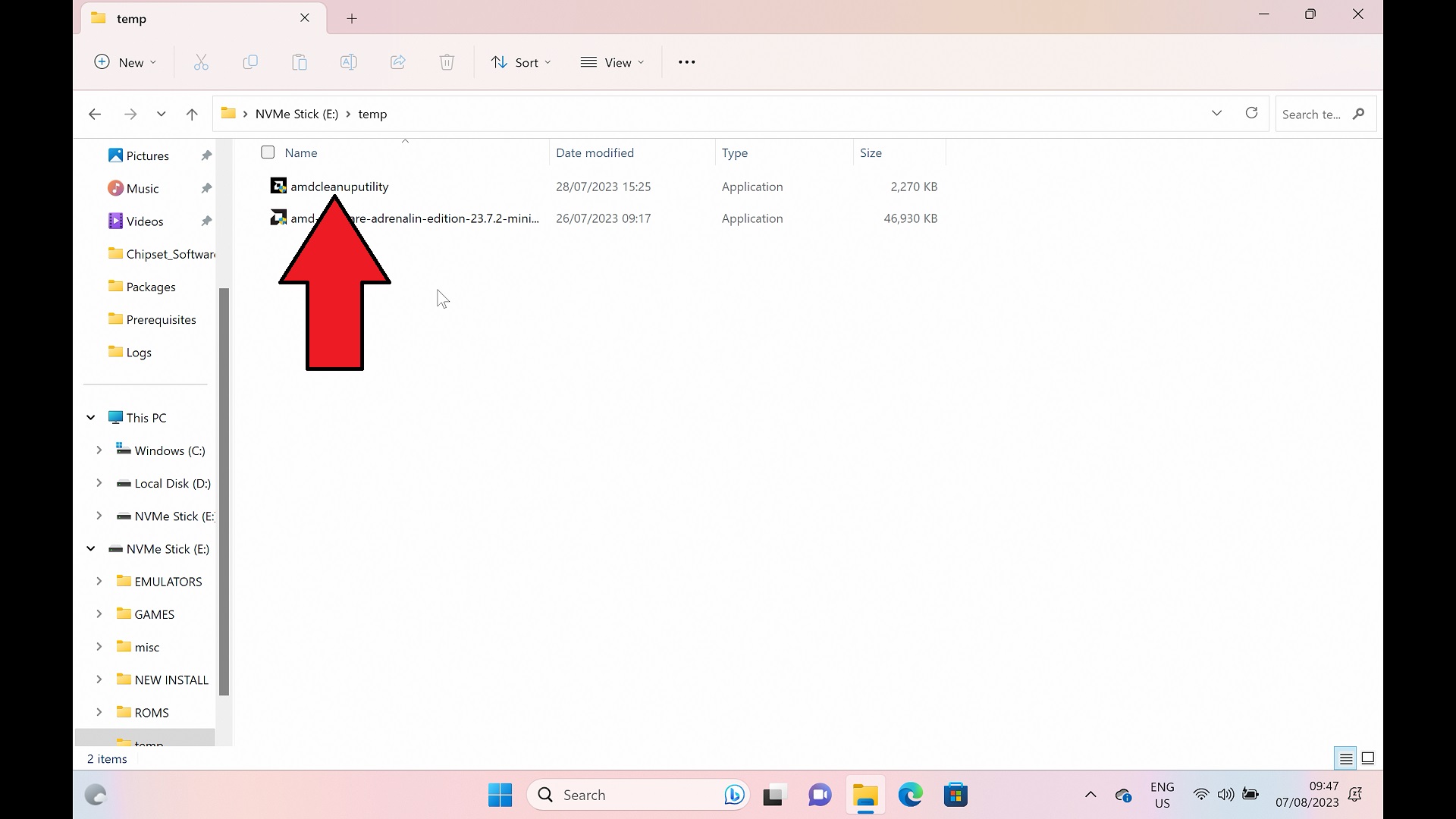
Стартирайте приложението AMD Cleanup Utility. Ако бъдете подканени за администраторски права, кликнете ДА.
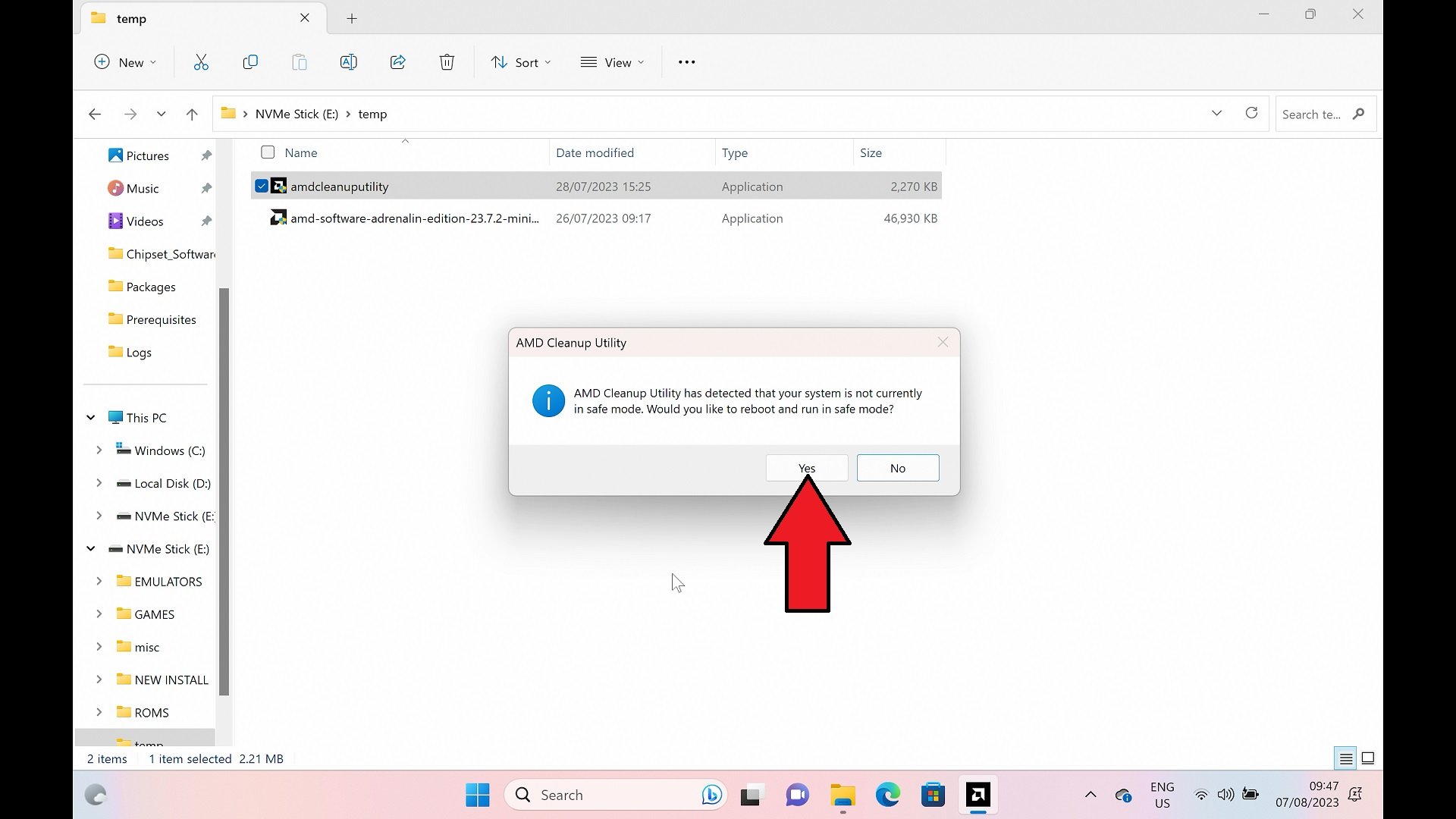
След момент или два ще бъдете подканени да рестартирате устройството си, за да заредите в Windows Safe Mode. Windows Safe Mode не използва системни драйвери и е по-лесно да деинсталирате драйвери, когато не се използват. Кликнете върху ДА за зареждане в безопасен режим.
Устройството ви ще се рестартира сега; зареждането в Windows може да отнеме малко повече време от обичайното. След като се зареди, софтуерът Cleanup Utility трябва автоматично да стартира и да ви подкани да продължите с деинсталацията. Изберете ДА.

Деинсталирането на драйверите може да отнеме минута или две; не затваряйте софтуера и не изключвайте Windows през това време. След като процесът приключи, ще бъдете информирани, че е завършен; кликнете върху FINISH за да продължите.

Кликнете върху Finish, за да завършите деинсталацията
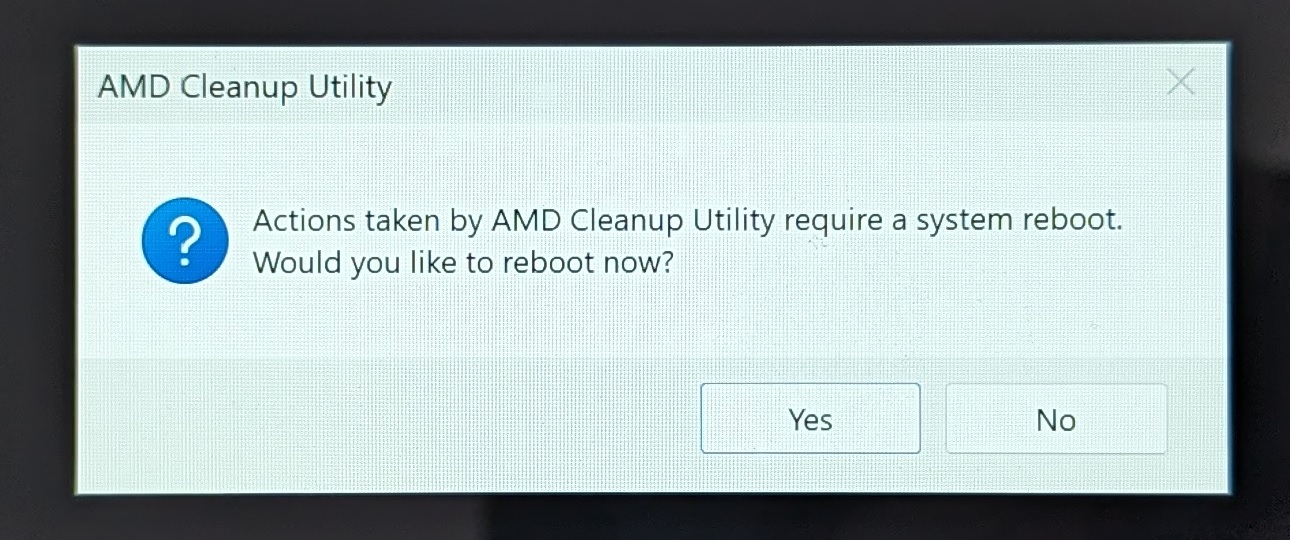
Сега ще бъдете подканени да рестартирате обратно в нормален режим на Windows. Изберете ДА за да продължите.
След като рестартирате към Windows, процесът на деинсталиране на графичния драйвер е завършен.
Инсталиране на AMD графични драйвери
Първо ще трябва да изтеглите най-новите графични драйвери от тук. Препоръчваме да изтеглите „Auto-Detect and Install Driver Updates for AMD Radeon™ Series Graphics and Ryzen™ Chipsets„. Това ще намери, изтегли и инсталира правилните драйвери за вашето устройство. Ако обаче това не проработи, можете да изберете вашия „Процесор с графична карта“ за ръчни устройства и обикновено мини компютри, от менютата по-надолу на техния уебсайт.
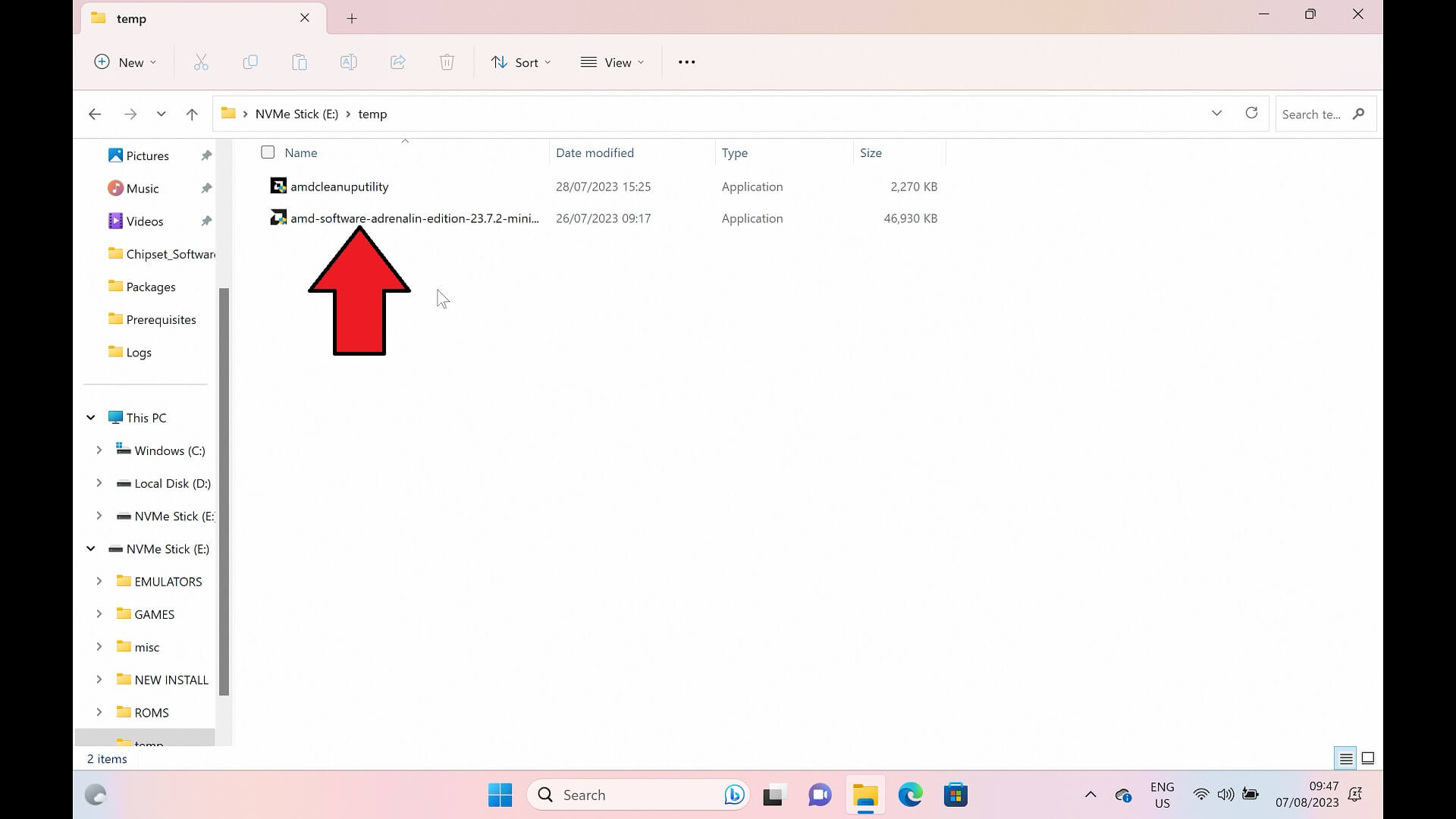
След като изтеглите софтуера за драйвера, можете да стартирате файла.
Софтуерът може да ви подкани да въведете път за инсталация; можете да изберете пътя по подразбиране. Софтуерът ще се инсталира и след това ще сканира системата ви за графичната карта. Това може да отнеме няколко минути.
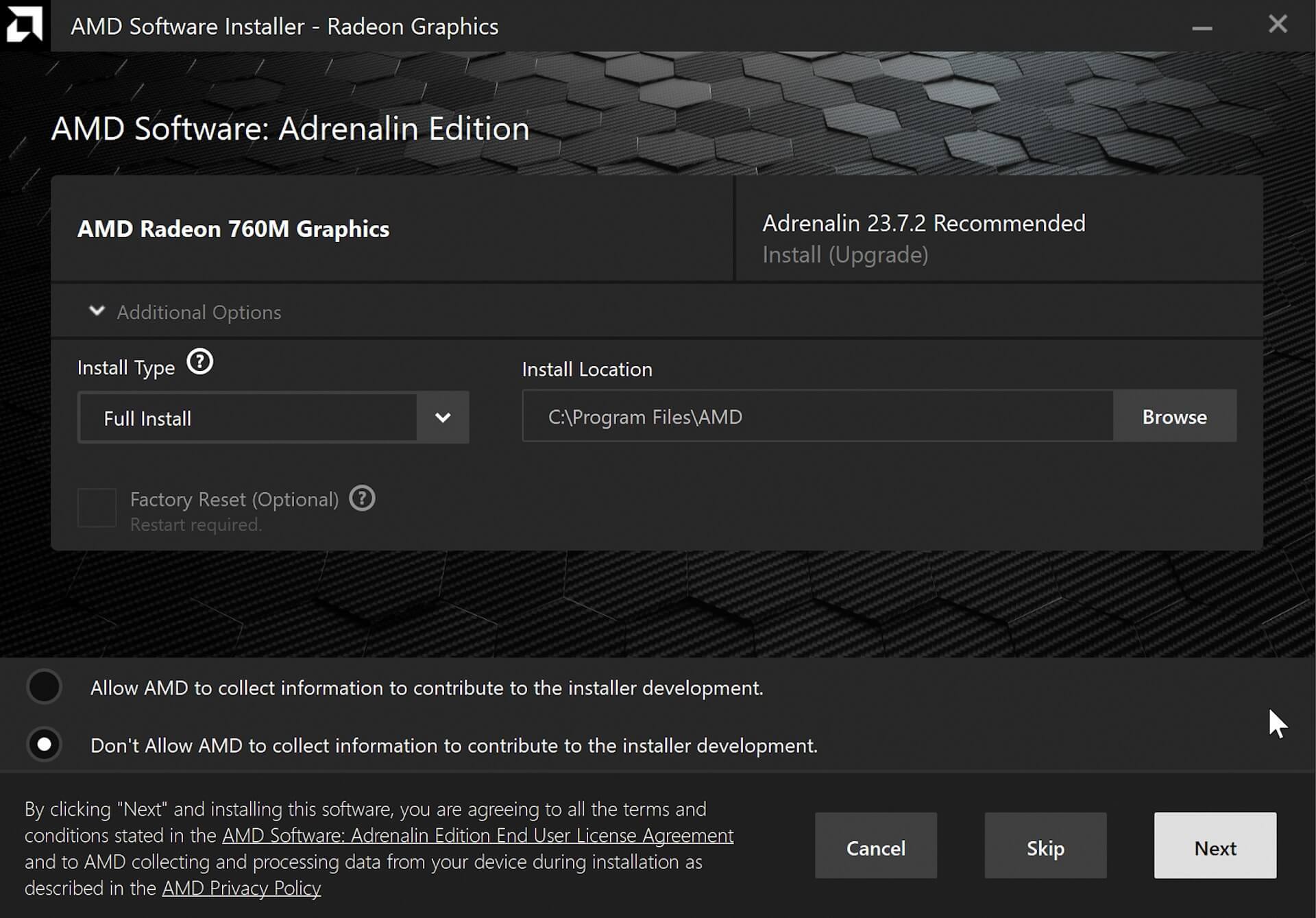
Ще ви бъде показано каква графична карта е открита на вашето устройство. В този пример това е AMD Radeon 760M Graphics от Ryzen 5 7640U на GPD WIN MAX 2 2023. Кликнете върху НАПРЕД за да продължите.
The software may visually look slightly different to what we show as there are different versions depending on the auto-detect or manual-detect downloads.
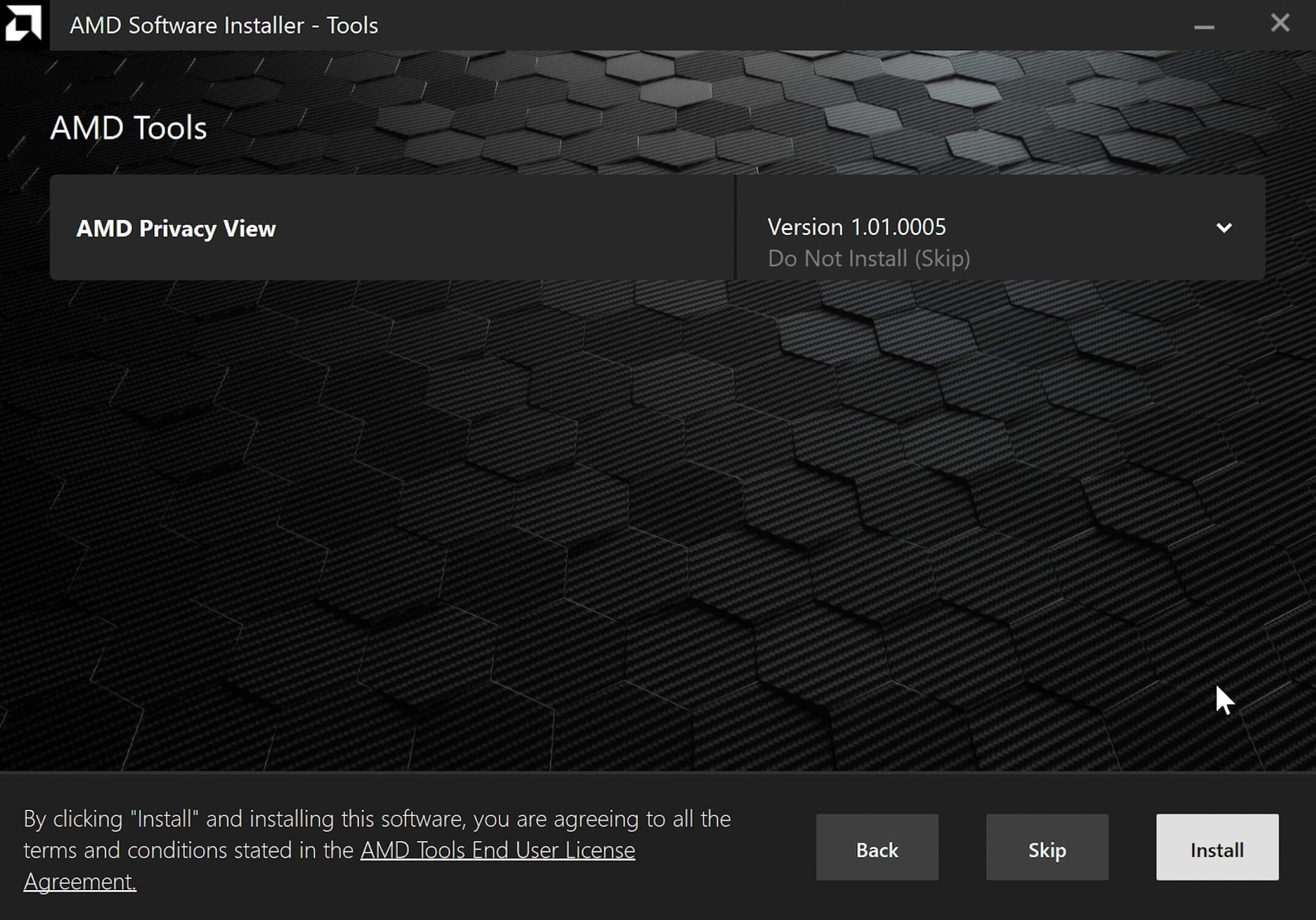
След това ще бъдете подканени дали желаете да инсталирате инструмента Privacy View; това е по избор, така че можете да решите дали да го инсталирате или не. Кликнете върху Напред за да продължите.
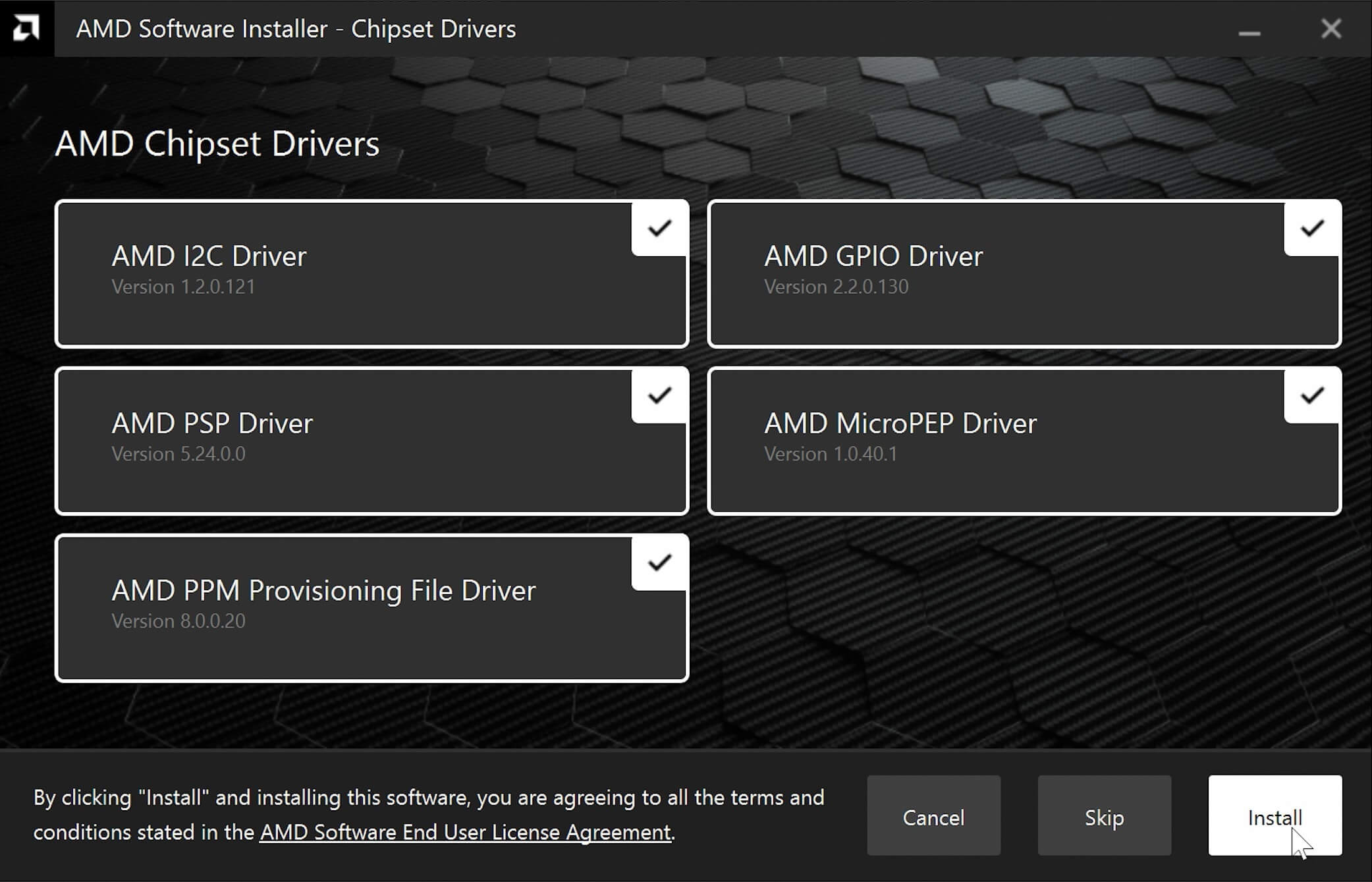
След това може да бъдете подканени да инсталирате драйвери за чипсета. Препоръчваме да инсталирате най-новите версии, затова отметнете всички тях и след това Инсталирайте за да продължите.
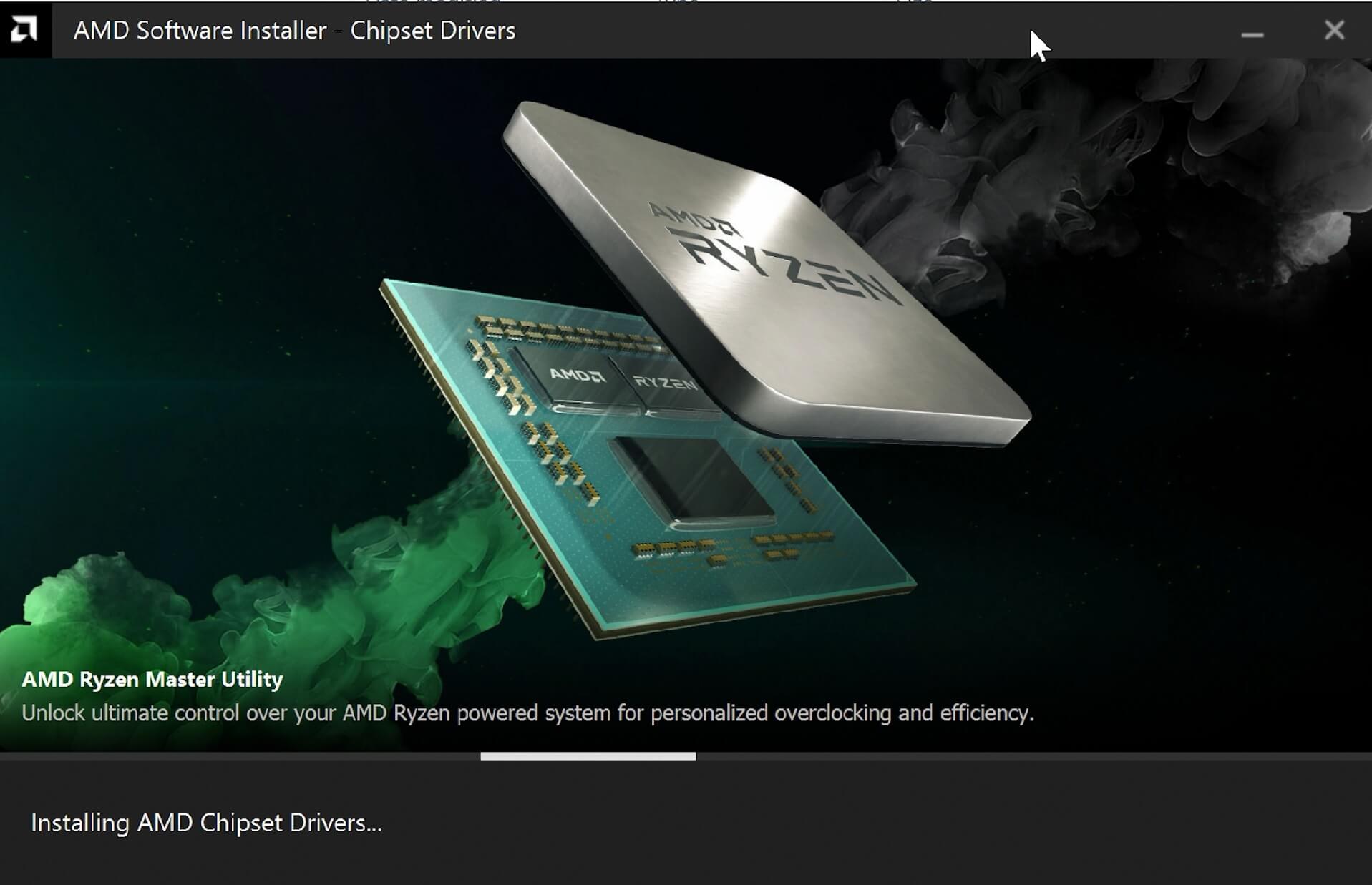
Софтуерът сега ще изтегли и инсталира най-новите драйвери за вашата графична карта. Това може да отнеме няколко минути в зависимост например от скоростта на вашия интернет. Моля, позволете на софтуера да изтегли и инсталира. Дисплеят на вашето устройство може да стане черен по време на процеса, докато се инсталират графичните драйвери.
След като процесът приключи, ще бъдете подканени да завършите или да рестартирате вашето устройство. Препоръчваме Рестартиране за да завърши процесът правилно.
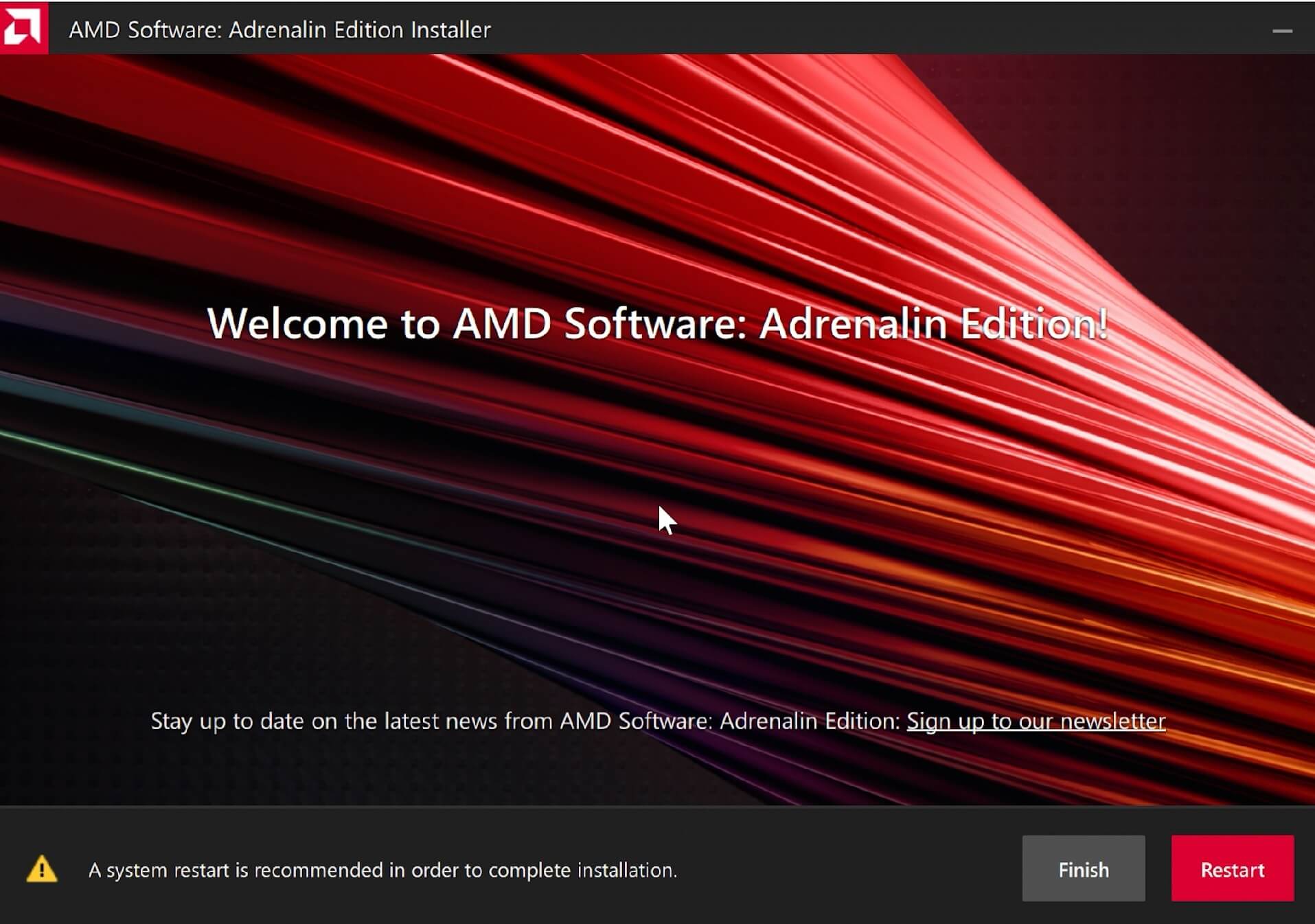
След като вашето устройство се рестартира, драйверите вече са инсталирани!
Latest from the blog
Visit the blog Ревю на EPOMAKER HE65 V2 TMR – 8K безжична скорост и хибридни суичове за компактни геймърски клавиатури
19.10.2026
Ревю на EPOMAKER HE65 V2 TMR – 8K безжична скорост и хибридни суичове за компактни геймърски клавиатури
19.10.2026
 Ревю на ONEXPLAYER 3 – 8.8-инчов AMOLED гейминг, модулни контроли и изненадващо дълъг живот на батерията
14.10.2026
Ревю на ONEXPLAYER 3 – 8.8-инчов AMOLED гейминг, модулни контроли и изненадващо дълъг живот на батерията
14.10.2026
 KONKR Pocket BLOCK е анонсиран: миниатюрен вертикален Android хендхелд с 4:3 екран
01.10.2026
KONKR Pocket BLOCK е анонсиран: миниатюрен вертикален Android хендхелд с 4:3 екран
01.10.2026
 Преглед на KONKR Pocket ADVANCE – джобен Android гейминг хендхелд, фокусиран върху GBA
24.09.2026
Преглед на KONKR Pocket ADVANCE – джобен Android гейминг хендхелд, фокусиран върху GBA
24.09.2026
Въпроси и отговори 4
Ahoj cca před týdnem se mi po najeti Win 11 vše zabarvilo do růžova – odstín. Hledal jsem závadu v monitoru, ale ten je v pořádku a následně jsem teď postupoval dle Vašeho postupu a smazal všechny ovladače a po najetí Win 11 jsou barvy zase normální, ale jakmile nainstaluji Adrenalin Edition vše se opět zabarví do hodně nepříjemné růžové barvy. Funguje i jakmile odinstaluji Adrenalin Edition. Je chyba v nějaké jejich akutalizaci toho softwaru, nebo jinde ?
Zkuste nainstalovat starší verzi ovladače. Pokud použijete automatickou instalaci, nainstaluje se nejnovější verze, která může mít problémy. Starší verze si můžete stáhnout z webu AMD.
Super, pomohlo to. Bál jsem se, že odešla grafika nebo něco, protože se mi zobrazovala pouze integrovaná. Po odinstalování a znovu nainstalování ovladačů funguje !
To se skvěle čte. Mnoho problémů může často vyřešit přeinstalace ovladačů.