




Files used in this guide
Changelog
- Source guide: How to fix battery icon disappearing on the GPD WIN MAX 2 2025
Older versions stay downloadable for rollbacks — every version keeps its own verified file.
An issue has been identified with the GPD WIN MAX 2 2025 HX 370 models where upgrading the AMD graphics drivers to a newer version, may in some cases, result in the battery icon no longer displaying.
There have been a few different fixes previously that had worked for some users, and not for others. The below fix has been tested and replicated on a few different devices and we had success. Thanks to expormz on Reddit for the information.
Copy the following text and save it into a file named scan-devices.xml. Alternatively you can download and extract the file here.
<?xml version="1.0" encoding="UTF-16"?>
 <Task version="1.2" xmlns="http://schemas.microsoft.com/windows/2004/02/mit/task">
   <RegistrationInfo>
     <Date>2025-10-09T23:43:33.4221277</Date>
     <Author>GPDWINMAX2\expormz</Author>
     <URI>\scan-devices</URI>
   </RegistrationInfo>
   <Triggers>
     <BootTrigger>
       <Enabled>true</Enabled>
     </BootTrigger>
   </Triggers>
   <Principals>
     <Principal id="Author">
       <UserId>S-1-5-21-329286994-4123067376-2057571490-1001</UserId>
       <LogonType>S4U</LogonType>
       <RunLevel>HighestAvailable</RunLevel>
     </Principal>
   </Principals>
   <Settings>
     <MultipleInstancesPolicy>IgnoreNew</MultipleInstancesPolicy>
     <DisallowStartIfOnBatteries>false</DisallowStartIfOnBatteries>
     <StopIfGoingOnBatteries>true</StopIfGoingOnBatteries>
     <AllowHardTerminate>true</AllowHardTerminate>
     <StartWhenAvailable>false</StartWhenAvailable>
     <RunOnlyIfNetworkAvailable>false</RunOnlyIfNetworkAvailable>
     <IdleSettings>
       <StopOnIdleEnd>true</StopOnIdleEnd>
       <RestartOnIdle>false</RestartOnIdle>
     </IdleSettings>
     <AllowStartOnDemand>true</AllowStartOnDemand>
     <Enabled>true</Enabled>
     <Hidden>false</Hidden>
     <RunOnlyIfIdle>false</RunOnlyIfIdle>
     <WakeToRun>true</WakeToRun>
     <ExecutionTimeLimit>PT72H</ExecutionTimeLimit>
     <Priority>7</Priority>
   </Settings>
   <Actions Context="Author">
     <Exec>
       <Command>C:\Windows\System32\pnputil.exe</Command>
       <Arguments>/scan-devices</Arguments>
     </Exec>
   </Actions>
 </Task>
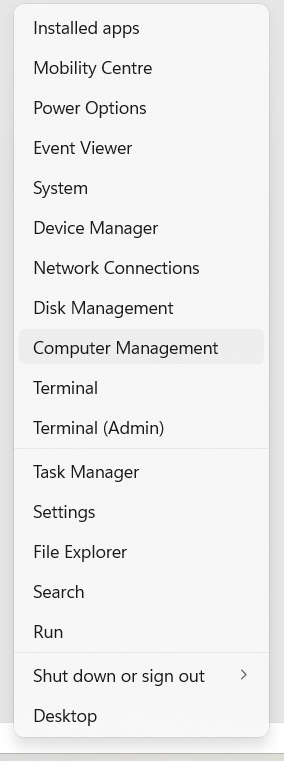
Right Click on the Windows Start button and select Computer Management
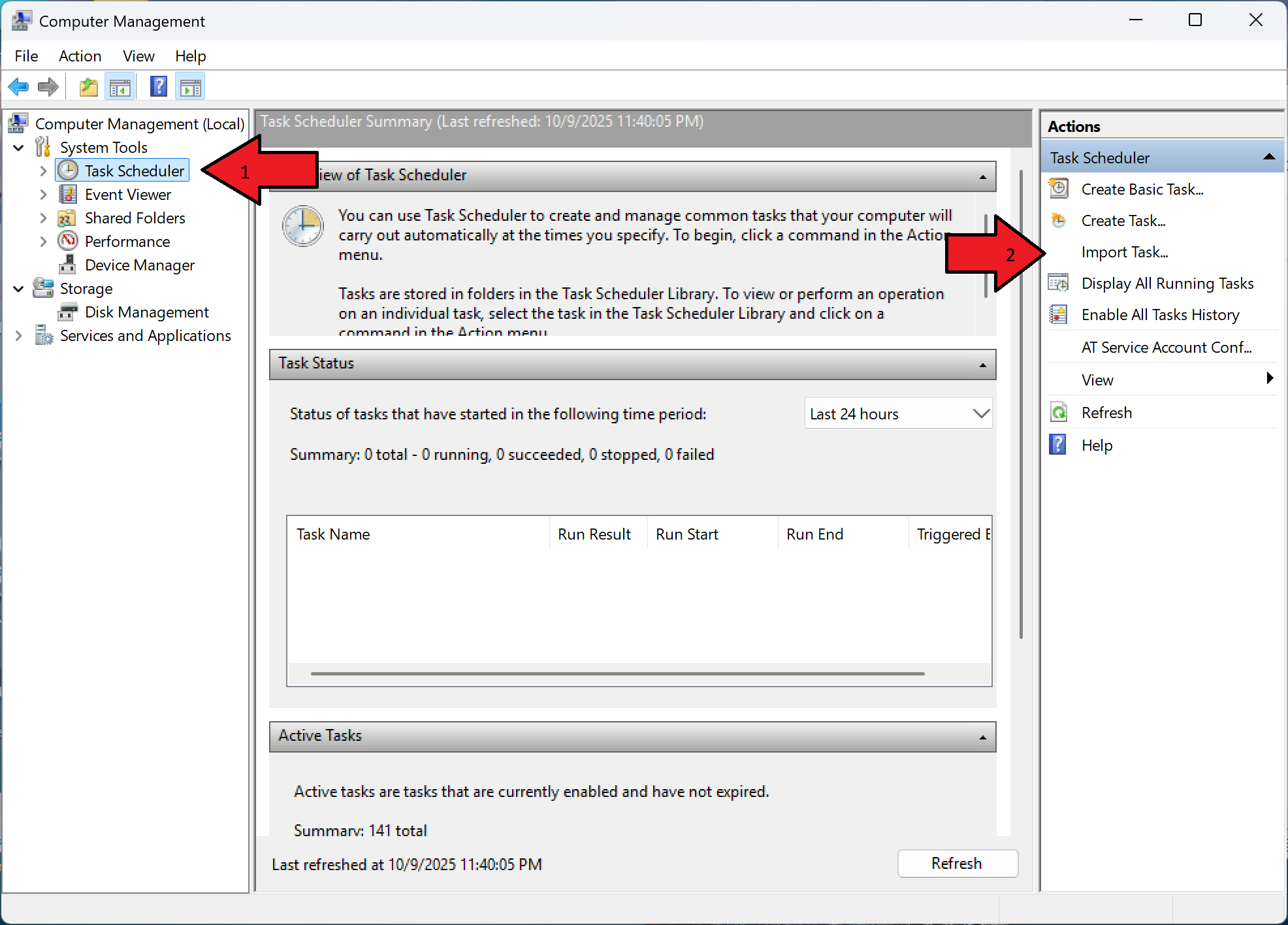
Click on Task Scheduler and then select Import Task on the right panel.
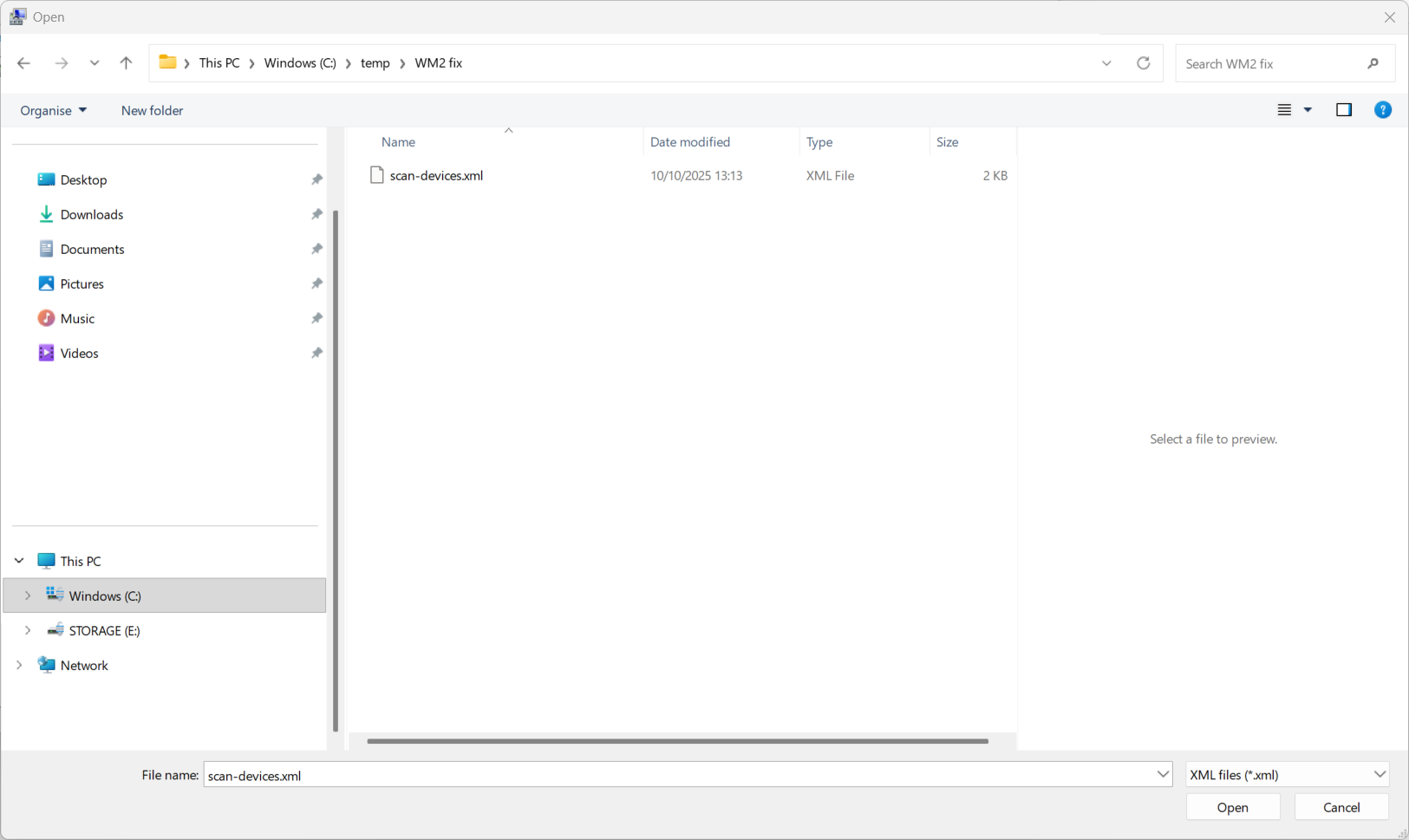
Locate and select the scan-devices.xml file and click on OK.
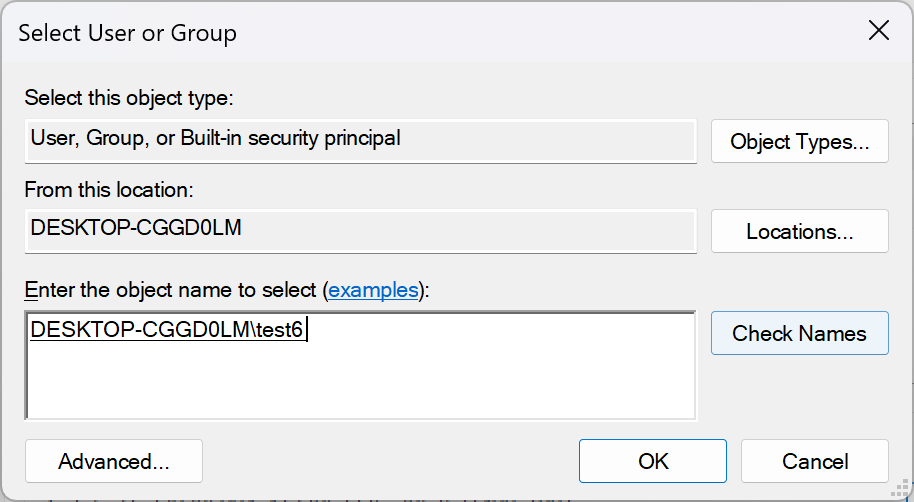
Enter your Windows account name in the Enter the object name to select box, then click on Check Names
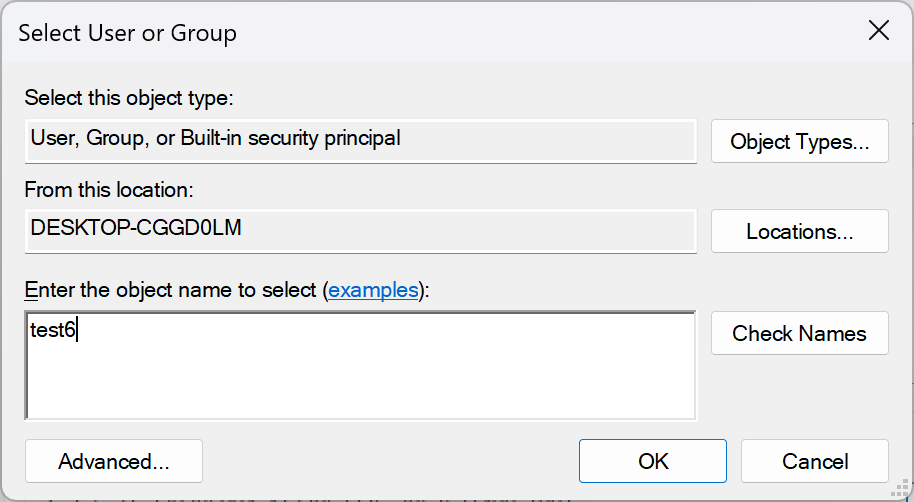
Once Confirmed you can click on OK to proceed
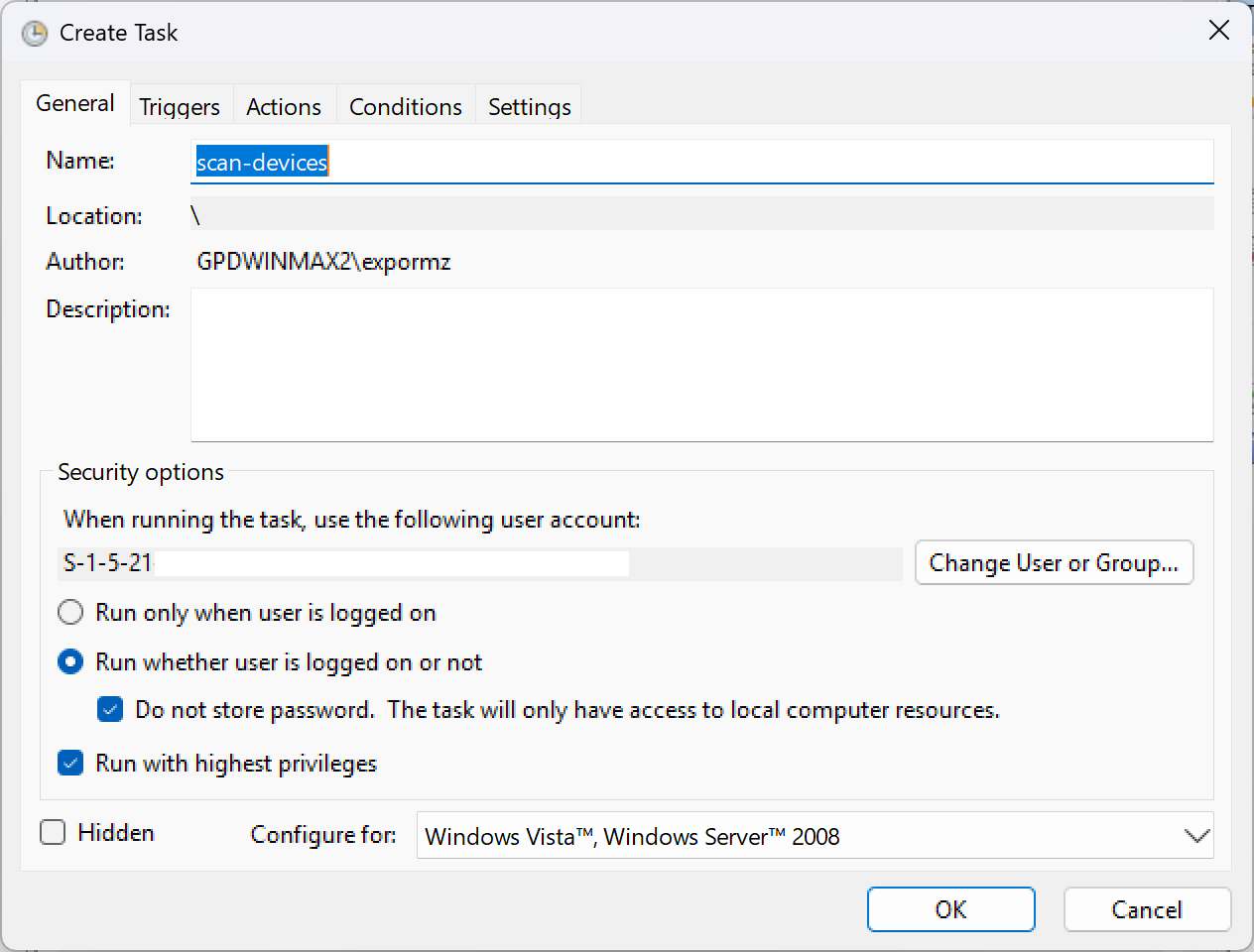
On the Create Task window, check that Run whether user is logged on or not and Run with the highest privileges are both selected as shown below, then press OK to proceed
When back at the Task Scheduler options, you can close the software. Reboot your GPD WIN MAX 2 2025, and the battery icon will be displaying again.
Some points of note:
This will only work on the account you chose when entering your account name. You must repeat the process for additional Windows accounts.
If you do have any issues after trying this fix, please get in contact with our support at [email protected] with your order number and some details and we will be happy to help.
Questions & answers