




Files used in this guide
Versions (3)
- Source guide: How To Reinstall Windows On Your CK1/CK2 Mini PC
- Source guide: How to install Windows 10 on DroiX CK2
- Source guide: How to install Windows 10 on DroiX CK2
Older versions stay downloadable for rollbacks — every version keeps its own verified file.
Versions (3)
- Source guide: How to reinstall the RG350M firmware
- Source guide: How to install Windows 10 on DroiX CK2
- Source guide: How to reinstall the RG350M firmware
- Source guide: How to install Windows 10 on DroiX CK2
- Source guide: How to reinstall the RG350M firmware
- Source guide: How to install Windows 10 on DroiX CK2
Older versions stay downloadable for rollbacks — every version keeps its own verified file.
This guide shows how to install Windows on the CK2 should you need to do it.
You will need:
A 16GB or larger USB stick
CK2 Windows installer: Download the CK2 Windows 10 installation image in two parts here and here. Extract the file using an app such as 7zip, WinRAR, Zip etc.
Disk image writing software, you can use any software such as Win32 DiskImager or Etcher for example. In this guide we are using Imager as there are versions for all operating systems and its not just for installing Raspberry Pi images.
Imager for Windows
Imager for macOS
Imager for Ubuntu
Preparing the USB Stick
Open the Imager software. Click on Choose OS.
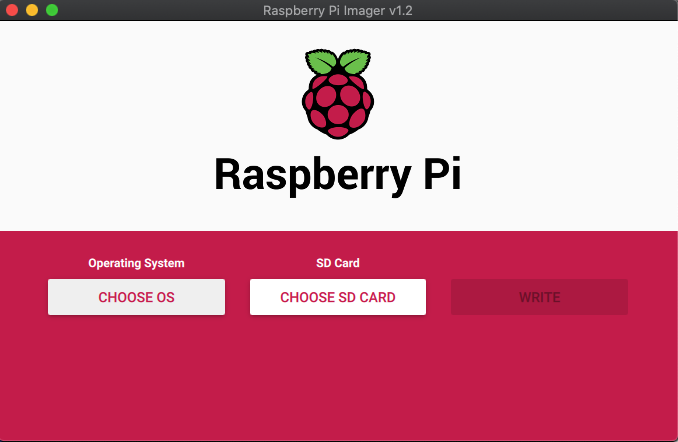
Scroll down the list and choose: Use Custom – Select a custom .img from your computer.
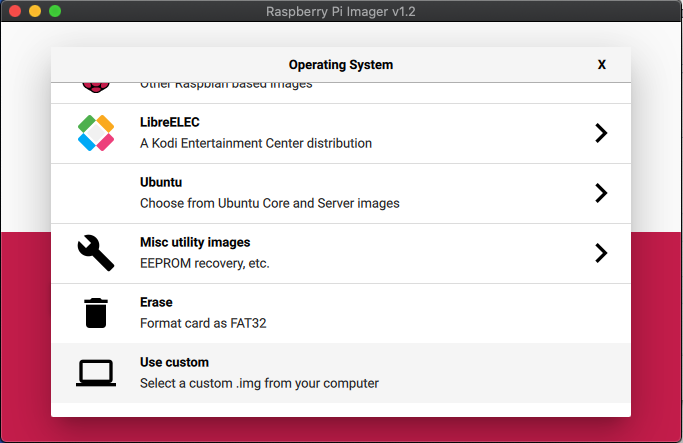
Locate the Windows Install .img file on your PC and select it. Now click on Choose SD Card option and choose the correct drive for the USB Stick.
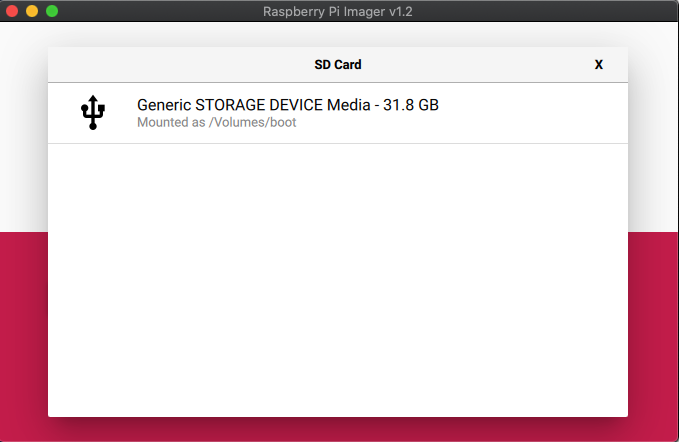
Once selected, confirm everything is correct such as the correct USB stick. Then choose the Write option. The image file will now be written to the USB stick.
Please do not shut down your device or remove the USB stick until the process is completed. This may take some time depending on the size of the image file and the USB stick speed.
Once the process has completed, you can close the software and safely eject the USB stick from your PC.
Installing Windows
Insert the USB Stick into an available USB port on the CK2.
Press the power button and repeatedly tap the F7 key on your keyboard. Keep doing this until the Boot Menu is shown.
You can now choose the USB stick from the devices. In this example below it is UEFI: KingstonDataTraveler. Pick the appropriate name for your USB Stick.
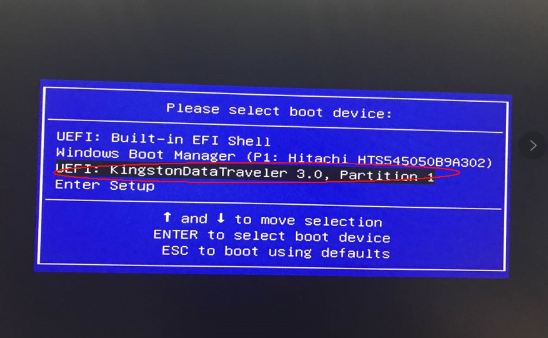
Once chosen, the install process will begin. This part of the process is automated and does not require any setting up. The process should not take long, it depends on the speed of the USB stick, it shouldn’t be more than 20 minutes or so but be patient and it will install.
Once Windows has been installed you will be booted in to Windows System Preparation Mode. You do not need to do anything here. On the Window prompt, choose OOBE mode and Reboot as the Shutdown option, then click on OK.
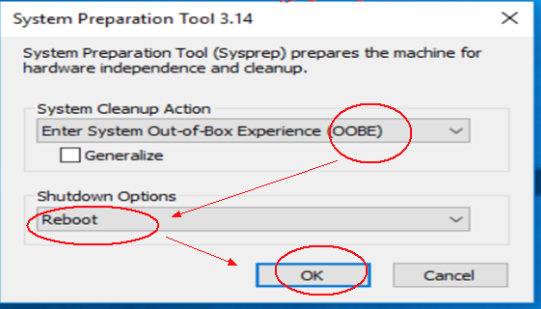
The system will clean up any remaining files and reboot.
After a short while you will see the Windows First Time setup screen and it is now ready to use.
Latest from the blog
Visit the blog ONEXPLAYER 3 Review – 8.8-Inch AMOLED Gaming, Modular Controls and Surprising Battery Life
14 October 2026
ONEXPLAYER 3 Review – 8.8-Inch AMOLED Gaming, Modular Controls and Surprising Battery Life
14 October 2026
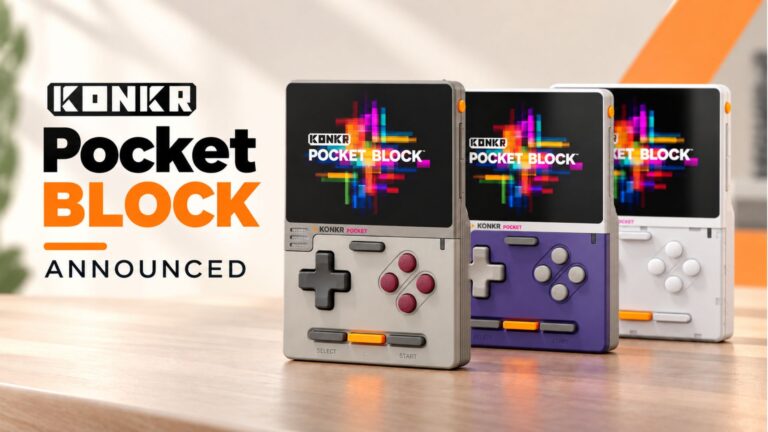 KONKR Pocket BLOCK Announced: A Tiny Vertical Android Handheld with a 4:3 Screen
1 October 2026
KONKR Pocket BLOCK Announced: A Tiny Vertical Android Handheld with a 4:3 Screen
1 October 2026
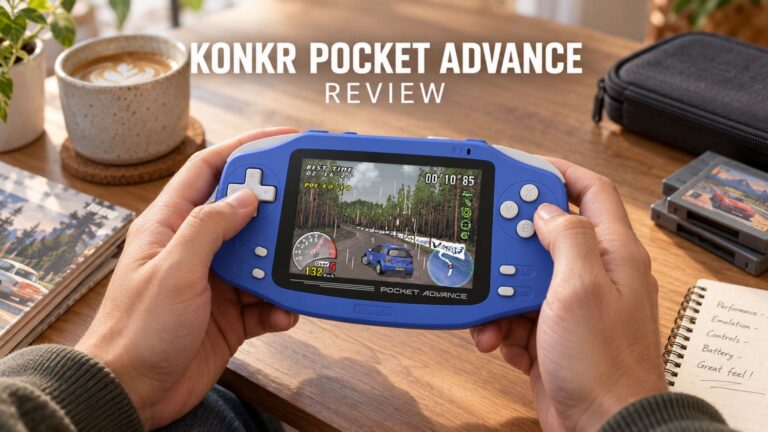 KONKR Pocket ADVANCE review – A pocket-sized GBA-focused Android gaming handheld
24 September 2026
KONKR Pocket ADVANCE review – A pocket-sized GBA-focused Android gaming handheld
24 September 2026
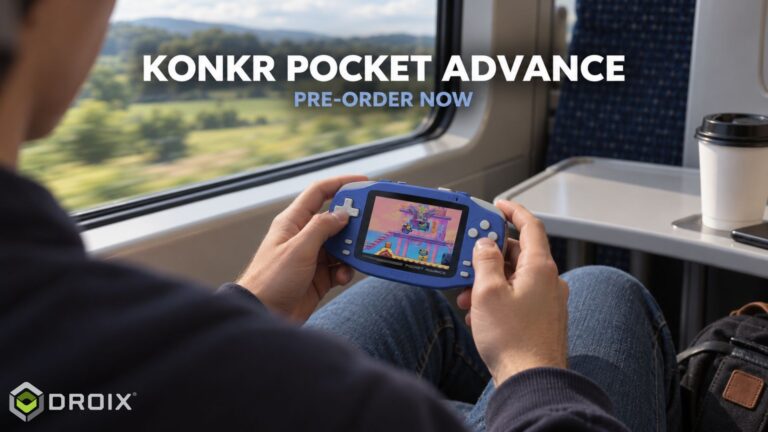 KONKR Pocket Advance Pre-order: A Compact Android Handheld Built for Retro Gaming
23 September 2026
KONKR Pocket Advance Pre-order: A Compact Android Handheld Built for Retro Gaming
23 September 2026
Questions & answers